
Seeing the Settings app crash on your OPPO Find X8 Pro can stop you from adjusting anything on your phone. This usually happens because of a temporary software glitch or some corrupted data that the app can't handle. Let's get it working again.
Force Restart Your Phone
This is the quickest thing to try and it fixes a lot of random issues. A force restart clears out the phone's temporary memory without deleting any of your personal data.
Just press and hold the power button on the side for about 10 seconds. Keep holding it until you see the OPPO logo appear on the screen, then let go. Your phone will boot up fresh, and you can check if Settings opens normally.
Clear the Settings App Cache
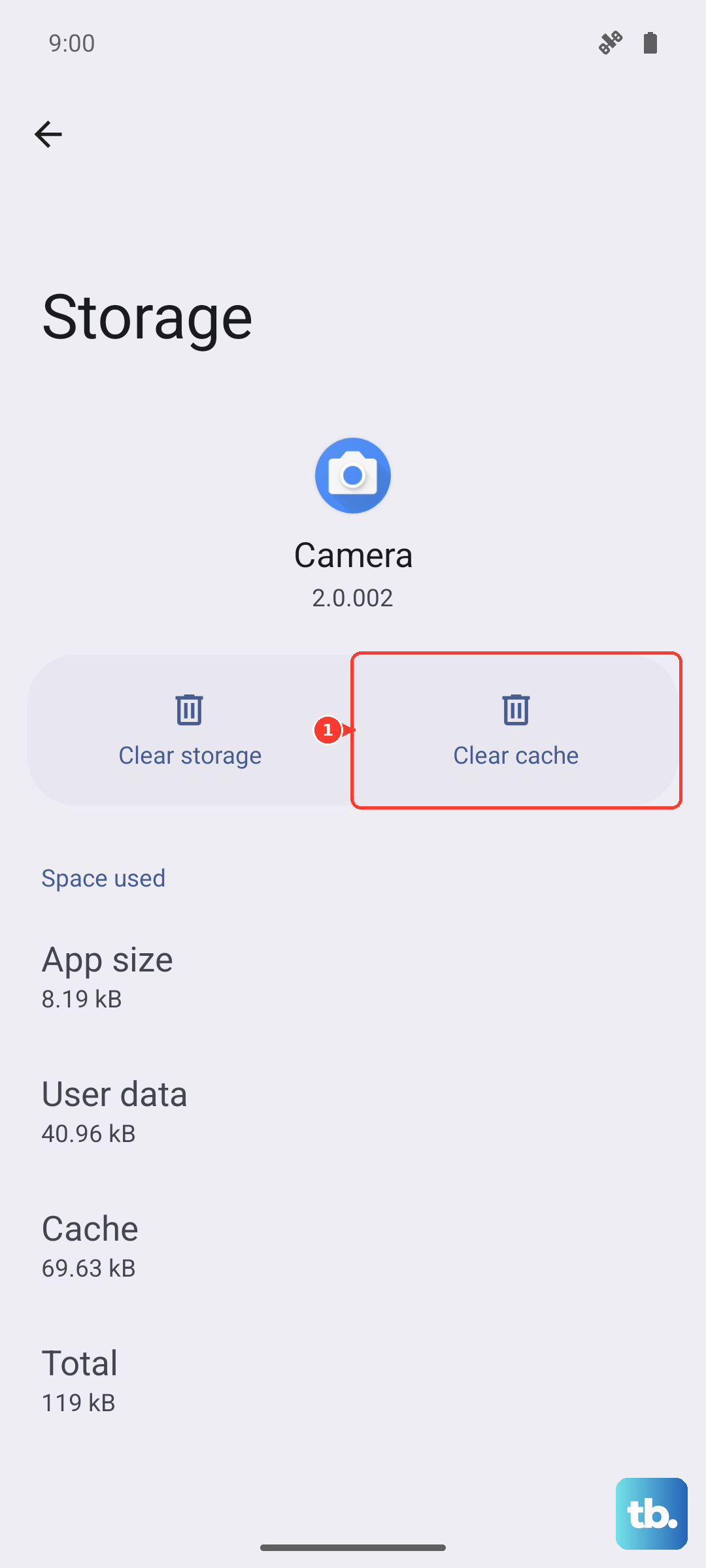
The Settings app stores temporary cache files to help it run faster. Sometimes these files get messed up and cause the app to crash as soon as you open it. Clearing this cache is a safe first step that won't affect your personal settings.
Go to Settings > Apps > App Management. Find and tap on the "Settings" app in the list. Then, tap on Storage Usage and hit the Clear Cache button at the bottom. Try opening Settings again.
Force Stop and Update Settings
If the app is stuck in a bad state, forcing it to close completely can help. While you're in the app info screen for Settings, you can also check for an update. System apps on ColorOS sometimes get updates through the app store to fix bugs.
From the same Settings app info page, tap Force Stop and confirm. Then, back out and open the Google Play Store. Search for "Android System" or "Settings Services" and see if there's an update available. Installing it can resolve compatibility issues.
Check for a System Software Update
Your OPPO Find X8 Pro runs on Android 15 with ColorOS 15 on top. OPPO regularly releases updates that fix bugs affecting system apps like Settings. An outdated system is a common culprit for these crashes.
Open Settings (if you can, or use the search bar from your home screen) and go to About Phone > Software Update. Tap Check for Updates. If an update is available, make sure your phone is charged above 50% and connected to Wi-Fi before installing it.
Manage Google Play Services
Google Play Services works in the background to help system apps communicate properly. If it has an issue, it can make other apps, including Settings, behave unpredictably. You can try clearing its cache first.
Head back to Settings > Apps > App Management. Tap the three-dot menu in the top right and select Show System Apps. Now find and tap Google Play Services. Go to Storage Usage and tap Clear Cache. Don't clear the data here unless you're instructed to, as it can affect other apps.
Boot Into Safe Mode
This helps you figure out if a recently downloaded third-party app is causing a conflict. Safe Mode temporarily disables all apps you installed yourself, leaving only the original system software to run.
Press and hold the power button until the power off menu appears. Then, press and hold the "Power off" option on your screen. A prompt will ask if you want to reboot to Safe Mode. Tap OK. Once in Safe Mode, which will be indicated in the bottom corner, try opening Settings. If it works fine, a third-party app is likely the problem.
To exit Safe Mode, just restart your phone normally.
Reset App Preferences
This is a useful step before considering a full factory reset. It resets all your app permissions, default apps, and background data restrictions back to their original state. It won't delete any app data or personal files, but you will have to re-grant permissions to apps later.
Go to Settings > Apps > App Management. Tap the three-dot menu in the top right and select Reset App Preferences. Confirm your choice. This can clear up any incorrect settings that might be tripping up the system Settings app.