Your OPPO Find X8 Pro carries a studio-quality 4-mic array, so it stings when callers say they cannot hear you, a voice note records nothing but silence, or a video clip plays back without your narration. The reassuring part is that most microphone faults on this phone trace back to a permission, an obstruction, or a small software hiccup rather than a broken component. Work through the steps below in order, starting with the safest, no-risk checks and saving anything that touches your data for the very end.
Start by confirming the basics with a free microphone test. It shows a live level meter and lets you hear a short playback, so you know in seconds whether any signal is coming through.
Pin down whether the mic fails everywhere or in one app
Before you change a single setting, find out how widespread the problem really is. The goal is to learn whether the microphone fails everywhere or only inside one app, which tells you whether you are chasing a hardware fault or an app-level setting.
- 1.Record a short clip in the stock Recorder app and play it back.
- 2.Make a test call in the built-in Phone app and ask the other person if your voice comes through.
- 3.Try the microphone in a third-party app such as WhatsApp.
If only one app is affected, the issue is that app or its permission rather than the hardware, and you can skip ahead to the permission fix. If every app fails, the problem is more likely the phone's own microphones or its software, so keep working down the list.
Give the phone a clean force restart
A frozen audio service is one of the most common reasons a microphone suddenly goes quiet, and a force restart clears it without deleting anything. OPPO confirms this method will not erase the content on your phone, so it is safe to try early.
Press and hold the Power and Volume Up buttons for at least 8 seconds until the phone is turned on. OPPO also notes that for some OPPO smartphones you press and hold the power button for 10 seconds, so if the first method does not respond, try that alternative.
Remove the case and clear the microphone openings
The microphone openings are easy to muffle, since it takes very little dust, lint, or a snug case edge to block them. OPPO advises cleaning the audio opening with a clean and soft-bristled brush or cotton bud, and removing any case or cover that may sit over it.
Check that a case, a screen film, or even a finger is not covering a microphone opening during calls. If the phone was recently exposed to water, dry it fully and let the openings air out before you test the mic again, and hold off on charging until it is completely dry.
Take Bluetooth and wired headsets out of the picture
If your audio is silently routing to an accessory, the phone's own microphone never gets used, so it is worth ruling out connected accessories completely.
Turn off Bluetooth or disconnect any paired earbuds or headset, and unplug any wired headset from the port. Test the microphone again with no accessories attached so the phone is forced to use its built-in mics. If a Bluetooth headset turns out to be the problem, reconnect it, clean it, or make sure it is firmly seated, then test once more.
Confirm the app actually has microphone permission
When a single app cannot pick up your voice, a denied permission is usually the culprit. ColorOS keeps this control in its privacy settings.
- 1.Open Settings, then go to Security and Privacy.
- 2.Tap Privacy or Privacy Control, then Permission manager.
- 3.Select Microphone, choose the app that cannot be heard, and set it to allow or ask.
If an app was previously denied microphone access, callers and recordings in that app will not capture your voice, so switching it to allow often fixes the issue on the spot.
Run OPPO's built-in audio self-test
ColorOS includes a guided hardware check that tells you quickly whether the microphone itself is responding. This is the fastest way to separate a software problem from a genuine fault.
- 1.Open Phone Manager.
- 2.Go to Component Check, labeled Routine Test on some builds, then Detect Now.
- 3.Select Audio, tap Start Detection, and follow the on-screen instructions.
The test walks you through the speaker, receiver, microphone, and headset. If the microphone passes here but still fails in real use, the problem is almost certainly software or permissions, which the remaining steps address.
Clear the cache and data for the call apps
If callers still cannot hear you, clearing the call-related apps can resolve a glitchy audio routing problem. This wipes corrupted temporary files without touching your contacts, messages, or media.
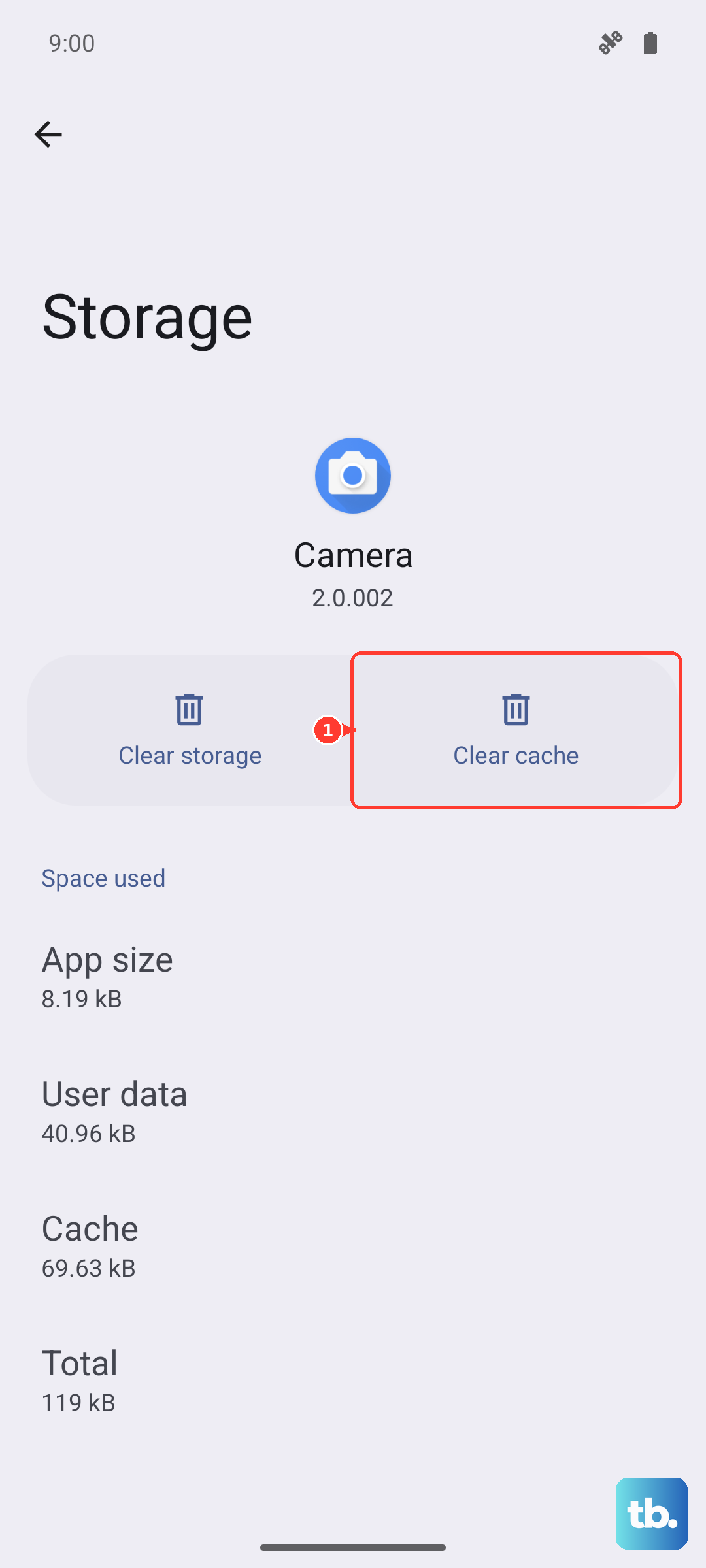
Clear the cache and data of the Phone application, and do the same for Call Management. You can do this from each app's storage settings, then restart the phone and make a fresh test call.
Install the latest ColorOS update
Audio bugs are frequently patched in firmware, so installing the latest software is a sensible fix for a microphone or call problem. Staying current also keeps security patches in place.
Go to Settings, then System and Update, then Software Update, and install any available ColorOS version. Keep the phone charged and on Wi-Fi while it downloads and installs, then test the microphone after the phone reboots.
Back up your data, then factory reset
If every software fix above has failed and the self-test was inconclusive, a reset clears deep configuration problems. This step erases everything, so back up your photos, messages, and files to cloud or external storage first, and remember that a reset cannot be paused once it starts.
In Settings, go to Additional Settings, then Back Up and Reset, then Reset Phone, and choose Erase All Data. The same menu also offers Reset network settings and Reset all settings if you prefer a lighter option before the full wipe.
If the phone will not boot normally, OPPO documents a Recovery Mode hard reset instead. First confirm your Android version at Settings, then About Phone or About device. In Recovery Mode, select Format data, enter the verification code to format, and tap Format. OPPO warns that a hard reset will completely erase all content on your phone and restore it to its original factory settings, so the backup beforehand is essential.
Rule out the SIM, then reach OPPO support
A reset that does not restore your microphone strongly suggests a hardware fault, but one quick check remains. Insert your SIM into another phone to rule out a network or SIM-related issue affecting call audio.
If the microphone still fails after the self-test, the resets, and the SIM check, contact OPPO support or book an appointment at an authorized OPPO service center. A trained technician can inspect the 4-mic array and the related connectors, which is the right move once software has been exhausted.
Frequently Asked Questions
Why can callers not hear me even though my speaker works fine?
The speaker and microphone are separate components, so the mic can fail while audio output is perfectly normal. Start by checking that no case or debris is covering a microphone opening, confirm the Phone app has microphone permission, and run the built-in audio self-test in Phone Manager to see whether the microphone hardware responds.
Does a force restart on the Find X8 Pro delete my files?
No. OPPO confirms that a force restart will not erase the content on your phone. Press and hold the Power and Volume Up buttons for at least 8 seconds until the phone turns on; on some OPPO models you instead hold the power button for 10 seconds.
The microphone only fails in one app. What should I check first?
That pattern almost always points to a permission rather than the hardware. Go to Settings, then Security and Privacy, then Privacy or Privacy Control, then Permission manager, select Microphone, find the affected app, and set it to allow or ask. Clearing that app's cache and reinstalling it can also help.
Could water damage be causing the problem?
It is possible. If the phone was recently exposed to water, dry it completely and let the microphone openings air out before testing again, and avoid charging until it is fully dry. Moisture trapped near a microphone opening can muffle or silence it until everything dries.
How do I run the official microphone self-test?
Open Phone Manager, go to Component Check, shown as Routine Test on some builds, then Detect Now, select Audio, tap Start Detection, and follow the on-screen prompts. The test checks the speaker, receiver, microphone, and headset so you can tell whether the mic hardware is working.