
When your OnePlus Nord 4's voice assistant stops responding, it can feel like you've lost a key feature of your phone. Whether it's Google Assistant or the built-in voice control, getting it working again is usually straightforward. Let's walk through the most effective fixes.
Start With a Quick Restart
Before diving into settings, try a simple force restart. This clears temporary software glitches that can affect the microphone or voice services. Just press and hold the Power button for about 10 seconds until you see the OnePlus logo appear and the phone reboots.
It takes less than a minute and often resolves the issue right away. I'd start with this one every time.
Verify Your Voice Assistant is Enabled
First, confirm that voice activation is actually turned on. Open the Google app on your Nord 4 and tap your profile picture in the top right corner. Go to Settings > Voice > Voice Match.
Make sure "Hey Google" is toggled on. You should also check "Unlock with Voice Match" if you want it to work from the lock screen. While you're there, tap "Retrain voice model" to improve its recognition of your specific voice.
Check for App and Microphone Permissions
If the Google app doesn't have permission to use your microphone, it won't hear you. Go to your phone's Settings > Apps > Google > Permissions.
Ensure the Microphone permission is set to "Allow." Also, check the permissions for "Android System Intelligence" or "Device Personalization Services," as these system components help with voice processing on OxygenOS.
Look for Audio Interference
Your Nord 4 has multiple microphones for noise cancellation. If they're blocked, the assistant can't hear the wake word clearly. Check the small microphone ports along the top and bottom edges of the phone's metal unibody.
Gently brush away any lint or dust with a soft, dry toothbrush. Also, try removing your phone case temporarily, as some cases can muffle or obstruct the microphone holes.
Disable Battery Optimization for the Google App
OxygenOS aggressively manages background apps to save battery, which can sometimes prevent the "Hey Google" detection from working consistently. To fix this, go to Settings > Battery > More battery settings.
Tap App battery management and find the Google app in the list. Change its setting from "Optimize" to "Don't optimize." This tells your phone to let the app run freely in the background so it's always listening.
Update Your Apps and System Software
An outdated Google app or system software can cause compatibility issues. Open the Play Store, tap your profile icon, and go to Manage apps & device. Check for updates, specifically for the "Google" app.
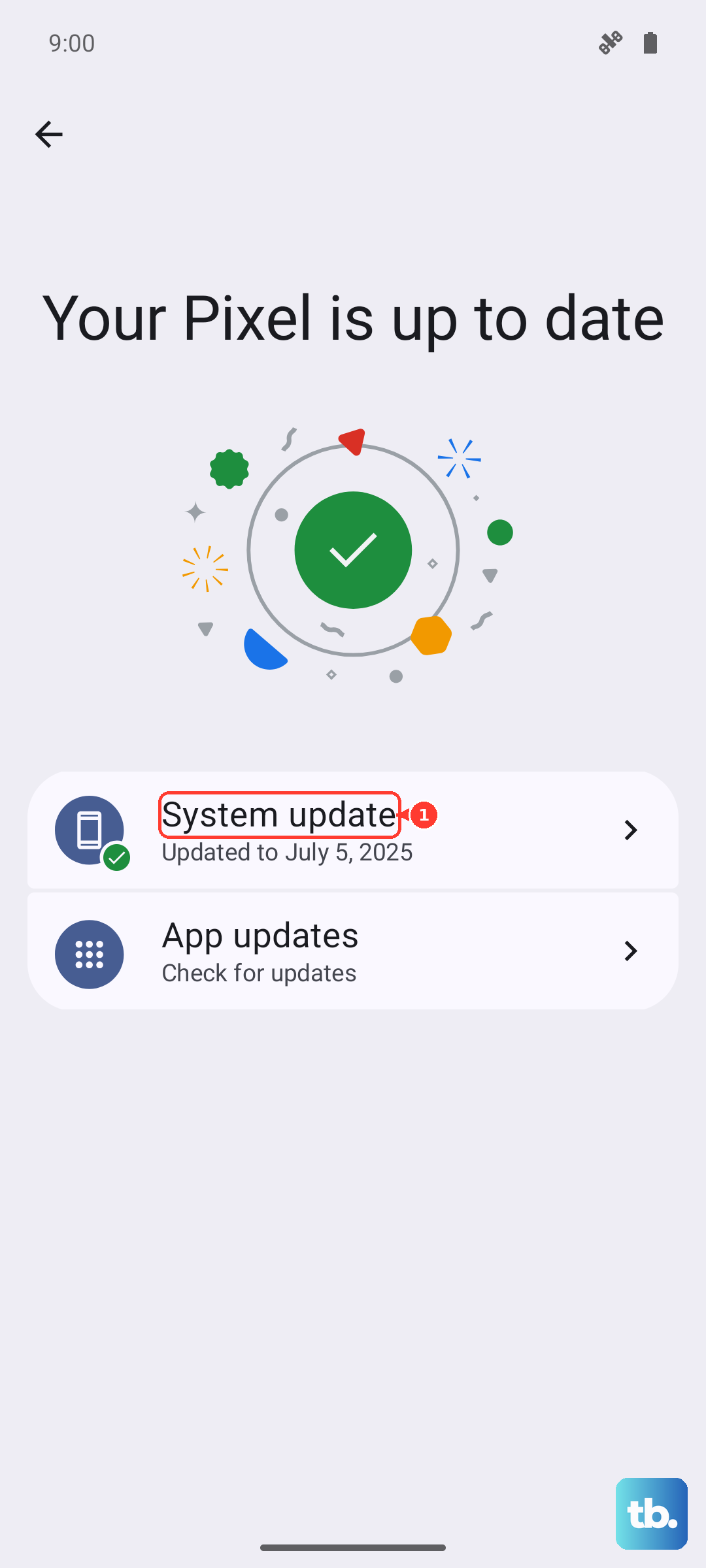
Next, check for a system update. Go to Settings > About device > tap on OxygenOS version. Download and install any available updates, as they often contain bug fixes for voice features and system stability.
Test With a Different Language or Accent
Sometimes the voice model gets confused, especially if you have a mixed accent or speak quickly. In the Google app's Voice Match settings, try changing the language to your primary one and retraining the model.
Speak clearly and at a normal pace during the retraining. It only takes a minute and can significantly improve accuracy, particularly on the Nord 4's hardware.
Clear the Google App's Cache and Data
Corrupted temporary files can break the voice assistant. Go to Settings > Apps > Google > Storage & cache. Tap "Clear cache" first and test the assistant.
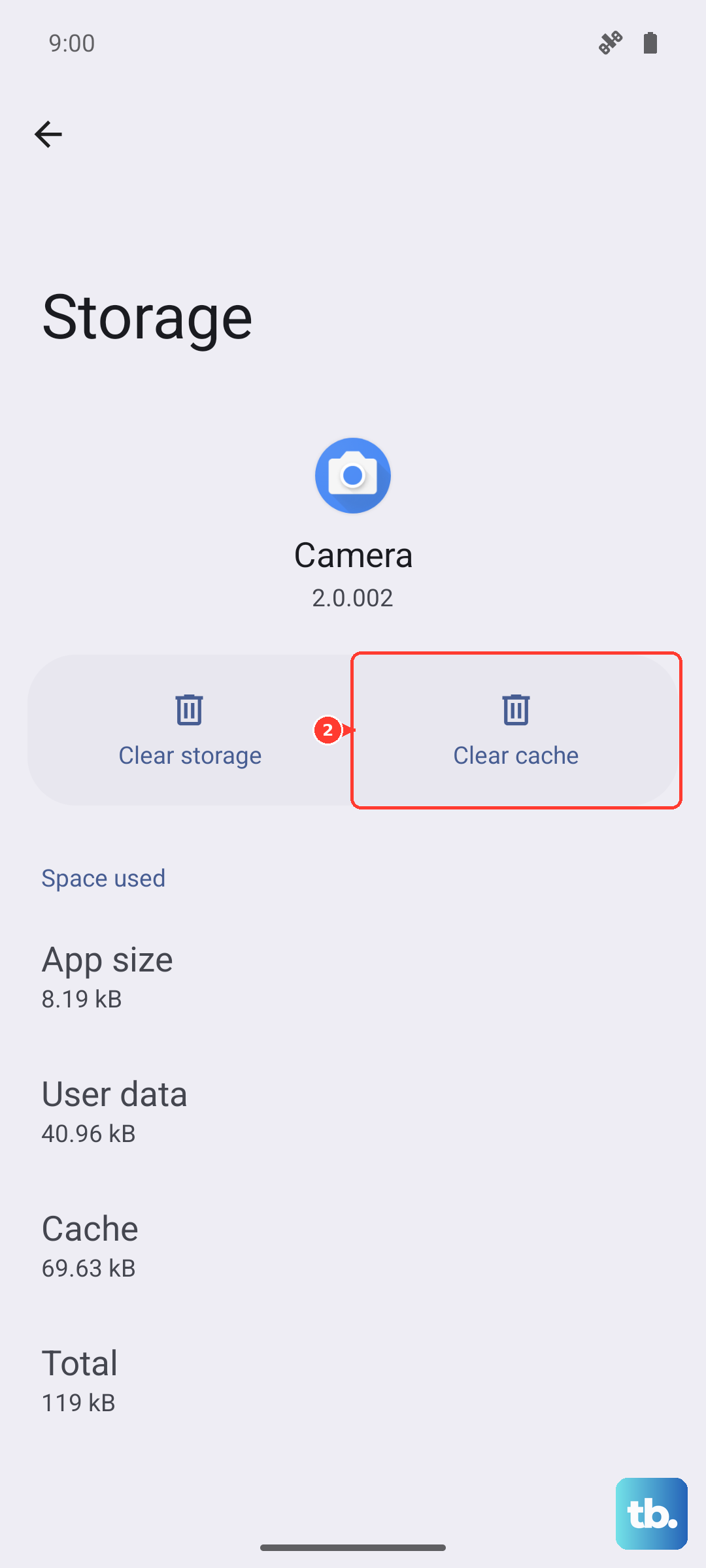
If it still doesn't work, tap "Clear storage" or "Manage space," then "Clear all data." Warning: this will reset the Google app, so you'll need to sign back in and retrain your voice model. It's a fresh start for the app.
Check Your Network Connection
While basic commands can process on-device, many "Hey Google" requests still need an internet connection for full functionality. Make sure you're connected to Wi-Fi or have a stable mobile data signal.
You can test this by asking a simple, device-specific question like "set an alarm for 5 PM." If that works but web searches fail, the issue is likely your network, not the assistant itself.
Reset App Preferences or All Settings
If permissions have been messed up system-wide, you can reset them without losing your personal data. Go to Settings > System > Reset options.
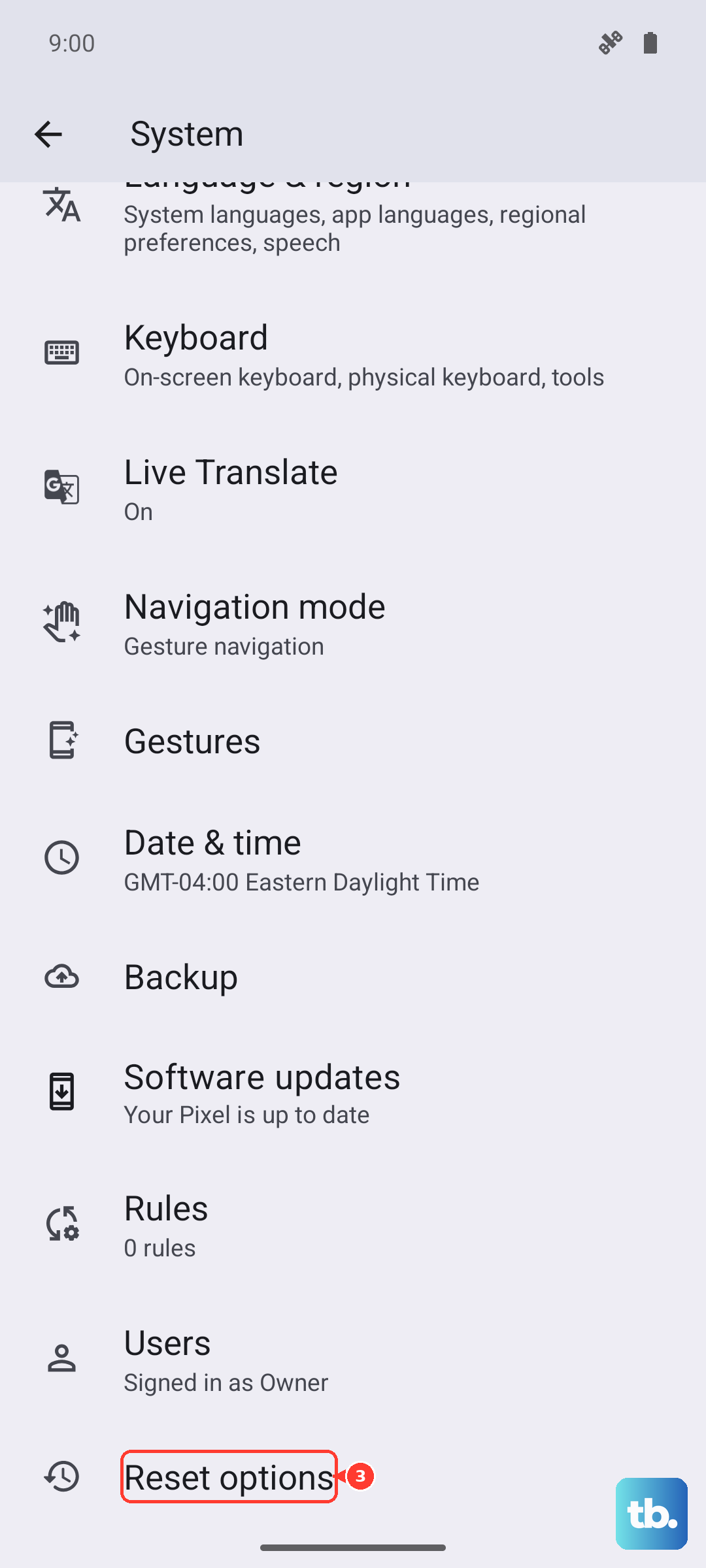
Tap "Reset app preferences." This resets all notification, permission, and background data restrictions for your apps. If the problem persists, you can try "Reset all settings" from the same menu. This will revert your Wi-Fi, Bluetooth, and display settings to default but won't touch your photos or apps.