You reach for your OnePlus Nord 4 and the display stays completely dark. Maybe the phone feels slightly warm, maybe you can hear a notification land, or maybe it seems totally lifeless, yet tapping the screen and pressing the side button changes nothing. A black screen is unnerving precisely because you cannot tell whether the phone is switched off, frozen mid task, or genuinely damaged.
The reassuring part is that most black-screen episodes on the Nord 4 trace back to a drained battery or a software hang, and both are usually fixable at home in a few minutes. The steps below run from the safest and easiest to the most involved, so start at the top and only move further down if the screen is still dark. Everything here uses the controls your Nord 4 actually has, namely the Volume keys, the Power (Sleep/Wake) side button, and the USB Type-C port.
What a dark Nord 4 screen is usually telling you
An unresponsive screen almost always falls into one of three buckets. The battery may be too low to light the display, the software may have frozen so the screen never wakes, or, less commonly, the display or another component has a genuine hardware fault. The order of the fixes below is built around that reality, ruling out the cheap and easy causes before you touch anything that risks your data.
One detail is worth knowing before you start. OnePlus's official specifications do not list any IP water or dust resistance rating for the Nord 4, and the phone has no wireless charging. If the screen went black right after the phone got wet, there is no official water-resistance assurance for this model, so treat liquid exposure as a serious risk and lean toward the support step rather than forcing the phone onto a charger.
Give the battery a proper charge first
A deeply drained battery can look exactly like a dead or broken screen, because the phone simply does not have enough power to turn the display on. This is the first thing to rule out, and it costs you nothing but a little patience.
OnePlus puts it plainly: "If your phone cannot be turned on or indicates low battery capacity when turning on, it's suggested to charge your phone for a while to ensure it has enough battery to turn on." The key word there is "a while," so resist the urge to give up after a minute or two.
Plug the Nord 4 into a wall charger using a USB Type-C cable you know is working.
If nothing happens, swap to a different known-good cable, charger, or wall outlet to rule out a faulty accessory.
Leave the phone connected and undisturbed for a while, even if the screen stays dark at first.
Once it has had time to take on charge, try waking it again with the Power (Sleep/Wake) button.
Force a restart with Volume Up and Power
If the battery is fine but the screen is frozen, a forced restart clears the hang without erasing anything. This is the single most useful trick for a phone that is on but stuck behind a black or unresponsive display.
The Nord 4 follows OnePlus's method for the OnePlus 6T and later devices, so the official instruction is to "Press and hold Volume Up button & Power button for 10 seconds" until the phone restarts. Make sure you are holding the Volume Up button together with Power, not the Power button on its own.
Press and hold the Volume Up button and the Power button at the same time.
Keep both held for a full 10 seconds.
Let go once the phone begins to restart and you see it boot.
If the screen lights up and the phone boots normally, the black screen was a temporary software hang and you are done. Move on to the update step below to reduce the odds of it happening again.
Install any waiting OxygenOS update once it boots
A software-caused black or frozen screen can often be settled for good by installing a pending system update, since OnePlus rolls bug fixes out over the air. The Nord 4 ships on OxygenOS 14.1 (based on Android 14) and is eligible for newer OxygenOS releases, so it is worth checking the moment the phone is back on.
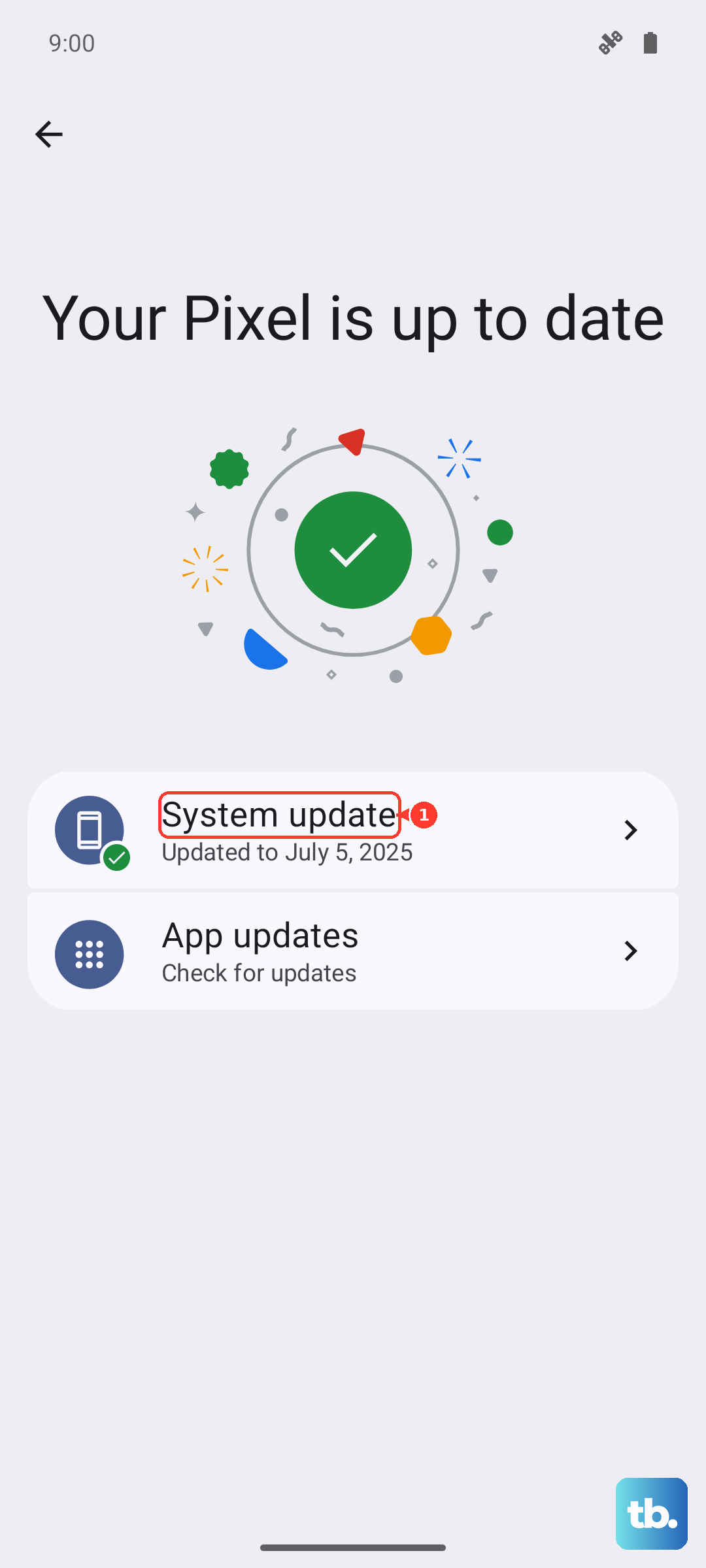
Make sure you are connected to Wi-Fi, then walk through Settings > System & update > Software update. The phone will check for and install any over-the-air update that is waiting.
Connect the phone to a Wi-Fi network.
Open Settings.
Tap System & update.
Tap Software update and install anything that appears.
Wipe data and cache from Recovery Mode when it stays stuck
If the phone hangs on the OnePlus logo or animation, or the screen is still dark after a force restart, the next official option is Recovery Mode. This is a more serious step, so read the warning first.
Data-loss warning: the Recovery Mode option described here deletes system data and cache, so back up anything you can before you proceed if there is any way to get the phone responsive enough to do so.
OnePlus's guidance for a phone stuck on the logo is specific. The official steps are to "turn off the device, then press Power button and Volume Down button at the same time for a few seconds to enter the recovery mode, select Wipe data and cache - Reset system setting."
- 1.Turn off the device.
- 2.Press the Power button and the Volume Down button at the same time for a few seconds to enter Recovery Mode.
- 3.Select Wipe data and cache - Reset system setting.
Once the wipe finishes, the phone should reboot to a clean state. Note that this clears the system data and cache, which is why backing up first matters whenever it is possible.
When to let OnePlus after-sales support take over
Some black-screen cases are not software at all. The clearest sign of a hardware fault is when the phone reacts physically but never lights up the display.
OnePlus draws the line here: "If your phone has no response or no display but vibrates when you force restart your phone, please contact OnePlus for after-sales support." A vibrate-but-no-display response points to a display or internal hardware issue rather than a software hang, and that is not something the steps above can fix.
Before you reach out, it helps to confirm exactly which model you have so support can match it to the right service path. You can check this on a working phone under Settings, About device, Regulatory, which confirms the model details. When you are ready, contact OnePlus Customer Support through oneplus.com/support for hardware diagnosis and repair, and mention any water exposure given the Nord 4 has no official water-resistance rating.
Frequently Asked Questions
How do I force restart a OnePlus Nord 4 with a black screen?
Press and hold the Volume Up button and the Power button together for 10 seconds until the phone restarts. The Nord 4 uses this Volume Up plus Power combination, so hold both buttons rather than the Power button on its own.
Will entering Recovery Mode erase my phone?
The Recovery Mode option "Wipe data and cache - Reset system setting" deletes the system data and cache, so back up anything you can beforehand if the phone is responsive enough to allow it. Use this step only after charging and a force restart have failed.
My Nord 4 vibrates but shows nothing on screen. What does that mean?
A phone that vibrates yet never displays anything when you force restart it usually has a hardware or display fault rather than a software hang. OnePlus advises contacting after-sales support in this situation, which you can do at oneplus.com/support.
Could water have caused the black screen?
It is possible. OnePlus lists no IP water or dust resistance rating for the Nord 4 and the phone has no wireless charging, so there is no official water-resistance assurance for this model. If the screen went dark after the phone got wet, avoid forcing it onto a charger and contact OnePlus support instead.