
When your OnePlus 13 Pro won't send photos, it's usually a quick fix. The most common culprit is a simple setting or a temporary network glitch. I'd start by checking your mobile data and making sure MMS is enabled in your messaging app.
Check Your Mobile Data and Network
First, ensure your cellular data is actually turned on. Swipe down from the top of your screen to open the Quick Settings panel and tap the mobile data icon to make sure it's active. If you're trying to send a large photo or video, a weak signal can cause it to fail.
Try moving to an area with better reception. You can also try toggling Airplane mode on and off from the Quick Settings to refresh your connection to the cellular network instantly.
Verify MMS and APN Settings
For standard text messages (SMS/MMS), the correct Access Point Name (APN) settings from your carrier are essential. Go to Settings > Mobile network > SIM & network and select your SIM card.
Tap on Access Point Names to view your APN. If the list is empty or you're unsure, contact your carrier for the correct APN details for your plan and region. They can usually send them to you via a configuration message.
Ensure MMS is Enabled in Your Messaging App
Open your default Messages app and tap the three-dot menu in the top right, then go to Settings. Look for an option labeled "Multimedia messages (MMS)" or "Auto-download MMS" and make sure it's turned on.
Some third-party messaging apps like Google Messages have this setting under Settings > Chat features. If you're using chat features (RCS), try temporarily disabling them to send the photo as a traditional MMS, which can sometimes bypass the issue.
Check Your Data Saver or Network Restrictions
OxygenOS has features that can restrict background data. Go to Settings > Mobile network > Data usage.
Look for Data Saver and make sure it's switched off. Also, tap on your messaging app in the app data usage list to ensure "Background data" is allowed and not restricted.
Try Sending on a Different Network
If you're on WiFi, try disabling it and sending the photo using your mobile data plan instead. Some WiFi networks, like public hotspots with captive portals, can block the ports used for MMS.
Conversely, if you're on mobile data, try connecting to a stable WiFi network. This helps determine if the problem is with your cellular carrier's MMS service at that moment.
Clear the Cache for Your Messages App
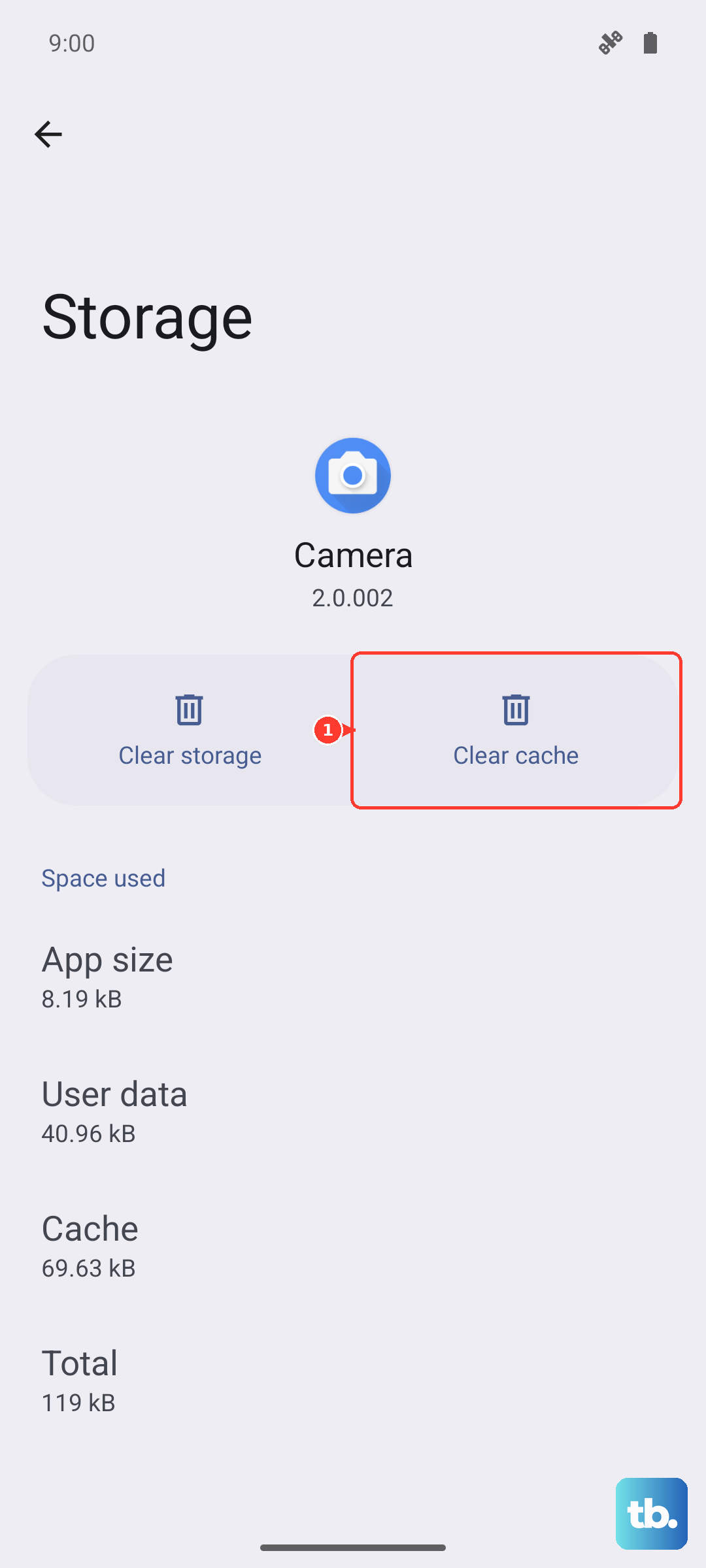
A corrupted cache can cause send failures. Go to Settings > Apps > Manage apps. Find and select your messaging app (like "Messages" or "Google Messages").
Tap on Storage usage and then Clear cache. This won't delete your messages. After clearing, restart your phone and try sending the photo again.
Update Your Carrier Services and Messages App
Outdated carrier services can interfere with MMS. Open the Google Play Store, search for "Carrier Services," and update it if available.
Also, check for updates to your messaging app itself. Go to the Play Store, tap your profile icon, select Manage apps & device, and update all apps, or specifically find your messaging app in the list.
Force Restart Your OnePlus 13 Pro
A force restart can clear temporary software bugs affecting the modem or messaging services. Press and hold the Volume Down button and the Power button simultaneously for about 10 seconds.
Release the buttons when you feel the device vibrate and see the OnePlus logo. This is different from a normal restart and often resolves stubborn connectivity issues.
Review App-Specific Permissions
Your messaging app needs permission to access your photos, media, and potentially your phone. Go to Settings > Apps > Manage apps and select your messaging app.
Tap on Permissions. Ensure that permissions like "Photos and videos," "Files and media," and "SMS" are set to "Allow."
Reset Network Settings as a Last Resort
If nothing else works, resetting network settings will clear all WiFi passwords, Bluetooth pairings, and cellular network settings back to default. Go to Settings > System > Reset options.
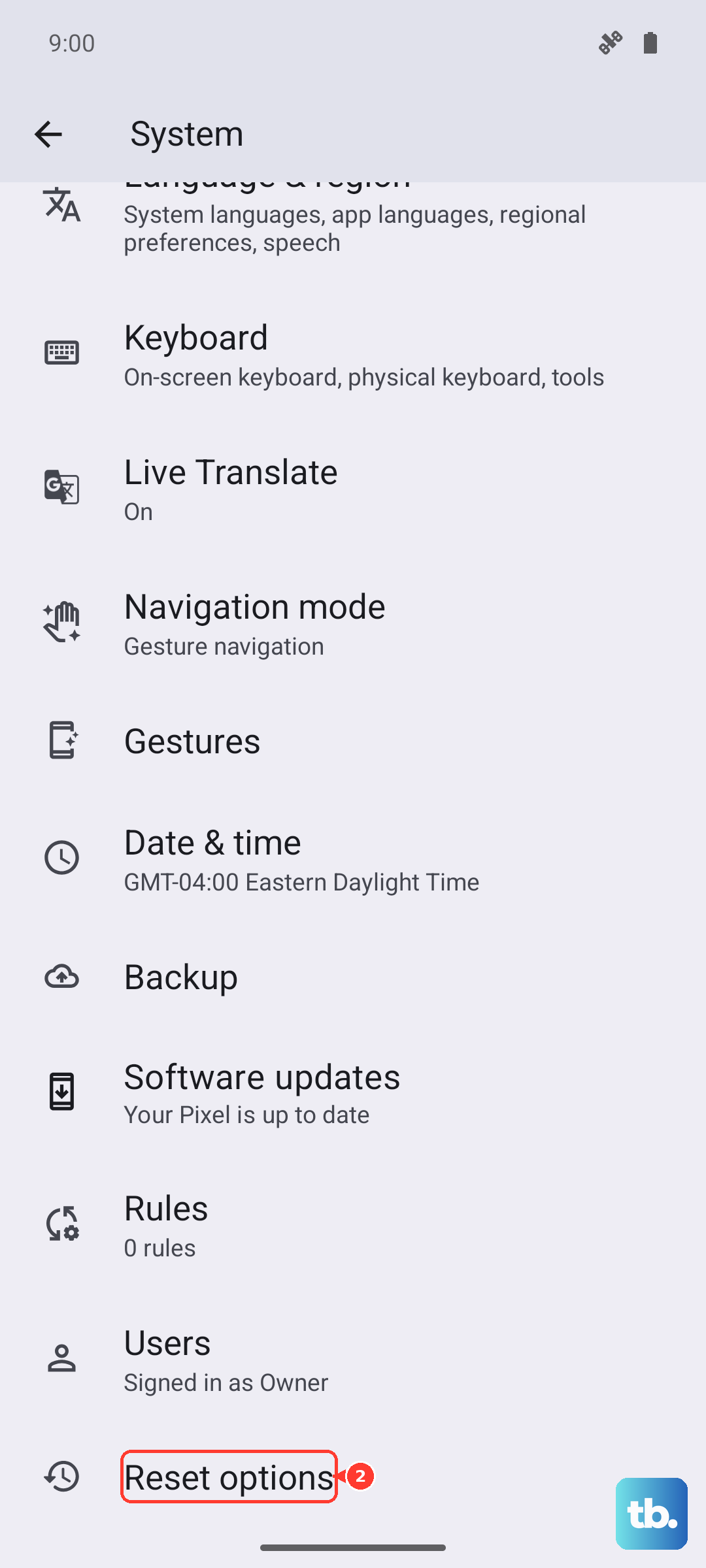
Tap on Reset Wi-Fi, mobile & Bluetooth. Confirm the reset and enter your PIN if prompted. After your phone reboots, you'll need to reconnect to WiFi networks and re-pair Bluetooth devices, but this often fixes deep-seated network problems.