You set your OnePlus 13 on the wireless pad expecting the battery icon to flash, and nothing happens at all, no charging animation, no warmth, no progress. Wireless charging on this phone can be surprisingly particular, partly because the OnePlus 13 has no built-in charging magnets and depends on precise alignment with the AIRVOOC pad. The good news is that most failed-wireless-charging cases come down to setup, positioning, or a software hiccup rather than broken hardware. Work through the fixes below in order, starting with the quickest checks before moving on to a full reset.
Confirm the OnePlus 13 wireless charger you own is the right one
The OnePlus 13 officially supports 50W AIRVOOC wireless charging, and it pairs best with OnePlus's own AIRVOOC 50W Magnetic Charger. Because this phone has no built-in charging magnets, the official guidance is that the magnetic charger works only "for devices equipped with magnetic functions, or using a magnetic case," so you generally need an official OnePlus 13 magnetic case for the phone to snap into place reliably.
Before you blame the phone, confirm the problem is wireless-specific. Plug in the included 80W SUPERVOOC wired charger; if the phone charges over the cable but not on the pad, the fault is in your wireless setup rather than the battery or the charging port. Wired SUPERVOOC charging, which reaches up to 100W with OnePlus's dual-port adapter, also remains the fastest way to top up the 6,000 mAh battery while you work through the wireless fixes below.
Center the phone so it meets the charging coil
Misalignment is the single most common reason wireless charging fails to start. The official charger guidance is to "place the phone in the center of the wireless charging base (vertically or horizontally)," so the coil inside the phone lines up with the coil in the pad.
If you are using the AIRVOOC magnetic charger together with an official magnetic case, let the phone snap into the magnetic alignment and wait for the charging indicator before you walk away. Nudging the phone a centimeter in any direction is often all it takes to get a charge going.
Take off thick or metal cases and clear the surface
Anything thick or metallic between the phone and the pad can block the energy transfer. OnePlus states that maximum wireless power is reached "with protective cases of less than 2mm in thickness," so remove any thick, metal, or card-holding case before placing the phone down.
The official guidance also warns, "Do not place anything on your phone while it is charging." Keep credit cards, coins, keys, and other metal objects off the charging surface, since they can absorb power, heat up, or stop the charge entirely.
Plug the pad into enough power to start a charge
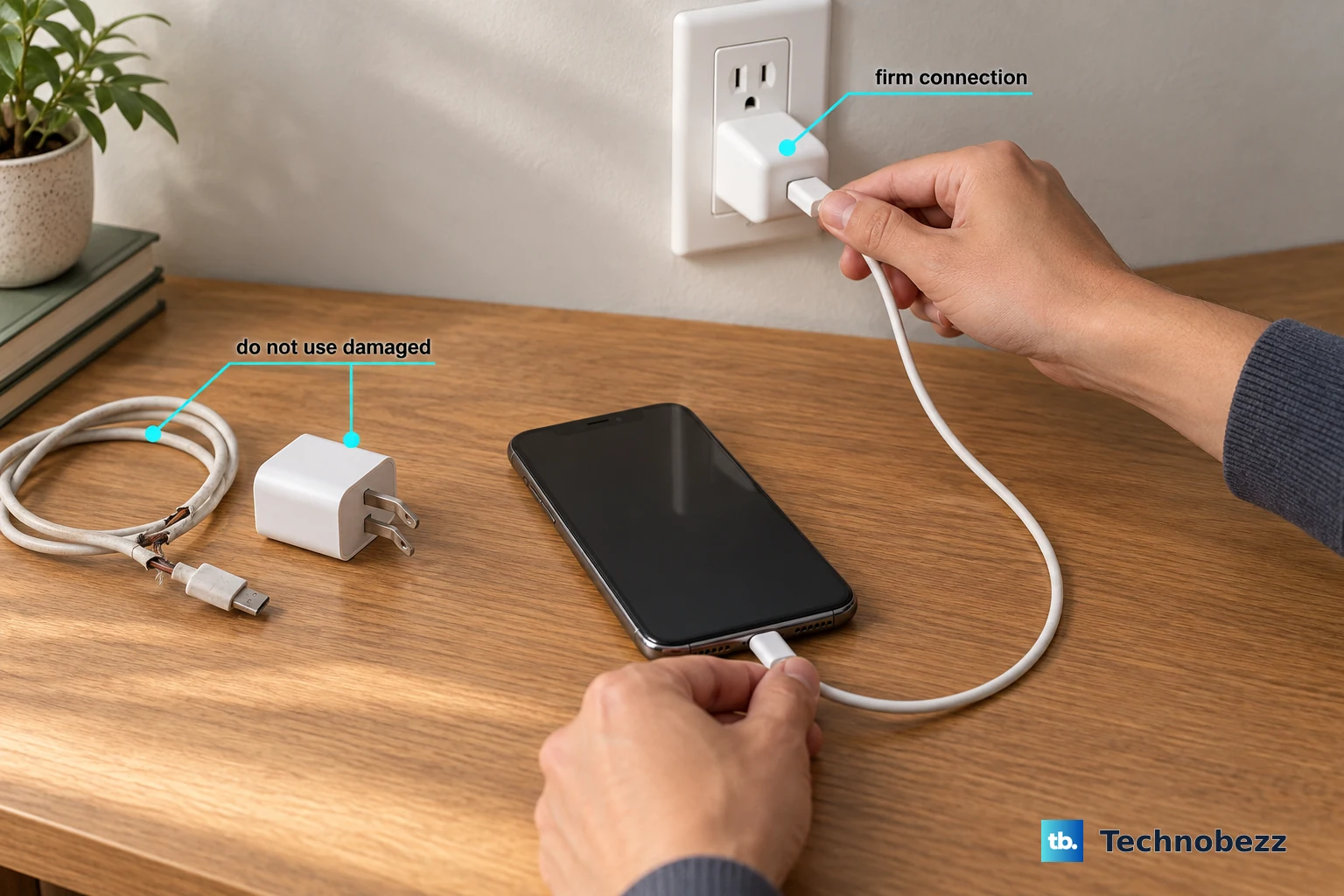
A wireless pad still needs a capable wall adapter behind it. To reach the full 50W wireless speed with the AIRVOOC charger, OnePlus requires a charger and cable that support the "65W PD protocol and above"; an underpowered adapter can prevent wireless charging from starting at all.
Confirm the pad is plugged into a known-good wall outlet rather than a weak USB port or a crowded power strip. Try a different outlet to rule out a dead socket, and make sure the cable is fully seated at both ends.
Charge where it is cool, not hot
Wireless charging produces more heat than a cable, and heat is one of the fastest ways to throttle or halt a charge. The official charging guidance recommends an ambient temperature "between 15°C and 35°C degrees" for the best results, and adds, "Do not place anything on your phone while it is charging."
Move the phone and pad out of direct sunlight and off warm surfaces such as a laptop or a radiator. If the phone already feels hot, let it cool to room temperature before you try again.
Disable apps that interfere with charging
Some third-party apps can interfere with how the phone manages power. The official charge-issue guidance says to check whether the device has battery-drain problems and to "verify whether there are any third-party power management software apps downloaded," since these can disrupt charging.
Uninstall or disable any battery-saver, task-killer, or power-management apps you have added, then set the phone back on the pad and watch for the charging indicator. If you are not sure which app is responsible, remove them one at a time and test the pad after each change so you can pinpoint the one that was blocking the charge.
Force restart to clear a frozen charging service
A frozen system service can silently block charging even when everything is plugged in correctly. The official recovery step for the OnePlus 6T and later, which includes the OnePlus 13, is to "press and hold the Volume Up button and Power button for 10 seconds."
This force restart reboots the phone without erasing any of your data. Note that it is the Volume Up button, not Volume Down, that you hold together with Power. Once the phone restarts, place it back on the pad and test again.
Update OxygenOS to the latest version
OnePlus regularly fixes charging bugs through software updates, and the official charge-issue guidance specifically advises updating to the latest version of the operating system. Updating is free, keeps your data, and often resolves charging glitches introduced by an earlier build.
- 1.Open Settings > System updates > Check for updates.
- 2.If an update is available, tap DOWNLOAD&INSTALL NOW.
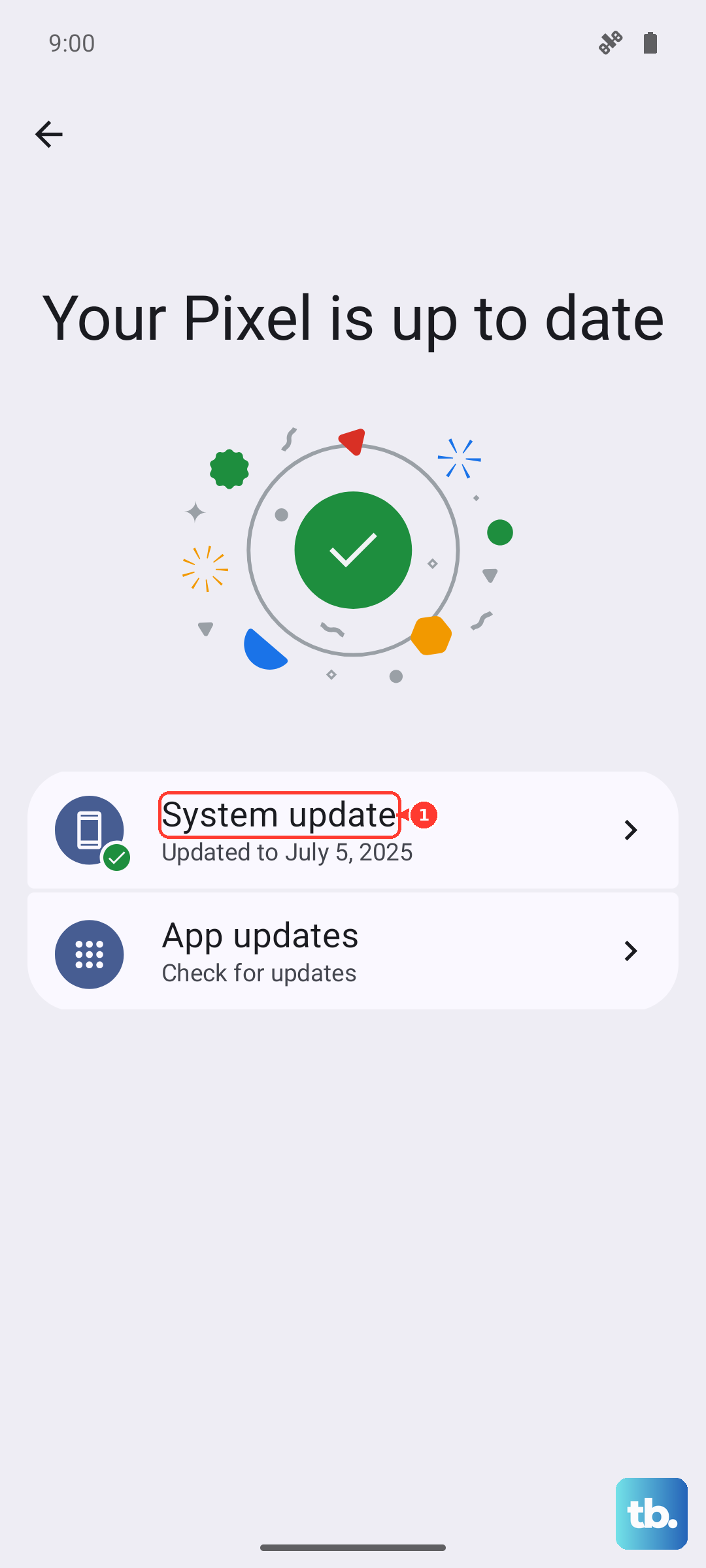
The official guidance recommends backing up your data first, staying on Wi-Fi, keeping at least 60% battery, and not pressing the Power button during the installation.
Back up, factory reset, and contact OnePlus support
If wireless charging still refuses to work after every step above, a clean factory reset is the last self-service option. This erases everything on the phone, so the official guidance is to back up your important data first; OnePlus Switch is the official backup tool for moving your data off the device beforehand.
- 1.Open Settings > System & update / Additional settings > Back up and reset.
- 2.Tap Reset phone > Erase all data.
The official warning is clear: "If you tap Erase all data, your phone will be restored to factory settings and all your data will be erased." Only continue once your backup is complete.
If wireless charging fails even after a reset, or if the phone stays frozen with a black screen, the official guidance is to contact OnePlus for after-sales support so the hardware can be inspected.
Frequently Asked Questions
Does the OnePlus 13 support wireless charging?
Yes. OnePlus's official specifications list 50W AIRVOOC wireless charging for the OnePlus 13, alongside 80W SUPERVOOC wired charging and a 6,000 mAh battery.
Do I need a special case for wireless charging on the OnePlus 13?
For the AIRVOOC 50W Magnetic Charger, effectively yes. The phone has no built-in charging magnets, so the official guidance is that the magnetic charger works only for devices with magnetic functions or those using a magnetic case, which in practice means an official OnePlus 13 magnetic case for reliable alignment.
Why is my OnePlus 13 charging slowly on the pad?
Slow wireless charging usually points to a case thicker than 2mm, an adapter that does not support the 65W PD protocol and above, or a phone that is running too warm. Remove the case, use a stronger adapter, and charge between 15°C and 35°C.
What should I do if wireless charging still fails after a factory reset?
If a full reset does not restore wireless charging, or the screen stays black and the phone is unresponsive, the official guidance is to contact OnePlus for after-sales support so the hardware can be checked.











