
When your OnePlus 13 Pro won't install apps, it can bring your day to a standstill. Whether you're trying to download a new game or a productivity tool, that spinning circle or error message is a real roadblock. The good news is that most of these issues are caused by simple glitches that you can fix yourself.
Let's go through the most effective solutions to get your app downloads working again on OxygenOS 15.
Check Your Internet Connection First
This might seem obvious, but it's the most common culprit. A weak or unstable connection will stop any download in its tracks. Pull down the notification shade on your OnePlus 13 Pro and make sure your Wi-Fi or mobile data icon is active and has a strong signal.
If you're on Wi-Fi, try switching to mobile data for a moment to see if the problem is with your network. Some public or corporate Wi-Fi networks can block the ports the Google Play Store needs to communicate.
Restart Your OnePlus 13 Pro
A quick restart clears out temporary system glitches that can interfere with app installations. I'd start with this one, as it often resolves the issue without any deeper digging.
Just press and hold the power button, then tap 'Restart' on the screen. If your phone is completely unresponsive, you can force restart it by pressing and holding the Volume Down and Power buttons together for about 10 seconds until it vibrates and reboots.
Clear the Google Play Store Cache and Data
Corrupted temporary files in the Play Store app itself are a frequent cause of download failures. Clearing this data gives the app a fresh start.
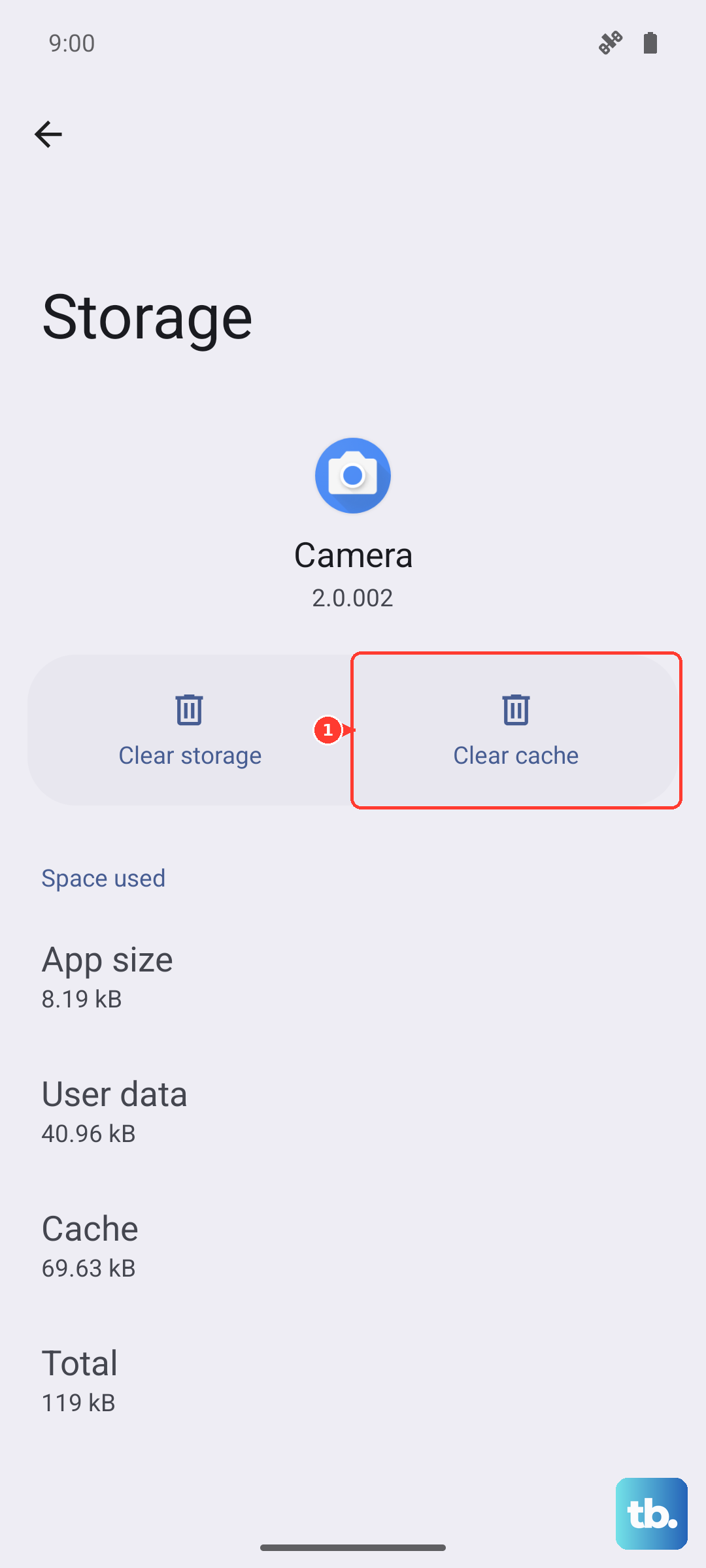
Go to Settings > Apps > See all apps. Find and tap on 'Google Play Store'. Tap Storage & cache, then hit 'Clear cache'. If that doesn't work, go back and tap 'Clear storage' (this is called 'Clear data' on some Android versions). Don't worry, this won't delete your downloaded apps or account.
Clear Google Play Services Data
Google Play Services works in the background to handle app updates and installations. If it gets stuck, your downloads will too.
Head back to Settings > Apps > See all apps and find 'Google Play Services'. Tap Storage & cache. First, tap 'Clear cache'. If the problem persists, tap 'Manage storage' at the bottom, then 'Clear all data'. This resets the service without affecting your personal information.
Verify Download Manager is Enabled
Your phone has a system app called Download Manager that handles all downloads. It should never be disabled, but it's worth checking.
In your app list (Settings > Apps > See all apps), tap the three-dot menu in the top right and select 'Show system'. Now search for 'Download Manager'. If you see a 'Enable' button, tap it. If it's already enabled, you can try tapping Storage & cache and clearing its cache as well.
Check Your Phone's Date and Time
Incorrect date or time settings can cause a handshake failure with Google's servers, preventing downloads. Your OnePlus 13 Pro should handle this automatically, but it's a quick check.
Go to Settings > Additional settings > Date & time. Make sure 'Use network-provided time' is switched on. If it's already on and you're having issues, try turning it off, manually setting the correct time, and then turning the automatic setting back on.
Review Your Available Storage Space
If you see an 'Insufficient storage' error, your phone is literally full. The OnePlus 13 Pro comes with plenty of space, but photos, videos, and large apps can fill it up fast.
Go to Settings > Storage to see what's using your space. You can offload photos to Google Photos or another cloud service, delete old downloaded files, or uninstall apps you no longer use. Clearing the cache for several large apps can also free up a surprising amount of space instantly.
Remove and Re-add Your Google Account
This refreshes the connection between your phone and Google's services. It's a bit more involved but can break a persistent download loop.
First, go to Settings > Passwords & accounts. Tap on your Google account, then tap 'Remove account'. Confirm your choice. Don't panic, this just removes the account from the phone, not from Google itself. Then, go back and tap 'Add account', select Google, and sign back in. Try your download again.
Check for System Updates
An outdated version of OxygenOS can sometimes have bugs that affect app compatibility and installation. OnePlus regularly releases updates that include fixes for these kinds of issues.
On your OnePlus 13 Pro, go to Settings > About device > OxygenOS version and tap on the icon to check for updates. If an update is available, make sure you're on Wi-Fi and plug your phone into its charger, then follow the prompts to install it.
Try a Different Installation Method
If the Play Store is consistently failing, you can try installing the app from a different source as a test. First, you need to allow installations from outside the Play Store.
Go to Settings > Additional settings > Privacy & security > Special app access > Install unknown apps. Select your web browser (like Chrome) and toggle on 'Allow from this source'. Then, you can visit a trusted site like APKMirror to download an APK file of a common app. If this works, it points to an issue specifically with the Play Store or your Google account.
Reset All App Preferences
This is a less nuclear option than a full factory reset. It resets all your app permissions, default apps, and background restrictions back to their original settings without deleting any personal data.
Navigate to Settings > Additional settings > Backup & reset > Reset app preferences. Tap 'Reset apps'. After your phone resets, you'll need to re-grant permissions when you open apps for the first time, but it can clear up conflicts that are blocking installations.