
When your OnePlus 12 starts rebooting on its own, it pulls you out of whatever you're doing. This can be a sign of a minor software hiccup, a misbehaving app, or sometimes a deeper system issue. The good news is you can usually sort it out yourself with a few steps.
Before you start, it's a smart move to make sure your data is backed up. You can use Google One or the built-in backup in your OnePlus settings. This way, if you need to do a more involved reset, your photos and messages are safe.
Force Restart Your OnePlus 12
This is almost always the first thing to try. A force restart clears the phone's temporary memory and can stop a minor glitch that's causing the restarts. It won't delete any of your personal data.
Just press and hold the Power button for about 10 to 15 seconds. Keep holding it until you see the OnePlus logo appear on the screen, then you can let go. The phone will boot up normally.
Check for App Updates and Conflicts
An outdated or buggy app is one of the most common reasons for random restarts. Start by heading to the Google Play Store, tap your profile icon, and hit "Manage apps & device." Look for any pending updates and install them all.
If the restarts started after installing a specific app, that app might be the culprit. Try booting the phone into Safe Mode. This temporarily disables all third-party apps. Press and hold the Power button, then tap and hold the "Power off" option on your screen until you see the Safe Mode prompt.
If the phone is stable in Safe Mode, a downloaded app is likely causing the problem. Restart to exit Safe Mode, then try uninstalling apps you recently added one by one to find the offender.
Install the Latest OxygenOS Update
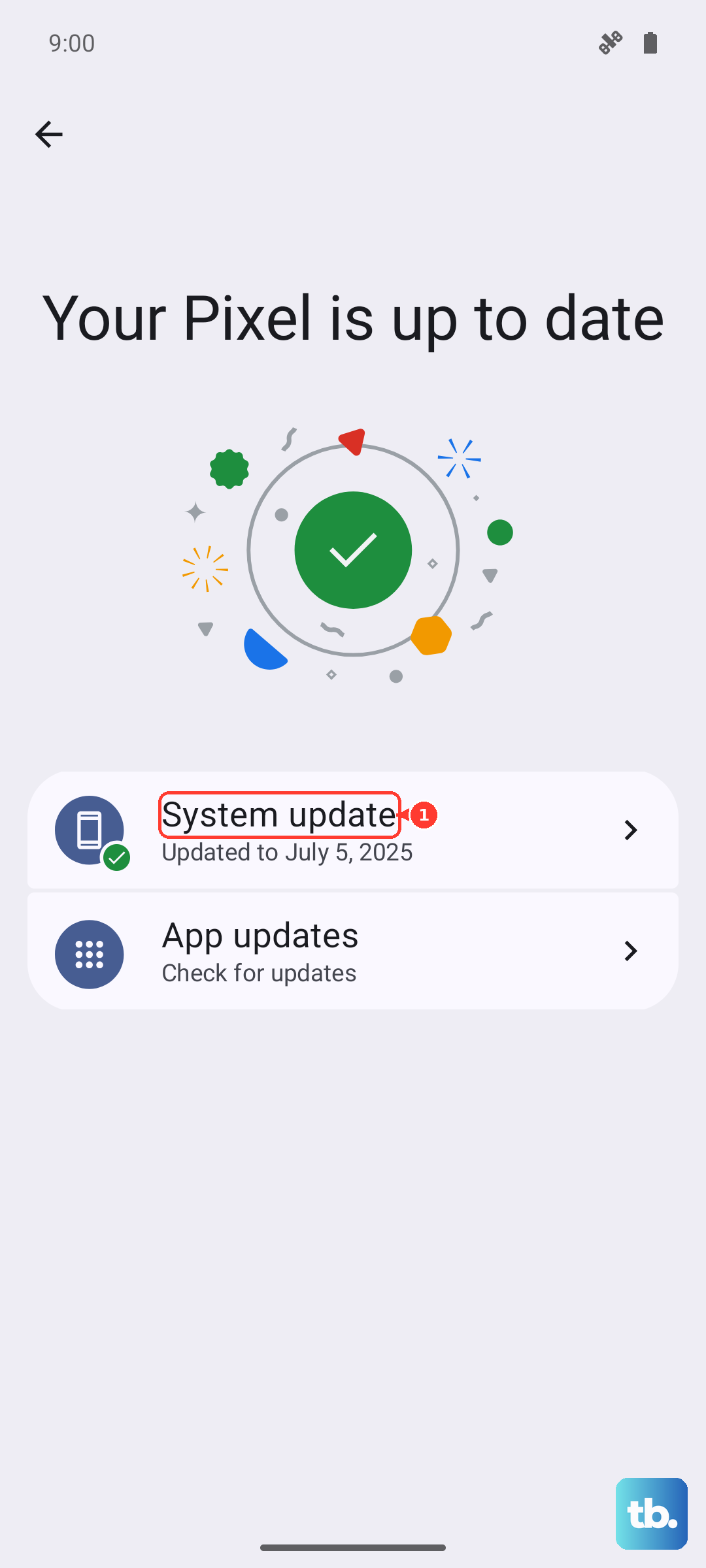
OnePlus regularly releases updates that fix bugs and improve stability. An outdated system can have conflicts that lead to crashes. Go to Settings > About device > OxygenOS version and tap on the top banner to check for updates.
If an update is available, download and install it. Make sure your phone is charged above 50% and connected to Wi-Fi. I've seen system updates resolve random reboot issues on plenty of Android phones, so this is a key step.
Clear the System Cache
Over time, cached data from apps and the system can become corrupted. Clearing this cache can fix instability without touching your personal files. You'll need to use the recovery menu.
First, power off your OnePlus 12 completely. Then, press and hold the Volume Down and Power buttons together until you feel a vibration and see the recovery menu. Use the volume buttons to navigate to "Wipe data and cache" and select it with the power button.
Choose "Wipe cache" and confirm. Once it's done, select "Reboot" to start your phone normally. This process only takes a minute.
Review Battery and Charging Habits
While it's less common, power-related issues can sometimes cause a phone to restart. The OnePlus 12 has incredibly fast charging, but it requires specific gear. The full 100W SUPERVOOC speed only works with the official OnePlus charger and cable.
If you're using a third-party USB-C charger, it will be limited to much slower speeds, usually 15-18W. There's also a feature called Optimized Charging in Settings > Battery that learns your routine and may pause charging at 80% overnight to preserve battery health. This is normal, not a fault.
Free Up Storage Space
When your phone's storage is critically full, the operating system doesn't have room to work properly, which can lead to crashes. Open Settings > Storage to see how much space you have left.
If you're below 10% free space, start by clearing app caches. Go to Settings > Apps, select large apps, and tap "Storage & cache" to clear their cached data. You can also offload old photos and videos to Google Photos or another cloud service.
Reset All Settings
If the problem persists, you can reset all your system settings to their defaults. This won't delete your apps, photos, or messages, but it will wipe your Wi-Fi passwords, Bluetooth pairings, and custom preferences.
Go to Settings > Additional settings > Back up and reset > Reset phone. Then, select "Reset all settings (network settings, downloaded apps)." Enter your lock screen PIN or password to confirm. After the phone reboots, you'll need to reconnect to Wi-Fi and re-pair Bluetooth devices.
Perform a Factory Reset
This is the most comprehensive software fix and should be your last resort before considering a hardware issue. A factory reset will erase everything on your phone and return it to its out-of-the-box state.
Because it erases all data, double-check that your backups are complete. Then, go to Settings > Additional settings > Back up and reset > Erase all data (factory reset). Follow the prompts to confirm. The phone will take several minutes to reset and restart.
Check for Physical Issues
If you've tried all the software steps and the random restarts continue, it's time to consider a physical cause. Carefully inspect the USB-C port for any lint, debris, or damage. Use a can of compressed air or a soft-bristled brush to gently clean it out.
A faulty SIM card can also sometimes cause system instability. Use the SIM eject tool to remove the tray, take out the SIM card, and inspect it for any visible damage or corrosion. Reinsert it firmly and see if the problem stops.