You set your Motorola Razr+ (2024) down on a wireless pad overnight, and in the morning the battery sits exactly where you left it. There was no charging chime, no on-screen animation, and the folding phone feels cold to the touch. Wireless charging can be fussy on any device, but on a compact foldable the coil is small and alignment matters more than usual, so a fault is almost always something you can correct yourself.
The good news is that this model is built for it. Motorola lists 15W wireless charging support (charger sold separately) alongside 45W TurboPower wired charging, and the support documentation describes the wireless feature as working with a Qi-certified wireless charger. Work through the fixes below in order, starting with the quickest and safest checks and saving the firmware reinstall and repair path for last.
Confirm the Battery Still Charges From the Cable
Before you blame the pad, rule out a general charging problem. Plug the Razr+ (2024) into a wall outlet using a cable and adapter and confirm the phone and battery charge at all. If wired charging works but the pad does nothing, the issue is wireless-specific, which usually means alignment, a case, or the charger itself.
Test from a wall outlet rather than a computer. Motorola notes that a USB port charges at a much lower rate, so a weak source can make a healthy phone look like it is barely charging.
Line Up the Phone's Coil With the Pad
Wireless charging only happens when the phone's charging coil sits directly over the coil in the pad. On a foldable that sweet spot is easy to miss because the body is narrow and the working area is small.
Motorola's guidance is direct: "align the wireless charging area of your phone with the wireless charger, or place your phone in the location recommended by the charger manufacturer." Nudge the phone in small steps until the charging animation or indicator appears, then leave it centered rather than off to one edge.
Take Off the Case and Magnetic Accessories
Anything thick or metal between the phone and the pad can block the magnetic field the coil relies on. Motorola states plainly that wireless "charging may not work properly if you have a thick case on your phone," and recommends removing it before charging.
The same advice applies to contact problems generally; Motorola says to "remove any case on the device, as this may impede the charger/port connection." Pull off metal plates, pop-sockets, magnetic car mounts, and wallet attachments, then set the bare phone on the pad and try again.
Use a Qi-Certified Pad Plugged Into a Wall Outlet
The Razr+ (2024) charges wirelessly with a Qi-certified wireless charger (sold separately) rated up to 15W, so the pad you use needs to meet that standard. A no-name or uncertified pad may simply refuse to pair with the phone or trickle power so slowly it looks broken.
Motorola warns that "chargers that do not comply with applicable national standards may be unsafe, with risk of death or injury, and may cause slow charging, product damage, or reduced device performance," and advises you to "use the charger that came with your phone, or a charger that is compatible with your phone." Just as important, make sure the pad's own AC adapter is in a wall socket, not a low-power USB port, so it can deliver full output.
Let a Warm Razr+ Cool Down First
Heat is one of the most common reasons a phone slows or stops charging, and wireless and fast charging both generate extra warmth. Motorola explains that "if your phone gets hot, it will slow charging, reduce brightness, and limit other functions until it cools down, or automatically shut off if it gets too hot."
If the phone is warm, take it off the pad and let it return to room temperature before trying again, and stop using it while it charges. Motorola also cautions: "Don't charge or use your phone in enclosed or poorly ventilated places, such as on a pillow or blanket, where heat can quickly accumulate." A hard, flat, open surface keeps the temperature down so charging can resume at full speed.
Restart the Phone to Clear a Stuck Charge
A reboot clears a charging process that has hung in the background, and it costs you nothing because no data is lost from a restart. Use the normal restart unless the screen is frozen.
- 1.Press the Power and Volume Up buttons at the same time.
- 2.Tap Restart.
If the phone is unresponsive, force it to restart instead: press and hold the Power button until the screen goes dark and the phone restarts. Motorola's model support guidance describes this as holding Power for about 30 seconds; if it still will not restart, charge for at least 5 minutes and, while the phone is connected to the charger, hold Power for 30 seconds again.
Install the Latest System Update
Charging behavior is controlled partly by firmware, and Motorola delivers fixes through system updates. The phone shipped on Android 14 and has an official Android 15 update, so an out-of-date build can be the reason a previously working pad stops charging.
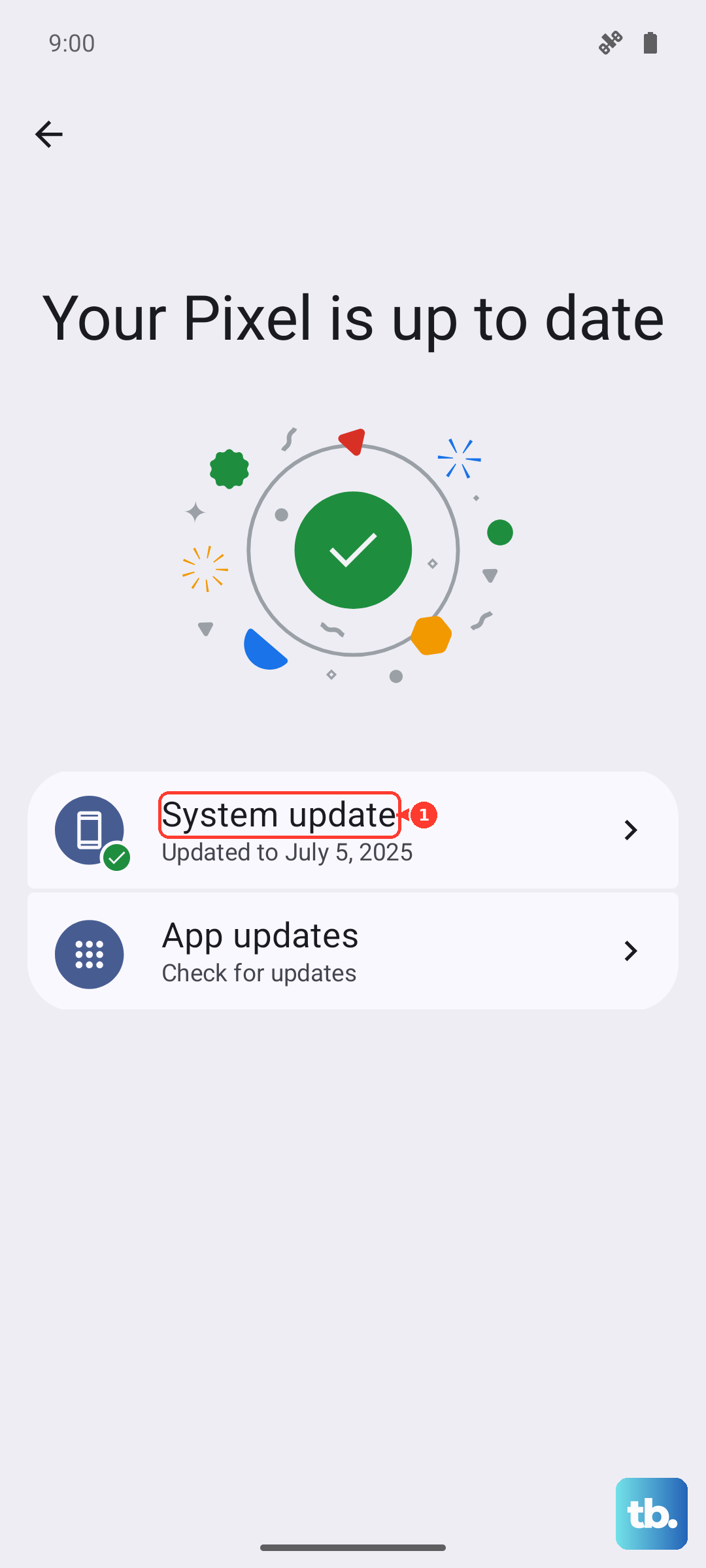
- 1.Open Settings.
- 2.Tap System updates.
- 3.Tap Check for updates and follow the on-screen instructions.
Download over Wi-Fi, since updates can be large. They may not be offered in every country at the same time, and the phone may also pull security updates on its own in the background.
Back Up, Then Factory Reset as a Last On-Device Step
If you suspect a software fault and nothing above has helped, erasing the phone is the strongest fix you can do without tools. This is destructive, so back up your photos, accounts, and files first and have your Google account credentials ready to sign back in afterward.
To reset from the menus, swipe up from the home screen and go to Settings, then System, then Reset options, then Erase all data (factory reset). Motorola warns: "All downloaded apps and user data on your phone will be deleted. Data on the cloud will not be deleted."
If Settings is unreachable, you can reset from Recovery mode instead. Charge the phone to at least 30 percent and power it off, then follow these steps.
- 1.Press and hold Volume Down and Power until the phone turns on.
- 2.Press Volume Down until "Recovery mode" is highlighted, then press Power.
- 3.Use the Volume keys to scroll to "Wipe data/factory reset," then press Power.
- 4.Scroll to "Factory data reset," then press Power.
- 5.Select "Reboot system now."
Reinstall the Firmware or Reach Motorola Support
If wireless charging still fails after a reset, the system software itself may be damaged in a way the on-device reset cannot repair. Motorola offers a free Windows PC tool called Rescue and Smart Assistant (RSA) that reinstalls, or "rescues," the phone's system firmware, available from Motorola's official website. Reinstalling firmware erases all data, so make a fresh backup before you start.
When even a clean firmware reinstall does not restore wireless charging, the fault is most likely in the hardware, such as the internal charging coil. At that point, contact Motorola Support or an authorized service center so the phone can be inspected and repaired by a technician rather than risking further damage at home.
Frequently Asked Questions
Does the Motorola Razr+ (2024) actually support wireless charging?
Yes. Motorola's specifications list 15W wireless charging support, with the charger sold separately, and the support pages describe it as working with a Qi-certified wireless charger. Note that the standard, non-Plus Razr 2024 supports only 5W wireless, so guidance differs by model.
Will it work with a MagSafe or Qi2 charger?
Motorola only documents the Razr+ (2024) as compatible with a Qi-certified wireless charger; it does not state Qi2 or MagSafe support. To be safe, use a standard Qi-certified pad and align the phone with the charging area rather than relying on magnetic snapping.
Why is wireless charging so much slower than the cable?
That is expected. Wired charging on this phone runs up to 45W TurboPower, while wireless is rated up to 15W, so the pad will always be slower. Heat can lower the rate further, since the phone slows charging when it gets warm.
Could a thick case really stop wireless charging?
Yes. Motorola says wireless "charging may not work properly if you have a thick case on your phone" and recommends removing it before charging. Metal plates, magnetic mounts, and wallet attachments can block the coil as well, so remove them and test with the bare phone.
Will a factory reset fix wireless charging?
It can, if the cause is a software fault, but it erases all downloaded apps and user data on the phone (cloud data is not deleted), so back up first. If wireless charging still fails after a reset and a firmware reinstall with Rescue and Smart Assistant, the problem is likely hardware and should be handled by Motorola Support or an authorized service center.