
Missing notifications on a folding phone like the Razr Plus can be especially tricky, as you might miss alerts on both the cover screen and main display. The issue often comes down to a setting that got changed, an app acting up, or a system process that needs a refresh.
I'd start with Do Not Disturb. Swipe down from the top of the screen to open Quick Settings and tap Do Not Disturb if it's on. To review its rules, touch and hold Do Not Disturb, then check allowed people, apps, alarms, schedules, duration, and display options for hidden notifications.
Check App-Specific Notification Settings
Android lets you control notifications for each app individually. If you're missing alerts from a specific app like Messages or Gmail, its permissions might be off. Open Settings > Apps > See all [number] apps.
Find the app that's not notifying you and tap it. Select Notifications. Here, make sure the toggle at the top is set to "On." Then, check the categories below, like "Messages" or "Inbox," and ensure each important one is set to "Allow" and that the sound, vibration, and pop-up settings are how you want them.
Restart Your Razr Plus
A quick restart clears out temporary glitches in the system that can block notifications. On the Razr Plus 2024, press the Power and Volume Up buttons at the same time, then tap Restart. If the phone is unresponsive, press and hold the Power button until the screen goes dark and the phone restarts.
Review Battery Optimization for Key Apps
Motorola's battery controls can limit apps you don't use often, which may delay messages for apps that need to run in the background.
Open Settings > Battery > Manage background apps. For messaging and email apps that must deliver alerts promptly, place them in Always allow instead of Don't allow or Smart use. Also check Settings > Battery > Adaptive Battery if you have been restricting rarely used apps.
Clear the Cache for the Problem App
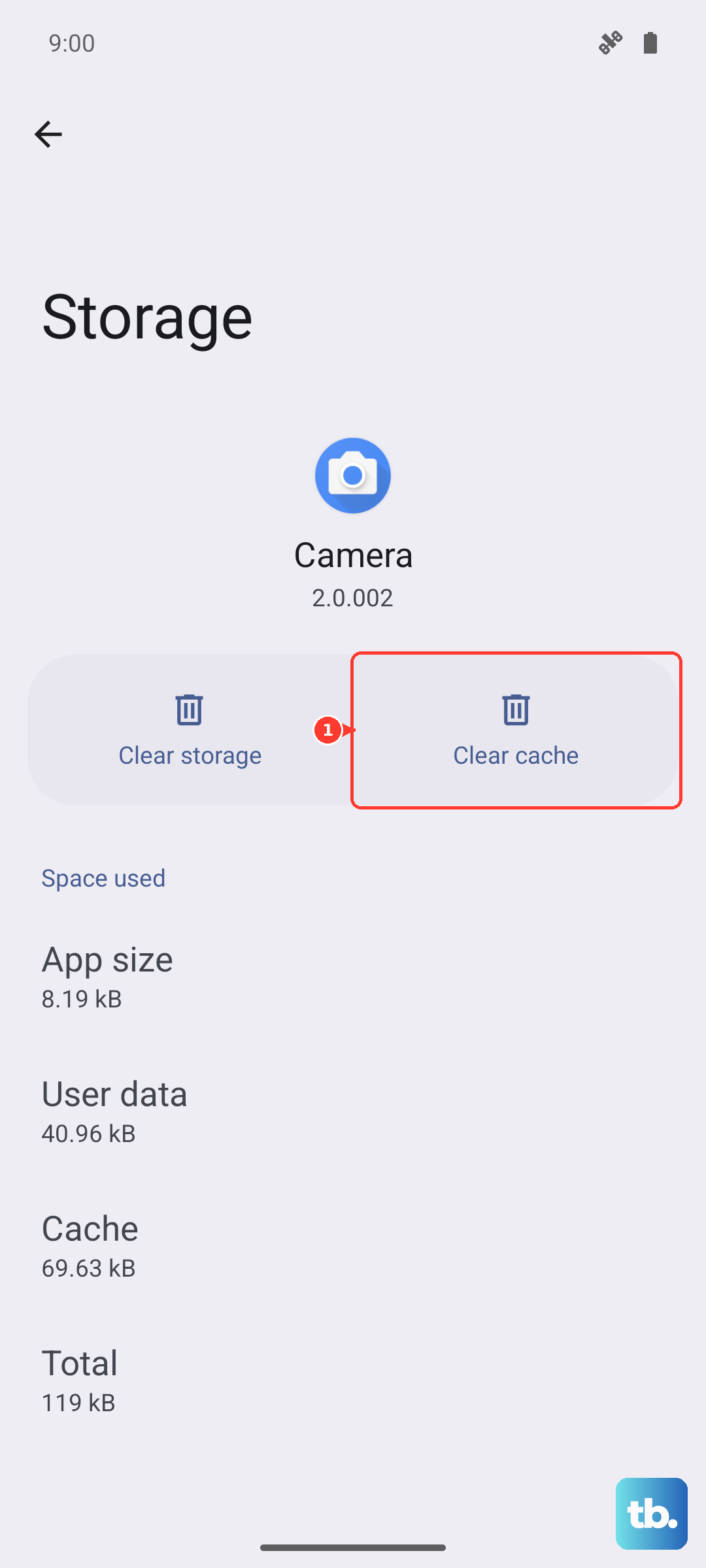
Corrupted temporary data can cause an app to malfunction silently. Clearing its cache is a safe first step that won't delete your login info or personal data. Head back to Settings > Apps, select the app, then tap Storage & cache.
Tap "Clear cache." After doing this, force close the app by tapping "Force stop" on the same screen, then reopen it. This gives the app a completely fresh start.
Ensure Background Data is Unrestricted
If an app can't use mobile data or Wi-Fi in the background, it can't receive new notifications. Check this setting by going into the app's info page in Settings (Settings > Apps > [App Name]).
Tap Mobile data & Wi-Fi. Make sure both "Background data" and "Unrestricted data usage" are enabled. This is particularly important if you notice notifications only fail when you're not actively using the app.
Check for Software Updates
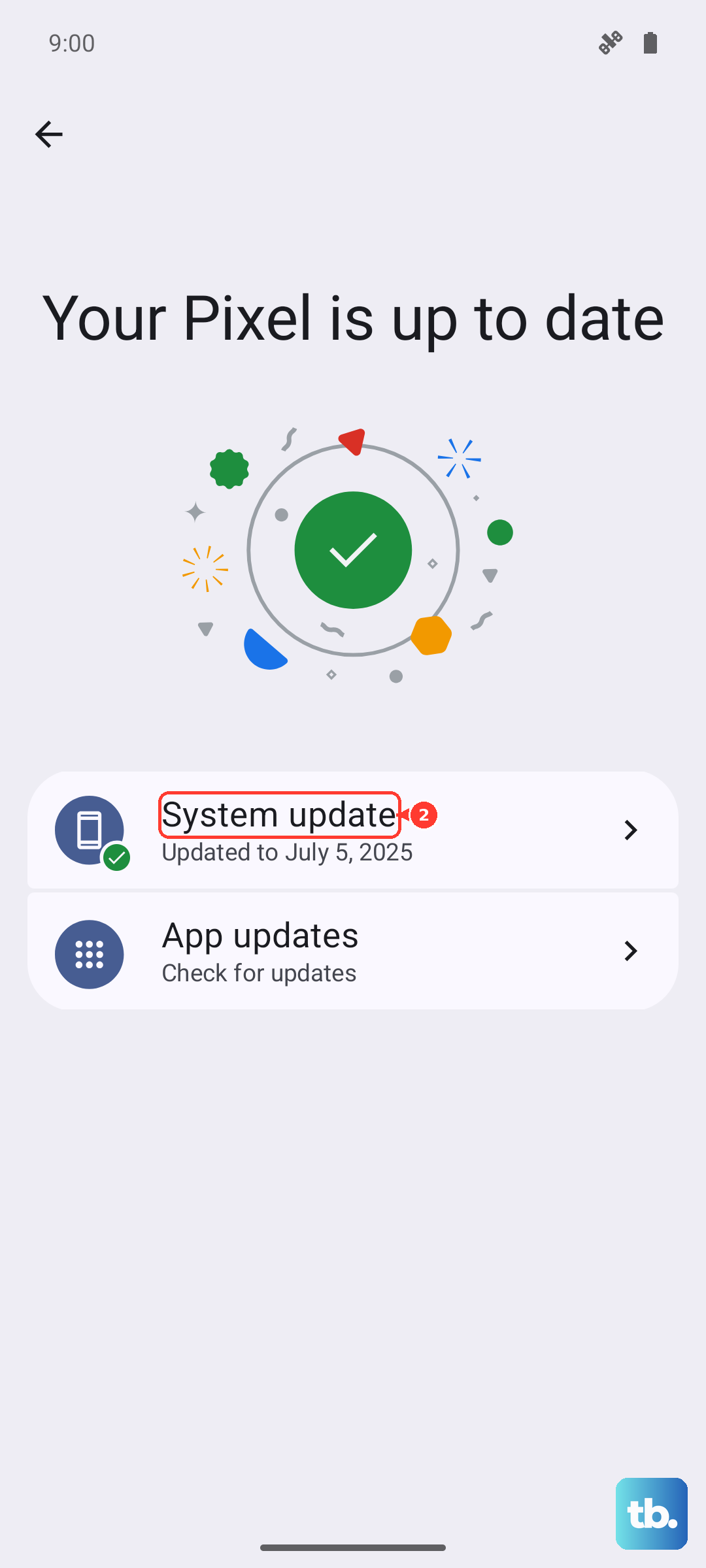
Motorola frequently releases updates that fix bugs, including ones related to notifications. It's worth making sure you're on the latest software. Open Settings > System > System updates and tap "Check for update." If one is available, install it. I'd recommend doing this while your phone is plugged into your 45W TurboPower charger and unfolded to avoid any cable crimping or overheating during the process.
Reset App Preferences
This is a broader fix that resets all your app-related settings, like notification permissions, default apps, and background data restrictions, back to their defaults. It won't delete any app data. Go to Settings > System > Reset options.
Tap "Reset app preferences" and confirm. Afterward, you'll need to re-grant notification permissions for your apps when they first ask, but it can clear up conflicts causing the silent treatment.
Inspect the External Display Notification Settings
Since the Razr Plus has an external display, check the external display and lock screen notification settings if alerts appear on the main screen but not while the phone is closed.
Open Settings > External display > Sleep display, turn on Use Sleep display, and enable Show notification icons. Then check Settings > Notifications > Notifications on lock screen and choose a lock screen notification option that shows the alerts you want instead of hiding them.
Disable Any Third-Party Battery Savers or Cleaners
Apps from other developers that promise to extend battery life or clean memory often work by aggressively killing background processes. This will stop notifications dead. Go through your app list and see if you have any such apps installed, like Clean Master, DU Battery Saver, or any "performance booster."
Consider uninstalling them or, at a minimum, going deep into their settings to add your messaging apps to a "protected" or "ignore" list so they aren't targeted.
As a Last Resort, Reset Network Connections
If notifications are failing specifically over mobile data or Wi-Fi, a network reset can help. This removes saved Wi-Fi networks and passwords, cellular settings, paired Bluetooth devices, and VPN configurations, so use it only after trying the app-specific fixes above. Go to Settings > System > Reset options.
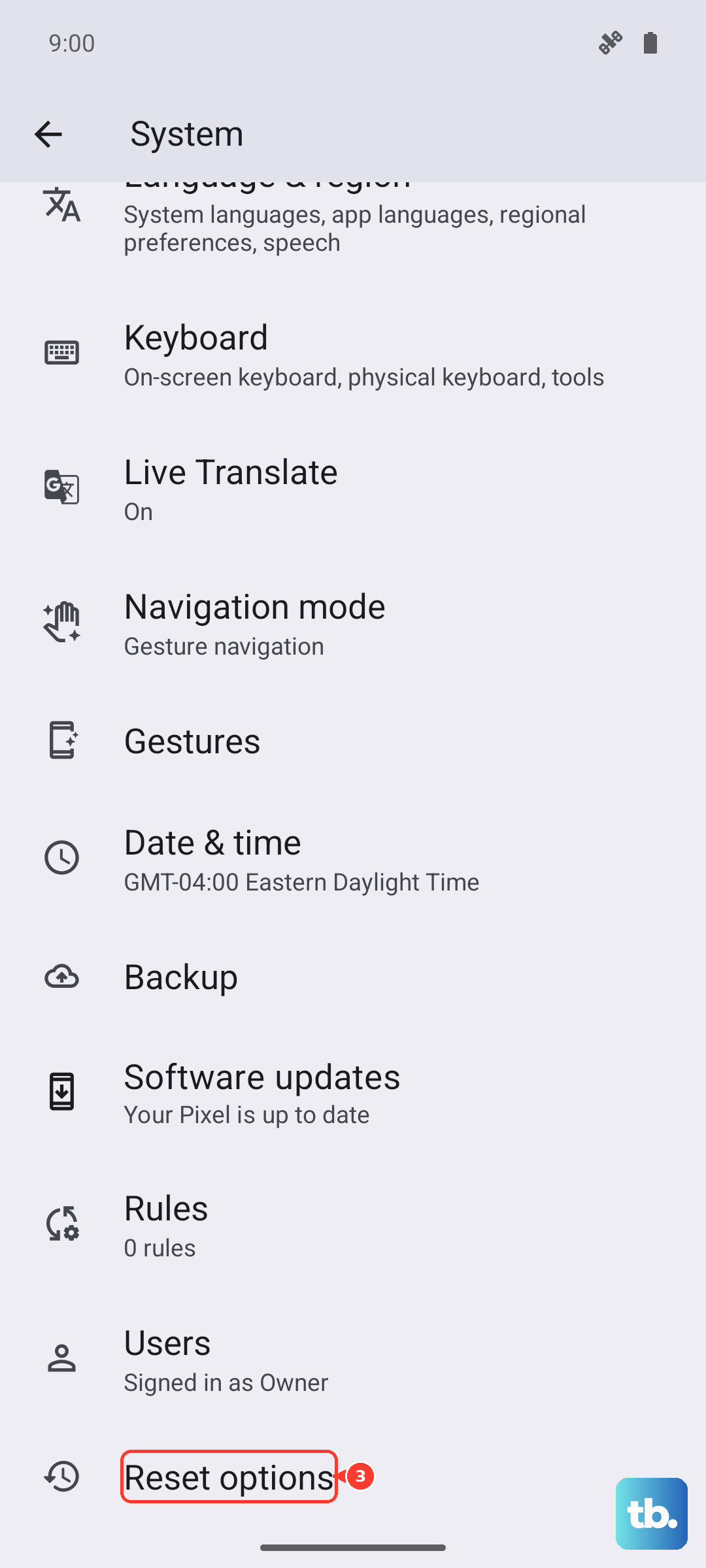
Select Reset Wi-Fi, mobile & Bluetooth, tap Reset settings, and confirm. Then reconnect to Wi-Fi, cellular data, and Bluetooth and test notifications again.