You set your Moto G Power (2025) down on a wireless pad, expect it to top up while you sleep or work, and instead the battery sits flat, slips lower, or flickers in and out of charging. The good news is that wireless charging is genuinely built into this phone, so a stalled pad almost always points to something fixable rather than a feature your model never had. The Moto G Power (2025) supports Qi wireless charging at up to 15W using a Qi-certified charger (sold separately), and most failures trace back to alignment, a case, the pad or its adapter, or a software hiccup.
Work through the fixes below in order. They run from the safest, no-risk checks to the steps that touch your data, so you only reach for a reset if nothing simpler has worked.
Start by Proving the Problem Is Wireless, Not the Whole Phone
Before you troubleshoot the pad, find out whether the phone charges at all over a cable. Plug it in with the USB-C cable and a compatible adapter; Motorola advises connecting "to the charger that came with your phone, or to a charger that is compatible with your phone," and notes that "Other chargers, including laptops, can charge more slowly."
If wired charging works but the wireless pad does not, the fault is wireless-specific, which means you are looking at alignment, a case, or the pad itself. If neither wired nor wireless charges, treat it as a general charging fault instead, so try a different cable and adapter and make sure the USB-C port is clean and free of lint before going further.
Take the Case Off Before You Blame the Pad
A case is the single most common reason a Qi pad refuses to engage. Motorola is explicit here: "If you use a phone case, you may need to remove it during wireless charging. Thick cases, metal-backed cases, or those with kickstands or magnets often interfere with wireless charging."
Slip the case off entirely and set the bare phone back on the pad. If charging starts, you have your answer, and a slimmer, non-metal case without magnets or a kickstand is the long-term fix.
Line the Phone Up With the Center of the Pad
Wireless charging depends on the coil in the phone sitting directly over the coil in the pad, and even a small offset can stop the transfer cold. Motorola puts it plainly: "Your phone must be aligned properly for best charging performance."
Center the phone's wireless charging area over the middle of the pad rather than letting it sit toward an edge. Check the charger maker's instructions for the exact placement, since some pads have a marked sweet spot, and nudge the phone until the charging indicator confirms it has connected.
Check the Pad Is Qi-Certified and Properly Powered
The Moto G Power (2025) charges "using a Qi-certified wireless charger (sold separately)," so confirm the pad you are using is genuinely Qi-certified rather than an unbranded knockoff. Just as important, make sure the pad is fed by an adequate wall adapter and not a weak, low-power source, because an underpowered adapter can leave the pad unable to deliver a steady charge.
Set your expectations to match the technology, too. Motorola notes that "Wireless chargers are generally slower than wired" and that "Your phone may heat up more with wireless charging than with USB," so for the fastest possible top-up, "charge with USB." Wireless pads work best for idle charging, such as overnight or on a desk, when you are not actively using the phone.
Force a Restart to Clear a Stuck Charging State
If wireless charging still misbehaves after the physical checks, a forced restart clears a software state that may have the charging system hung. To do it, press and hold the Power key for 10 to 20 seconds.
This is safe to do, and Motorola confirms "Data on your phone will not be deleted." Make sure the battery is at a minimum of 5% first, and if the phone is fully drained, leave it charging for at least 15 minutes before you attempt the force restart.
Install Any Pending Software Updates
Outdated system software can cause charging glitches that a maintenance update later resolves, so it is worth checking for one. Go to Settings > System > (Advanced) > System updates > Check for updates, then follow the on-screen instructions.
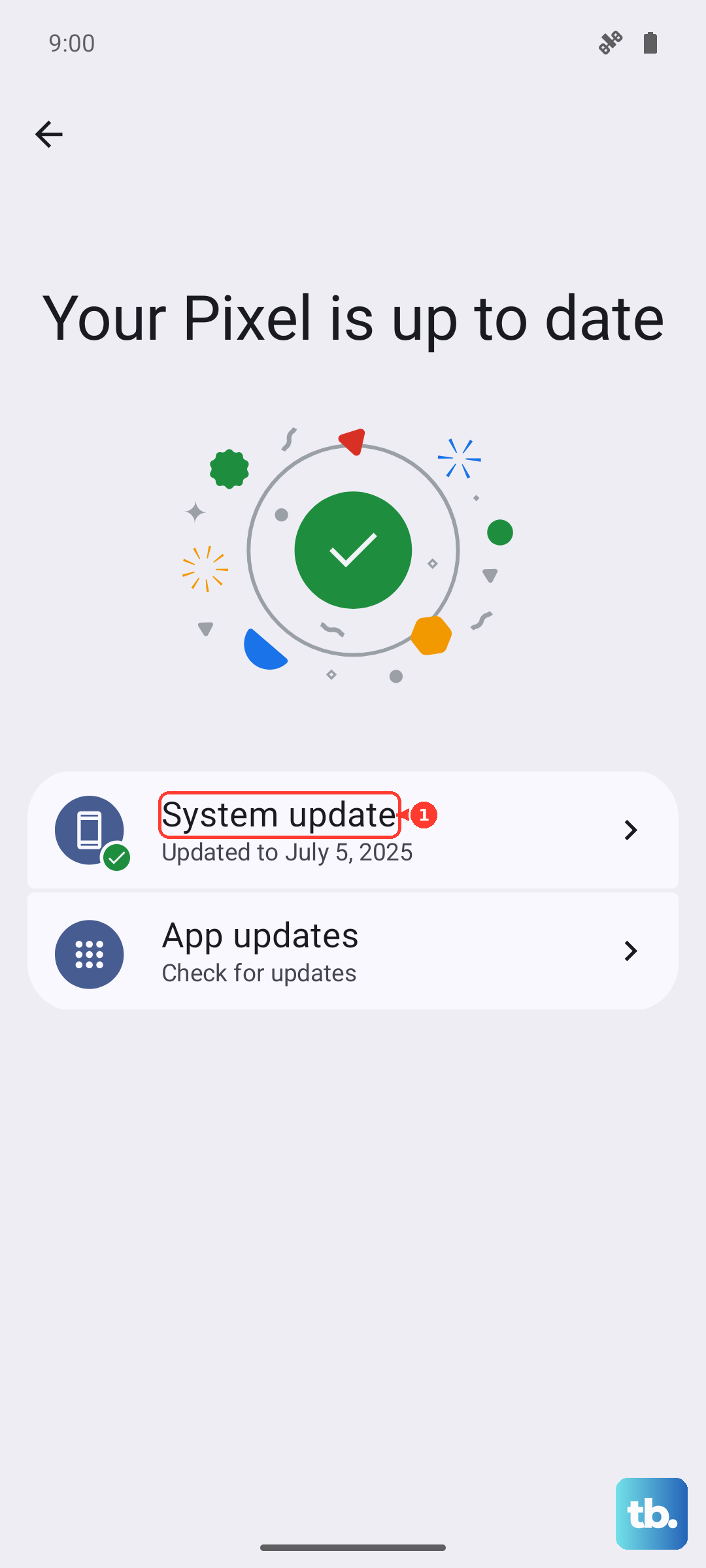
Download the update over Wi-Fi and let the phone finish installing and restarting. Once it is back up, put it on the wireless pad again to see whether the update has cleared the fault.
Repair the Software With Motorola Rescue and Smart Assistant
If over-the-air updates fail or the phone has started behaving abnormally, you can repair the software from a computer using Motorola's official tool, Rescue and Smart Assistant (RSA). It is a Windows program that can manually update or reflash a Moto phone, which Motorola calls a rescue, when normal updates will not install. Because a rescue can erase the data on your phone, back up anything important first. Download RSA from Motorola's official support website, install it on a Windows PC, connect the phone, and follow the prompts to update or rescue the device.
Factory Reset as a Last Resort
A factory reset should come only after everything above has failed, because it erases your phone. Back up your data first; Motorola warns that "Resetting your phone erases all data and brings it back to out-of-the-box condition."
When you have a backup, go to Settings > System > (Advanced) > Reset options > Erase all data (factory reset) and confirm. If Settings will not open, use the external recovery route instead.
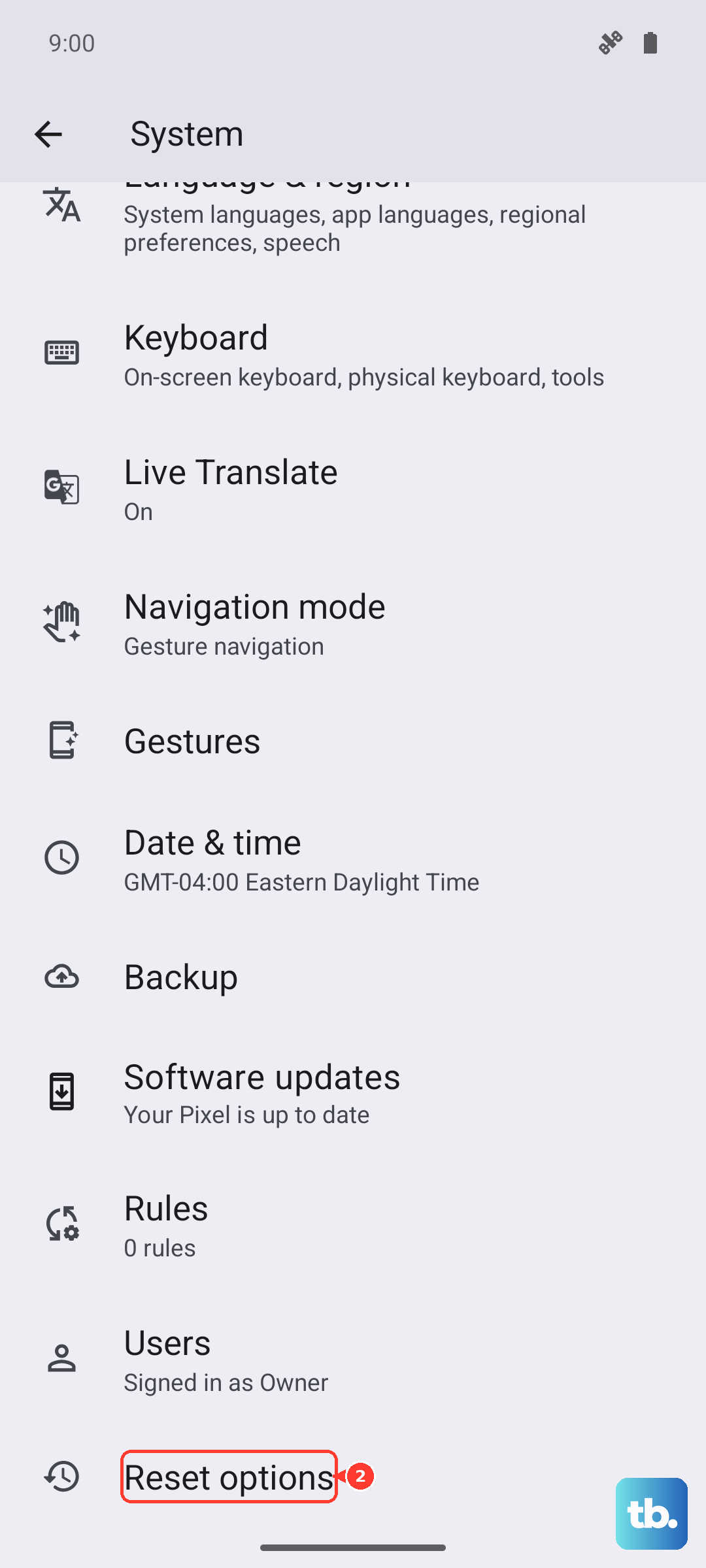
- 1.Press and hold the Volume Down button and the Power button at the same time until the phone turns on.
- 2.Press the Volume Down button until you see Recovery mode.
- 3.Press the Power button to restart in Recovery mode.
- 4.Scroll to Wipe data/factory reset and select it with the Power button.
- 5.Choose Reboot system now.
After the reset, test wireless charging again before you restore your backup, so you can tell whether the problem was software or hardware.
When to Hand It to Motorola
If wireless charging still fails after the case is off, the phone is centered, the pad and adapter are sound, and a reset has not helped, the charging coil or other hardware may be at fault. At that point the issue is beyond what you can fix at home.
Use Motorola's official Moto G Power (2025) support page to start a chat, review your service options, or arrange a repair. Having already ruled out the case, alignment, pad, and software will help the support agent move straight to the hardware question.
Frequently Asked Questions
Does the Moto G Power (2025) actually support wireless charging?
Yes. Motorola's official specifications list 15W wireless charging, and the charging help page confirms the phone charges "using a Qi-certified wireless charger (sold separately)." The pad is not included with the phone, so you supply your own Qi-certified charger.
Why is wireless charging so much slower than using the cable?
That is expected behavior, not a fault. Motorola states that "Wireless chargers are generally slower than wired," so for the fastest charge you should "charge with USB." The phone supports up to 30W wired charging with a Motorola TurboPower charger, which tops up fastest while the battery is below 78%.
Why does my phone get warm on the wireless pad?
Some extra warmth is normal with wireless charging. Motorola notes that "Your phone may heat up more with wireless charging than with USB," which is one reason wireless pads work best for idle charging overnight or on a desk rather than while you are actively using the phone.
Will a force restart or a software update erase my data?
No. A force restart only powers the phone off and on, and Motorola confirms "Data on your phone will not be deleted." Checking for and installing a system update also keeps your data. Only a factory reset erases the phone, which is why it is saved for last and requires a backup first.
Can I leave my case on while charging wirelessly?
It depends on the case. Motorola says you "may need to remove it during wireless charging," because "Thick cases, metal-backed cases, or those with kickstands or magnets often interfere with wireless charging." A thin case without metal, magnets, or a kickstand is the safest choice if you want to leave it on.