That "Storage full" alert on your Moto G Power (2025) tends to appear at the worst possible moment, just as you try to shoot a video, snap a photo, or install an app update. The reassuring part is that the 128GB of built-in storage (the amount you can actually use is a little lower) fills up gradually with cached files, forgotten downloads, and apps you no longer open, and almost all of that space is recoverable. Android 15 gives you everything you need to clean house from the phone itself, with no extra app to install. Work through the fixes below in order, starting with the safest and quickest, and save the factory reset for the very end.
Reboot first to clear out temporary memory
Before you delete anything, a simple restart often releases memory that stuck or crashed apps have tied up. This costs you nothing and keeps all your files intact, so it is always worth trying first. Make sure the device is charged to at least 5% before you begin.
If the phone is responsive, restart it the normal way and let it boot back up.
If the screen is frozen or will not respond, press and hold the Power key for 10 to 20 seconds to force a reboot. Data on your phone will not be deleted.
Once the phone restarts, check whether the storage warning clears on its own before moving on.
See exactly what is filling up your 128GB
You cannot fix a storage problem efficiently until you know where the space has gone. The Moto G Power (2025) ships with 128GB of built-in storage (available user storage is less), and Android 15 breaks down every category for you.
Open Settings, then tap Storage. This screen shows how much space is in use and what is taking it up, including apps, photos and videos, and downloads. Use this overview to decide where to focus, since clearing the largest categories gives you the biggest payoff for the least effort.
Clear app caches, then app data only if you have to
Apps build up cached files over time, and these temporary files can quietly consume gigabytes. Clearing the cache is safe because it only removes those temporary files, and the cache rebuilds itself as you keep using the app, so you can repeat this whenever space runs low.
Open Settings and tap Apps, then choose the app you want to clear.
Tap Storage & cache.
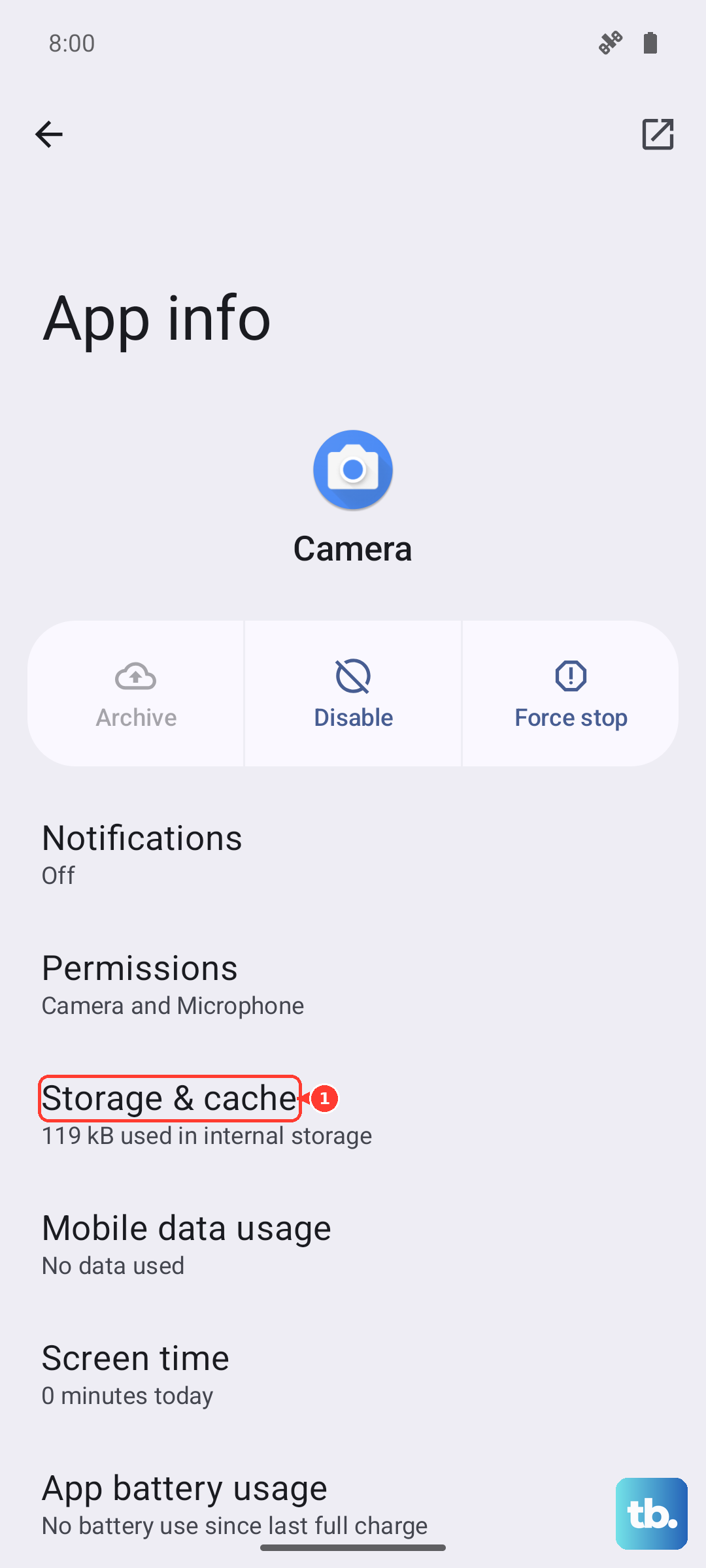
Tap Clear cache to free space by removing temporary files.
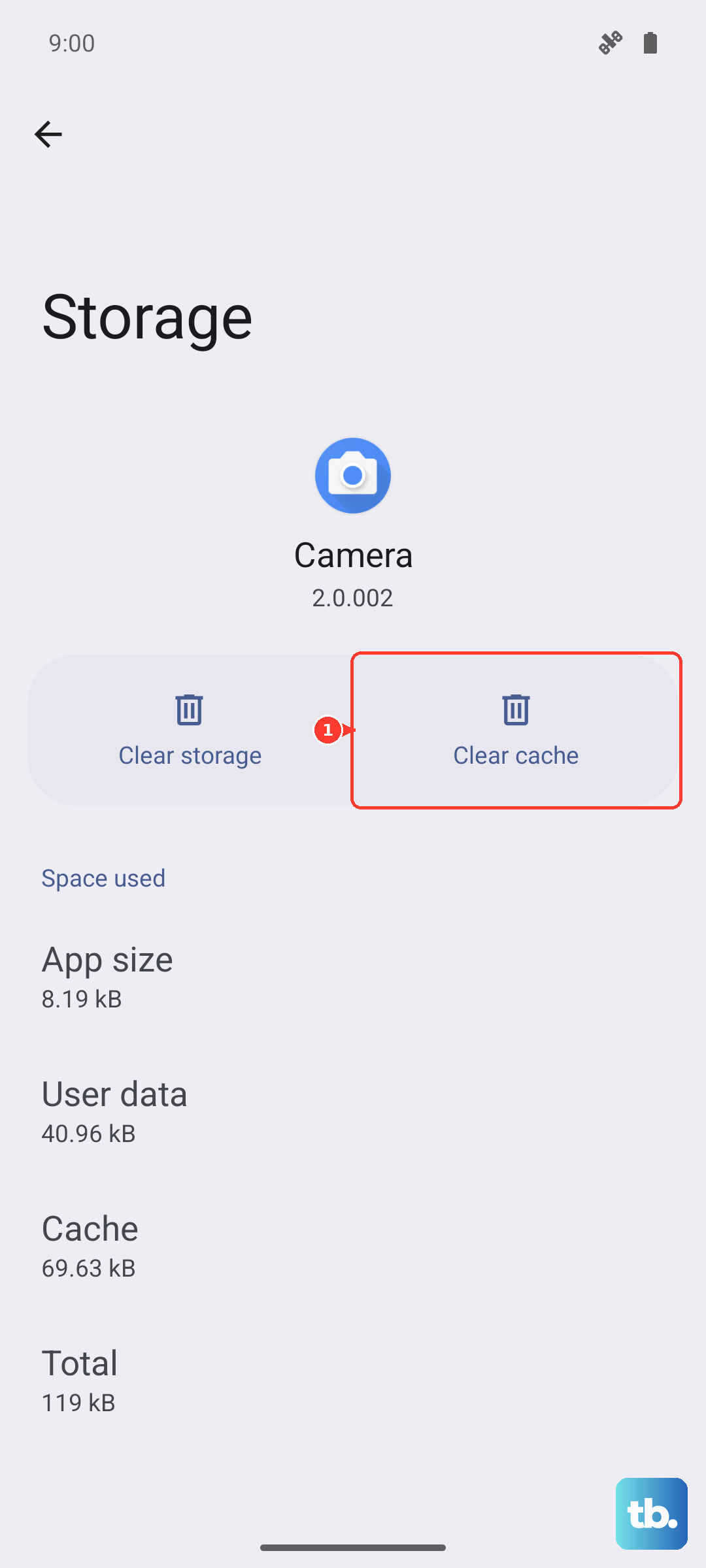
If a particular app still misbehaves after that, you can go a step further and clear its data. From the same Storage & cache screen, tap Clear storage to delete all data saved in the app. Be careful here, because there is no way to undo this and you may need to sign back in afterward.
Let the Files app Clean tool surface the clutter
The built-in Files app can scan your phone and recommend things worth deleting, which saves you from hunting through folders by hand. It is one of the fastest ways to recover space without guesswork.
Open the Files app.
Select Clean from the menu to view suggestions for removing old downloads and unused apps.
Follow the onscreen instructions to uninstall, move, or delete the items it suggests.
Old downloads and large files you forgot about are common culprits, so this single pass often reclaims a meaningful chunk of storage.
Uninstall the apps you have stopped opening
Installed apps and their data can take up far more room than you expect, especially games and media apps. Removing the ones you no longer use is a permanent win for your storage.
You can uninstall directly from the Files app by tapping the app's name and then tapping Uninstall. Keep in mind that not every app can be removed, and many preinstalled apps can be disabled instead, which stops them from updating and piling up data over time.
Turn on Storage manager to auto-clear backed-up photos and videos
Photos and videos are usually the heaviest items on a phone. Storage manager can automatically remove copies that are already backed up, so you keep your library without keeping every duplicate on the device. Back up your photos and videos to the cloud first so that you always retain a copy.
Go to Settings, then tap Storage.
If an SD card is installed, tap Internal shared storage.
Tap Storage manager and turn it on.
Tap Remove photos & videos and select a duration of 30, 60, or 90 days.
This only removes the copies sitting on internal storage; any files stored on an SD card are not affected.
Slot in a microSD card for up to 1 TB more room
If you regularly run out of space, the most lasting fix is to add physical capacity. The Moto G Power (2025) supports a microSD card expandable up to 1 TB (sold separately), which is a large amount of extra headroom for photos, videos, and other media.
After you insert a card, you can move media files from internal storage onto it to free up the built-in 128GB. One caveat to expect is that DRM-restricted content may not be movable, so some purchased or protected media will stay on internal storage.
Stay on the latest software as part of good housekeeping
Keeping the system current is sound maintenance and helps the storage tools above behave the way they should. It will not magically reclaim gigabytes on its own, but it keeps your phone on the latest system and security fixes.
Open Settings, then tap System. If you see an Advanced option, tap it.
Tap System updates.
Tap Check for updates, then follow the onscreen prompts to download and install.
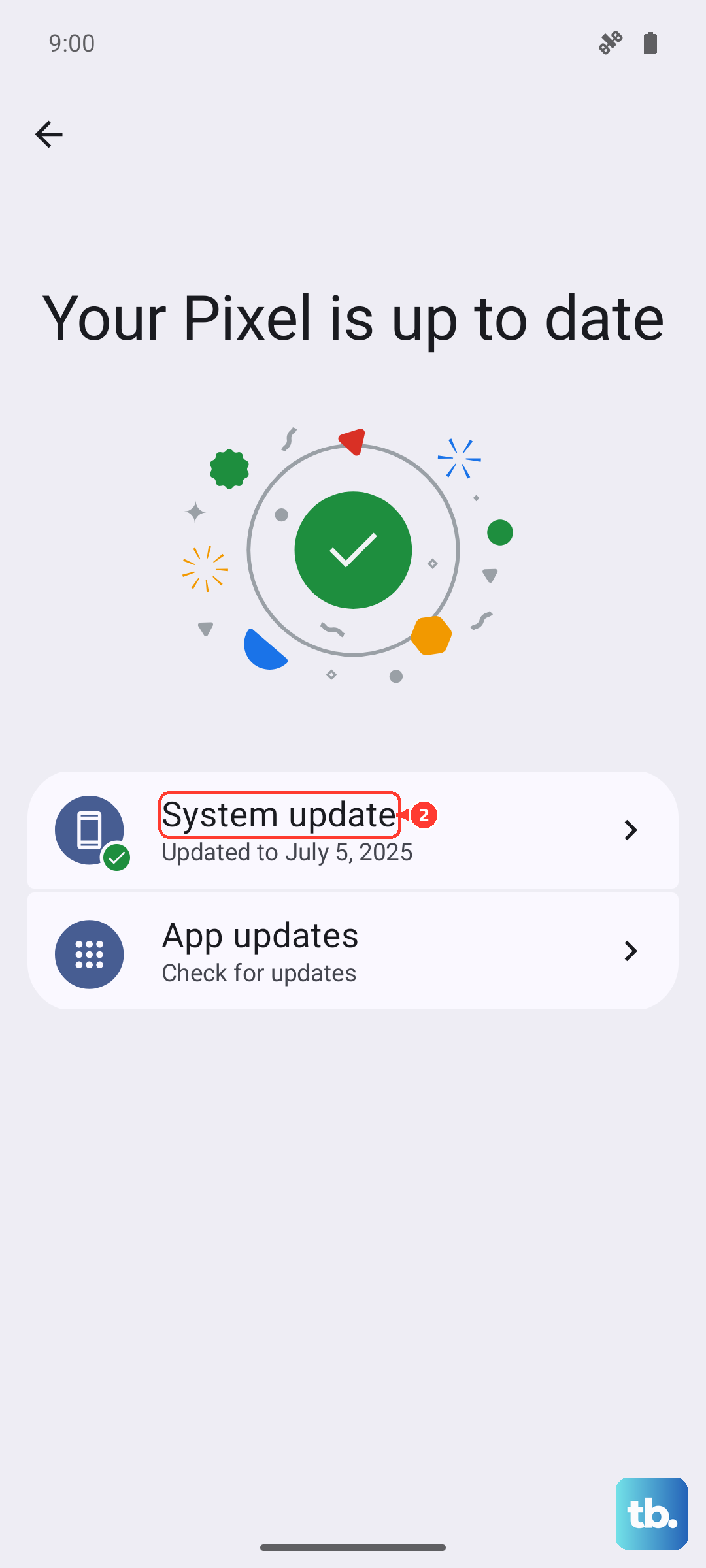
Updates can be large, so connect to Wi-Fi and make sure you have both enough free space and enough battery before you start.
The factory reset, only as a last resort
If your storage problems persist after everything above, a factory reset returns the phone to a clean state. This is the most drastic option, so treat it as a true last resort. Resetting your phone erases all data and restores it to out-of-the-box condition, so back up everything you want to keep first. Data stored in the cloud is not deleted by the reset.
If you can open Settings, use this path.
Open Settings, then tap System. If you see an Advanced option, tap it.
Tap Reset options.
Tap Erase all data (factory reset) and confirm.
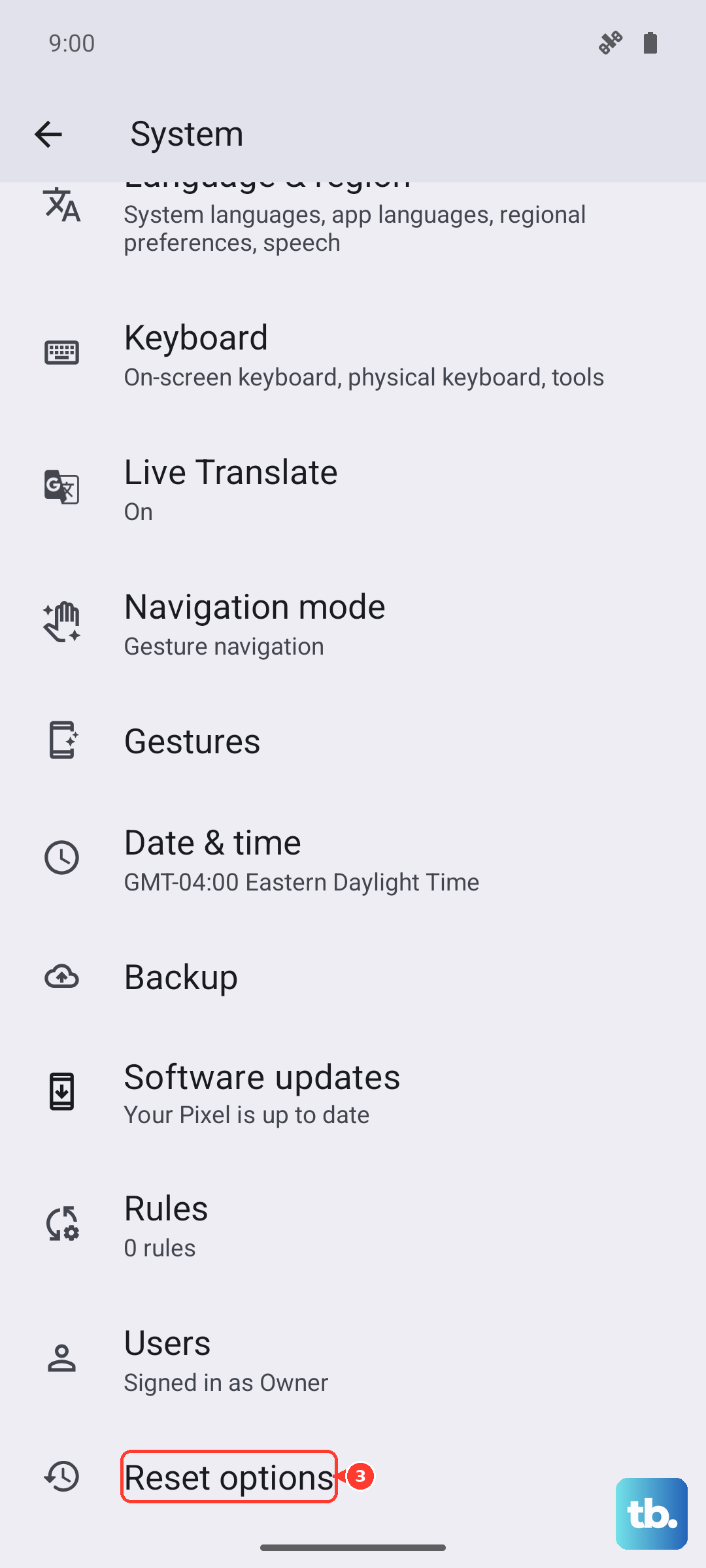
If the phone is so full that you cannot open Settings, you can reset through Recovery mode instead. Make sure the battery is charged to 30% or more before you begin.
- 1.Turn off the phone.
- 2.Press and hold Volume Down and Power until the phone turns on.
- 3.Press Volume Down until you see Recovery mode, then press Power to select it.
- 4.Use the Volume buttons to scroll to Wipe data/factory reset, then press Power to select.
- 5.Confirm to erase the device.
When the phone restarts, it will be back to its original condition, and you can restore your apps and files from your backup.
Frequently Asked Questions
Does the Moto G Power (2025) support a microSD card?
Yes. It supports a microSD card expandable up to 1 TB, sold separately. After inserting one, you can move media files from internal storage to the card to free up the built-in 128GB, though DRM-restricted content may not be movable.
Will clearing an app's cache delete my photos or sign me out?
No. Clearing the cache through Storage & cache, then Clear cache only removes temporary files, and it is safe to do as often as you like. Clearing storage through Clear storage is different, because it deletes all data saved in the app with no way to undo it, and you may need to sign in again afterward.
Does a factory reset erase the files I backed up to the cloud?
No. A factory reset erases the data on the phone and restores it to out-of-the-box condition, but data you have stored in the cloud is not deleted. Always back up anything kept only on the device before you reset.
Will Storage manager delete the photos on my SD card?
No. Storage manager only removes the copies of photos and videos that are already on internal storage. Files saved on an SD card are not affected, so use it confidently once your media is backed up to the cloud.