You tap a message field on your Moto G Power (2025), and nothing slides up from the bottom of the screen. Or the on-screen keyboard does appear, then freezes, lags behind your taps, or vanishes in the middle of a sentence. Because this phone has no physical keys, a "keyboard not working" problem is almost always a software hiccup with the on-screen keyboard, and the good news is that you can usually fix it yourself in a few minutes. Work through the steps below in order, starting with the quickest and safest, and stop as soon as typing returns to normal.
What a keyboard problem looks like on an all-touchscreen phone
The Moto G Power (2025) is a fully touchscreen device with a 6.8-inch Full HD+ (2388 x 1080) 120Hz display, so there are no physical keys to type on or repair. The "keyboard" is the on-screen (software) keyboard, and on this Android 15 build that keyboard is Gboard, Google's keyboard, which is updated through the Google Play Store rather than through a system update.
That means every reliable fix is a software fix. You can restart the phone, check which input method is selected, update or clear the keyboard app, rule out other apps, update the system, and, only as a last resort, reset the phone. None of these steps involve opening the device or touching any hardware, so they are all safe to try at home. Try them in the order shown, because the early steps are quick and harmless while the later ones take more time or undo your settings.
Start with a force restart to clear a frozen keyboard
A keyboard that is frozen, unresponsive, or stuck off-screen often clears the moment the phone reboots. A force restart closes everything running in the background and gives the input system a clean start, and it does not delete any of your data.
- 1.Make sure the phone is charged to at least 5%.
- 2.Press and hold the Power key for 10 to 20 seconds until the phone restarts.
- 3.Release the button once the screen turns off and the phone boots back up.
- 4.Open any text field to confirm the keyboard now appears and responds.
If typing works again, you are done. If the keyboard is still missing or misbehaving, move on to check your settings.
Check which keyboard is set as your default
If no keyboard appears at all when you tap a text field, the phone may have the wrong, or a removed, input method selected as the default. Confirming or switching the active keyboard takes only a moment and does not affect anything else on the phone.
Open Settings.
Go to System > Keyboard > On-screen keyboard.
Review the list of installed keyboards and select the one you want to use. Gboard is the default keyboard on this Android 15 build.
Once the correct keyboard is selected, return to a text field and check whether it now pops up as expected.
Force stop Gboard and reopen it
If the keyboard is partly loaded or stuck, forcing it to close fully and relaunch can shake it loose. This simply ends the app so it can start fresh the next time you tap a text field, and it does not erase any of your settings or learned words.
Go to Settings > Apps > Gboard.
Tap Force stop.
Open any text field to reopen the keyboard.
If the keyboard comes back to life, the problem may have been a one-off glitch. If not, continue to the next step.
Update Gboard through the Play Store
An out-of-date keyboard app can crash, behave oddly, or stop responding, so it is worth making sure you have the latest version. Gboard updates come from Google Play, not from the phone's system update.
Open the Play Store.
Search for Gboard.
Tap Update, or Install, if an update is offered.
After it finishes, open a text field and test typing. A fresh version often resolves crashing and freezing on its own.
Clear or reset Gboard's data
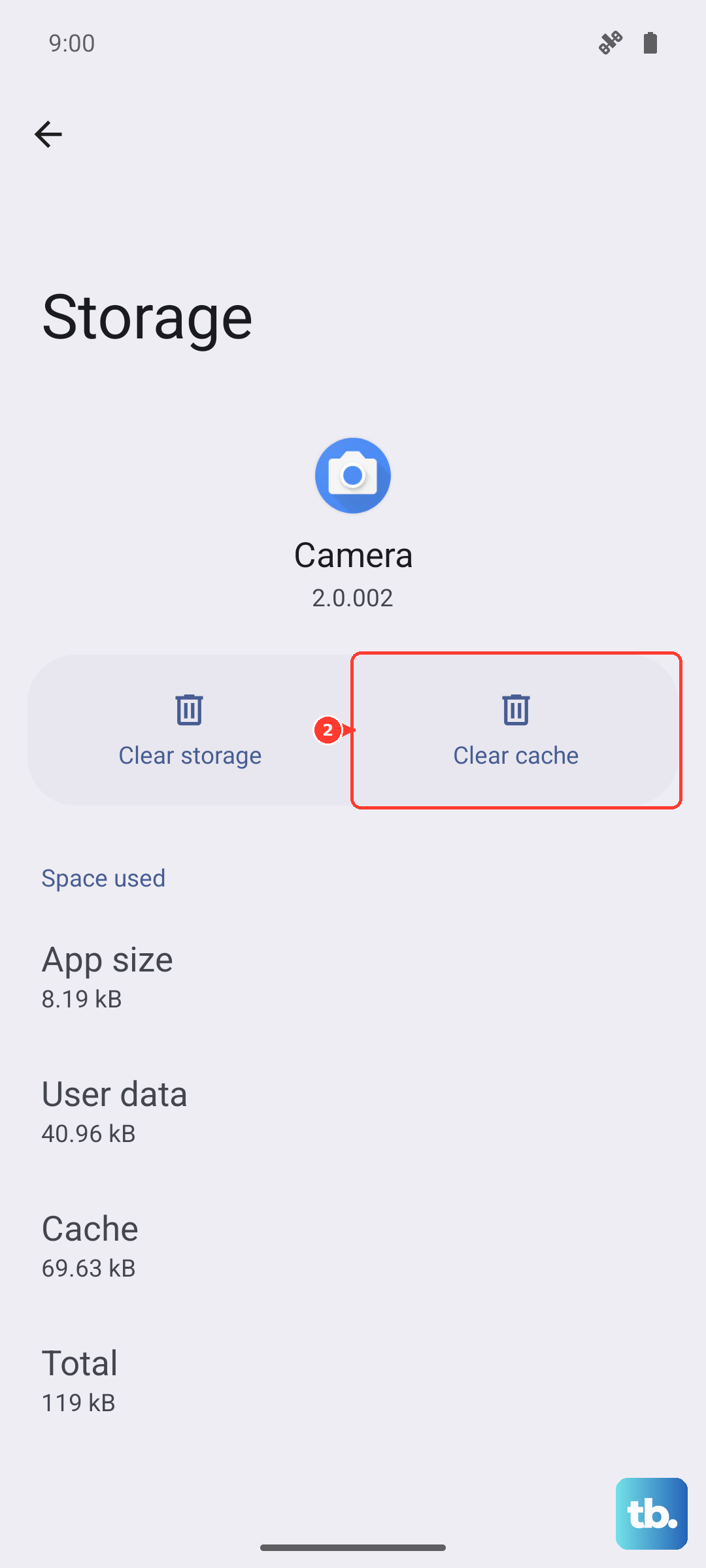
When the keyboard crashes, freezes, or feels unresponsive, corrupted temporary files are a common cause. Start with the lighter option, clearing the cache, which removes those temporary files without erasing your settings or learned words. If that does not help, you can take the heavier step of clearing the app's storage, which returns Gboard to its default state and means you will need to set up its preferences, such as themes and languages, again afterward.
Go to Settings > Apps > Gboard > Storage and cache.
Tap Clear cache, then reopen the keyboard and check whether it behaves normally.
If the problem continues, return to the same screen and tap Clear storage, or Clear data, to reset Gboard completely.
Reopen the keyboard and walk through its initial setup again if you cleared the storage.
Roll back a recent keyboard update
If the keyboard started misbehaving right after an app update, the update itself may be the culprit. You can revert Gboard to the version that shipped with the phone, then update it again later once a newer, stable version is available.
Go to Settings > Apps > Gboard.
Tap More (top right).
Tap Uninstall updates to roll back to the built-in version.
Test the keyboard, and if it is stable, you can update it again from the Play Store at a later time.
Use Safe mode to expose a misbehaving app
Safe mode starts the phone with only the original software and apps, which makes it easy to tell whether a downloaded app is interfering with the keyboard. If typing works perfectly in Safe mode, a third-party app is the likely cause.
Press and hold the Power and Volume up buttons at the same time.
Touch OK to restart in safe mode.
Alternatively, press and hold the Power button, touch and hold Power off, then touch OK to restart in safe mode. To exit, simply restart the phone. If the keyboard worked while in Safe mode, return to normal mode and uninstall recently added apps one by one until the problem disappears.
Install the newest system software
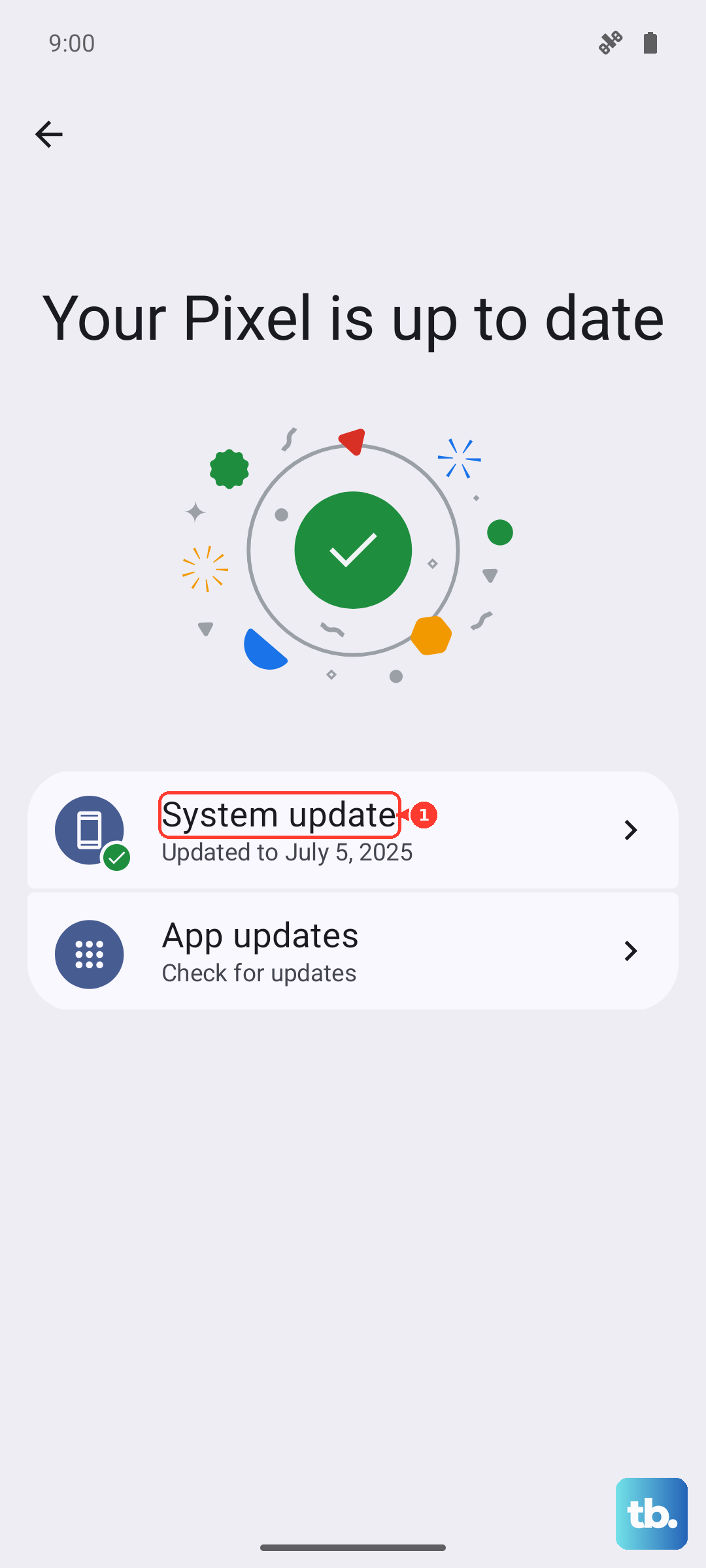
A pending system update can fix keyboard and text-input bugs at the source. Connect to Wi-Fi first so the download does not eat into your mobile data, then check for an update.
Go to Settings > System > Advanced > System Updates. On some builds this is reachable as Settings > System updates > Check for updates.
Download and install any available update.
Let the phone restart to finish installing.
Once it is back on, open a text field and confirm the keyboard now works correctly.
Factory reset when nothing else works
If every step above has failed, a factory reset is the final option. This is a destructive step that erases all data and brings the phone back to out-of-the-box condition, so back up your photos, files, contacts, and calendar before you begin.
Back up everything you want to keep.
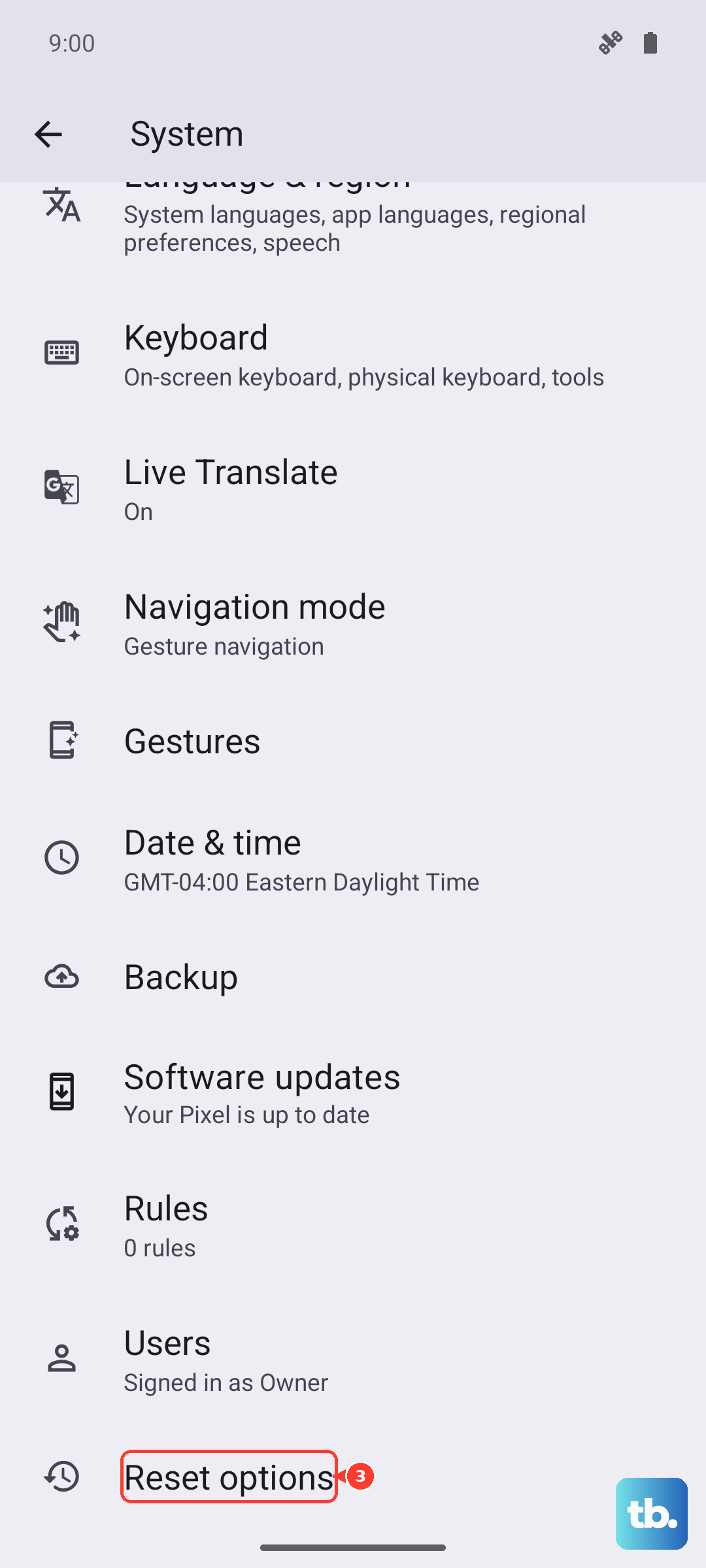
Go to Settings > System > Reset options > Erase all data (factory reset).
Confirm and let the phone reset and restart.
After the reset, set the phone up again and test the keyboard. If typing works at this point, the original problem was software-related and is now resolved.
Frequently Asked Questions
Does the Moto G Power (2025) have a physical keyboard I can repair?
No. The Moto G Power (2025) is an all-touchscreen smartphone with no physical keys, so the keyboard is purely the on-screen (software) keyboard. On this Android 15 build that keyboard is Gboard, which means any fix is a software step rather than a hardware repair.
Will clearing Gboard's storage delete my photos or messages?
No. Clearing Gboard's storage only resets the keyboard app to its default state, so your photos, messages, and other files stay where they are. You will, however, need to set up the keyboard's preferences again after doing it.
My keyboard only acts up in one app. What should I do?
Start by force stopping Gboard and updating it from the Play Store, since an out-of-date keyboard can behave oddly in certain apps. If it still happens only in that one app, boot into Safe mode to see whether a downloaded app is the cause, then remove recently added apps one by one.
How do I switch back to my preferred keyboard after changing it?
Go to Settings > System > Keyboard > On-screen keyboard to see the list of installed keyboards, then select the one you want to use. Gboard is the default keyboard on this Android 15 build.
Do I really need a factory reset to fix the keyboard?
Rarely. A factory reset is the last resort, and almost all keyboard problems are solved earlier by a force restart, updating or clearing Gboard, Safe mode, or a system update. Only reset if everything else fails, and back up your data first because it erases the phone completely.