A frozen Motorola Moto G Power (2025) screen can be incredibly frustrating. You might be stuck on a single app, the lock screen, or just a black screen that won't respond to any taps or button presses. In my experience, this is almost always a temporary software hiccup, and there are several straightforward ways to get your phone working again without losing your photos or messages.
Force Restart Your Moto G Power
This is the first and most effective step for any unresponsive screen. Simply press and hold the Power button on the right side of the phone for at least 10 seconds. Keep holding it until you feel a vibration and see the Motorola logo appear. This forces a clean reboot of the system software and fixes the vast majority of freezes without deleting any of your personal data.
Give It a Moment and a Charge
Sometimes the phone isn't truly frozen, it's just working hard on a background task. The Dimensity 6300 processor is a capable budget chip, but it can get bogged down with heavy multitasking. If the phone feels warm, set it down for five minutes. Also, plug it into a charger using the USB-C port. A nearly dead battery can cause weird behavior, and giving it some power for 15 minutes might be all it needs to wake up properly.
Close the Problem App
If the rest of your phone works but one app is frozen, you can force close it. Swipe up from the bottom of the screen and hold to see your recent apps. Find the frozen app and swipe it all the way up to close it. Then, try reopening it. If a specific app keeps causing freezes, head to the Google Play Store to check for an update, or try clearing its cache in Settings > Apps.
Check Your Available Storage
With a base of 128GB, storage can fill up faster than you think. When your phone's storage is critically low, the system has no room to create temporary files it needs to run smoothly, which can lead to freezing. Go to Settings > Storage to see how much space you have left. I'd recommend deleting old downloads, offloading photos to the cloud, or using the SD card slot to move files and free up at least 5-10GB of space.
Install the Latest Software Update
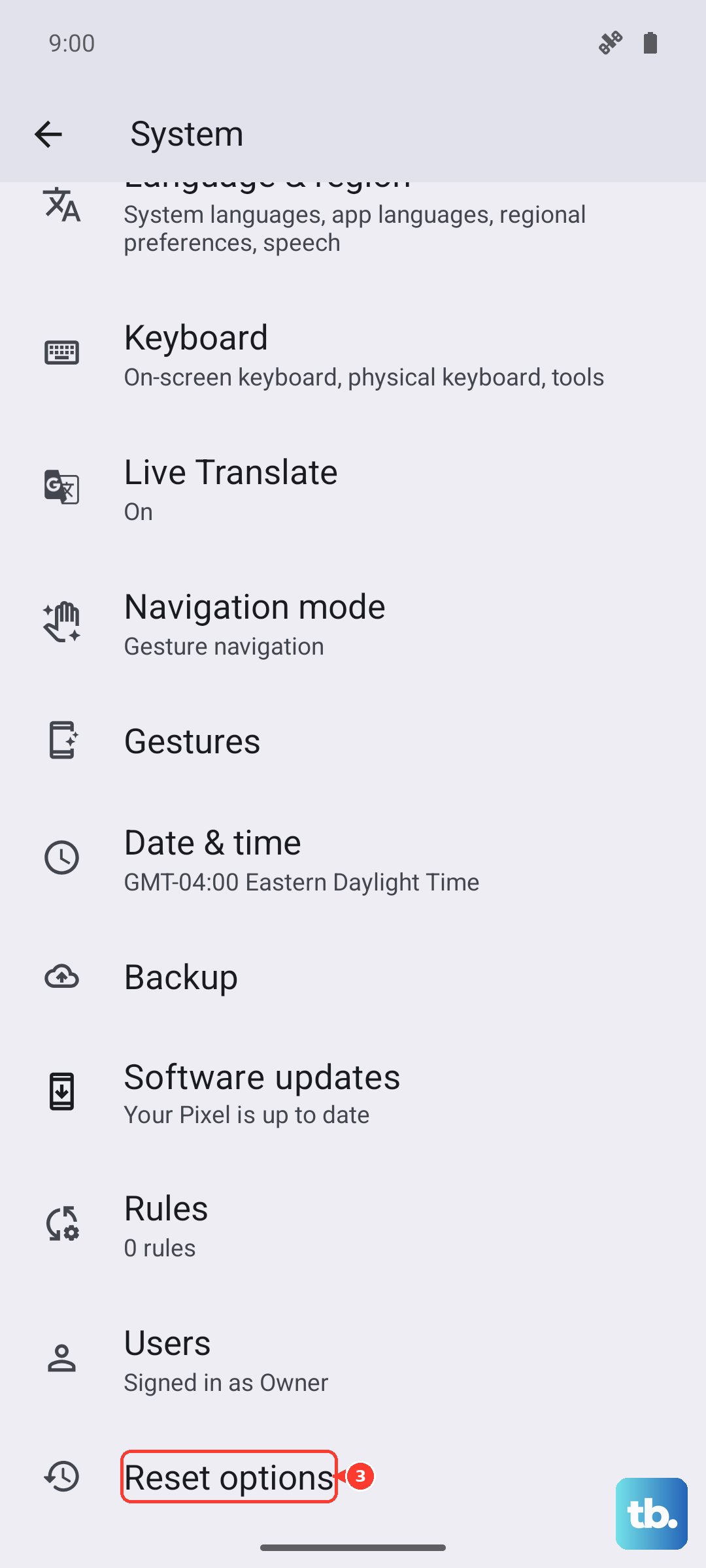
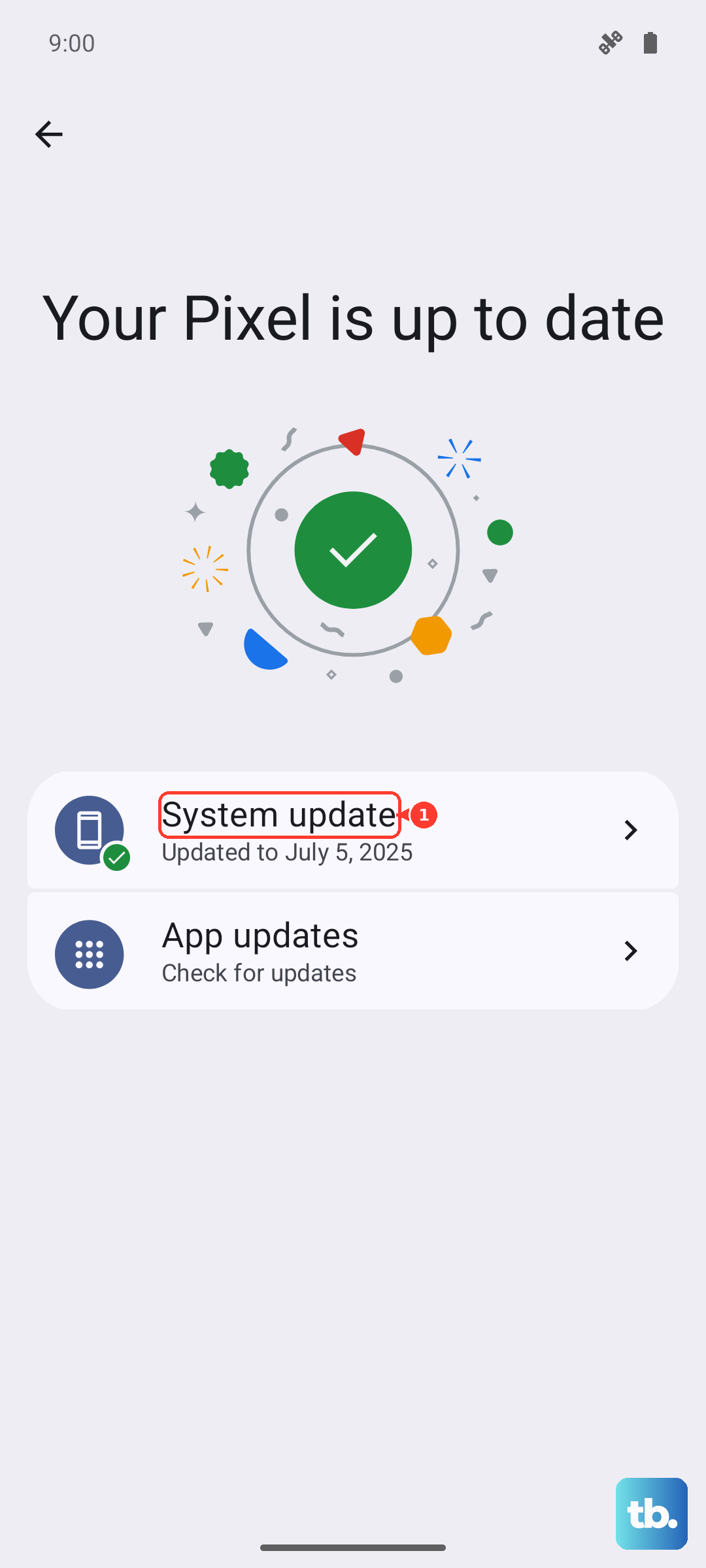
Software bugs are a common cause of instability. After you've restarted your phone, check for an Android update. Navigate to Settings > System > System updates. Installing the latest update from Motorola can patch the exact issue causing your screen to freeze. Make sure your phone is charged above 50% and connected to Wi-Fi before starting the update.
Reset Your App Preferences
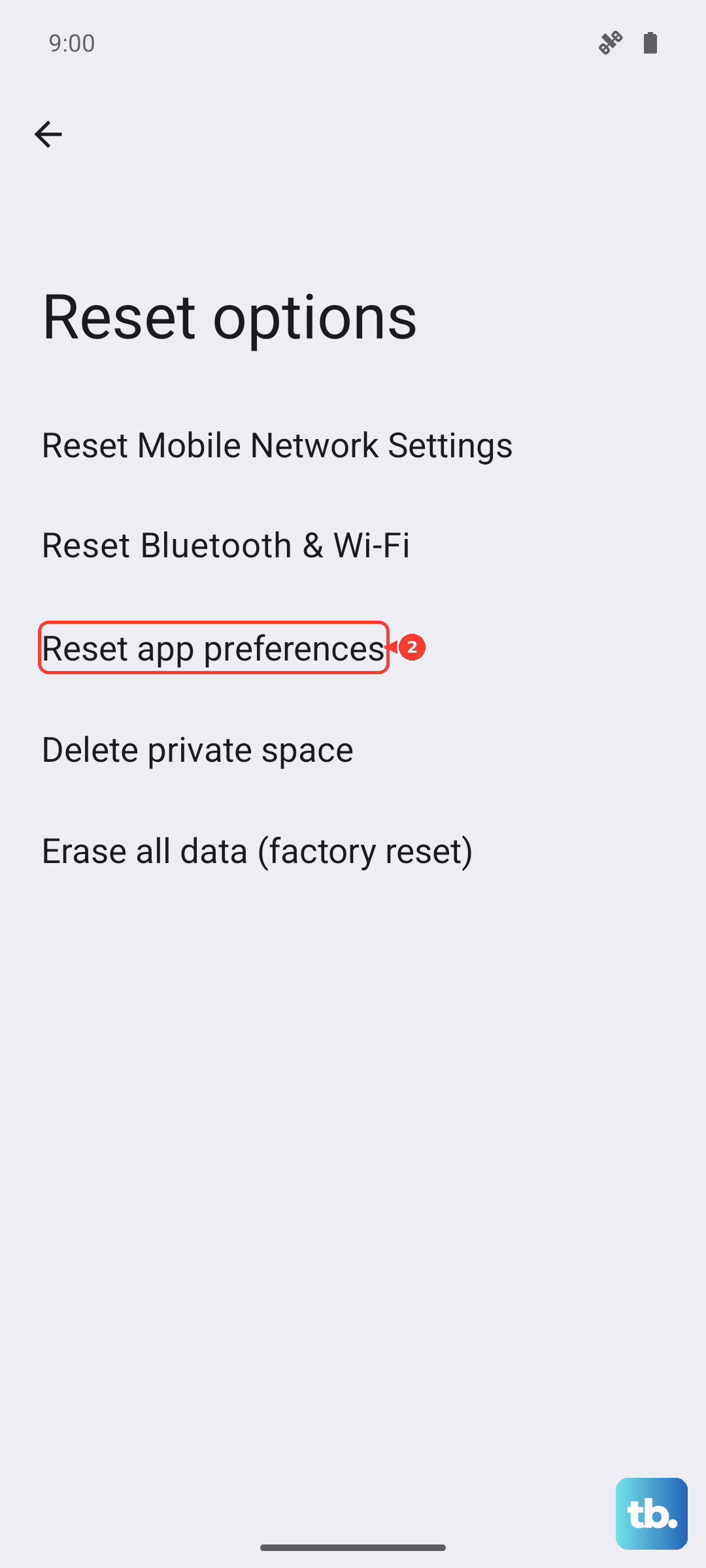
If freezes are happening across multiple apps, corrupted app settings might be the culprit. You can reset these without touching your personal data. Go to Settings > System > Reset options > Reset app preferences. This will reset disabled apps, notification settings, and default app assignments, which often clears up underlying software conflicts.
Let the Phone Cool Down
While the Moto G Power has a MIL-STD-810H rating for durability, all phones will throttle performance if they overheat. Using the phone in direct sunlight, playing intensive games for long periods, or using a thick case can cause it to get too hot. If the back of the phone feels very warm, turn the screen off, remove it from any case, and let it sit in a cool spot for 15-20 minutes before trying to use it again.
Boot into Safe Mode
Safe mode temporarily disables all third-party apps you've downloaded. If your phone works perfectly in safe mode, you know a downloaded app is causing the freeze. To enter safe mode, press and hold the Power button until the power off menu appears. Then, touch and hold the "Power off" option on your screen until you see a prompt to reboot to safe mode. Tap OK. If the freezing stops here, you'll need to uninstall recently added apps one by one to find the culprit.
Perform a Factory Reset
This is a last resort if nothing else works and the phone is constantly unusable. A factory reset will erase all data on the phone, so you must back up everything important first. If you can access settings, you can do this via Settings > System > Reset options > Erase all data (factory reset). If the screen is completely frozen, you can often trigger the reset by turning the phone off, then holding the Power and Volume Down buttons together to access the recovery menu, where you can select "Wipe data/factory reset."