
If your Motorola Edge 50 Pro is rejecting a new SIM card, it's likely carrier-locked. Here's how to get it unlocked so you can use any network.
Request the Unlock Code from Your Original Carrier
This is almost always the first and best step. If you bought your Edge 50 Pro through a carrier like Verizon, AT&T, or T-Mobile, they are obligated to provide the unlock code once you meet their requirements. I'd start here, as it's usually free and guaranteed to work.
You'll need to contact their customer support, either by phone or through their website. Have your account information and the phone's IMEI number ready. You can find the IMEI by dialing *#06# on the keypad.
Be prepared to verify that the device is fully paid off, not reported lost or stolen, and has been active on their network for any required period (often 60 days). Once approved, they'll email or text you an 8 to 16-digit Network Unlock PIN.
Insert a Different SIM Card to Trigger the Prompt
You can't enter the unlock code until the phone asks for it. To trigger that prompt, you need to insert a SIM card from a carrier that isn't the one the phone is locked to.
Power the Edge 50 Pro down completely. Use the SIM ejector tool to pop out the tray and remove the current SIM. Insert the new carrier's SIM, then power the phone back on.
If the phone is locked, you should see a screen asking for the "Network Unlock Code" or "SIM Network Unlock PIN" shortly after it boots. This is where you'll enter the code your carrier provided.
Enter the Code Carefully on the First Try
Type the unlock code exactly as it was sent to you, paying close attention to numbers that might look like letters. The Motorola interface will typically give you a limited number of attempts, often as few as five.
Entering too many incorrect codes can result in a "SIM Network PIN Blocked" error, which requires a separate "Master Control Key" from the carrier to unfreeze the attempt counter. In some cases, it can even lead to a permanent lock. Take your time and get it right the first time.
Once the correct code is accepted, the phone will display a confirmation message like "Network Unlock Successful." You can then restart the phone, and it should connect to the new carrier's network normally.
Use a Reputable Third-Party Unlocking Service
If your original carrier can't or won't provide the code, perhaps you bought the phone second-hand and the original owner isn't available, a third-party service is your next option. These services use databases to generate codes based on your device's IMEI and original carrier.
Look for services with strong, verifiable reviews and a clear guarantee. Be wary of any site promising "free" or "instant" unlocks, as these are often scams. A legitimate service will charge a fee, usually between $10 and $40, and take anywhere from a few hours to a couple of days to deliver the code.
You'll provide your Edge 50 Pro's IMEI number and the name of the carrier it's locked to. After payment, they'll email you the code to use with the different SIM card, following the same process as a carrier-provided code.
Check for a Software Update First
Sometimes, a pending system update can interfere with the unlock process or cause the prompt not to appear. Before you do anything else, it's worth checking for updates.
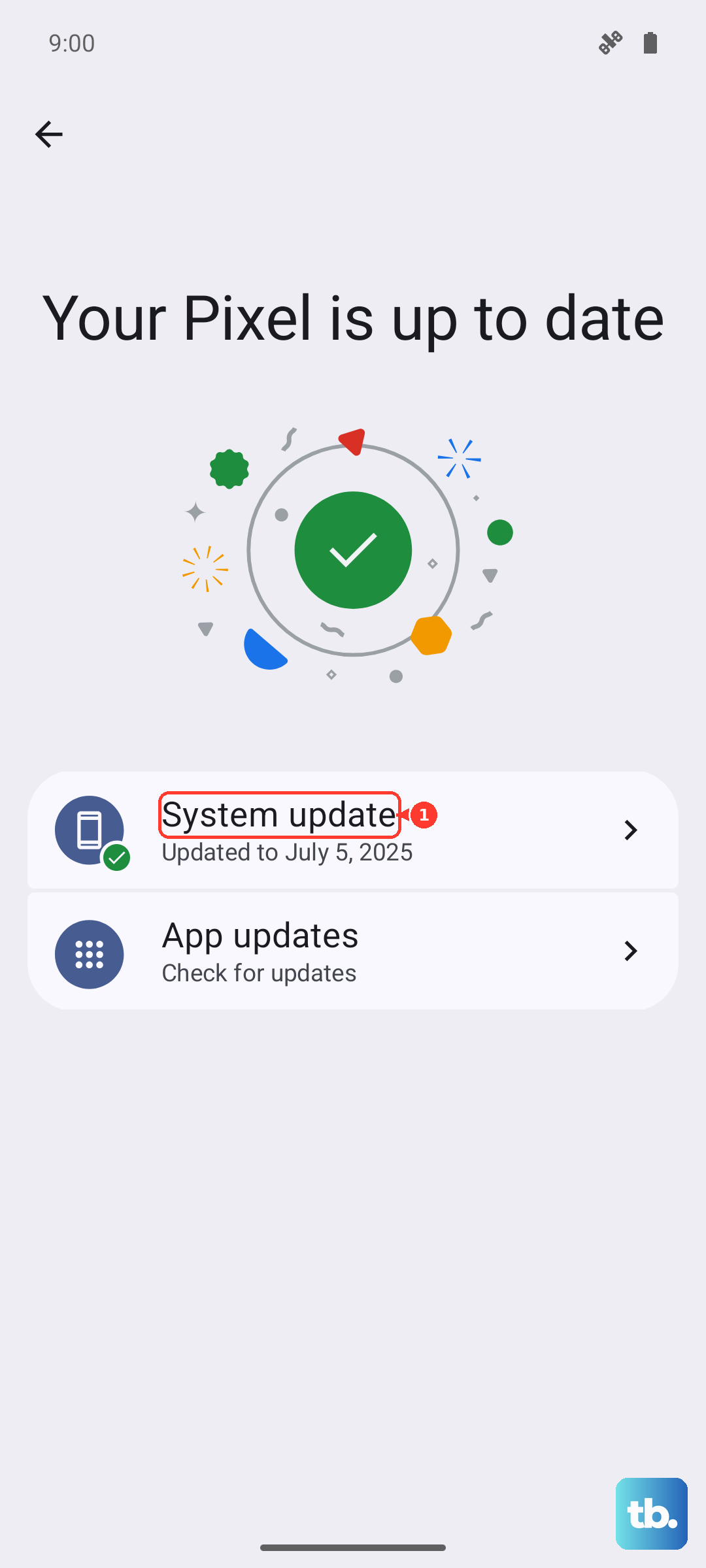
Go to Settings > System > System updates. If an update is available, install it and restart your phone. After the update, try inserting the non-carrier SIM card again to see if the unlock prompt appears correctly.
This is especially relevant for the Edge 50 Pro, as Motorola's software update schedule can be slower than some competitors. Making sure you're on the latest Android build eliminates it as a potential hiccup.
Perform a Network Settings Reset
This won't remove a carrier lock, but it can clear out any temporary network configuration glitches that might be confusing the phone. It's a safe step that only takes a moment.
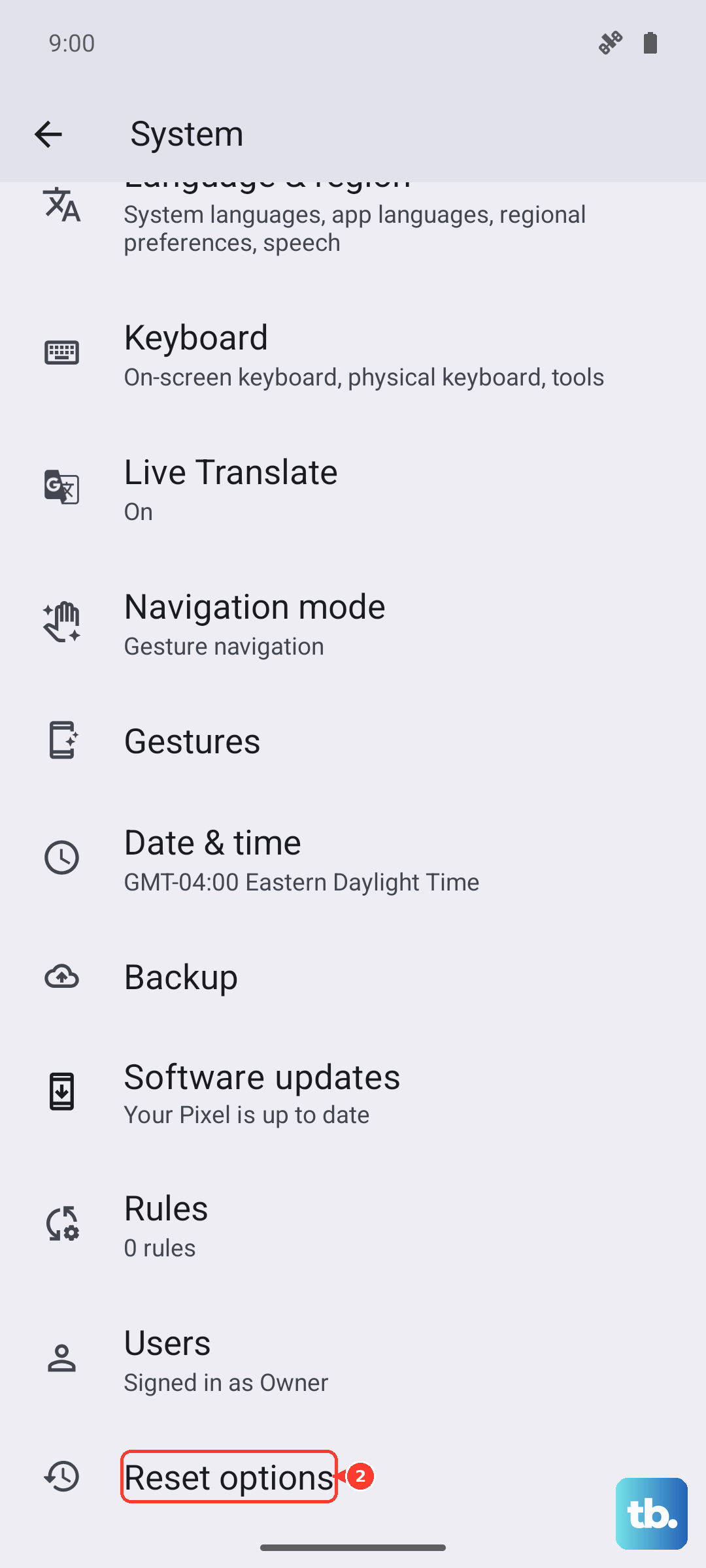
Open Settings and go to System > Reset options. Tap on Reset Wi-Fi, mobile & Bluetooth. Confirm the reset. This will erase all saved networks and Bluetooth pairings, so you'll need to reconnect to your Wi-Fi afterward.
Once the reset is complete, try the process again with the new SIM card. The phone will rebuild its network connections from scratch, which can sometimes help it properly recognize the need for an unlock code.
Contact Motorola Support for Guidance
If you're hitting a wall, reaching out to Motorola directly can provide device-specific advice. While they can't give you an unlock code for a carrier lock, they can confirm if there are any known issues with the unlock process on the Edge 50 Pro.
Explain that you have a legitimate unlock code from your carrier but are encountering an error when trying to enter it. They may be able to tell you if a certain software version has a bug or walk you through any manufacturer-specific steps.
Support can also verify if the phone has any other types of locks, like a regional restriction, that might be complicating the carrier unlock.
Understand the Risks of Too Many Failed Attempts
This is the most critical caution. The security on the Edge 50 Pro's lock is serious. If you exhaust the allowed number of incorrect code entries, the phone can become "Permanently Locked" or require a complex "Master Unlock Code" that is much harder to obtain.
Never just guess codes. If a code from a third-party service doesn't work on the first try, contact them immediately for verification before trying again. Do not keep entering random numbers.
If you see the "SIM Network PIN Blocked" message, stop. You must now contact the original carrier to request a PUK or Master Control Key to reset the attempt counter before you can try your unlock code again.