If your Motorola Edge 40 is making videos look choppy or freeze up, it can really ruin the experience on that beautiful display. The good news is that stuttering playback is usually a software hiccup you can fix yourself.
If motion feels less smooth than it should, an online refresh rate test settles the question in seconds by measuring the true refresh rate.
Restart Your Phone First
This is the quickest and most effective step for random glitches. A simple restart clears out temporary app data and refreshes the system. Just press and hold the power button, tap restart, and give it a minute to boot back up.
If the phone is completely frozen and won't respond to the screen, you'll need a force restart. Press and hold the Volume Down button and the Power button together for about 10 to 15 seconds. Let go when you see the Motorola logo appear on the screen.
Check Your Internet Connection for Streaming
If you're watching videos on YouTube, Netflix, or another streaming app, a weak connection is the most likely culprit. The video data can't download fast enough, causing constant buffering and stutters.
Try switching from Wi-Fi to your mobile data, or vice versa, to see if the problem goes away. If you're on Wi-Fi, you can also try moving closer to your router or restarting the router itself.
Update Your Apps and Android Software
Outdated apps, especially video players and streaming services, can have bugs that cause playback issues. Head to the Google Play Store, tap your profile icon, and go to Manage apps & device. See if there are any updates available for your video apps.
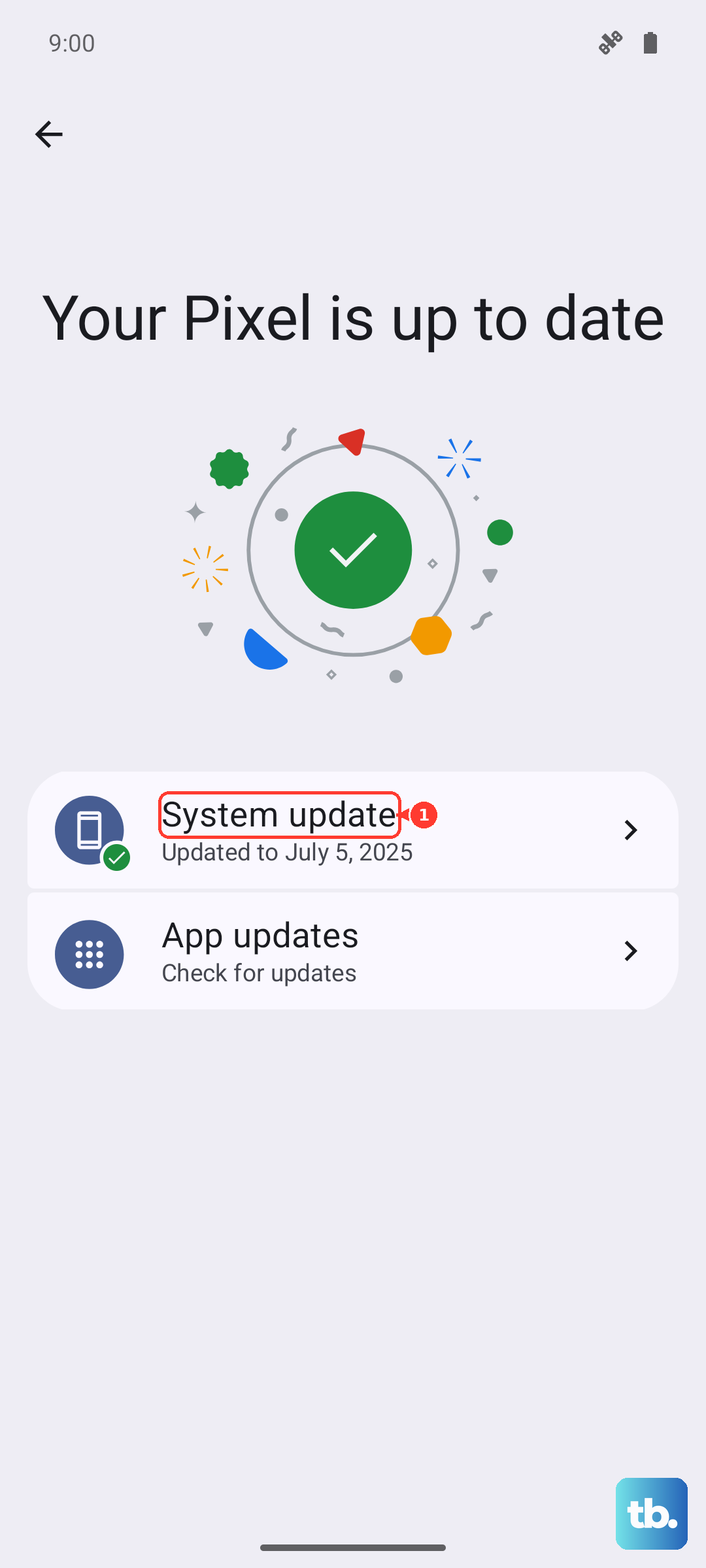
More importantly, check for a system update. Motorola and Google release updates that often include performance optimizations and bug fixes. Go to Settings > System > System updates to see if Android 15 has a newer security patch or build waiting for you.
Free Up Storage Space on Your Device
When your phone's storage is nearly full, the system struggles to manage temporary files and cache that apps need to run smoothly. This can definitely impact video performance. I'd check this if you frequently download movies or record a lot of 4K video.
Go to Settings > Storage to see how much space you have left. If it's under 10-15%, it's time for a cleanup. You can use the built-in cleaning tool or manually remove old downloads, unused apps, and backed-up photos and videos.
Clear the App's Cache and Data
Sometimes the problem is isolated to one specific app, like the Gallery app or YouTube. The app's cache can become corrupted over time. Clearing it forces the app to rebuild these temporary files from scratch.
Go to Settings > Apps, find the app giving you trouble, and tap on it. Select Storage & cache and then tap Clear cache. This won't delete your personal data or login information.
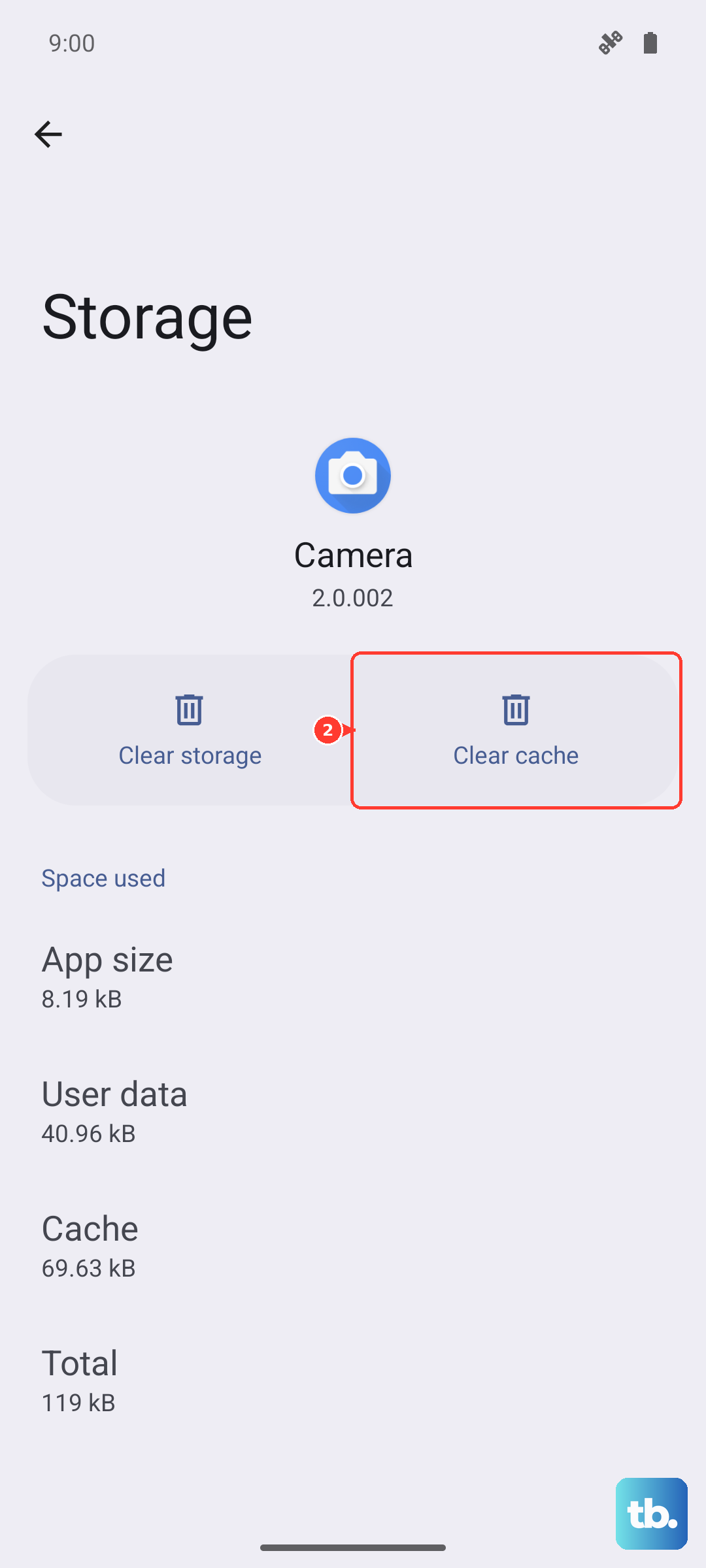
If the stuttering continues, you can take the stronger step of clearing the app's data. This will reset the app to its default state, so you'll need to log back in and may lose some in-app settings. From the same menu, tap Clear storage or Clear data.
Disable Battery Optimization for Video Apps
Android's battery optimization is great for saving power, but it can sometimes be too aggressive. It might put a background process for your video player to sleep, causing hiccups when you try to play something.
You can disable this feature for specific apps. Go to Settings > Apps, select your video app, and tap Battery. Then, change the battery optimization setting to Unrestricted. This tells the system not to restrict the app's background activity.
Check for Overheating
The Motorola Edge 40 is a powerful phone, but intensive tasks like gaming or long 4K recording sessions can make it warm. If the device gets too hot, the system will throttle performance to cool down, which can lead to stuttering in all apps, including video players.
If your phone feels hot to the touch, give it a break. Close any demanding apps, take it out of a case if you're using one, and let it cool down in a well-ventilated area. Avoid using it while it's charging, especially with the 68W fast charger, as this generates additional heat.
Try a Different Video Player
This is a simple way to figure out if the problem is with a specific app or with the phone itself. If a video stutters in the default Gallery app, try opening it with Google Photos or a third-party player like VLC from the Play Store.
If the video plays smoothly in another app, then the issue is with the original app's software. You can focus your troubleshooting there, like clearing its cache or checking for an update.
Boot Into Safe Mode
Safe mode temporarily disables all third-party apps you've downloaded. This helps you determine if a recently installed app is causing a conflict that's affecting video playback across the system.
To enter safe mode, press and hold the power button until the power off menu appears. Then, press and hold the "Power off" option on your screen. A prompt will ask if you want to reboot to safe mode. Tap OK.
Once in safe mode, try playing a video. If it works perfectly, then a third-party app is the culprit. You'll need to restart normally and uninstall apps one by one, starting with the most recently installed, to find the bad one.
Perform a Factory Reset
This is your last resort if nothing else has worked. A factory reset will wipe your phone back to its original out-of-the-box state, removing all your apps, settings, and personal files. It can eliminate any deep-seated software corruption.
Warning: This will erase everything on your phone. You must back up all your important photos, messages, and files to Google Drive or a computer before proceeding.
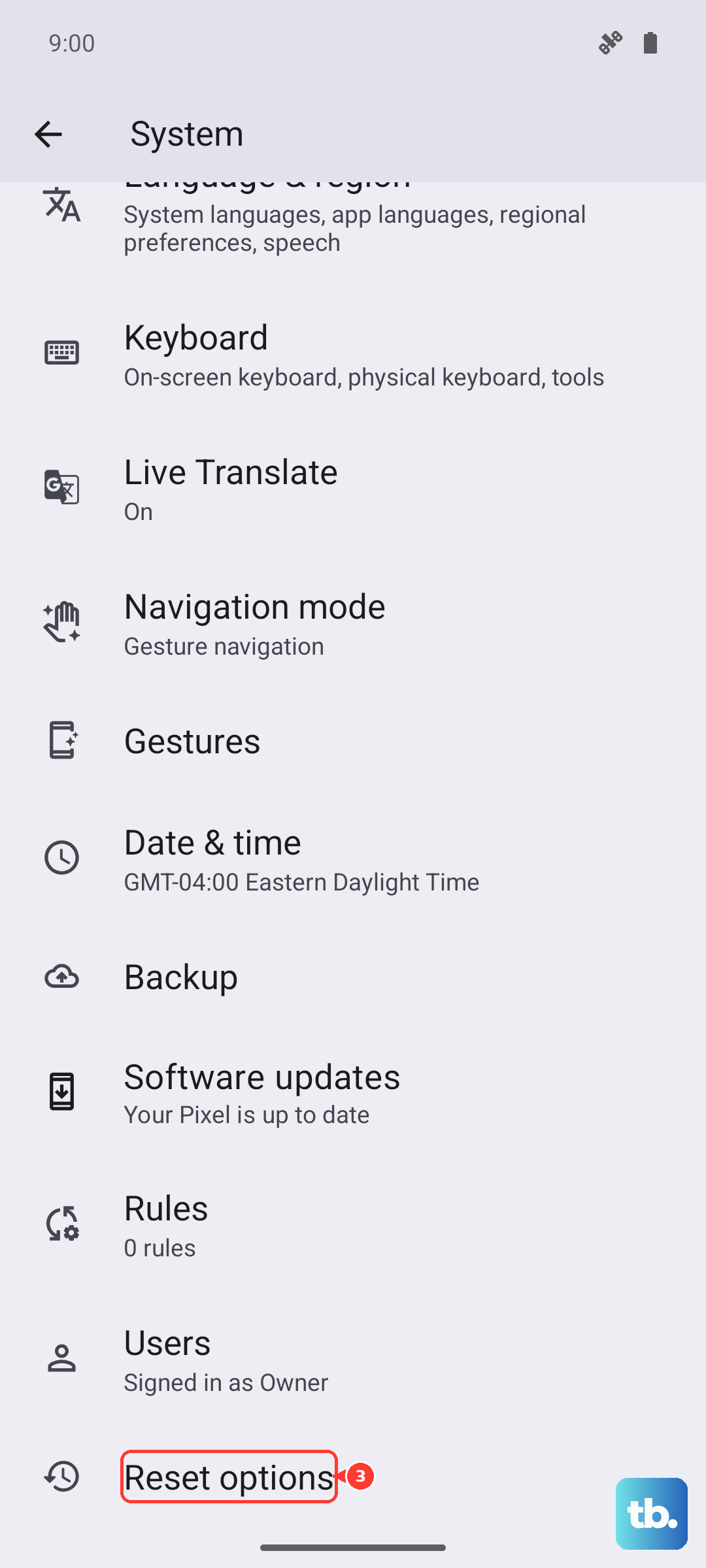
To reset, go to Settings > System > Reset options. Then, select Erase all data (factory reset) and follow the on-screen instructions. After the reset, you can set the phone up as new or restore your backup, though setting up as new is better for isolating the problem.