
If your Motorola Edge 40 is getting uncomfortably warm, you're not alone. Modern phones pack a lot of power into slim designs, and sometimes the heat management needs a little help. An overheating phone can lead to performance slowdowns, rapid battery drain, and in some cases, automatic shutdowns to protect the hardware.
Let's get straight to the most common fix. The first thing I'd try is a simple restart. Press and hold the Volume Down button and the Power button together for about 10 to 15 seconds until you see the Motorola logo appear. This force restart can clear out any temporary software glitches that might be causing a process to run wild and generate excess heat.
Check What's Running in the Background
Android 15 is pretty good at managing resources, but sometimes apps don't play nice. Swipe down from the top of your screen and tap the gear icon to open Settings. Head to Apps and then See all apps.
Scroll through and look for apps you don't use often, especially social media, gaming, or video streaming apps. Tap on one, then tap Force stop. This immediately shuts it down. You can also check its battery usage here to see if it's been unusually active.
For a broader view, go to Settings > Battery. Look at the battery usage graph and see which apps are listed as using the most power. If something is at the top that shouldn't be, that's a prime suspect for your heating issue.
Adjust Your Display and Performance Settings
That beautiful 144Hz display on the Edge 40 is fantastic for smooth scrolling, but it can also be a source of heat and battery drain. Try lowering the refresh rate. Go to Settings > Display > Refresh rate and select Standard (60Hz).
You'll still get a great experience, and your phone's processor and display won't have to work as hard. You can always switch it back to the higher rate for gaming or specific tasks. Also, consider reducing your screen brightness manually or ensuring Auto-brightness is enabled.
Another setting to check is Performance mode. Navigate to Settings > Battery > Performance mode. If it's set to High performance, try switching it to Balanced or Power saver. This tells your phone's chipset to ease up a bit, which directly reduces heat output.
Update Your Software
Motorola frequently releases software updates that include optimizations for performance and thermal management. These updates can fix bugs that cause processors to overwork. Go to Settings > System > System updates and tap Check for update.
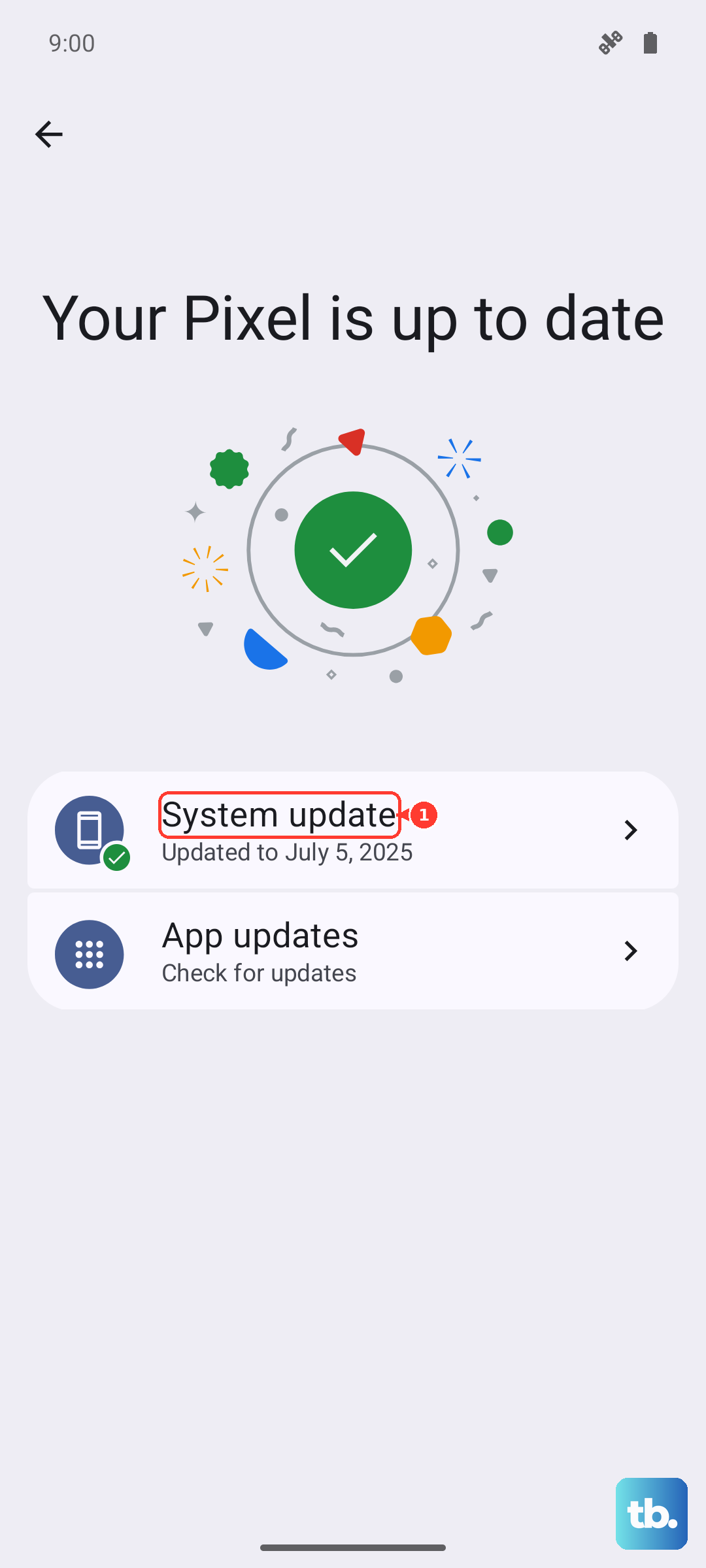
If an update is available, make sure your phone is charged above 50% and connected to Wi-Fi before installing. It's also a good idea to check for app updates in the Google Play Store, as developers often release patches that improve efficiency.
Be Mindful of Your Charging Habits
The Edge 40 supports 68W wired charging, which is incredibly fast. That speed generates heat. If your phone is hot, take it off the charger for a while, even if it's not fully charged. Using the phone intensively while it's fast charging is a surefire way to make it overheat.
Always use the original Motorola charger and cable for the best and safest results. Third-party chargers that don't properly negotiate with the phone's charging chip can cause excess heat. If you're using Qi2 wireless charging, ensure the phone is centered correctly on the pad, and remove thick or metal cases that can interfere and cause the charger to work inefficiently.
Manage Your Connectivity Features
Constantly searching for a weak Wi-Fi or cellular signal makes your modem work overtime. If you're in an area with poor reception, try switching to Airplane mode temporarily, or manually connect to a stable Wi-Fi network. You can also try turning off 5G if you're in a spotty coverage area by going to Settings > Network & internet > SIMs > Preferred network type and selecting 4G/3G/2G.
Location services using GPS are another common heat source. When you're not using navigation, consider changing the location mode. Go to Settings > Location and tap Location services. Switching from High accuracy (which uses GPS, Wi-Fi, and mobile networks) to Battery saving (Wi-Fi and mobile networks only) can help.
Give Your Phone a Break During Intensive Tasks
It's normal for any phone to get warm during demanding activities. Extended gaming sessions, recording long 4K videos, or using AR apps will push the processor and GPU. If the phone gets hot, take a short break. Close the game or app and let the phone cool down for a few minutes.
Try to avoid using these intensive apps in direct sunlight or in a hot car. The ambient temperature makes it much harder for the phone to dissipate its own internal heat. Using it in a cooler, well-ventilated environment makes a big difference.
Clear the Cache Partition
If general performance feels sluggish and warm, clearing the system cache can help. This removes temporary files that might be corrupted. First, power off your Edge 40 completely.
Now, press and hold the Volume Down button and the Power button simultaneously. When you see the Motorola logo, release the Power button but keep holding Volume Down. You'll enter Recovery Mode. Use the volume buttons to highlight Wipe cache partition and press the Power button to select it. Confirm the action, then select Reboot system now.
Evaluate Your Case and Environment
Some phone cases, especially thick, rugged ones or those made from insulating materials, can trap heat. Try removing the case for a while, especially when charging or gaming, and see if the temperature improves. A case shouldn't turn your phone into an oven.
Finally, think about where you keep your phone. Leaving it on a dashboard in the sun, in a tight pocket, or tucked under a blanket on a bed prevents heat from escaping. Just giving it some space on a cool, hard surface can help it regulate its temperature much more effectively.