If your Motorola Edge 40 is staying silent when calls come in, you're not alone. It's a common glitch that usually has a simple fix. Let's get your phone ringing again.
The most likely culprit is a software setting or a minor bug. Android 15 has several features that can silence calls, from Do Not Disturb to per-app notification controls. I'd start by checking the physical buttons and your volume settings first.
Check the Physical Alert Slider
First, look at the left side of your Edge 40. There's a physical button you can slide up or down. Make sure it's not set to the silent or vibrate position. When it's set to ring, you should see or feel no indicator. If it's on vibrate or silent, slide it up to the top position.
This slider overrides all other sound settings, so it's the first thing to verify. Give it a quick toggle back and forth to ensure it's making proper contact.
Turn Off Do Not Disturb and Focus Modes
Do Not Disturb is a common reason for missed rings. Swipe down from the top of your screen twice to open the full Quick Settings panel. Look for an icon that looks like a circle with a line through it or the word "Do Not Disturb." If it's highlighted, tap it to turn it off.
You should also check for any scheduled or automatic rules. Go to Settings > Sound & vibration > Do Not Disturb. Review the settings here, including any active schedules for Sleep or Work. Turn off "Turn on automatically" for any profiles you don't need.
Increase Your Ringtone and Notification Volume
Your media volume and your ringer volume are controlled separately on Android. Unlock your phone and press the volume up button on the right side. A volume slider will appear on screen. Tap the settings gear icon next to it, or tap the three-dot menu.
This will show individual sliders for Ring, Media, Alarm, and Notification. Make sure the "Ring" volume is turned up all the way. You can also adjust this by going to Settings > Sound & vibration > Volume and moving the "Call" slider to the right.
Verify Your Ringtone Isn't Corrupted
Sometimes a specific ringtone file can cause issues. Try changing to a different, pre-installed system tone. Go to Settings > Sound & vibration > Phone ringtone.
Select a different tone from the list, like "Motorola" or "Note." After selecting it, have a friend call you to test. If the new ringtone works, the issue was with your previous selection.
Disconnect From Bluetooth Devices
If your Edge 40 is connected to a smartwatch, wireless earbuds, or a car stereo, incoming call audio might be routing there instead of your phone's speaker. The quickest fix is to temporarily turn Bluetooth off.
Swipe down from the top and tap the Bluetooth icon to disable it. You can also go to Settings > Connected devices > Connection preferences > Bluetooth and toggle it off. Test a call with Bluetooth disabled to see if the ring returns.
Check for Blocked Numbers and Call Forwarding
It's worth confirming you haven't accidentally blocked the person trying to reach you. Open your Phone app, tap the three-dot menu in the top right, and go to Settings > Blocked numbers. See if any numbers are listed there.
Also, check that call forwarding isn't active. In the Phone app, go to Settings > Calling accounts > [Your Carrier] > Call forwarding. Make sure all forwarding options are set to "Off."
Review App-Specific Notification Settings
Android allows deep control over notifications for each app. The Phone app itself might have its notifications silenced. Go to Settings > Apps > See all apps and find "Phone" in the list.
Tap on it, then go to Notifications. Look for a category called "Incoming calls" or similar. Make sure it's set to "Allow" and that the sound is enabled. Also check that it's not marked as "Silent" or "Minimized."
Disable Flip to Shhh and Other Gestures
Motorola phones have helpful gestures that can sometimes be too sensitive. "Flip to Shhh" silences the phone when you place it screen-down. Go to Settings > Moto > Gestures and make sure "Flip to Shhh" is turned off.
While you're there, also check the "Pick up to stop ringing" or "Lift to silence" gestures. Temporarily disabling these can help rule them out as the cause.
Perform a Soft Restart
A quick reboot can clear out temporary software glitches. Press and hold the Power button until the power menu appears, then tap "Restart." If your phone is unresponsive, you can force a restart by pressing and holding the Volume Down button and the Power button together for about 10-15 seconds until the Motorola logo appears.
Update Your Software
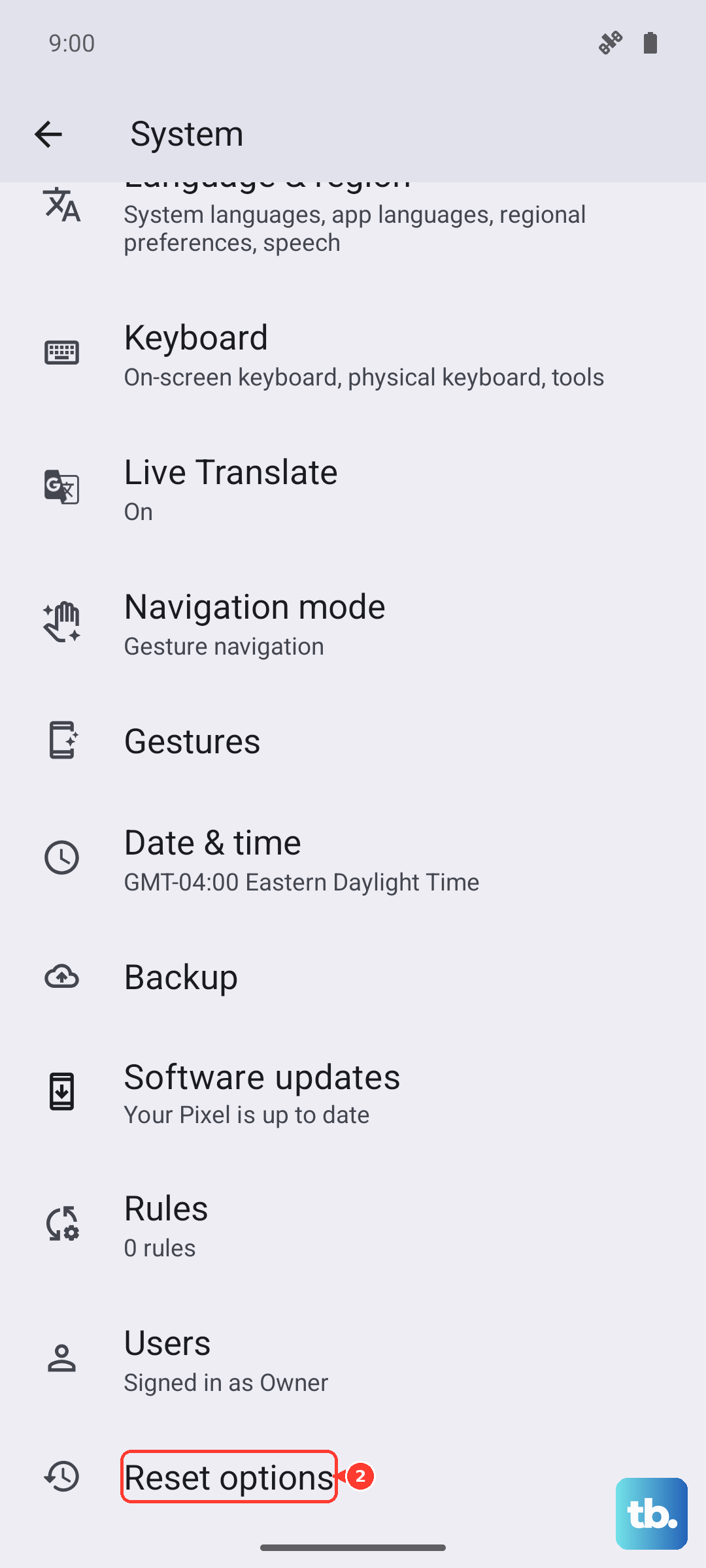
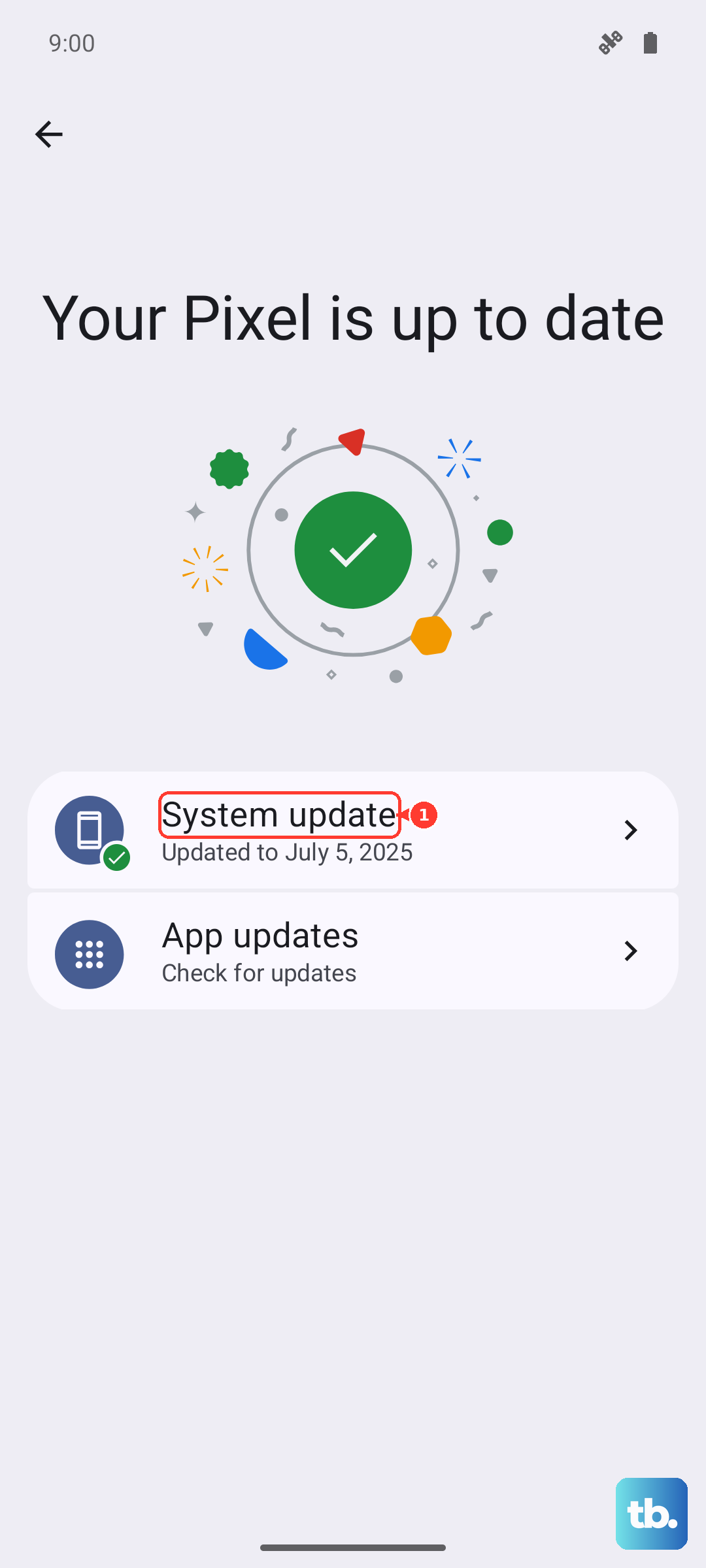
Motorola regularly releases updates that fix bugs, including audio and calling issues. Connect to Wi-Fi and go to Settings > System > System updates. Tap "Check for update" and install any available software. This is one of the most effective fixes for persistent problems.
Reset App Preferences
This is a safe reset that won't delete your data. It restores all app notification settings, permissions, and default apps to their factory state. Go to Settings > System > Reset options.
Tap Reset app preferences and confirm. Afterward, you may need to re-allow notifications for some apps, but it often resolves conflicting settings that stop the ringer.
Check for Network or Carrier Issues
Sometimes the issue is on the carrier's end, not your phone. Try making a call yourself first. If you have another phone nearby, try inserting your SIM card into it to see if calls ring normally. You can also contact your carrier to ensure there are no network outages or account issues affecting call delivery.
As a diagnostic step, you can reset your network settings. Go to Settings > System > Reset options > Reset Wi-Fi, mobile & Bluetooth. Remember, this will erase all saved Wi-Fi networks and Bluetooth pairings.