Your Motorola Edge 40 was working fine, and now the screen sits there ignoring every tap, swipe, and button press. Maybe it locked up mid-app, maybe it stalled on the Motorola logo, or maybe the display has gone completely dark and nothing wakes it. A frozen phone feels alarming, but on the Edge 40 it is almost always a software hiccup that you can clear yourself without losing your photos or messages.
Before you start, one quick clarification. There is no separate handset called the "Motorola Edge 40 (2026)"; this is the Edge 40 that launched in 2023 and now runs Android 15 with Motorola's Hello UI. The battery is sealed inside and the manufacturer specifically warns against trying to remove or replace it, so popping the back off is not an option here. The steps below are ordered from the gentlest and safest to the most drastic, so work through them in sequence and stop as soon as the phone comes back to life.
Force the Edge 40 to restart with the Power key
The fastest fix for a screen that has frozen and stopped responding is a forced restart, and on the Edge 40 it uses the Power key on its own. According to the official support guidance, you press and hold the Power key for 10 to 20 seconds until the phone restarts. There is no Volume button involved in this particular sequence, so do not bother with a Volume Down plus Power combination.
This is the part most people worry about, so it is worth stating plainly. The manufacturer confirms that data on your phone will not be deleted by this force restart. Keep holding the key even if the screen flickers or goes black partway through, and let go only once the phone begins to boot up again. A single forced restart clears the large majority of momentary freezes.
If nothing happens at all, charge it before trying again
Sometimes the phone is not really frozen; it has simply run too low to power on. The official guidance says to make sure your device is charged to a minimum of 5%, because if the battery is below 5% the device may not power on at all.
If the Edge 40 has been completely drained, plug it into the provided charger and let it charge for a minimum of 15 minutes before you attempt the forced restart again. Give it that full window even if the screen stays dark at first, since a deeply discharged phone can take several minutes before it shows any sign of charging. Remember the manufacturer's warning during all of this. Do not attempt to remove or replace the battery.
Install the pending update that may be causing the lock-ups
Once the phone is responsive again, check for a software update, because freezing is frequently resolved by a system or security patch. Open Settings > System > Advanced > System updates; an alternate documented path is Settings > System updates > Check for system updates if your menu is laid out differently.
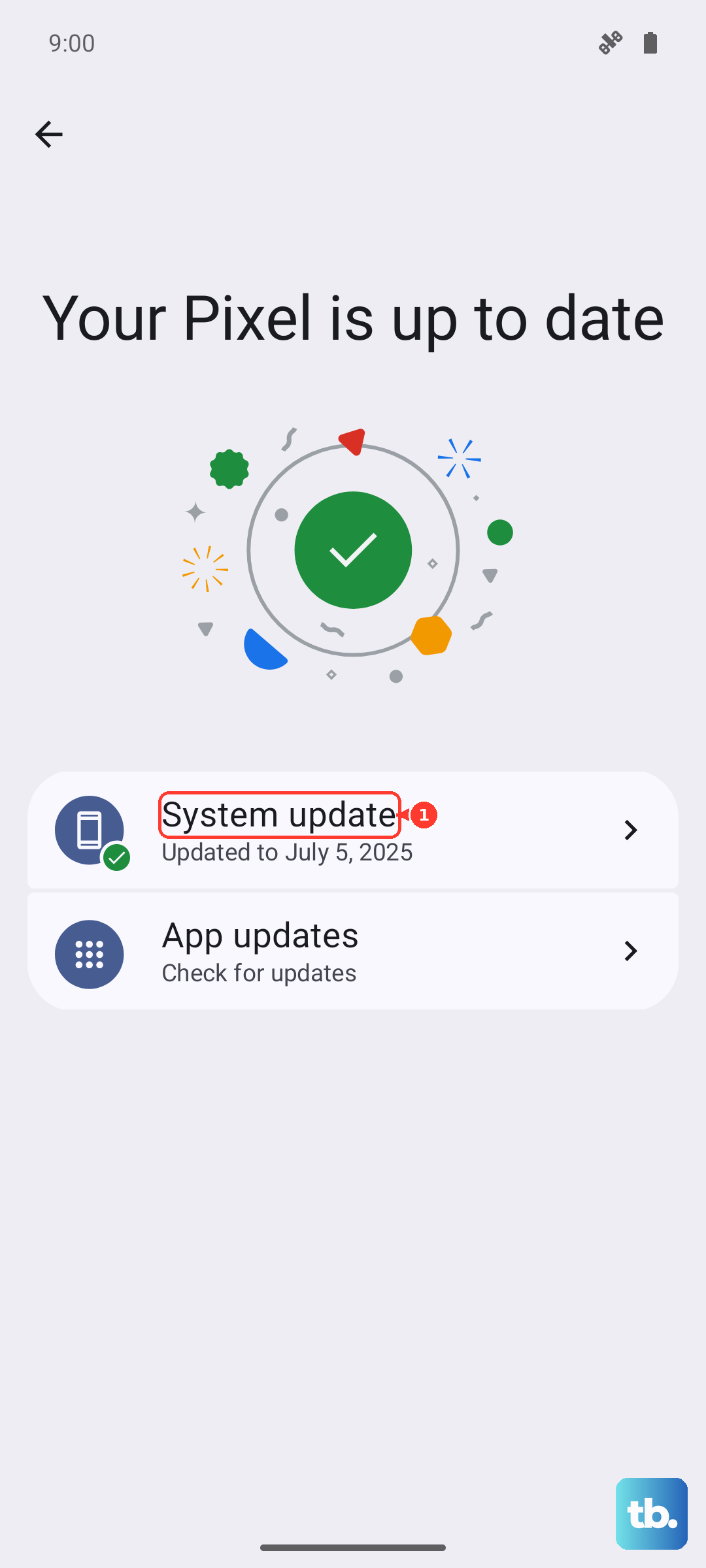
If an upgrade is available, follow the onscreen instructions to install it. Stay on Wi-Fi while it downloads and keep the phone charged so the install is not interrupted. The Edge 40 shipped on Android 13 and has been updated through Android 15, so installing the latest build available to your phone gives you every fix the manufacturer has issued for stability.
Use Safe mode to expose a misbehaving app
If the Edge 40 keeps freezing during normal use, the culprit is often a single downloaded app rather than the phone itself. Safe mode temporarily disables every app you installed, which lets you confirm whether one of them is to blame.
- 1.Press and hold the Power button.
- 2.Touch and hold Power off.
- 3.Touch OK to restart in safe mode.
Use the phone for a while in this state. If the freezing stops completely in Safe mode, a third-party app is causing it, so uninstall the apps you added most recently, starting with anything installed just before the trouble began. When you are finished testing, exit Safe mode by simply restarting the phone normally.
Erase everything and start fresh from Settings
If the freezes keep returning no matter what you try, a factory reset wipes the phone back to its out-of-the-box condition and clears whatever software fault is causing the lock-ups. This step erases all of your data, so back up your photos, messages, and files first, and a confirmation message will warn you that the action cannot be undone.
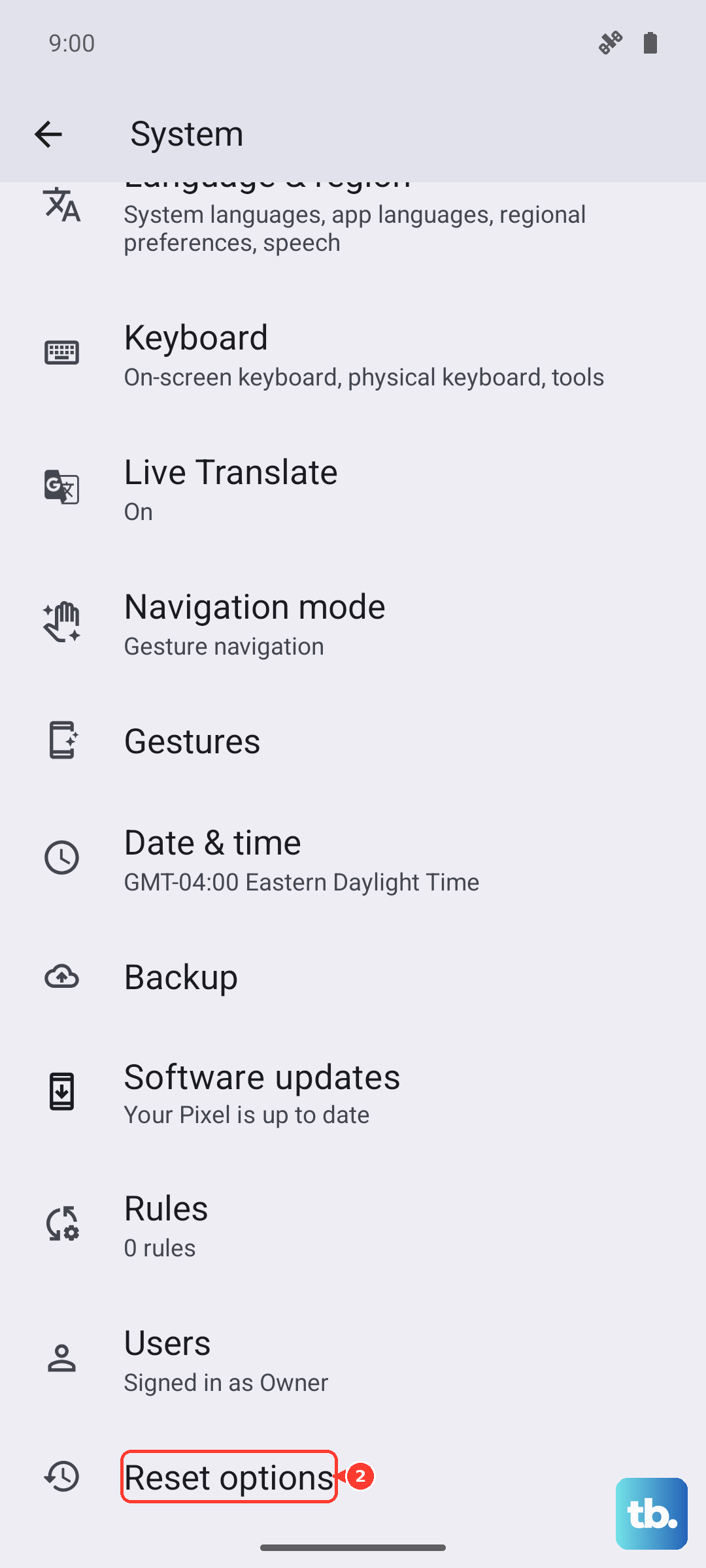
To do it, go to Settings > System, then touch Reset options > Erase all data (factory reset), and confirm with Erase all data. Before you begin, make sure you know your screen lock PIN, pattern, or password along with the Google account currently signed in to the phone, because you will be asked to sign back in with those credentials after the reset. Skipping that detail can lock you out of your own device.
Reset from recovery when the menu will not open
What if the screen is too frozen to even reach Settings? In that case you can perform the same factory reset from the phone's external recovery menu, navigating with the hardware buttons instead of the touchscreen. Like the Settings method, this erases all data on the phone, so treat it as a last resort.
In the recovery menu, use the Volume buttons to scroll to Wipe data/factory reset, then press the Power button to select it and confirm the factory data reset. Once the wipe finishes, scroll to Reboot system now and press Power to start the phone back up. It should come up clean and, in most cases, free of the freezing.
Rebuild the software from a Windows PC
When the Edge 40 stays stuck or drops into a boot loop that even a recovery reset cannot break, the manufacturer offers a dedicated rescue tool. It is called Rescue and Smart Assistant (RSA) and appears on the official support site under the name Software Fix; it is a Windows PC application that reinstalls the device firmware.
Connect the phone to the computer by USB and let the tool detect it and reinstall the correct software. Be aware that this reinstall erases all files and apps and resets the phone to factory condition, exactly like a full reset, so back up first if the phone is still responsive enough to allow it. This is the strongest do-it-yourself option and is built specifically for phones that are stuck, frozen, or looping.
When to let Motorola take a closer look
If you have force-restarted, updated, tested Safe mode, reset the phone, and even rebuilt the firmware and it still freezes, the problem may be hardware rather than software. At that point, reach out through the manufacturer's official support channels for repair or further assistance. A persistent freeze that survives a firmware reinstall is exactly the kind of case their support team is meant to handle, so you are not wasting their time by asking.
Frequently Asked Questions
Will a force restart delete my data on the Edge 40?
No. The manufacturer confirms that pressing and holding the Power key for 10 to 20 seconds to restart the phone will not delete the data on your phone. Only the factory reset and the firmware reinstall erase your data.
My Edge 40 will not turn on even after holding Power. What now?
Charge it first. If the battery is below 5% the phone may not power on, so connect the provided charger and wait at least 15 minutes, then try the forced restart again. Do not try to remove or replace the battery, since it is sealed inside the phone.
How do I reset the Edge 40 if the screen is frozen and I cannot open Settings?
Use the external recovery reset. Navigate with the Volume buttons to scroll to Wipe data/factory reset, press Power to select it and confirm, then scroll to Reboot system now and press Power. This erases all data, so use it only when you cannot reach the in-Settings reset.
What is Software Fix and do I need it?
Software Fix is the on-site name for Motorola's Rescue and Smart Assistant (RSA), a Windows PC tool that reinstalls the phone's firmware to rescue a device that is stuck, frozen, or in a boot loop. You only need it if a restart, update, and reset have all failed, and it erases all files and apps, so back up first.