
When the flashlight on your Motorola Edge 40 won't turn on, it can be surprisingly frustrating. The quick toggle might not respond, or the LED might simply stay dark. Let's get it shining again.
Close the Camera App First
The flashlight and camera flash on your Edge 40 use the same physical LED. If the camera app is running, even in the background, the system locks that hardware for camera use. Swipe up from the bottom to see your recent apps and swipe the Camera app away to fully close it. This immediate step fixes the issue more often than not.
Force Restart Your Phone
If the flashlight toggle is completely unresponsive, a force restart can clear the temporary software glitch causing it. Press and hold the Power button for about 15 seconds, or until the phone restarts. Let go when you see the Motorola logo appear on the screen. Once the phone boots up, try the flashlight again.
Check Your Battery Saver Mode
While Battery Saver on Android 15 shouldn't outright disable the flashlight, it can sometimes make system services less responsive. Pull down your notification shade twice and look for the Battery Saver icon. If it's active, tap it to turn it off. I've seen this resolve sluggish flashlight controls on several Motorola devices.
Let Your Phone Cool Down
Modern phones like the Edge 40 will throttle or disable certain features, including the high-power LED flash, if they overheat. If the back of your phone feels noticeably warm to the touch, set it down in a cooler spot for 10 or 15 minutes. The flashlight function should return automatically once the internal temperature drops back to a safe level.
Use Google Assistant as a Workaround
Try activating the flashlight with your voice. Say, "Hey Google, turn on the flashlight". If Assistant can turn it on but your physical button or quick settings toggle cannot, it points to a user interface bug. You can use this method to toggle the light off and on, which sometimes resets the system's control state.
Adjust the Flashlight Brightness
On your Edge 40, you can press and hold the flashlight tile in your quick settings panel. A small menu should pop up with a brightness slider. Slide it all the way to the right to the brightest setting. If it was accidentally set to the lowest level, the light might be so dim you can't see it in a bright room.
Update Your Software
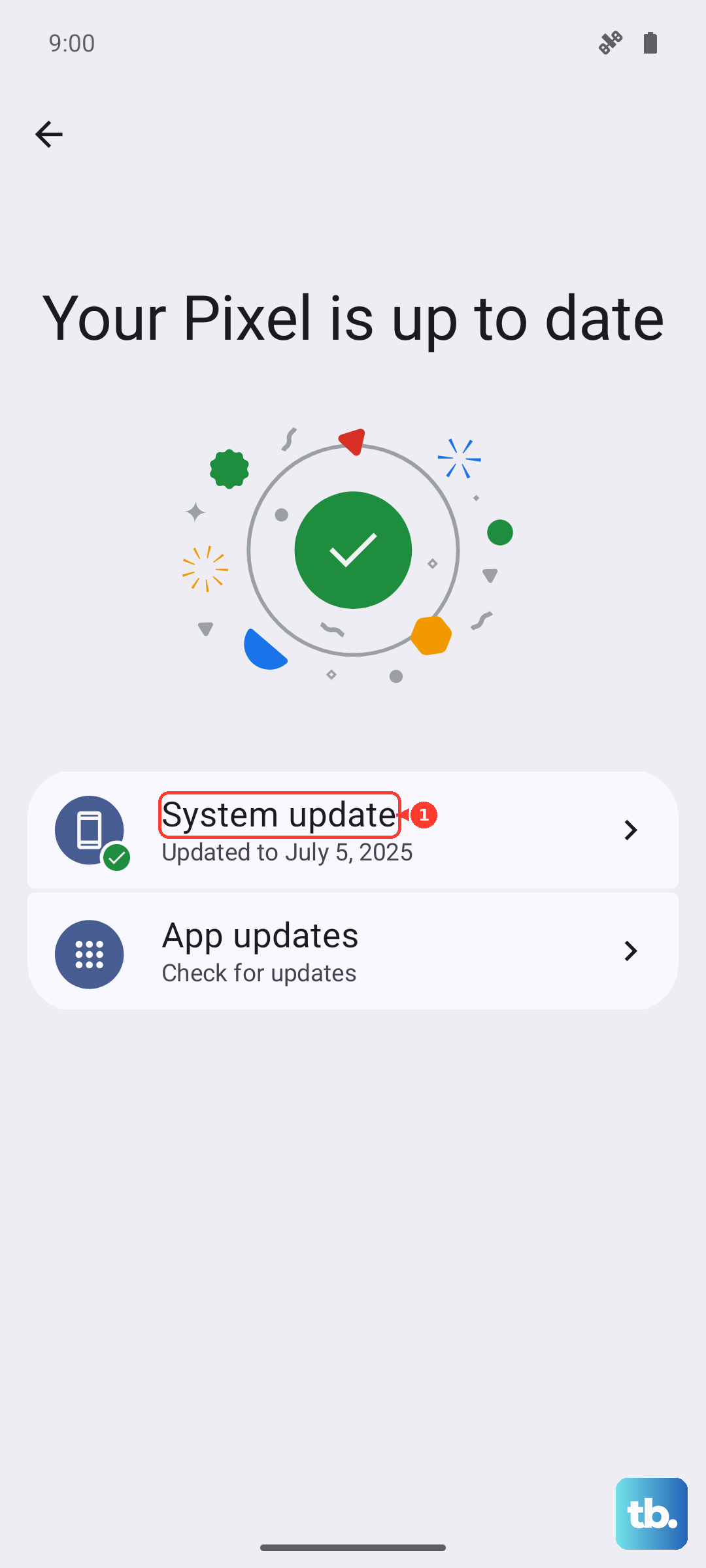
Head to Settings > System > System updates and tap "Check for update." Motorola regularly releases software updates that include optimizations and bug fixes for system functions like this. Installing the latest available update can resolve a flashlight bug introduced by a previous version.
Reset App Preferences
This is a less nuclear option than a full settings reset. Go to Settings > Apps > See all apps, tap the three-dot menu in the top right, and select Reset app preferences. This resets permissions and background data restrictions for all apps without deleting any of your personal data. It can fix conflicts that might be affecting system controls.
Test the Camera Flash
Open your Camera app and switch to a photo mode. Take a picture in a dark area or look for a flash icon to force it to fire. If the camera's flash doesn't work either, the LED hardware itself may have failed. This is less common but possible if the phone has suffered physical damage or a severe electrical issue.