You press the power button on your Motorola Edge 40, expecting the lock screen to glow to life, and instead the 6.55-inch P-OLED panel stays completely dark. Maybe the phone still vibrates, rings, or buzzes with notifications but shows nothing, or maybe it gives no sign of life at all. A black screen feels like a dead phone, but on this model it almost always traces back to a drained battery, a frozen system, or a charging connection that is not delivering enough power.
The reassuring part is that nearly every black-screen situation on the Edge 40 can be sorted using steps Motorola documents on its own support pages, and most of them leave your data untouched. Work through the fixes below in order, starting with the gentlest and safest, and stop the moment the display comes back to life.
Rule out a fully drained battery first
Before assuming the worst, treat a black screen as a power problem. If the battery sits below 5%, the Edge 40 may not power on at all, and a completely drained phone will show no charging indicator until it has received the minimum voltage required to boot. In other words, a phone that looks dead may simply be empty.
- 1.Plug the phone into the Motorola charger that came in the box, and avoid charging from a low-power USB port that may not supply enough current.
- 2.Leave it on the charger undisturbed for at least 15 minutes before you do anything else.
- 3.Try to power the phone on again once it has had time to build up a charge.
Do not panic if no charging animation appears at first. On a completely discharged Edge 40, the charging indicator only shows up once the phone has reached the voltage it needs to start up.
Force a restart to clear a frozen system
If the phone has charge but the screen is unresponsive, the system has likely locked up rather than failed. A force restart cuts power to the frozen state and reloads the software cleanly. According to the manufacturer, this is the right move for an unresponsive or black screen, and it will not erase anything.
Press and hold the Power key for 10 to 20 seconds until the phone restarts. Data on your phone will not be deleted by this action. Note two things: the device needs to be charged to at least 5% for the restart to work, and this is the Power key held alone, not a Volume plus Power combination.
Check the cable, charger, and connection
A loose or weak connection can leave the phone with too little power to light the display, which is easy to mistake for a hardware failure. The fix is to confirm that power is actually flowing into the phone.
Ensure the charging cable is not only fitting snug in the device, but also that the cable is fitting snug into the charger. Use the Motorola charger that came with the phone rather than a random adapter or a slow USB port, since an underpowered source may keep the battery too low to boot. After reseating everything, give it the 15 minutes from the first fix and try again.
Update the software once it boots
If you can get the screen back, a black-screen or stability glitch may be a software fault that a firmware update has already corrected. Installing the latest update is a low-risk step that can stop the problem from returning.
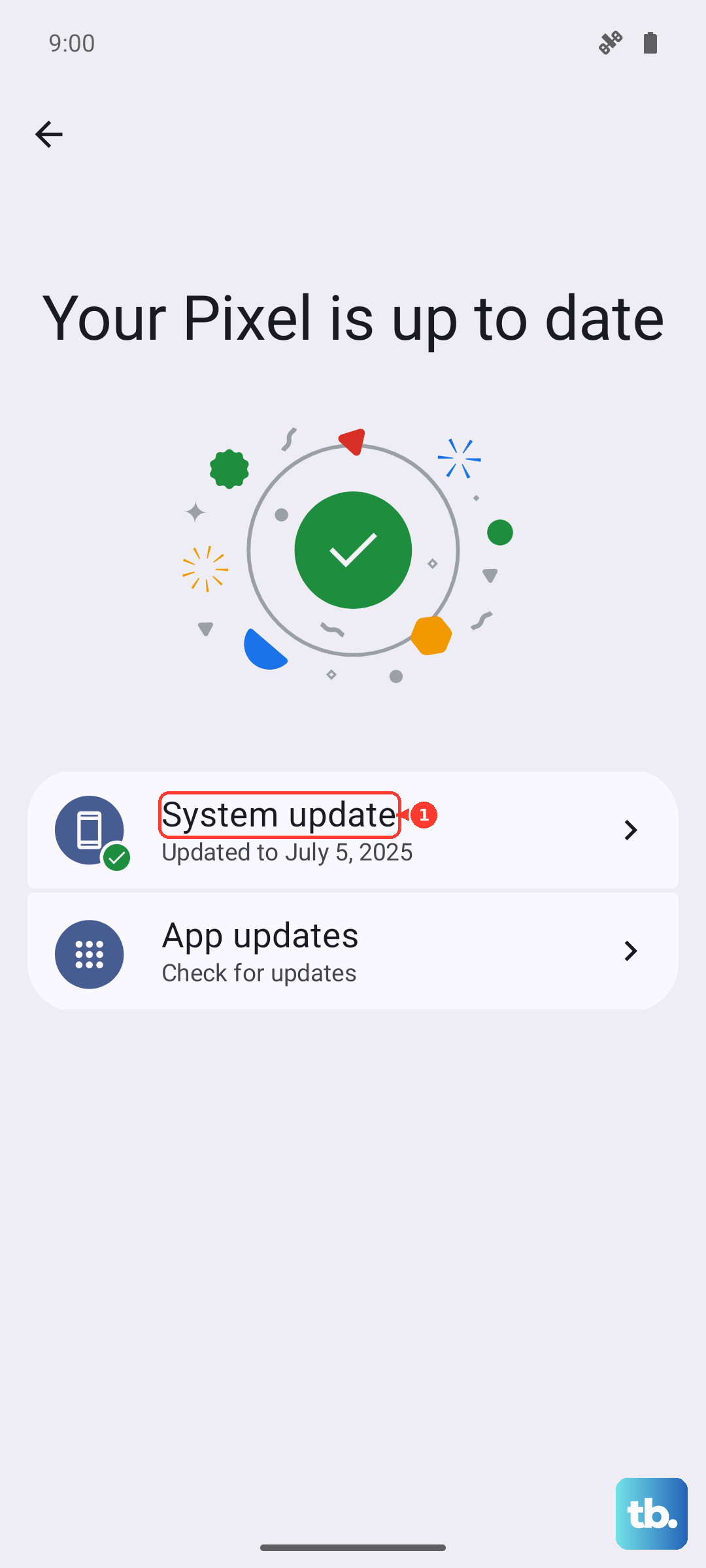
Go to Settings > System > Advanced > System updates and follow the onscreen instructions if an update is available. You can confirm what you are currently running under Settings > About phone > Android version. Keep the phone charged and connected to Wi-Fi while the update installs, and let it restart on its own when prompted.
Boot into Safe mode to find a problem app
If the screen tends to go black only after you open a particular app, a downloaded app is the likely culprit. Safe mode starts the phone with downloaded apps disabled, so you can see whether the problem follows your own software or lives in the system itself.
- 1.Press and hold the Power button.
- 2.Touch and hold Power off.
- 3.Touch OK to restart in safe mode.
You will see "Safe mode" across the bottom of the home screen, which confirms downloaded apps are switched off. If the black-screen behavior disappears in safe mode, a downloaded app is causing it; uninstall recently added apps one at a time, restarting after each removal until the trouble stops. To leave safe mode, simply restart the phone normally.
Erase the phone from Settings if it still boots
When the screen still works but the black-screen problem keeps coming back, a factory reset clears corrupted settings and software that earlier steps could not reach. Treat this as a later resort, because it wipes the phone.
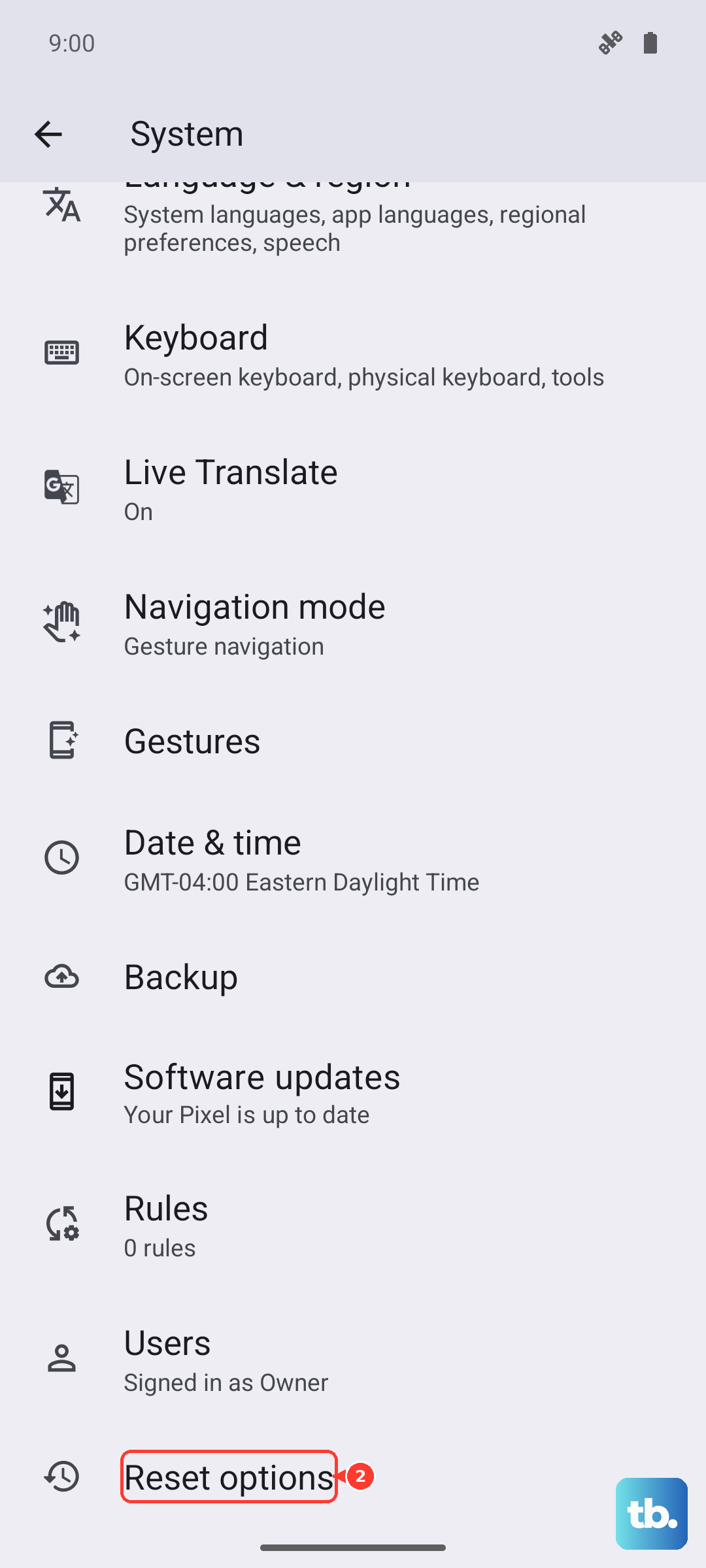
Back up your photos, contacts, and anything else you want to keep first. Then go to Settings > System > Reset options > Erase all data (factory reset) and confirm. This erases everything on the phone, so before you start, make sure you know your screen-lock PIN, pattern, or password; you will need that security information to restore your data after the reset.
Reset through Recovery mode when Settings won't open
If the screen never stays on long enough to reach Settings, you can still perform a reset from outside the operating system using Recovery mode. This also erases all data, so use it only when the in-Settings reset is not possible.
- 1.Charge your battery to 30% or more, then turn off the phone.
- 2.Press and hold the Volume Down button and the Power button at the same time until the phone turns on.
- 3.Press the Volume Down button until you see Recovery mode, then press the Power button to restart in Recovery mode.
- 4.If an Android robot with a red exclamation mark appears, press and hold the Power button and, while holding it down, press and release the Volume up button.
- 5.Use the Volume buttons to scroll to Wipe data/factory reset and press Power to select it.
- 6.Scroll to Factory data reset and press Power.
- 7.Scroll to Reboot system now and press Power.
As with the Settings reset, this clears everything on the device. Confirm you know your screen-lock PIN, pattern, or password beforehand, because you will need that security information to set the phone up and restore your data afterward.
When a hardware fault needs Motorola
If the screen stays black after proper charging, a force restart, and (where you could reach it) a reset, the cause is more likely physical than software. A display panel, charging jack, or battery fault is beyond what at-home steps can fix safely.
At that point, use Motorola's official product-support and Contact Us resources to arrange repair or warranty service. Have your model details and proof of purchase ready so the support team can check your coverage and route you to authorized service.
Frequently Asked Questions
Will a force restart on my Edge 40 delete my photos or apps?
No. Holding the Power key for 10 to 20 seconds simply reloads the system, and the official guidance states that data on your phone will not be deleted. Your photos, apps, and settings stay in place.
Why is there no charging indicator when I plug in my Edge 40?
If the battery is completely drained, the phone shows no charging indicator until it has received the minimum voltage required to boot. Leave it on the supplied Motorola charger for at least 15 minutes, then check again before assuming the phone is dead.
Is the Volume Down plus Power combination the way to restart a frozen Edge 40?
No. The official force restart is the Power key held alone for 10 to 20 seconds. The Volume Down plus Power combination is used to enter Recovery mode for an external factory reset, not for a simple restart, so do not confuse the two.
Do I need my screen-lock PIN before I factory reset the Edge 40?
Yes. Before either the in-Settings reset or the Recovery-mode reset, make sure you know your screen-lock PIN, pattern, or password, because you will need that security information to restore your data after the reset. Back up anything important first, since both reset methods erase everything on the device.
I do not have the original charger. Can I still charge a drained Edge 40?
It is best to use the Motorola charger that came with the phone and confirm the cable fits snugly in both the phone and the charger. A low-power USB port or a weak adapter may not supply enough current to bring the battery above the level needed to power on.