
When Bluetooth keeps dropping on your MacBook Air M4, it can leave your wireless mouse, keyboard, or AirPods useless right in the middle of your work. The connection might cut out for a few seconds or drop entirely, forcing you to repair the device. It's a common headache, but you can usually get things stable again with a few targeted steps.
I'd start with the simplest fix first. Click the Bluetooth icon in your menu bar and turn Bluetooth off. Wait about ten seconds, then turn it back on. If you don't see the menu bar icon, you can do the same thing by going to System Settings > Bluetooth and clicking the toggle there.
Restart Your MacBook Air
Click the Apple menu in the top-left corner and select Restart. This is often the most effective quick fix because it completely reloads the Bluetooth software stack. It clears out any temporary glitches or corrupted connection states that might be causing the disconnects.
For a more forceful restart, you can press and hold the power button for about ten seconds until the Mac turns off. Wait a moment, then press the power button again to turn it back on. This is the equivalent of a force restart for the M4 MacBook Air.
Forget and Re-Pair the Problem Device
Go to System Settings > Bluetooth. Find the device that keeps disconnecting and click the information i button next to it. Click Forget This Device and confirm. This deletes the corrupted pairing profile that's likely causing the issue.
Now, put your Bluetooth accessory back into its pairing mode. On your MacBook, click the + button in the Bluetooth settings to add a new device and follow the prompts to reconnect. You'll have to do this for each device you forget.
Reset the Bluetooth Module
Hold down the Shift and Option keys on your keyboard, then click the Bluetooth icon in the menu bar. A new debug menu will appear. From that menu, select Reset the Bluetooth module.
This performs a deep, low-level reset of the Bluetooth hardware itself. Your Mac will restart automatically afterward. Your paired devices should still be there, but this often resolves persistent dropping issues that a simple toggle doesn't fix.
Update macOS
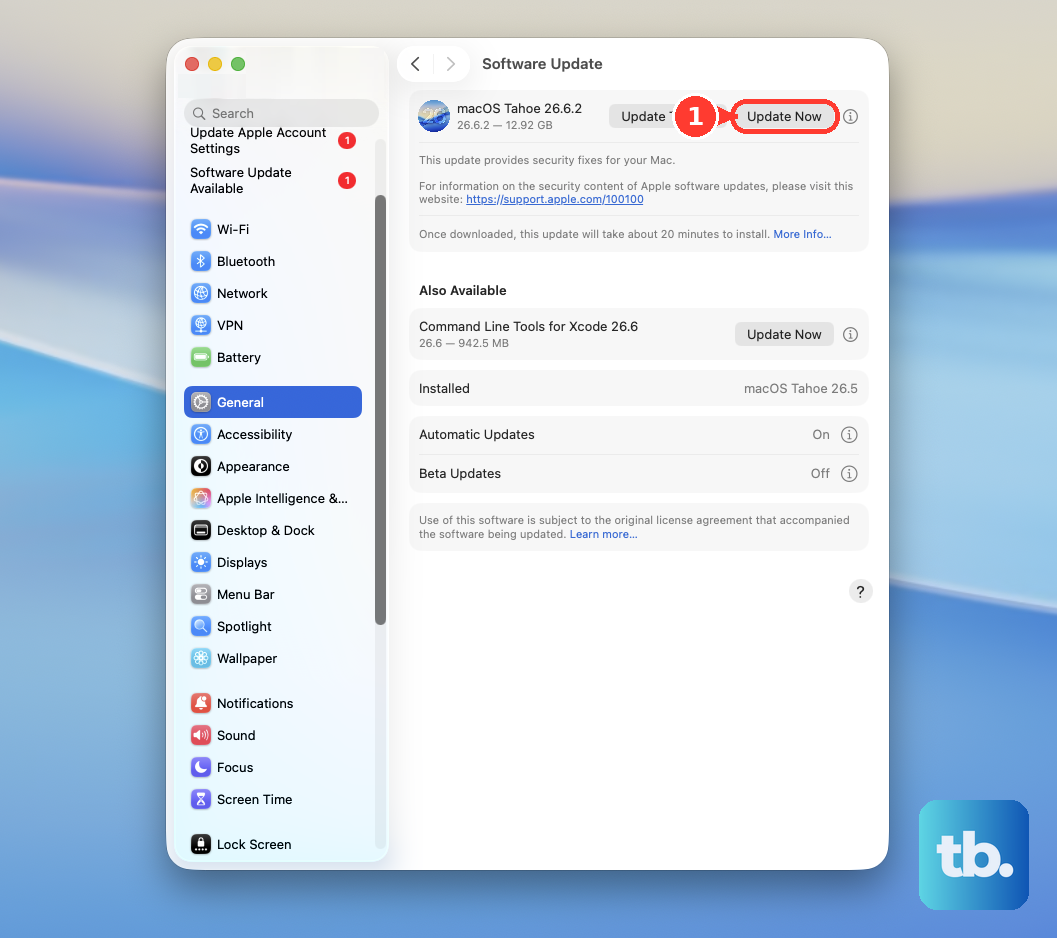
Apple frequently releases updates that include fixes for wireless connectivity. Go to System Settings > General > Software Update and install any available updates. If you're running macOS 26 Tahoe, make sure you have the latest supplemental update, as these often contain Bluetooth improvements specifically for Apple Silicon Macs like the M4.
Check for Wireless Interference
Bluetooth operates on the crowded 2.4GHz radio band. Other devices can cause interference. Common culprits include USB 3.0 hubs, wireless routers, cordless phones, and even microwaves. Try moving your MacBook Air or the Bluetooth device to a different location.
If you're using a USB-C hub or dongle, try disconnecting it temporarily to see if the Bluetooth connection stabilizes. Some poorly shielded hubs are notorious for causing Bluetooth and Wi-Fi interference.
Boot Into Safe Mode
Safe Mode loads macOS with only the essential software, which can tell you if a third-party app is causing the conflict. Shut down your MacBook Air. Press and hold the power button until you see "Loading startup options." Select your main drive, then press and hold the Shift key and click Continue in Safe Mode.
Test your Bluetooth connection in Safe Mode. If it works perfectly here, then an app or system extension you installed is likely the problem. You'll need to identify it by checking recently installed software or startup items.
Delete Bluetooth Preference Files
This is a more advanced step that resets all Bluetooth settings to factory defaults. You will need to re-pair every single Bluetooth device afterward. First, open a new Finder window and press Command + Shift + G. Type /Library/Preferences/ into the box and press Go.
In that folder, look for the file named com.apple.Bluetooth.plist. Drag this file to your Trash. Empty the Trash, then restart your MacBook Air. macOS will create a fresh, new Bluetooth preferences file when it boots up.
Run Apple Diagnostics
If you're still having issues, it's worth checking for a hardware problem with the built-in diagnostics. Shut down your MacBook Air M4. Press and hold the power button as you turn it on, but keep holding until you see the startup options window. Instead of clicking, press and hold Command + D on your keyboard.
This will launch Apple Diagnostics. Follow the on-screen instructions to let it test your hardware, including the Bluetooth components. If it finds an issue, it will provide a reference code and steps to take.