
When your ThinkPad T14 shows that "USB Device Not Recognized" error or just doesn't see your flash drive, mouse, or external hard drive, it's a real roadblock. The problem could be with the port itself, a driver hiccup, or even a setting buried in the BIOS. Let's get it sorted.
Start With a Different Port
Unplug your device and try a different USB port on your T14. If it works in another port, the original one might have a physical issue or be disabled. The T14 typically has both USB-A and USB-C ports, so test them all.
This is the quickest way to rule out a hardware problem with the port itself. I'd start here every time.
Perform a Full Restart
Shut down your laptop completely, wait a moment, and then power it back on. A full restart reloads the USB drivers and resets the controller, which often clears up temporary glitches causing the recognition error.
Make sure you select "Shut down" from the Start menu, not just close the lid to put it to sleep. This ensures a clean reload of the system hardware.
Test the Device Elsewhere
Plug the problematic USB device into another computer. If it isn't recognized there either, the device or its cable is likely faulty. If it works perfectly on another machine, then the issue is isolated to your ThinkPad's configuration.
This simple test tells you exactly where to focus your troubleshooting efforts.
Swap the USB Cable
If you're connecting something like an external drive or phone, try a different cable. Cables fail over time, and one that still charges a device might have broken internal wires for data transfer.
Use a known-good, high-quality cable. For best results with storage devices, avoid using overly long or charging-only cables.
Update Drivers via Lenovo Vantage
For ThinkPads, your best bet is Lenovo Vantage or the Lenovo Commercial Vantage app. Open it and check for updates. It will find and install the latest, manufacturer-approved drivers for your specific T14 model, including USB and chipset drivers.
This is often more reliable than Windows Update for ThinkPad hardware. After installing any drivers, restart your laptop.
Check and Update in Device Manager
Press the Windows key + X and select Device Manager. Look under Universal Serial Bus controllers for any entries with a yellow exclamation mark.
Right-click on the device giving the error (or on generic USB controllers) and choose Update driver. You can also try Uninstall device and then restart, which forces Windows to reinstall the driver from scratch.
Disable USB Selective Suspend
This power-saving feature can sometimes turn off ports prematurely. Go to Control Panel > Hardware and Sound > Power Options.
Click Change plan settings next to your active plan, then Change advanced power settings. Expand USB settings > USB selective suspend setting and set it to Disabled. Click Apply and OK.
Inspect BIOS/UEFI Settings
Restart your T14 and immediately press F1 to enter the BIOS setup. Navigate through the menus (often using the arrow keys and Enter).
Look for any USB-related settings, such as "USB Configuration," and ensure all ports are enabled. Some enterprise-managed T14s may have ports disabled by an IT policy. If you don't have the BIOS password, you'll need to contact your system administrator.
Run the Hardware Troubleshooter
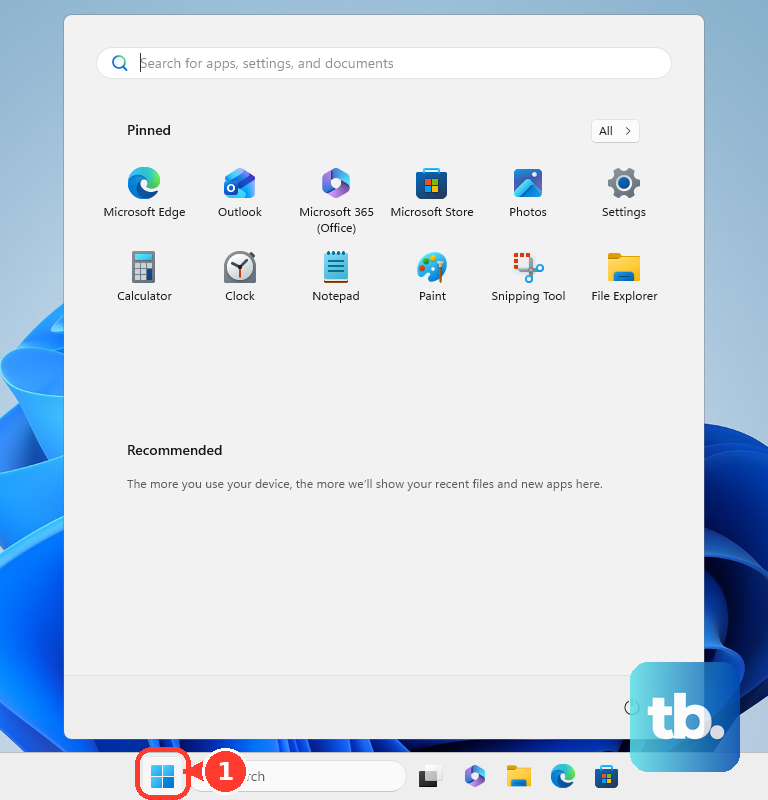
Open the Start menu, type "cmd," right-click on Command Prompt, and select Run as administrator. In the window, type the command msdt.exe -id DeviceDiagnostic and press Enter.
This launches the built-in Hardware and Devices troubleshooter, which can automatically find and fix some common USB problems.
Install All Windows Updates
Go to Settings > Windows Update and click Check for updates. Install all available updates, including optional updates which sometimes contain driver fixes.
Microsoft and Lenovo frequently release patches that improve hardware compatibility, so this is a crucial step.
Check Your Docking Station
If the USB device is connected through a ThinkPad docking station, try connecting it directly to the laptop's port instead. Docking stations can have their own driver or firmware issues.
If the device works directly, check Lenovo Vantage for docking station firmware updates or try a different dock cable.