
When Bluetooth stops working on your ThinkPad T14, your wireless mouse, headphones, or keyboard suddenly become useless. The connection might fail to pair, drop constantly, or the Bluetooth icon might vanish entirely. Getting it working again is usually a quick process.
Toggle Bluetooth On and Off
First, check the quick action center. Click the notification icon in the taskbar and make sure the Bluetooth tile is highlighted. If it's off, click it to turn it on. You can also go directly to Settings > Bluetooth & devices and flip the main Bluetooth switch there. I'd start with this simple toggle, as it resets the radio.
Restart Your ThinkPad
A full system restart is the most reliable way to clear temporary software glitches that affect Bluetooth. This is especially true if the problem started after the laptop woke from sleep or hibernation. Shut down completely, wait a moment, then power it back on.
Forget and Re-Pair Your Device
Go to Settings > Bluetooth & devices. Find the problematic device in the list and click the three dots next to it, then select Remove device. Now, put your Bluetooth headset or mouse into its pairing mode. On your ThinkPad, click Add device > Bluetooth and select it from the list to create a fresh connection.
Run the Windows Bluetooth Troubleshooter
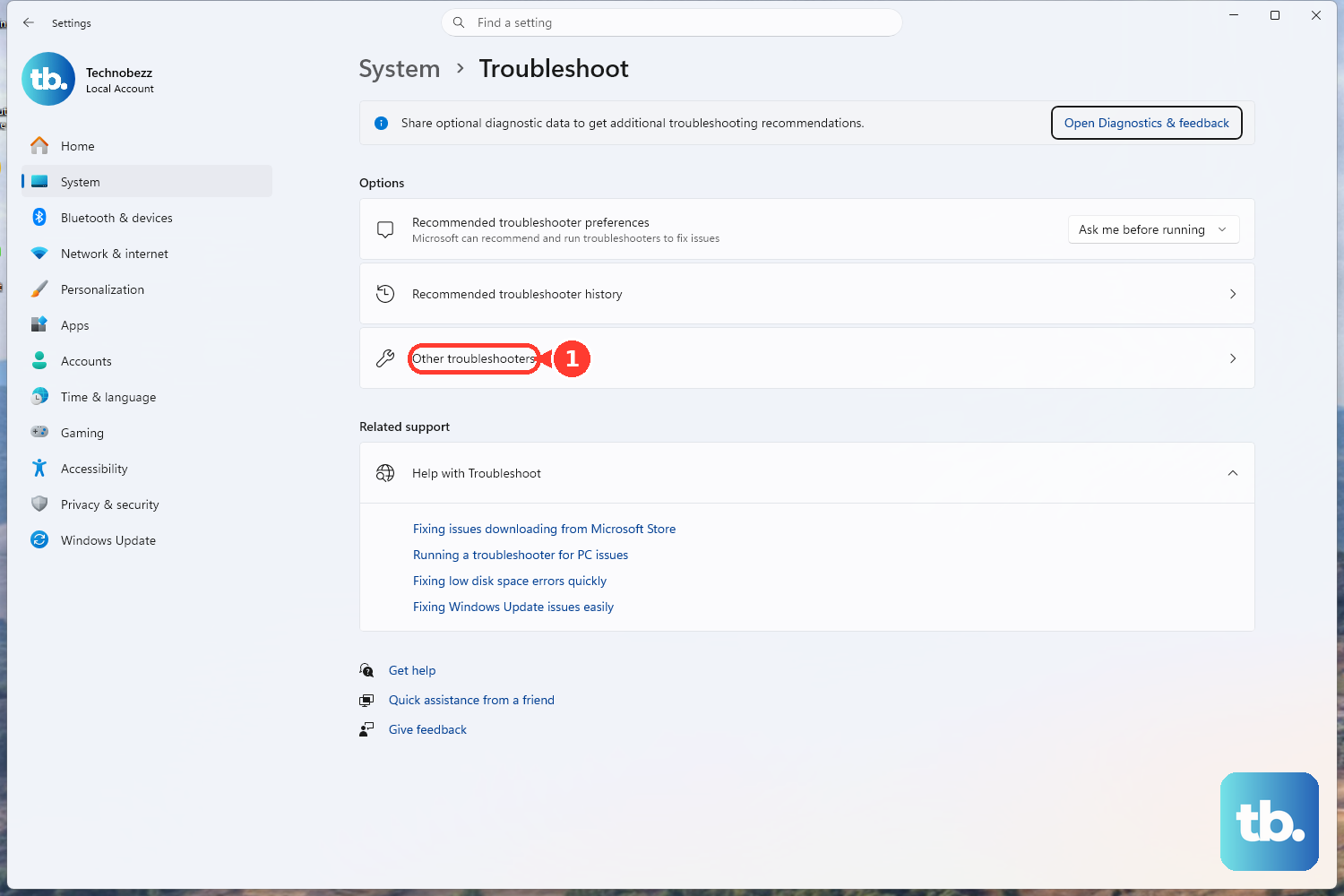
Windows has a built-in tool for this. Go to Settings > System > Troubleshoot > Other troubleshooters. Find the Bluetooth troubleshooter and click Run. It will scan for common configuration problems and often apply a fix automatically, which can save you a lot of time.
Update Bluetooth Drivers via Lenovo Vantage
For ThinkPads, the best tool for drivers is Lenovo Vantage. Open it and check for updates in the System Update section. It will find the correct, tested Bluetooth driver for your specific T14 model. If you don't have Vantage, you can use Device Manager. Press Windows + X and select it, then expand the Bluetooth section, right-click your adapter, and choose Update driver > Search automatically for drivers.
Check and Restart Bluetooth Services
Sometimes the background service that manages Bluetooth stops. Press Windows + R, type services.msc, and hit Enter. Scroll down to find Bluetooth Support Service. Right-click it and select Restart. Also, double-click it to open its properties and ensure the Startup type is set to Automatic.
Look for Wireless Interference
Bluetooth shares the 2.4 GHz band with Wi-Fi and other electronics. If your T14 is docked, try undocking it, as some docking stations can cause interference. Also, try moving any USB 3.0 devices or wireless routers further away from your laptop and the Bluetooth device you're trying to connect.
Install All Windows Updates
Microsoft frequently releases patches that fix connectivity issues. Go to Settings > Windows Update and click Check for updates. Install any available feature or quality updates. After the update installs and your laptop restarts, check if Bluetooth is working again.
Reinstall the Bluetooth Adapter
This gives the driver a completely fresh start. Open Device Manager, expand the Bluetooth section, right-click on your Bluetooth adapter (it might be named Intel, Realtek, or MediaTek), and select Uninstall device. Check the box that says "Attempt to remove the driver for this device" if it appears. Then, restart your ThinkPad. Windows will automatically reinstall the driver upon startup.
Check the BIOS and Function Keys
On rare occasions, the Bluetooth radio can be disabled in the BIOS. You can access it by pressing F1 during startup (when the Lenovo logo appears). Look for a Wireless or Security section to ensure Bluetooth Radio is enabled. Also, try pressing Fn + F8 (or whichever function key has the wireless icon) to toggle the wireless radios off and on again.