
The Blue Screen of Death on your ThinkPad T14 is Windows hitting a critical error it can't recover from. It's a protective stop, usually triggered by a driver conflict, faulty hardware, or a corrupted system file. The specific error code on the screen points to the root cause, but the fixes below tackle the most common culprits across all BSODs.
First, if you can, note the stop code displayed on the blue screen. Codes like DRIVER_IRQL_NOT_LESS_OR_EQUAL or SYSTEM_SERVICE_EXCEPTION are clues. You can search the exact code later, but starting with these general steps resolves the majority of ThinkPad crashes.
Restart and Observe
A one-off blue screen can be a fluke. Restart your T14 normally by holding the power button. If it boots to Windows and runs stable, it was likely a temporary glitch. If the BSOD happens again immediately or during normal use, you have a recurring issue that needs fixing.
Boot Into Safe Mode
If the laptop crashes before you can log in, you'll need Safe Mode. From the sign-in screen, hold the Shift key while you click the power icon and select Restart. After the reboot, navigate to Troubleshoot > Advanced options > Startup Settings > Restart. When it restarts again, press the 4 key to enable Safe Mode.
Safe Mode loads Windows with only essential drivers. If your T14 is stable in Safe Mode, the problem is almost certainly a recently installed driver or software. This is a key diagnostic step.
Uninstall Recent Updates or Drivers
Think about what changed just before the crashes started. If it was after a Windows Update, you can roll it back. Go to Settings > Windows Update > Update history > Uninstall updates. Remove the most recent quality update or feature update.
If you installed a new piece of hardware, like a docking station, or updated a driver manually, uninstall that driver from Device Manager. For ThinkPads, a botched GPU, chipset, or even trackpad driver can be the trigger.
Update Drivers with Lenovo Vantage
Outdated or incompatible drivers are the leading cause of ThinkPad BSODs. Don't just rely on Windows Update for drivers. Open the Lenovo Vantage app, which is tailored for your T14. Go to the System Update section and let it scan for all available driver and BIOS updates from Lenovo's official servers.
I'd start the driver update process here. Lenovo Vantage ensures you get the tested, enterprise-grade drivers for your specific model, which is more reliable than generic Windows drivers for components like the Thunderbolt controller or fingerprint reader.
Run System File Checker and DISM
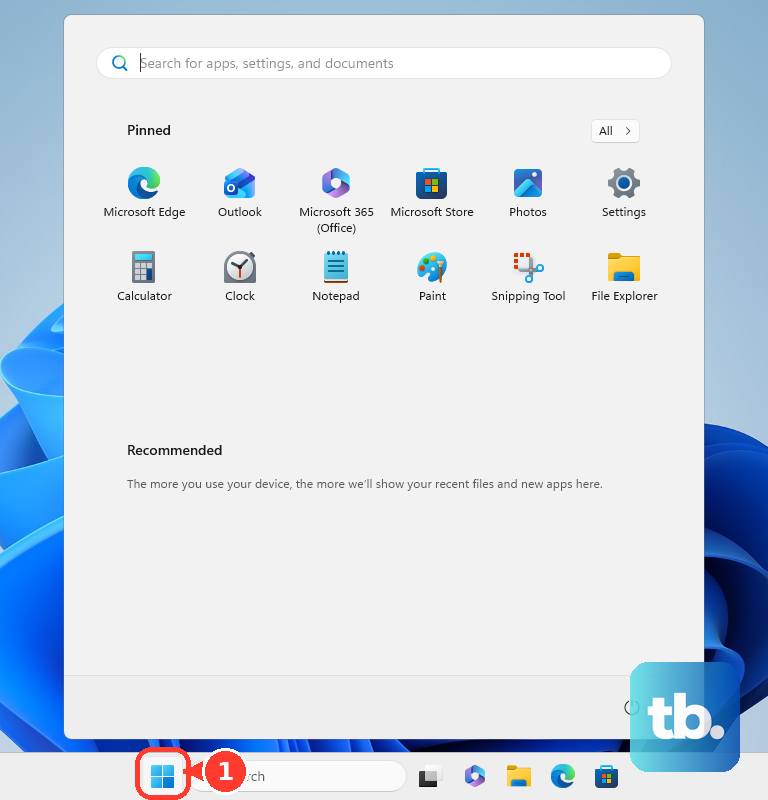
Corrupted Windows system files can cause all sorts of crashes. To check and repair them, open the Start menu, type cmd, right-click Command Prompt, and select Run as administrator. In the black window, type sfc /scannow and press Enter.
Let the scan run. If it finds and fixes corruption, great. If it says it found problems it couldn't fix, run this command first: DISM /Online /Cleanup-Image /RestoreHealth. After it completes, run the sfc /scannow command again.
Check Your RAM with Diagnostics
Faulty memory is a classic hardware cause for blue screens. Your ThinkPad has a built-in diagnostic tool. Restart your T14 and immediately start tapping the F10 key repeatedly as it boots. This launches the Lenovo PC Diagnostics environment.
From there, you can run a full memory test. If errors are found, the issue is likely with one of your RAM sticks. On the T14, the RAM is often user-upgradeable, so you can try reseating the modules or testing them one at a time to find the faulty one.
Check Your Storage Drive
A failing SSD can also lead to crashes with disk-related error codes. Open an Administrator Command Prompt like before. To check your main drive (usually C:), type chkdsk C: /f /r and press Enter. It will schedule the scan for the next restart.
Type Y to confirm, then restart your laptop. The check will run before Windows boots, looking for and attempting to repair file system errors and bad sectors. Many T14 models use NVMe SSDs, and while they are reliable, they can still fail.
Manage Heat and Power
If BSODs happen during heavy CPU/GPU loads, overheating could be the issue. Ensure the laptop vents on the bottom and side are not blocked. Dust buildup inside can be a problem over time. Using the laptop on a hard, flat surface is better than on a blanket or pillow.
You can also check your power settings. In the Windows search bar, type Choose a power plan and select it. Make sure you're using the Balanced or Lenovo Intelligent Cooling plan, not a high-performance plan that might push thermals too hard on an older unit.
Reset or Refresh Windows
If driver and file repairs don't stop the crashes, a Windows reset is a strong next step. Go to Settings > System > Recovery. Click Reset PC. Choose Keep my files to remove apps and settings but preserve your personal documents.
This reinstalls Windows cleanly, wiping out any deep-seated driver conflicts or system corruption. It's less drastic than a full wipe but often resolves persistent BSOD loops. Make sure you have your software installers and license keys handy afterward.
Access the BIOS for Hardware Checks
If problems persist, boot into the BIOS to check hardware status and reset settings. Restart and tap F1 repeatedly at startup. In the BIOS, you can view system temperatures and error logs. Look for a menu option like Restore Settings or Load Default Settings.
A corrupted BIOS setting can sometimes cause instability. Resetting to defaults can help. Be cautious if your T14 is managed by an IT department, as it may have an enterprise BIOS password preventing these changes.