You open Settings > General > Software Update on your iPhone SE 4, expecting a quick download, and instead you get "Unable to Check for Update," a progress bar that crawls and then stalls, or a download that quietly refuses to install. A phone that will not take the latest iOS is more than annoying, because security patches and bug fixes ride along with those updates, and skipping them leaves you on older, less stable software.
One quick clarification before the fixes, because it changes how you search for help. Apple never shipped a product called the "iPhone SE 4." The device almost everyone means by that name is the iPhone 16e, announced as part of the iPhone 16 family, powered by the A18 chip and running iOS 18 or later. It uses Face ID and a Side button (no Home button) and charges over USB-C, and every step below is written for that hardware.
The good news is that the iPhone 16e fully supports software updates both over the air and through a computer, so almost every "won't update" problem comes down to a connection, storage, or software hiccup you can clear yourself. Work through these in order, starting with the safest, easiest fixes and moving to the more involved ones only if you need them. As Apple puts it, "Your data and settings remain unchanged when you update to the latest version of iOS," so a normal update will not wipe your photos or apps.
Confirm your Wi-Fi and internet connection first
An iOS update needs a live internet connection to download, and a surprising number of failures are really connection failures wearing a different mask. If you see "Unable to Check for Update" or "This update requires a Wi-Fi network connection to download," the phone is telling you it cannot reach Apple's servers cleanly.
Connect to a reliable Wi-Fi network rather than a weak or public one, and confirm that other apps can actually load. It also helps to avoid downloading other content (large app updates, streaming, big file transfers) while the iOS update runs, since that competes for the same bandwidth.
Keep it plugged in and let the progress bar crawl
A slow progress bar is not always a stuck one. Apple notes that the time an update takes depends on the size of the update and the number of files on your device, so a packed phone can sit at the same point for a while and still be working.
Keep the iPhone 16e connected to a power source for the whole over-the-air update so it does not run low partway through. If the battery does drain and the phone shuts off, plug it back in and turn it on, and the update should pick up and finish on its own.
Free up storage so the download has room
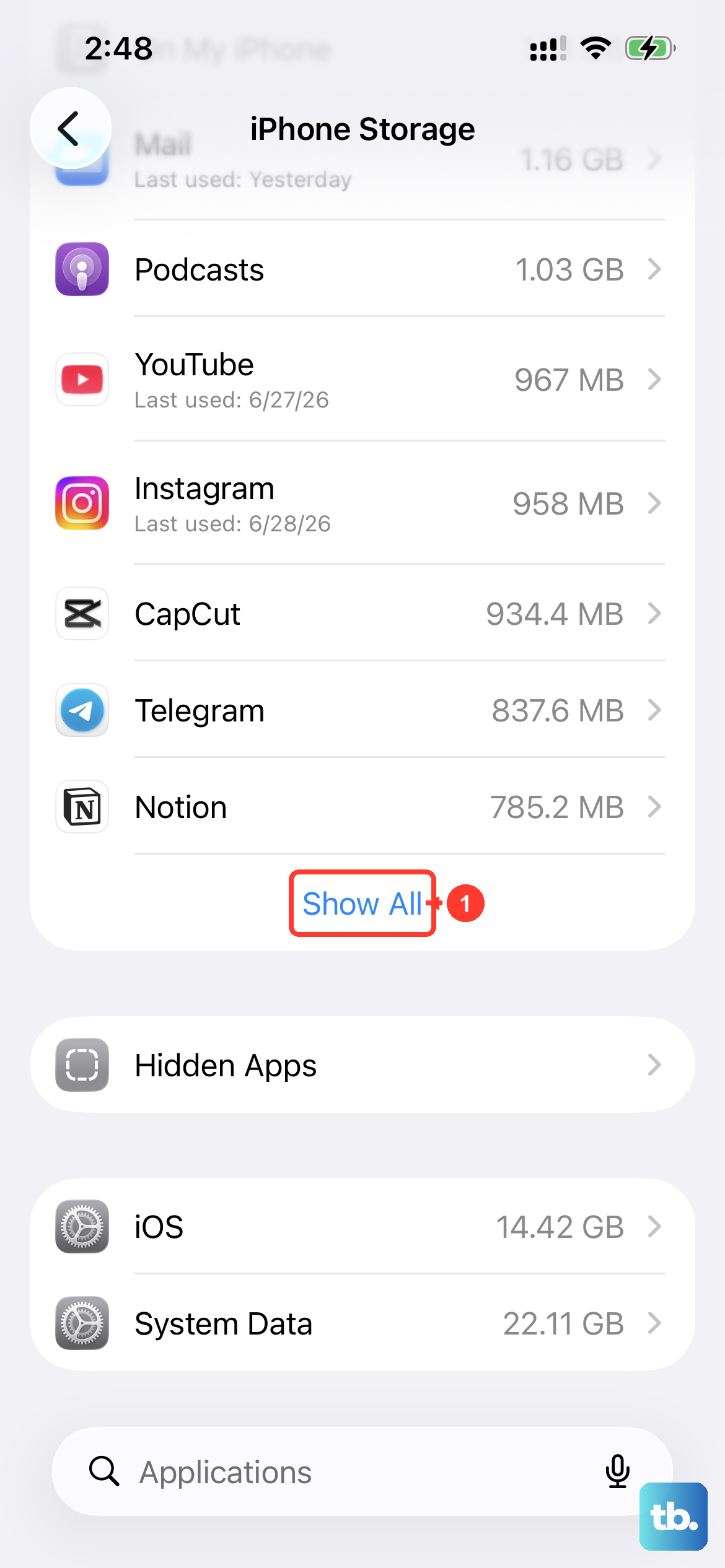
You need enough free space for the update package to download and install, and a full phone will block the process. Clearing space is one of the most common fixes for an update that refuses to start.
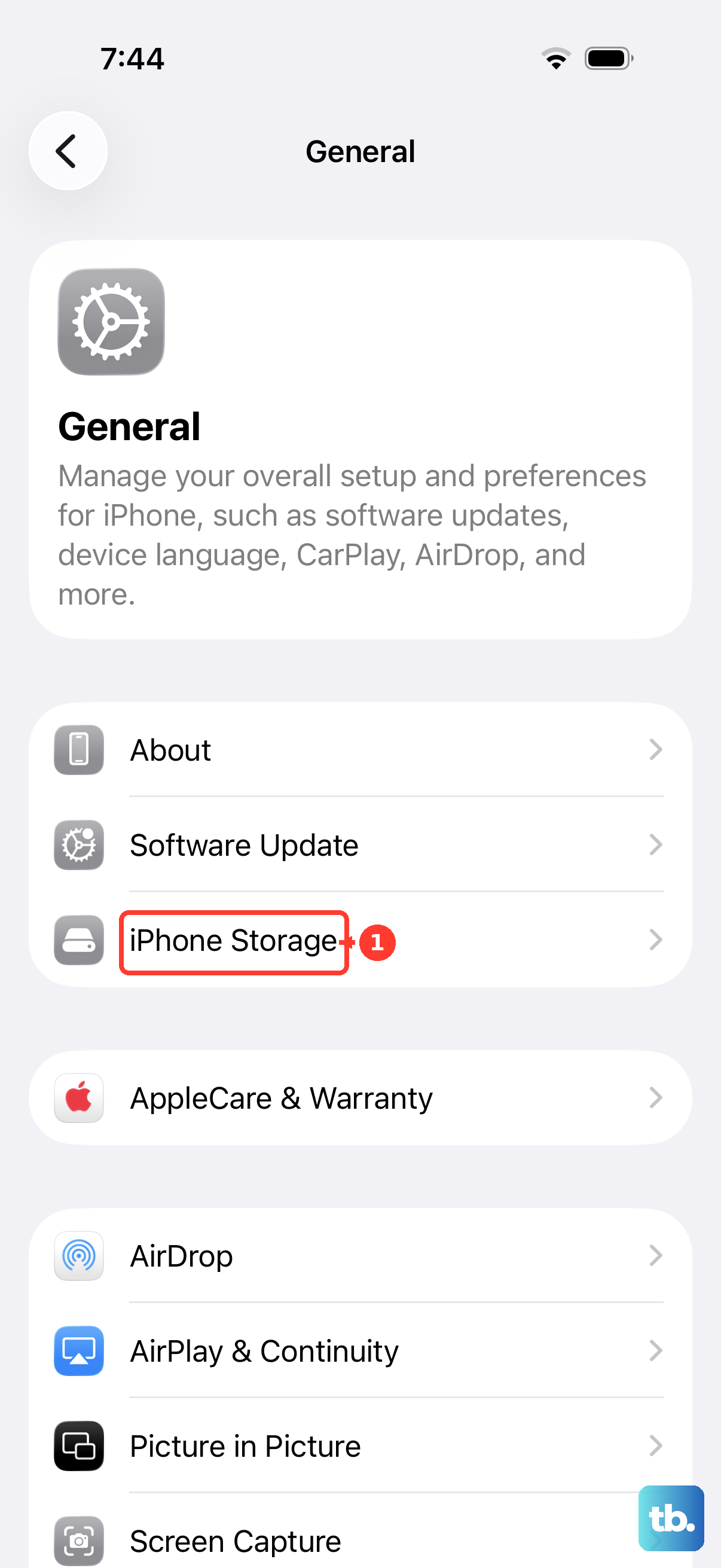
Go to Settings > General > iPhone Storage.
Turn on Offload Unused Apps to reclaim space from apps you rarely open.
Use the Recommendations section near the top, or manually delete apps and content you do not need.
iOS can also temporarily remove app data that you are able to re-download later, and it does this without touching your personal data, so you have room to maneuver before deleting anything precious.
Delete the stuck update and download a fresh copy
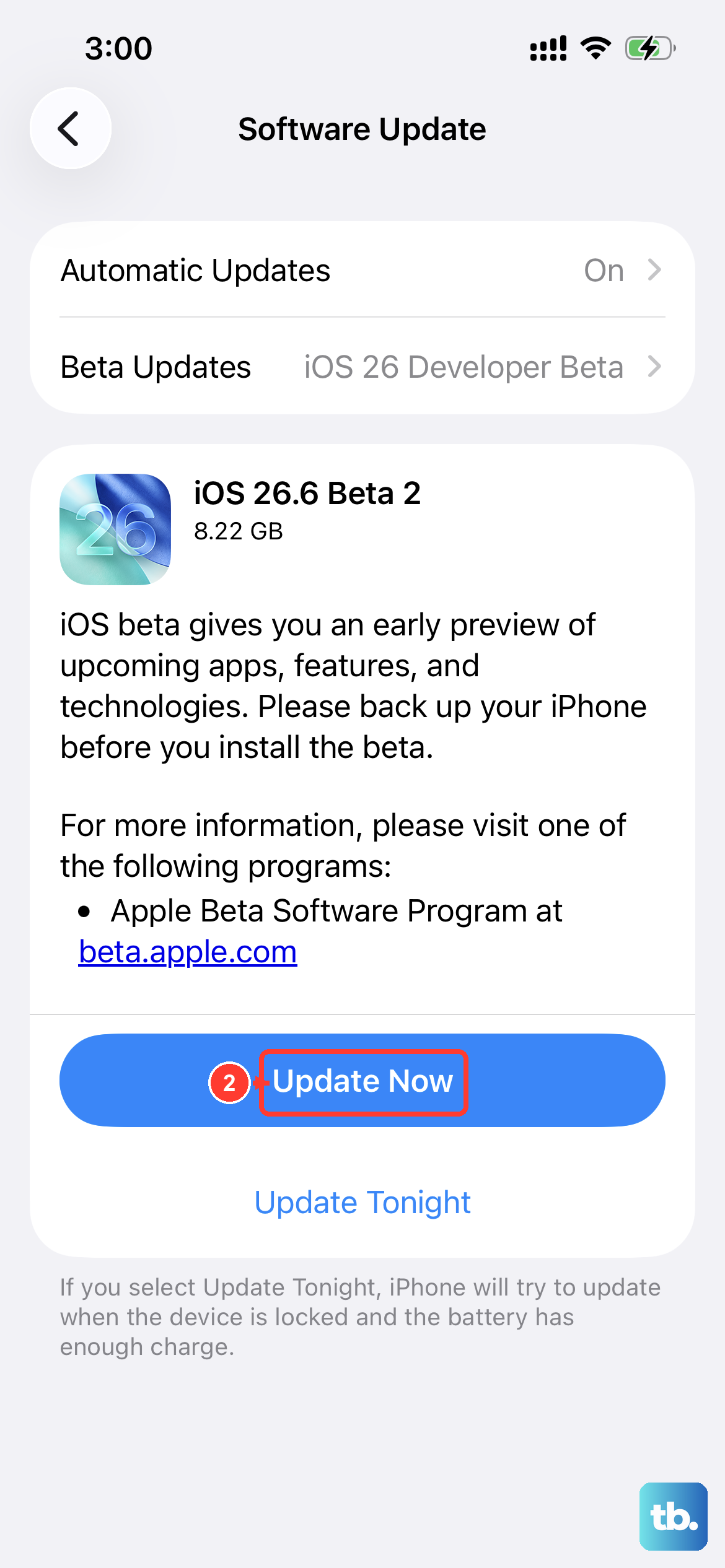
If the update was only partly downloaded or simply will not install, the downloaded file itself may be corrupted. Removing it and starting over often clears the jam.
Open Settings > General > iPhone Storage.
Tap the iOS update in the list, then tap Delete Update.
Go back to Settings > General > Software Update and tap Download and Install to grab the latest update again.
Restart your iPhone 16e
A plain restart clears the temporary glitches that can quietly block an update, and it costs you nothing. Power the phone off and back on, ask Siri to restart it, or use Settings > General > Shut Down and then turn it on again.
Once it is back up, return to Settings > General > Software Update and try Download and Install one more time before moving on to the heavier fixes.
Force restart a frozen or unresponsive update
Sometimes an update leaves the phone frozen, with the screen unresponsive and a normal power-off out of reach. A force restart is the right move here, and on the iPhone 16e (Face ID, Side button) the sequence is specific, so follow it exactly.
- 1.Press and quickly release the volume up button.
- 2.Press and quickly release the volume down button.
- 3.Press and hold the side button.
- 4.When the Apple logo appears, release the side button.
This does not erase anything; it simply forces the phone to reboot when it will not respond. After it restarts, check Software Update again.
Update over a cable with Finder or iTunes
When the over-the-air update keeps failing, or there genuinely is not enough free space for it, a computer can do the job differently. Connect the iPhone 16e to a computer with its USB-C cable and let the computer handle the download and install.
On a Mac running macOS Catalina or later, open Finder. On a Windows PC, or on a Mac running macOS Mojave or earlier, open iTunes instead. Select your device, then choose the option to check for and download the update, and follow the onscreen prompts.
Put it in recovery mode to update or restore
If the iPhone is stuck and even a normal computer update will not go through, recovery mode lets the computer step in more forcefully. Connect the phone to your computer, then press and quickly release the volume up button, press and quickly release the volume down button, and then press and hold the Side button. Keep holding the Side button, even past the Apple logo, until the recovery-mode screen (showing a computer and cable) appears.
In Finder or iTunes you will then be offered two choices. Choose Update first, since that reinstalls iOS while keeping your data. Only choose Restore, which erases the device, if Update fails to fix the problem.
Erase all content and settings as a true last resort
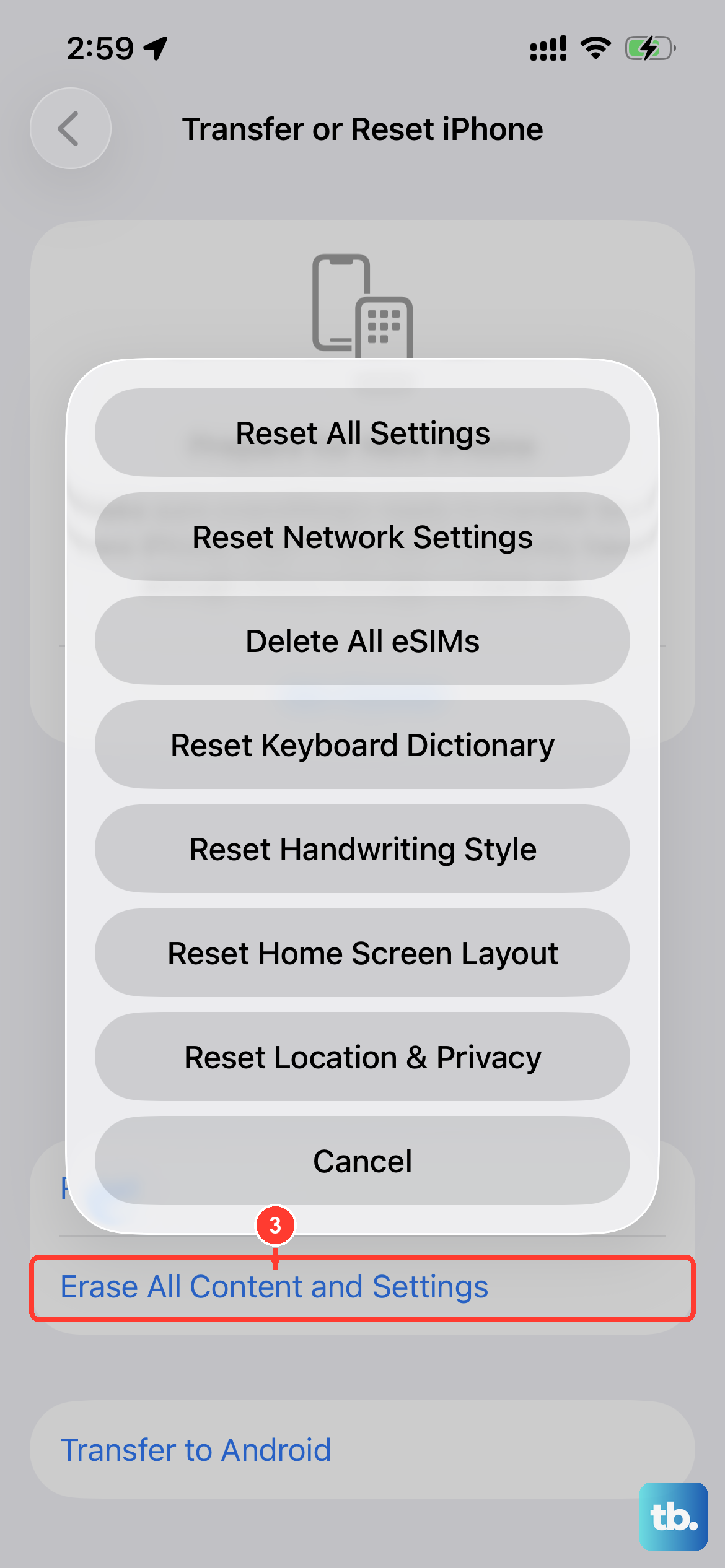
This is the most drastic on-device option, so treat it as last among the do-it-yourself fixes. Back up first to iCloud or to a computer, because Apple warns that "If you choose the Erase All Content and Settings option, all your content is removed."
Confirm you have a current backup in iCloud or on your computer.
Go to Settings > General > Transfer or Reset iPhone.
Tap Erase All Content and Settings, then Continue.
Choose whether to keep or delete your eSIM.
Enter your passcode and your Apple Account password when prompted.
Once the phone is wiped, set it up again, install the iOS update on the clean system, and then restore your backup. Starting from a clean slate often resolves a stubborn update that nothing else would budge.
When it is time to let Apple take over
If the iPhone 16e still will not update after all of the above, the cause may be something only Apple can diagnose, such as a hardware fault. You do not have to keep guessing on your own.
Use the Apple Support app or Apple's official support website to chat with or call an Apple Advisor, book a Genius Bar appointment, or arrange mail-in service. You can follow the status of any repair through Apple's My Support, so you always know where your device stands.
Frequently Asked Questions
Is the iPhone SE 4 the same thing as the iPhone 16e?
Yes. Apple never released a product officially named "iPhone SE 4." The phone widely searched for under that name is the iPhone 16e, which runs the A18 chip on iOS 18 or later, so all of these update fixes apply to it.
Will updating iOS erase my photos and apps?
No. A standard update keeps your information intact, and Apple states that "Your data and settings remain unchanged when you update to the latest version of iOS." Only a Restore in recovery mode or Erase All Content and Settings removes your data, which is why those are the last steps and why you back up first.
Why is my update taking so long to install?
The time an update takes depends on its size and how many files are on your iPhone, so a slow-moving progress bar can be normal. Keep the phone on Wi-Fi and connected to power, and let it finish rather than interrupting it.
How do I stop having to do this manually every time?
Turn on automatic updates at Settings > General > Software Update > Automatic Updates, where you can enable Automatically Download and Automatically Install so future updates arrive without you chasing them.
In recovery mode, what is the difference between Update and Restore?
Update reinstalls iOS while keeping your data, so it is the safe first choice. Restore erases the device entirely, so use it only if Update has already failed and you have a backup ready.