
When your iPhone SE 4 volume buttons stop responding, it's a real hassle. You press them and get nothing, no volume change, no haptic feedback, no response at all. The good news is that most of the time, this is a software hiccup or a simple obstruction that you can fix yourself without a trip to the store.
Before you worry about hardware, try these solutions. I'd start with the first one, as it's the most common fix for the SE 4's compact design.
Remove Your Phone Case
Start with the simplest fix. Take your iPhone SE 4 out of its case. Some cases, especially thicker or ill-fitting ones, can press against the buttons or restrict their movement just enough to make them feel unresponsive.
This is a quick check that rules out an external problem immediately.
Perform a Force Restart
A force restart clears out temporary software glitches that can cause the buttons to freeze. This is a safe first step that won't delete any of your data or settings.
For the iPhone SE 4, the process is straightforward. Press and quickly release the Volume Up button, then press and quickly release the Volume Down button. Finally, press and hold the Side button until you see the Apple logo appear on the screen.
Once it boots back up, test the volume buttons right away.
Check the Volume Button Setting
There's a specific setting that controls whether the physical buttons can change the volume. You'll want to make sure it's turned on.
Go to Settings > Sounds & Haptics. Look for the switch labeled "Change with Buttons" and ensure it's toggled on (green). If it was off, turning it on should immediately restore function.
Use the On-Screen Volume Controls
While you're figuring out the buttons, you can still control your volume. Swipe down from the top-right corner of your screen to open Control Center.
You'll see a volume slider there. You can also adjust media volume directly within apps like Music or YouTube, or use the slider in Settings > Sounds & Haptics.
Clean the Volume Buttons
Dust, lint, or pocket debris can easily get lodged around the buttons on the iPhone SE 4. This physical blockage is a very common reason they stop clicking.
Take a can of compressed air and give short, gentle bursts around the edges of both volume buttons and the silent switch. For any sticky residue, lightly dampen a cotton swab with isopropyl alcohol (90% or higher), wipe around the button, and let it dry completely.
Test the Buttons in Different Apps
Open a few different apps to see if the problem is universal or app-specific. Try adjusting the volume while playing a song in Apple Music, a video on YouTube, or a podcast.
If the buttons work in one app but not another, the issue is likely with that specific app. Try force-closing the problematic app and reopening it.
Toggle the Ring/Silent Switch
This old trick can sometimes jog the system back to normal. Find the switch above the volume buttons on the left side of your iPhone SE 4.
Flick it back and forth from silent to ring mode a few times. Then, test your volume buttons again. It's a simple action that has resolved the issue for many users.
Enable AssistiveTouch for Virtual Buttons
AssistiveTouch puts a floating menu on your screen with virtual controls, including volume buttons. Using these can sometimes reset the connection to the physical ones.
Go to Settings > Accessibility > Touch > AssistiveTouch and turn it on. Tap the floating button, then tap Device > Volume Up or Volume Down.
Press the virtual buttons a few times, then try your physical buttons again.
Update to the Latest iOS
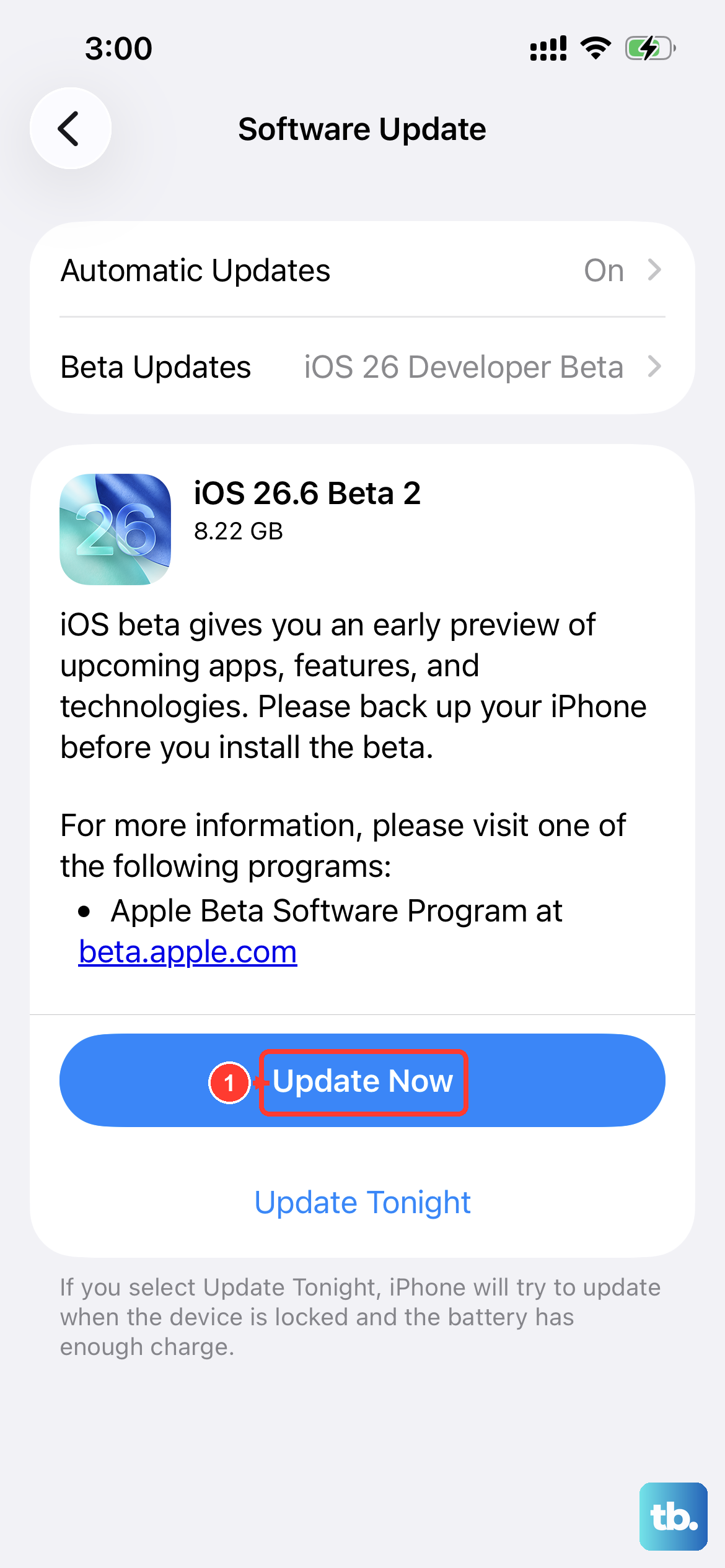
Since your iPhone SE 4 runs iOS 18, it's important to keep it updated. Apple frequently releases updates that fix bugs, including ones that might affect button responsiveness.
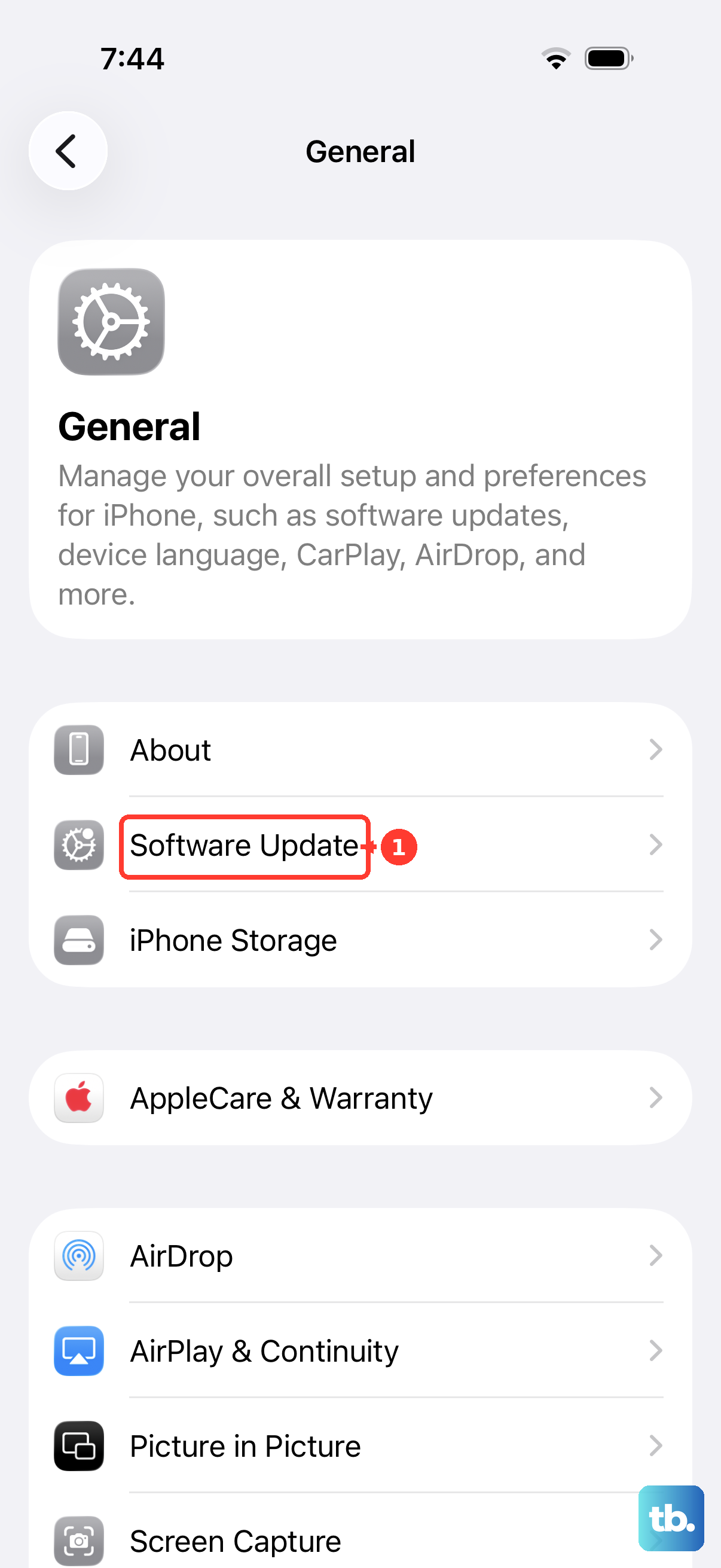
Connect to Wi-Fi and plug in your 20W USB-C PD charger. Go to Settings > General > Software Update. If an update is available, download and install it.
Reset All Settings
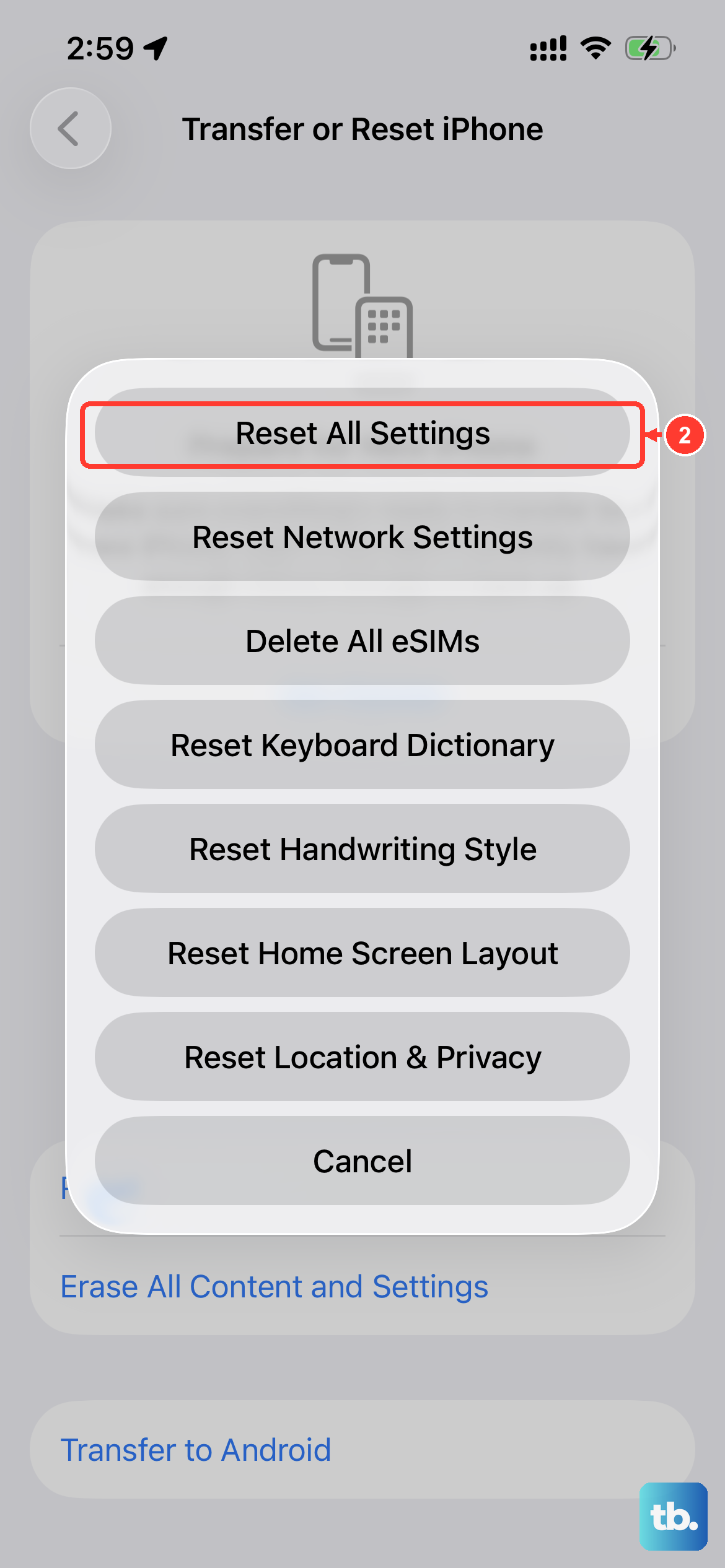
If you're still stuck, a deeper software reset can help. This will revert all your preferences (like Wi-Fi passwords and wallpaper) back to default without erasing your personal data like photos and messages.
Go to Settings > General > Transfer or Reset iPhone > Reset. Then, select "Reset All Settings." Your iPhone will restart. After it reboots, you'll need to reconfigure your settings, but it often clears persistent glitches.