
When Siri stops responding on your iPhone SE 4, it feels like you've lost a helpful sidekick. The voice assistant that's supposed to be quick and easy suddenly goes quiet. Let's get it working again.
Start With the Quick Fix
First, try a force restart. This clears temporary software glitches that can stop Siri from listening. On your iPhone SE 4, press and quickly release the Volume Up button, then press and quickly release the Volume Down button. Finally, press and hold the Side button until you see the Apple logo appear.
After the phone reboots, try saying "Hey Siri" again. This simple step fixes the issue more often than you'd think.
Confirm Siri is Actually Enabled
Sometimes settings get changed accidentally, or an iOS update might reset a preference. It's worth double-checking that Siri is still turned on for your voice.
Open the Settings app and tap on Siri & Search. Make sure the switch next to "Listen for 'Hey Siri'" is green and turned on. Also, check that "Allow Siri When Locked" is enabled if you want to use it without unlocking your phone.
If "Listen for 'Hey Siri'" was off, turn it on. You'll be prompted to go through the quick voice training setup again, which helps Siri on your SE 4 recognize your specific voice pattern.
Check for Features That Block Siri
iOS 18 has several accessibility and focus features that can intentionally disable "Hey Siri" to prevent accidental triggers. The main one to look for is Sound Recognition.
Go to Settings > Accessibility > Sound Recognition. If this feature is turned on, it will automatically disable "Hey Siri." Toggle it off and test your voice assistant again.
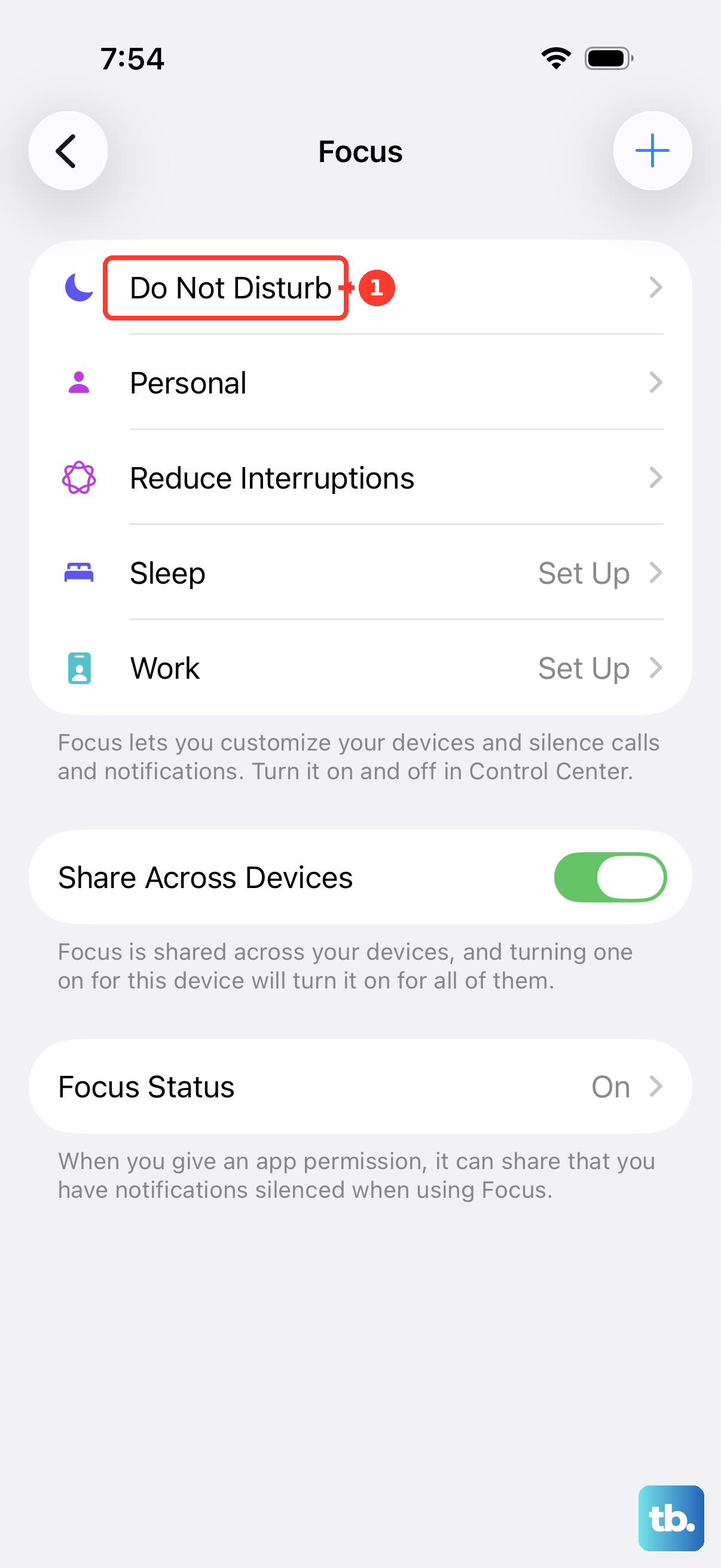
Also, check your Focus modes. While a Focus like Do Not Disturb shouldn't block Siri, a custom Focus might have Siri explicitly silenced. Swipe down from the top-right corner to open Control Center and tap the Focus icon to see which one is active, then try turning it off.
Look at Your Audio and Microphone
If Siri can hear you but you can't hear her responses, your phone might be muted. Check that the ring/silent switch on the left side of your iPhone SE 4 isn't switched to silent (showing an orange line).
You can also make Siri respond even in silent mode. Go to Settings > Siri & Search > Siri Responses and select "Always" under the "Spoken Responses" section. Also, ensure the volume is turned up using the Side button.
Your iPhone SE 4's microphones could be blocked. Check the small microphone ports at the bottom next to the USB-C port and at the top of the display. A phone case or a piece of debris can easily muffle them. I'd gently clean these areas with a soft, dry brush.
Retrain Siri to Your Voice
Background noise, a slight cold, or just the natural way your voice changes can confuse Siri. Retraining it is a straightforward process that often solves recognition problems.
Go back to Settings > Siri & Search. Turn "Listen for 'Hey Siri'" off, wait a moment, then turn it back on. Follow the on-screen prompts, clearly saying each phrase that appears. This gives your SE 4 a fresh audio sample to work with.
Update Your iPhone SE 4 Software
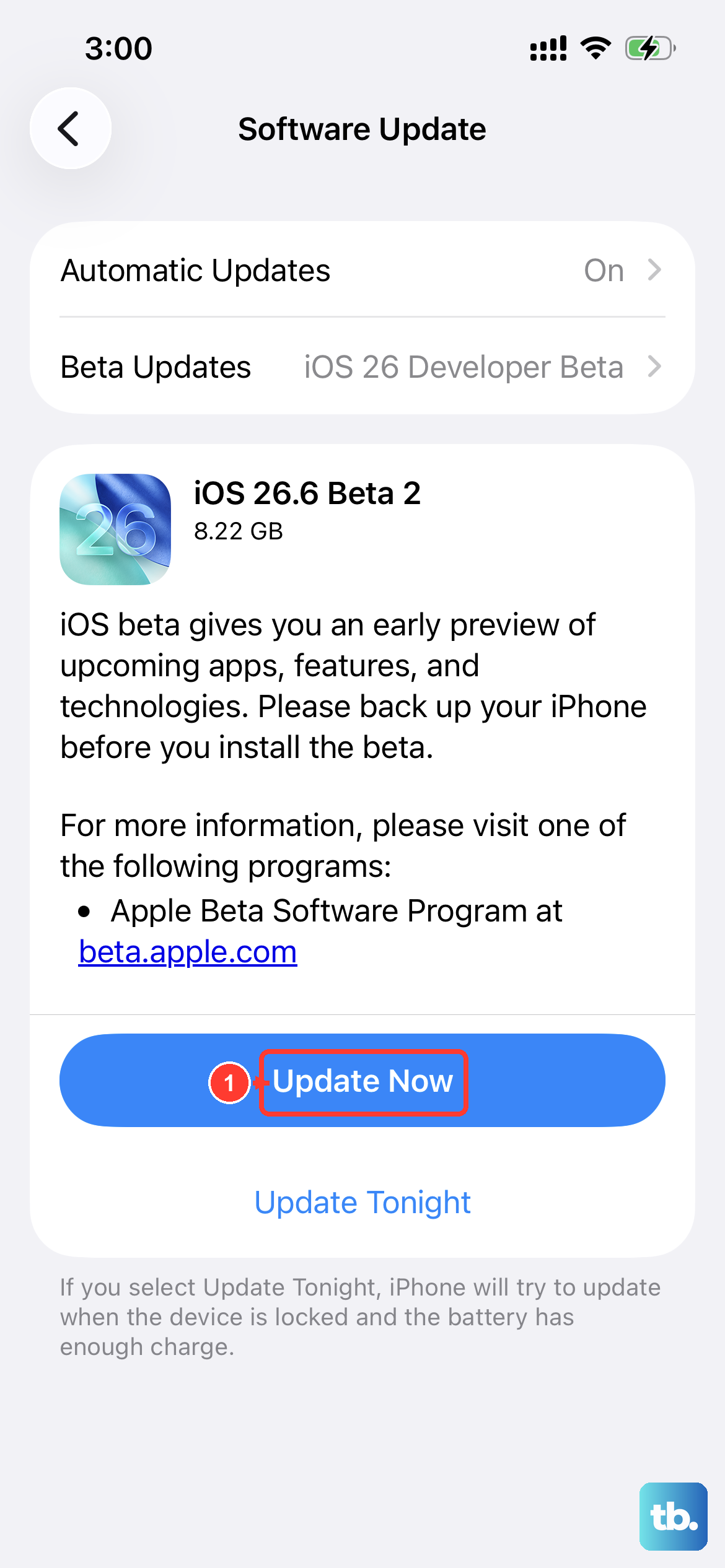
Running an outdated version of iOS 18 can lead to bugs, including ones that affect Siri. Apple frequently releases updates with patches for these kinds of issues.
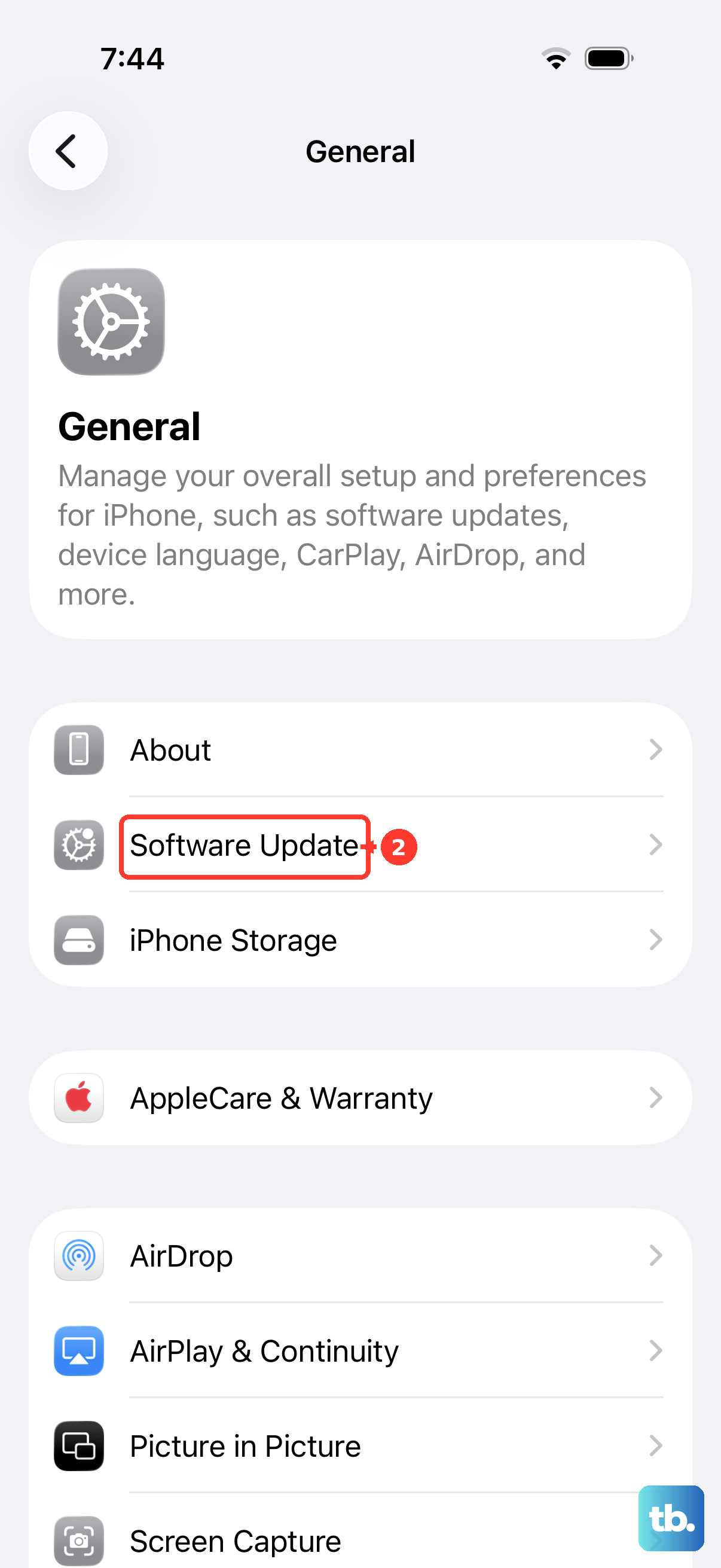
Open Settings, tap General, then select Software Update. If an update is available, tap Download and Install. It's best to do this while your phone is connected to Wi-Fi and a power source, like your 20W USB-C charger.
Reset All Settings
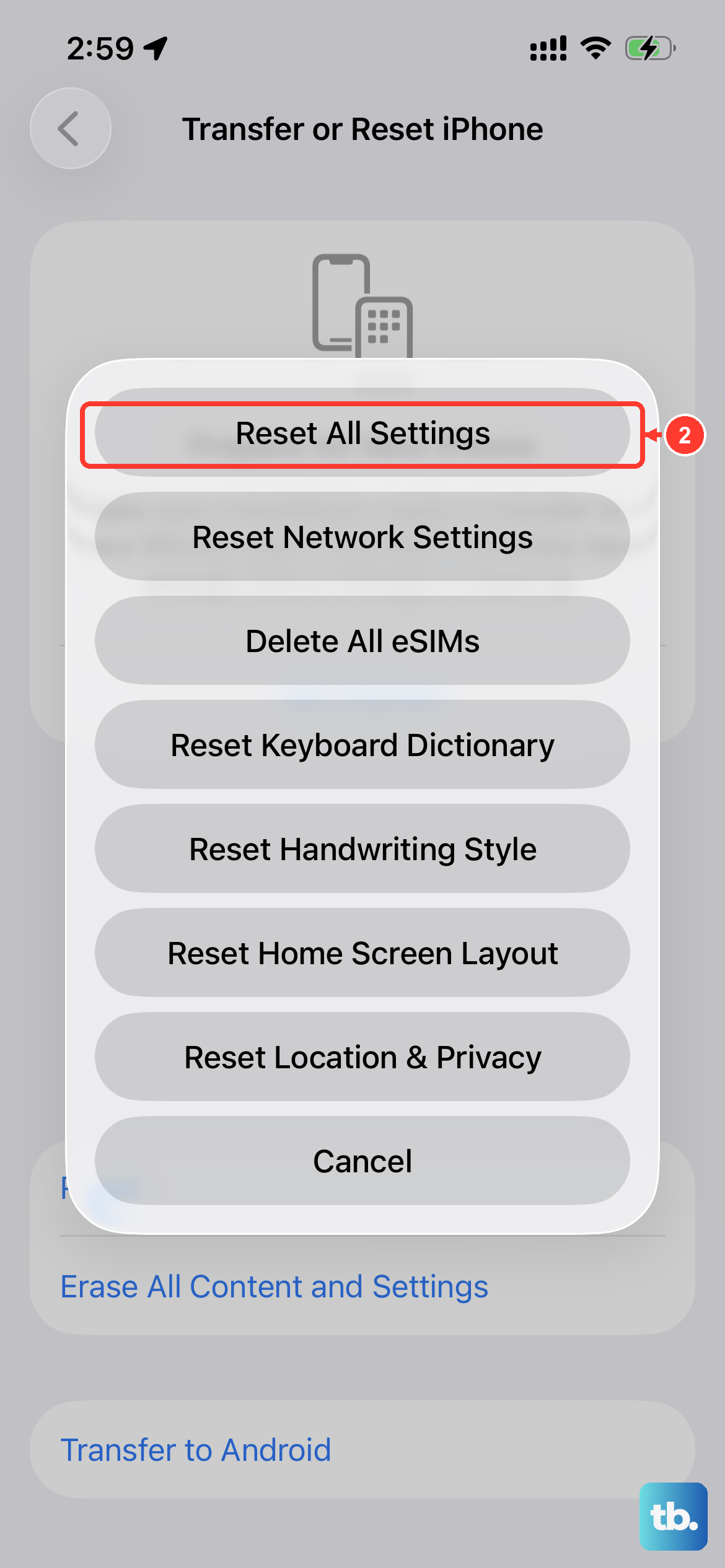
If Siri is still unresponsive, a deeper configuration reset might be needed. This won't delete your photos, apps, or messages, but it will reset all your preferences like Wi-Fi passwords, wallpaper, and privacy settings back to default.
Go to Settings > General > Transfer or Reset iPhone. Tap Reset, and then choose Reset All Settings. Enter your passcode and confirm. After your SE 4 restarts, you'll need to re-enable "Hey Siri" and retrain it, but this often clears stubborn software conflicts.