
If your iPhone SE 4 has gone silent and stopped vibrating for calls, texts, or notifications, it's a surprisingly common hiccup. The good news is that it's almost always a quick software or settings fix you can handle yourself.
Start With a Force Restart
This is the universal first step for any weird iPhone behavior, including a silent vibration motor. It clears out temporary glitches without touching your data. On the iPhone SE 4, you'll press and quickly release the Volume Up button, then press and quickly release the Volume Down button. Finally, press and hold the Side button until you see the Apple logo appear on the screen.
Let go of the button once you see the logo. Your phone will reboot, and this simple refresh often gets the Taptic Engine (Apple's name for the vibration motor) humming again.
Check Your Ring/Silent Switch
It sounds obvious, but it's the most common culprit. Look at the left side of your iPhone SE 4. If you see a small orange stripe next to the switch, it means your phone is in Silent mode. In Silent mode, your phone will only vibrate, not ring.
If the vibration motor itself has failed, you'll get nothing. Flip the switch back and forth a few times to make sure it's not stuck. When the orange stripe is hidden, your phone is in Ring mode and should vibrate and ring according to your settings.
Verify Sound & Haptics Settings
Open the Settings app and go to Sounds & Haptics. The very first toggle here is "Vibrate." Make sure "Vibrate on Ring" and "Vibrate on Silent" are both turned on, depending on which mode you use.
Just below that, you'll find the "Ringer and Alerts" slider. If this is all the way down, your phone won't make a sound, but it should still vibrate if the toggles above are on. I'd slide it up to about the midpoint and test again.
Also in this menu, tap on "Ringtone" or "Text Tone." At the top of the tone selection screen, you'll see another "Vibration" option. Tap it and make sure a pattern like "Synchronized" or "Alert" is selected, not "None."
Test With System Haptics
While still in Settings > Sounds & Haptics, scroll down to the bottom. You'll see an option called "System Haptics." This controls the subtle feedback you feel when using the keyboard or performing certain actions.
Make sure this is turned on. Then, go to your Home Screen and pull down on the center to bring up the Search bar. If you feel a tiny tap, your Taptic Engine hardware is working. This helps narrow down the problem to a specific notification setting rather than a complete hardware failure.
Review App-Specific Notification Settings
Sometimes, vibration fails for just one app like Messages or Mail. Open Settings and scroll down to the app in question. Tap on it, then select "Notifications."
First, ensure "Allow Notifications" is enabled at the top. Then, tap on the specific notification type (like "Messages" for the texting app). Look for the "Sounds" section, there's a "Vibration" option here. You can set a custom pattern or ensure it's not set to "None."
Check Focus Modes
Focus modes in iOS 18, like Do Not Disturb or Sleep, can silently filter notifications. Swipe down from the top-right corner to open the Control Center. Look at the Focus tile, if an icon like a crescent moon is highlighted, a Focus is active.
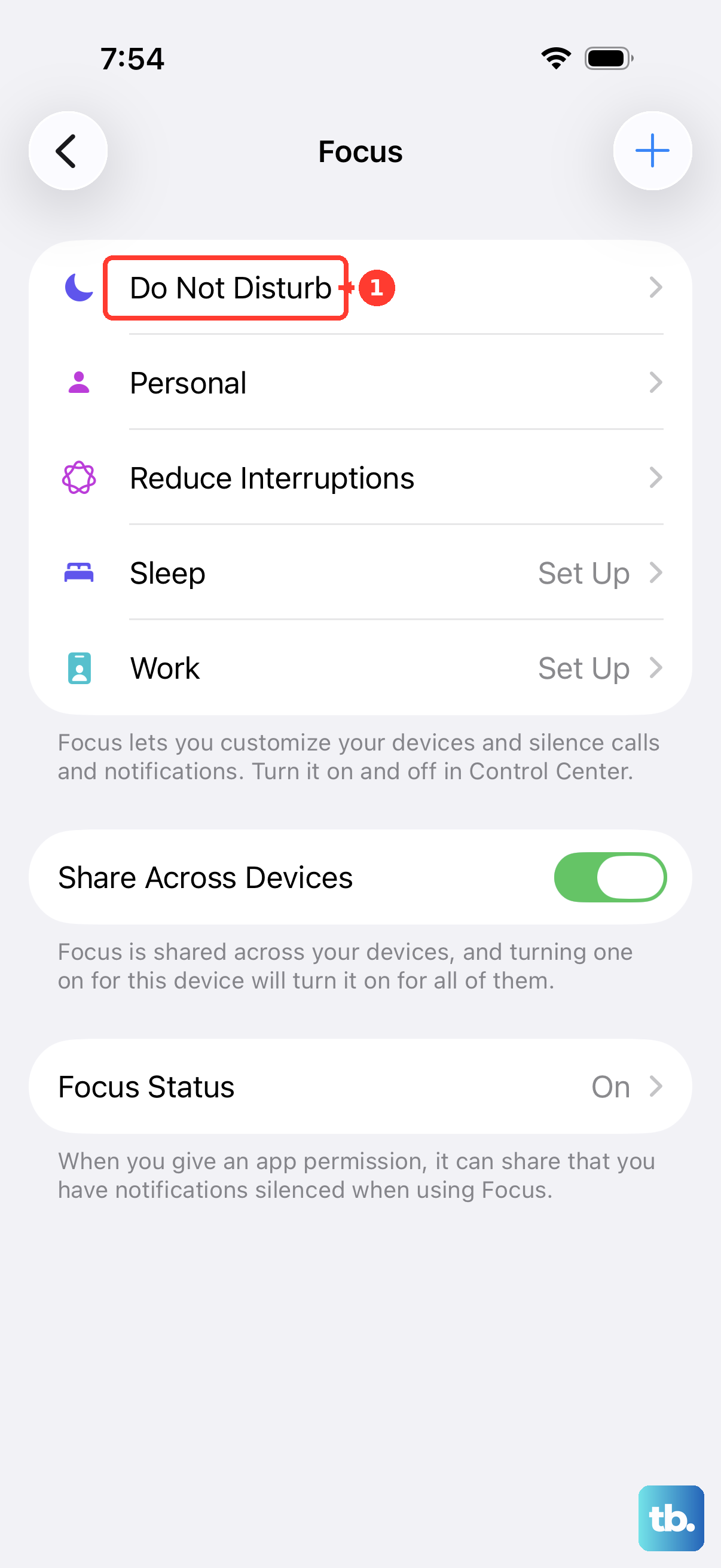
Tap the tile to see which one is on. You can either turn it off completely or go to Settings > Focus and customize that specific Focus to allow notifications from certain people or apps, which would then allow their vibrations through.
Update iOS
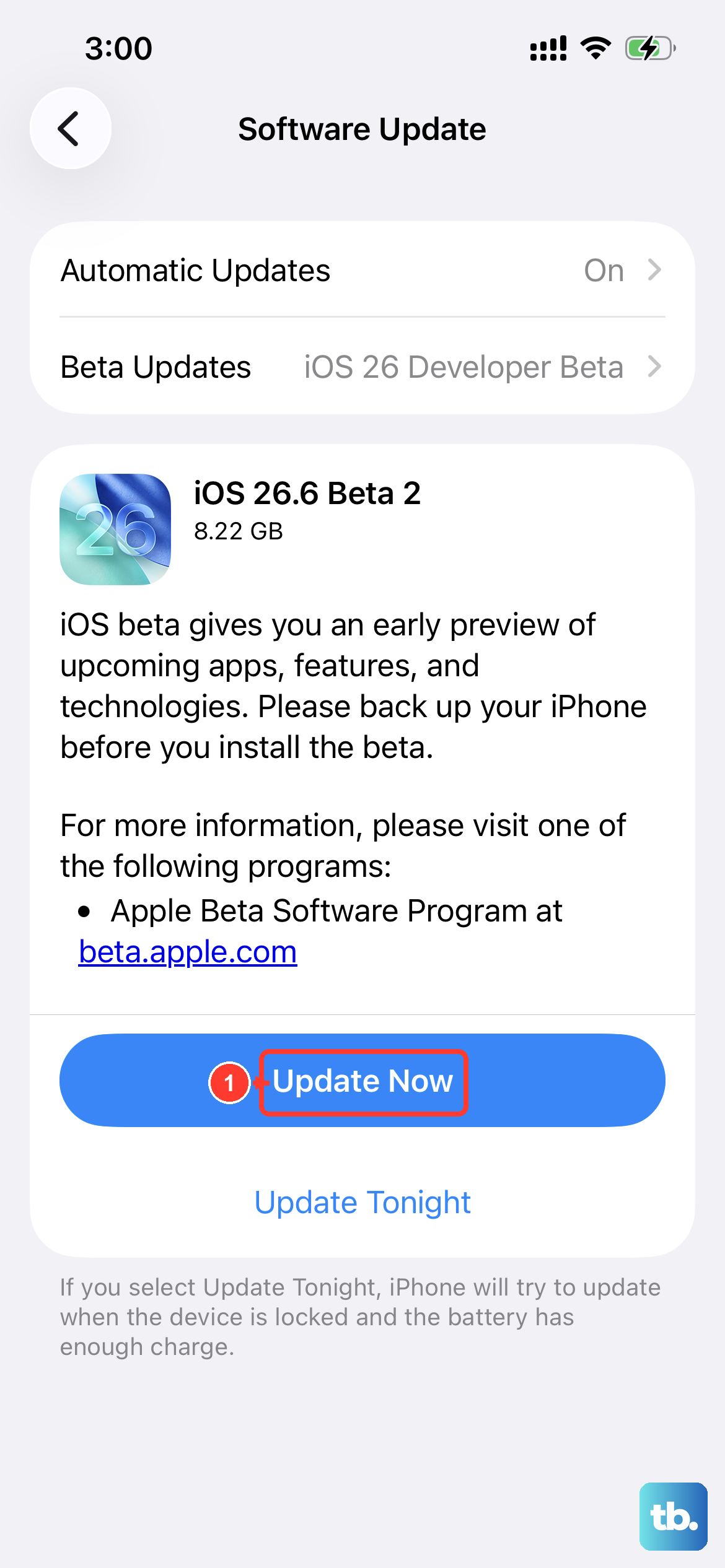
A bug in your current version of iOS could be affecting the haptic feedback. Apple routinely patches these kinds of issues. Connect your iPhone SE 4 to Wi-Fi and plug it into power using a 20W USB-C PD charger for a reliable update.
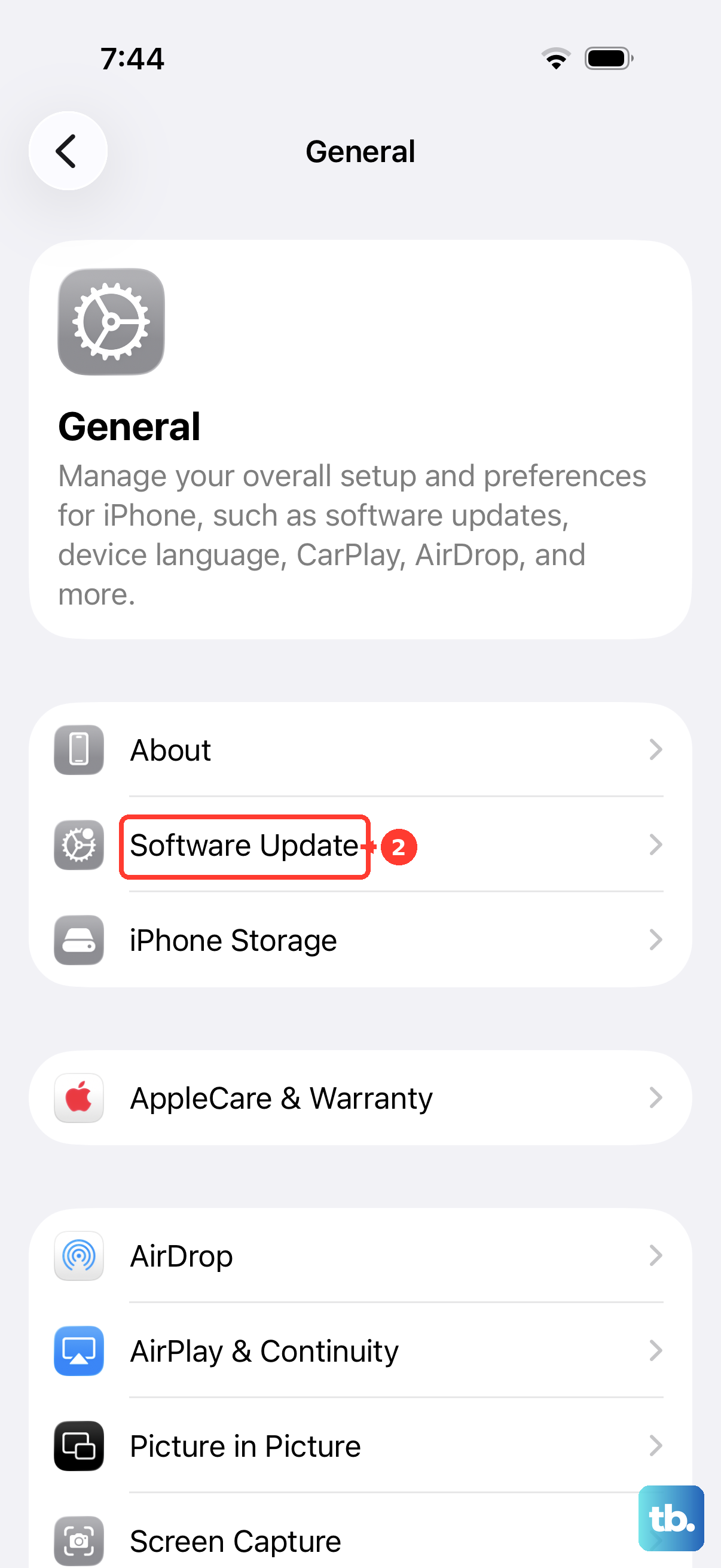
Then, go to Settings > General > Software Update. If an update is available, tap "Download and Install." Keeping iOS updated is one of the best ways to maintain stability, especially on a newer device like the SE 4.
Reset All Settings
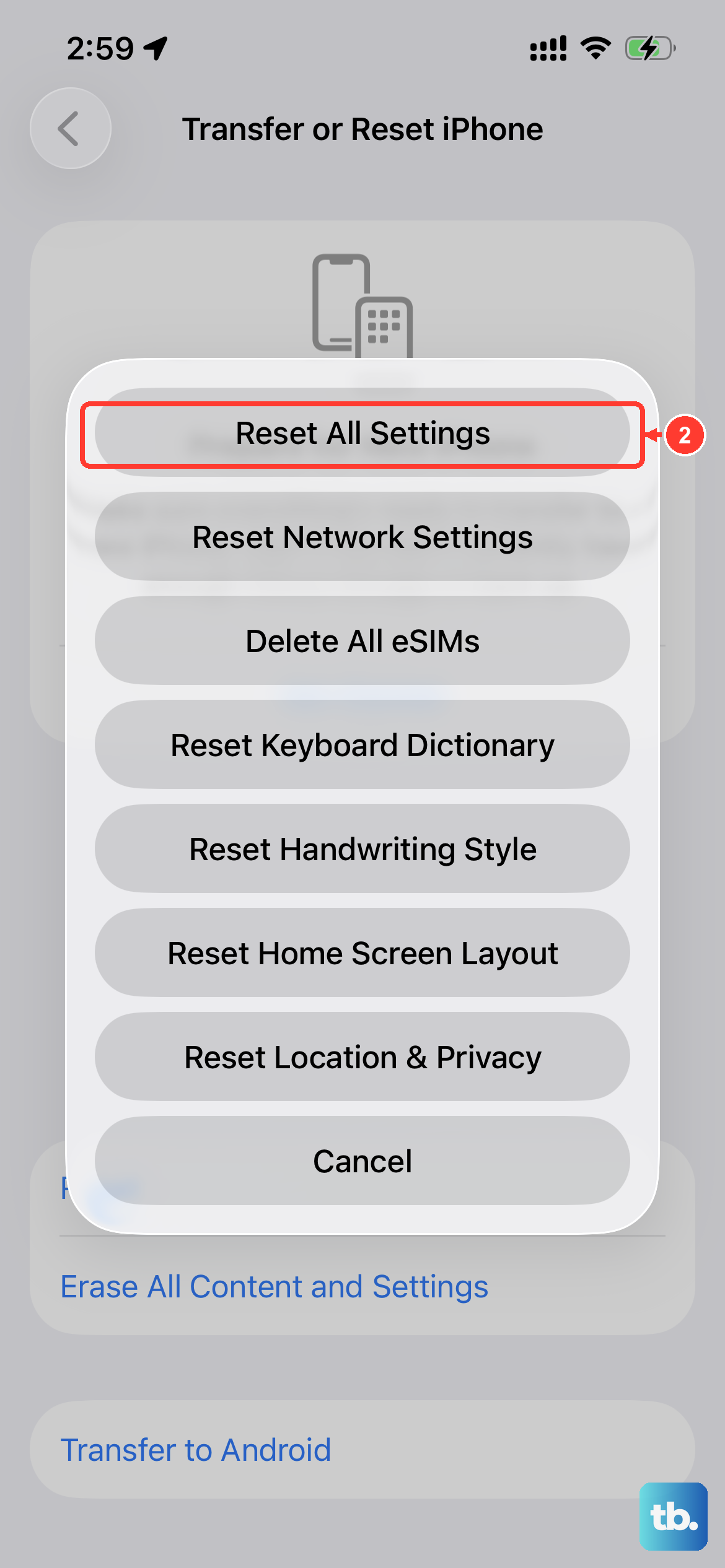
If you've checked everything and the vibration is still dead, this step can help. It will reset all your system settings, like Wi-Fi passwords, wallpaper, and privacy permissions, back to factory defaults without erasing any of your personal data, photos, or apps.
Go to Settings > General > Transfer or Reset iPhone. Tap "Reset" at the bottom, then choose "Reset All Settings." You'll need to enter your passcode and confirm. Your phone will restart, and you'll need to reconfigure things like Face ID and Apple Pay, but it often clears deep software conflicts.
Check for Physical Damage
The iPhone SE 4 uses Apple's Taptic Engine, which is generally very reliable. However, a significant drop or exposure to liquid could damage it. Think back to whether the issue started after any physical event.
Also, if you're using a very thick or poorly designed case, it could potentially muffle the vibration to the point where you can't feel it. Try removing the case and testing the vibration again to rule that out.
Consider a Hardware Issue
If you've tried every software fix here, including a full settings reset, and your iPhone SE 4 still won't vibrate, and System Haptics don't work either, the Taptic Engine itself may have failed. This isn't common, but it's possible.
Since the iPhone SE 4 is a newer model, it's likely still covered by Apple's one-year limited warranty or possibly an extended AppleCare+ plan. You can use the Apple Support app to run a remote diagnostic or schedule an appointment at an Apple Store or Authorized Service Provider to have the hardware checked.