Your iPhone keeps flashing the Storage Almost Full alert, the Camera refuses to capture the shot you were lining up, and an app update stalls because there is simply no room left. It is a frustrating place to be, especially on a phone that still feels new. The good news is that nearly all of this is recoverable in a few minutes from Settings, with no computer required. The steps below move from the safest and easiest fixes to the heavier resets, so you can stop as soon as you have the space you need.
The device behind the iPhone SE 4 name
Before you start, a quick clarification that saves confusion. Apple does not sell a product officially called the "iPhone SE 4." The budget model that succeeded the iPhone SE line is the iPhone 16e, which debuted in February 2025. If you bought your phone as a successor to the SE, this is almost certainly the device you are holding.
That matters for storage because the iPhone 16e ships in 128GB, 256GB, and 512GB capacities and includes the full iOS storage toolset. Every path in this guide is written for that model and verified against Apple's current support documentation, so you can follow each one exactly as written.
Start by seeing what is filling your iPhone
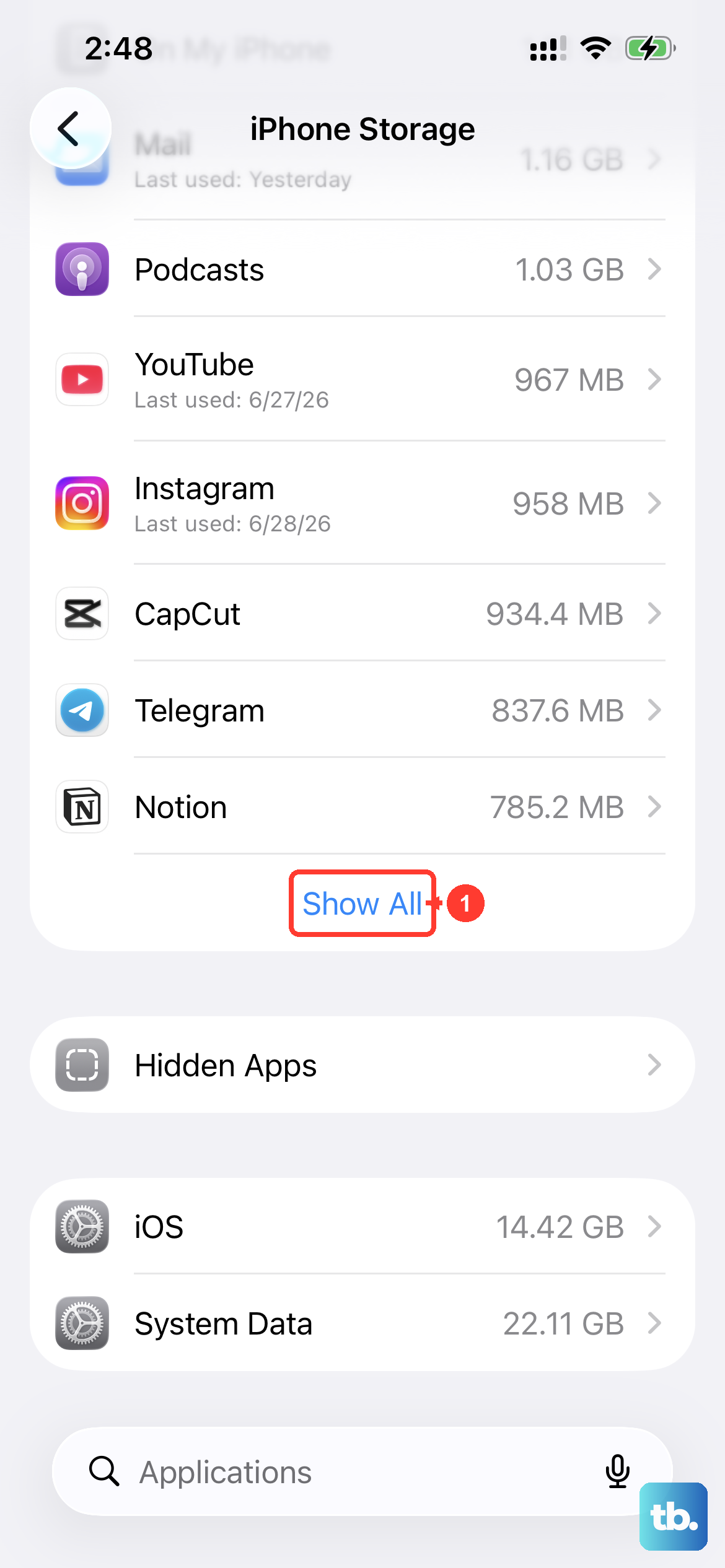
Do not delete anything blindly. Open Settings > General > iPhone Storage and let the screen finish loading. A color-coded bar shows exactly what is using your space, broken into categories such as Apps, Photos, Media, and System Data, and Apple lists tailored Recommendations at the top of the page.
Reading this screen first means you remove the right things instead of guessing. If you saw a Storage Almost Full alert, this is the same screen Apple directs you to for clearing content. Note the largest categories now, because the next few fixes target them directly. The bar takes a moment to recalculate after a big change, so give it time to settle before you decide the cleanup did not work.
Offload the apps you rarely open
Apps and their leftover data are often the biggest avoidable drain. In Settings > General > iPhone Storage, tap a large app you seldom use and choose Offload App. This frees the app's space while keeping its documents and data, so you can reinstall later and pick up where you left off.
To make this automatic, go to Settings > Apps > App Store and turn on Offload Unused Apps. When storage runs low, your iPhone removes apps you are not using but keeps their data, leaving a cloud icon on the Home Screen so you can tap to reinstall whenever you want it back.
This is one of the lowest-risk fixes available, because nothing personal is actually deleted. Offloading touches only the app itself, not your saved files, logins, or settings inside it. If an app is one you truly never use, deleting it outright from the same screen frees even more space, though that removes its data too.
Move photos and videos into iCloud
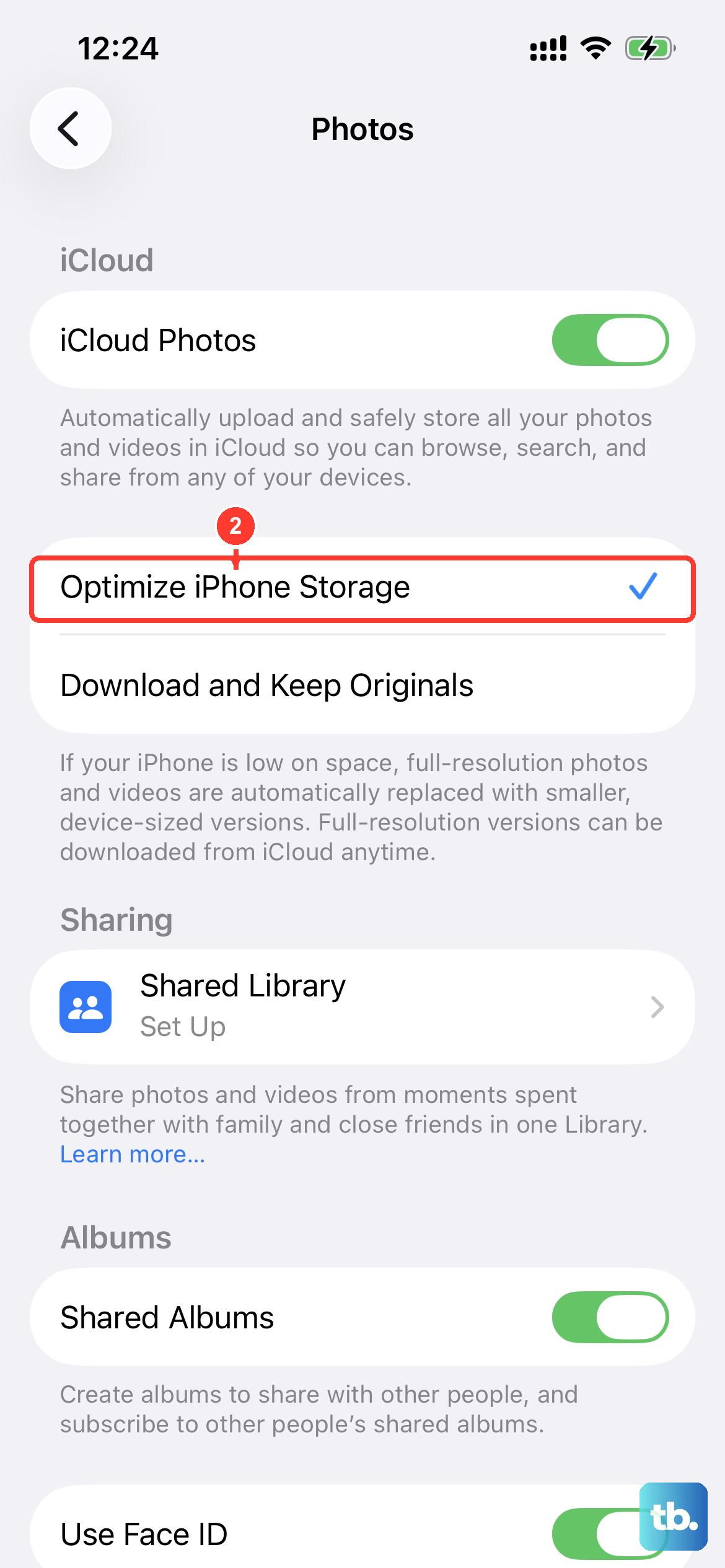
For most people, photos and videos are the single largest category, so this fix tends to recover the most space. Go to Settings > [your name] > iCloud > Photos, turn on Sync this iPhone, then select Optimize iPhone Storage.
With Optimize iPhone Storage active, full-resolution photos and videos live in iCloud while smaller, space-saving copies stay on the iPhone 16e. You still see your whole library in the Photos app, and the device pulls the full-resolution version when you need it. Keep in mind your free iCloud allowance is limited, so a large library may need a paid storage plan to sync everything before space is freed on the phone.
Remove deletable built-in apps and the Apple Intelligence models
Some content that ships with your iPhone can be cleared and brought back later. Certain Apple apps can be deleted and then re-downloaded from the App Store whenever you want them again, which is handy for built-in apps you never open.
There is a second, larger pool of space tied to Apple Intelligence. The on-device models used by those features take up roughly 7GB, and they can be removed if you turn Apple Intelligence off. Reclaiming that space costs you nothing in personal data, because you are only removing the feature models, which can be restored later if you switch the feature back on.
Update to the latest iOS
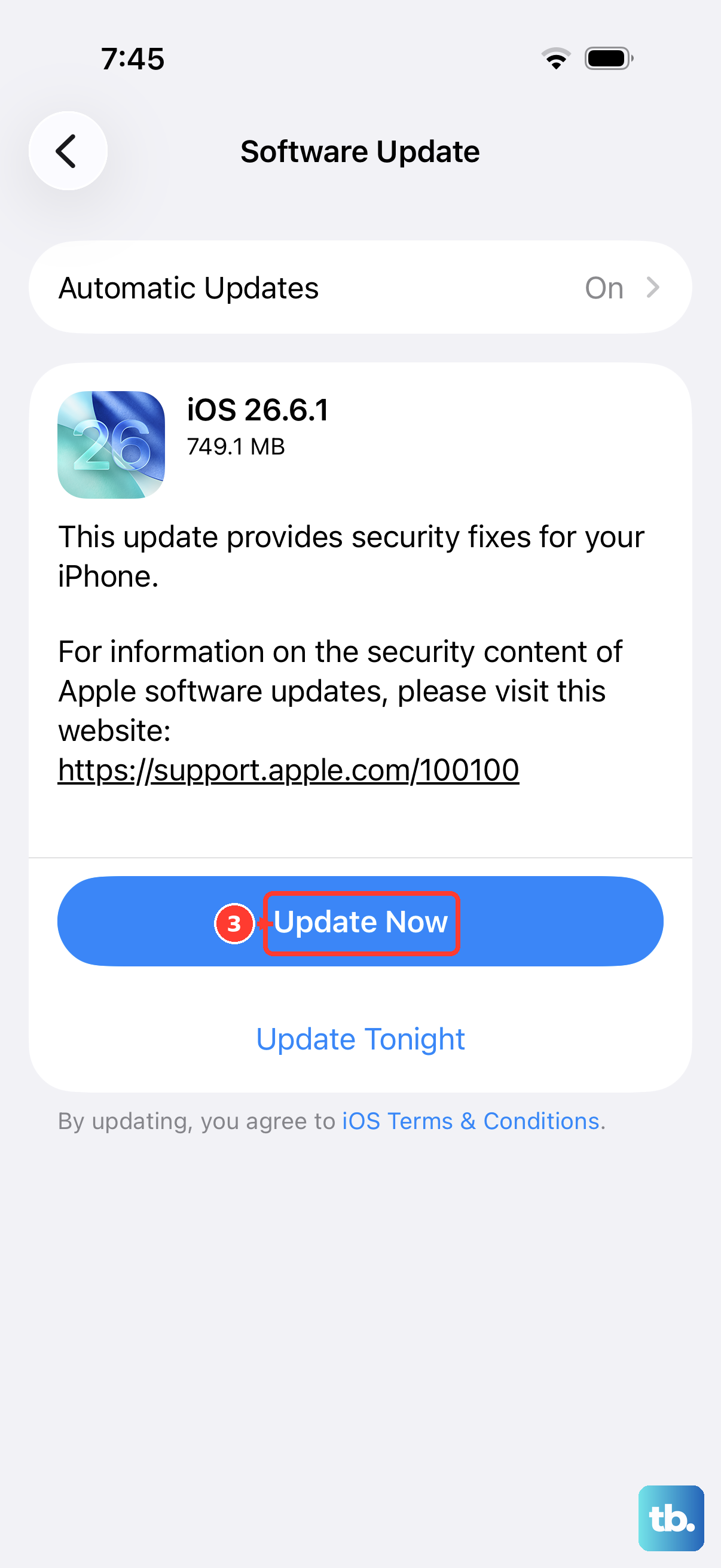
An out-of-date system can carry storage-reporting bugs and System Data bloat that make the problem look worse than it is. Go to Settings > General > Software Update and install the latest version available for your device.
Apple recommends connecting to power and joining Wi-Fi before you begin, and backing up beforehand is sensible in case anything interrupts the install. Beyond clearing up storage quirks, staying current keeps your iPhone secure, so this is worth doing even when space is not tight.
Restart when the numbers look frozen
Sometimes the storage figures simply look stuck, showing a category as huge even after you have cleared things. A restart can flush temporary files and refresh an inaccurate reading, so the bar reflects what is genuinely on the device.
If a normal restart does not move the numbers, force restart the iPhone 16e with this exact sequence. Press and quickly release the volume up button, press and quickly release the volume down button, then press and hold the side button. When the Apple logo appears, release the side button.
Follow that order precisely, because pressing the wrong combination will not trigger the force restart. After the phone boots, reopen Settings > General > iPhone Storage to check whether the readings have corrected themselves.
Back up, then erase as a last resort
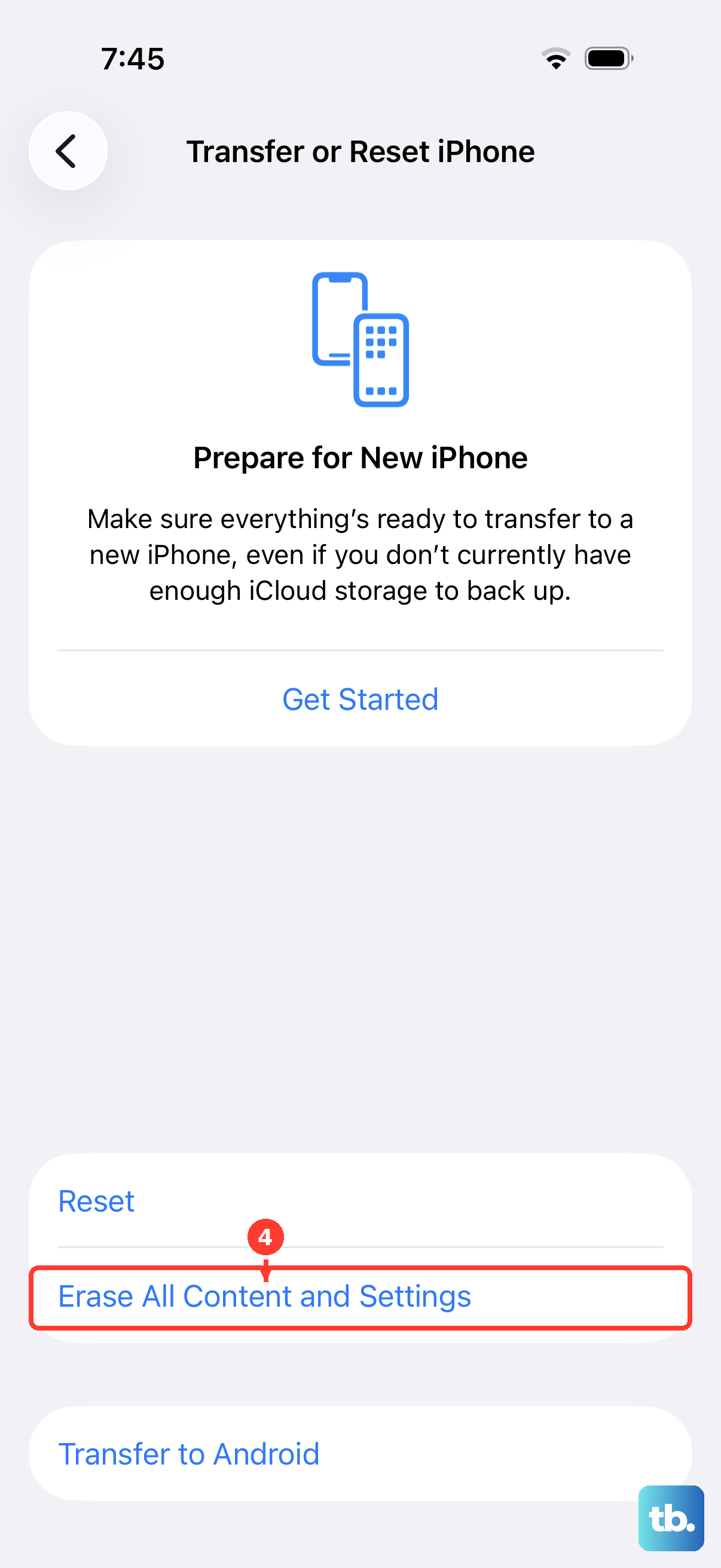
If space is still critically low after everything above, a clean start is the final option, but treat it carefully because it is destructive. Back up your iPhone first, then go to Settings > General > Transfer or Reset iPhone > Erase All Content and Settings, enter your passcode or Apple Account password if asked, and tap Continue.
Warning: this permanently removes all content and settings and restores factory defaults, so a current backup is essential before you proceed. There is no undo once it runs, and anything not backed up will be gone for good.
If you would rather use a computer, you can restore the device with Finder on a Mac or the Apple Devices app on a PC. And if the storage problem persists even after a clean setup, contact Apple Support so they can look at it directly.
Frequently Asked Questions
Is the iPhone SE 4 the same thing as the iPhone 16e?
There is no Apple product officially called the iPhone SE 4. The budget model that followed the iPhone SE line is the iPhone 16e, released in February 2025, and that is the device this guide covers.
Does offloading an app delete my data?
No. Offloading removes the app itself but keeps its documents and data, and it leaves a cloud icon on the Home Screen. Tap that icon to reinstall the app and your information returns.
How much space can the Apple Intelligence models free up?
On the iPhone 16e, the on-device Apple Intelligence models take up about 7GB. You can remove them by turning Apple Intelligence off, which reclaims that space without touching your personal files.
Do I need a computer to free up storage?
No. Every fix here is done from Settings on the iPhone itself. A computer is only needed if you choose to restore the device using Finder on a Mac or the Apple Devices app on a PC.
What is System Data and can I shrink it?
System Data appears as its own category in the color-coded bar at Settings > General > iPhone Storage. Installing the latest iOS update and restarting the device can help clear temporary files and correct inflated System Data readings.