You type out a text on your iPhone 16e, hit send, and the message just sits there with a spinning progress indicator, a red exclamation point, or no movement at all. Maybe your replies leave fine over Wi-Fi but never go out on cellular, or a group chat stalls the moment you add a photo. Texting is one of the things a phone simply has to get right, so a message that refuses to leave the screen is genuinely frustrating. The good news is that almost every "not sending" problem on this model traces back to a handful of settings and connection issues you can fix yourself, and the steps below move from the quickest, safest checks to the more involved ones.
The phone you actually own is the iPhone 16e
Before anything else, it helps to clear up the name. Apple never shipped a phone called the "iPhone SE 4." The device most people mean by that name is the iPhone 16e, which Apple announced in February 2025 and released later that same month, running iOS 18 out of the box. It is a Face ID iPhone with no Home button, so the restart and reset steps in this guide follow the Face ID procedure, not the old Home button one.
The iPhone 16e is a fully cellular smartphone, so the "not sending texts" premise is valid. It can send iMessage and RCS over Wi-Fi or cellular data, plus SMS and MMS over the cellular network, using Apple's C1 modem for 5G, and it even supports Messages via satellite. Knowing which type of message you are trying to send, a blue iMessage versus a green SMS or MMS, matters, because each one relies on a different connection, and that distinction shapes several of the fixes below.
Start with a restart when texts hang
A temporary software glitch is the most common reason a message stalls, and a restart clears those glitches without touching any of your data. If a simple restart does not help, or the screen is frozen, a force restart is the next move. On the iPhone 16e, follow the Face ID force-restart sequence exactly.
- 1.Press and quickly release the volume up button.
- 2.Press and quickly release the volume down button.
- 3.Press and hold the side button until the Apple logo appears, then release the side button.
Once the phone finishes booting, open Messages and try sending the text again. This one step resolves a surprising number of cases, especially on a phone that has been on for days without a reboot.
Check your signal and data connection
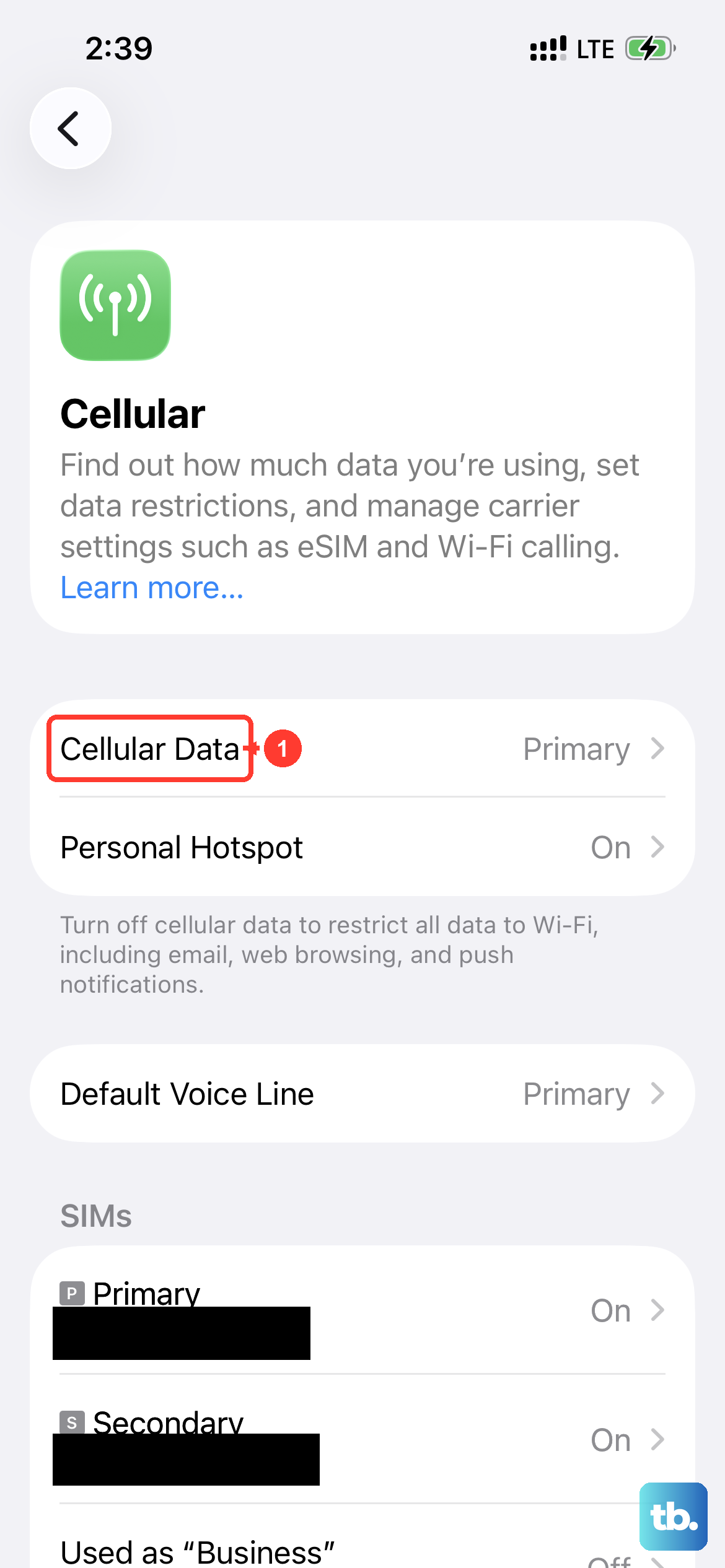
Each message type needs its own kind of connection. To send an iMessage or an RCS message, you need either cellular data or Wi-Fi. To send an SMS or MMS, you need a working cellular network connection. Check the status area for signal and data, and if you are somewhere with weak coverage, move to a spot with a stronger connection before you retry. A message that would not budge in a dead zone often goes straight through once you have a few solid bars.
Confirm the recipient and that your line is on
It is also worth confirming the basics of who you are texting. Make sure you entered the correct phone number or email address for the contact, since a small typo will quietly stop a message from arriving. Then make sure your line is actually active by going to Settings > Cellular and checking that your phone line is turned on. If you use more than one SIM, confirm the number you want is both selected and turned on.
Push a stuck Not Delivered message through
When a specific text fails, the iPhone marks it with a red exclamation point and the words Not Delivered, and you can often resend it in a couple of taps. Start by giving it another attempt, then, if that fails, force it down the SMS or MMS route instead of iMessage.
- 1.Tap the red exclamation point next to the message, then tap Try Again.
- 2.If it still will not send, tap the red exclamation point again, then tap Send as Text Message to send it as SMS or MMS instead of iMessage.
Sending as a text message is useful when the other person's iMessage is down or they are out of data range, because SMS and MMS travel over the cellular network instead.
Re-register iMessage and check your send-from address
If blue iMessages in particular are the problem, turning the service off and on again re-registers it with Apple and often gets things flowing. While you are in there, confirm the phone is sending from the address you expect, since a wrong send-from setting can make replies look like they are coming from the wrong place.
Go to Settings > Apps > Messages and turn iMessage off, wait a moment, then turn it back on. Next, in the same Messages settings, tap Send & Receive and choose the phone number or email address you want to use with messages. Lining up the correct send-from address here keeps your conversations consistent across the people you text.
Let group and picture texts fall back to SMS
Group chats and picture messages lean on MMS, and they can stall when iMessage is unavailable for one of the people in the thread. There is a setting that lets those messages drop back to a standard text automatically so they still go through.
Go to Settings > Apps > Messages and turn on Send as Text Message. With this enabled, a message that cannot go out as an iMessage will fall back to SMS or MMS instead of failing, which is exactly what you want for mixed groups or when a photo refuses to send.
Update iOS to clear messaging bugs
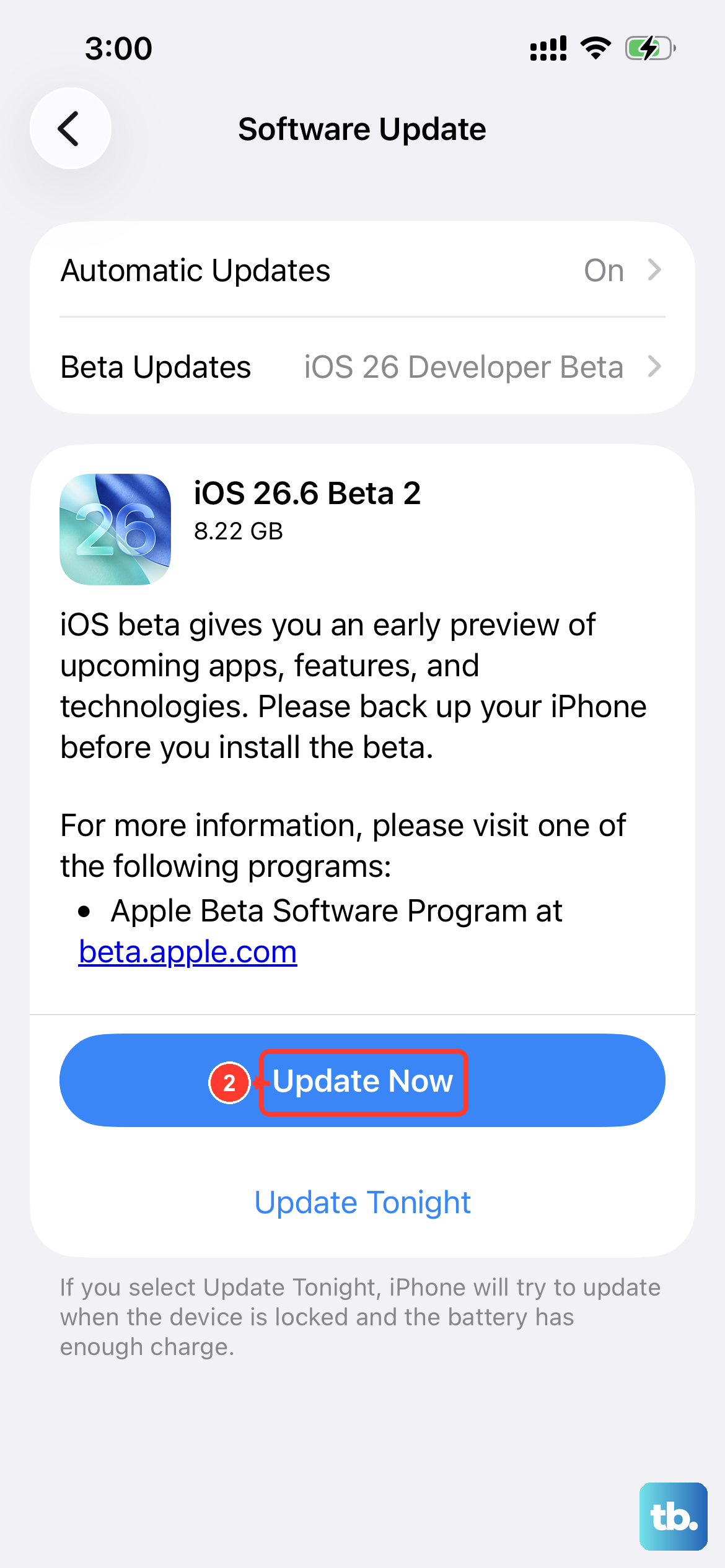
Out-of-date software can cause messaging problems, and this is especially common on a phone you have just set up and not yet updated. An update can patch the underlying bug without any further effort on your part.
Go to Settings > General > Software Update and install any update that is offered, keeping the phone charged and connected to Wi-Fi while it works. Once it finishes and restarts, open Messages and try sending again to see whether the update resolved it.
Reset network settings when texts still fail
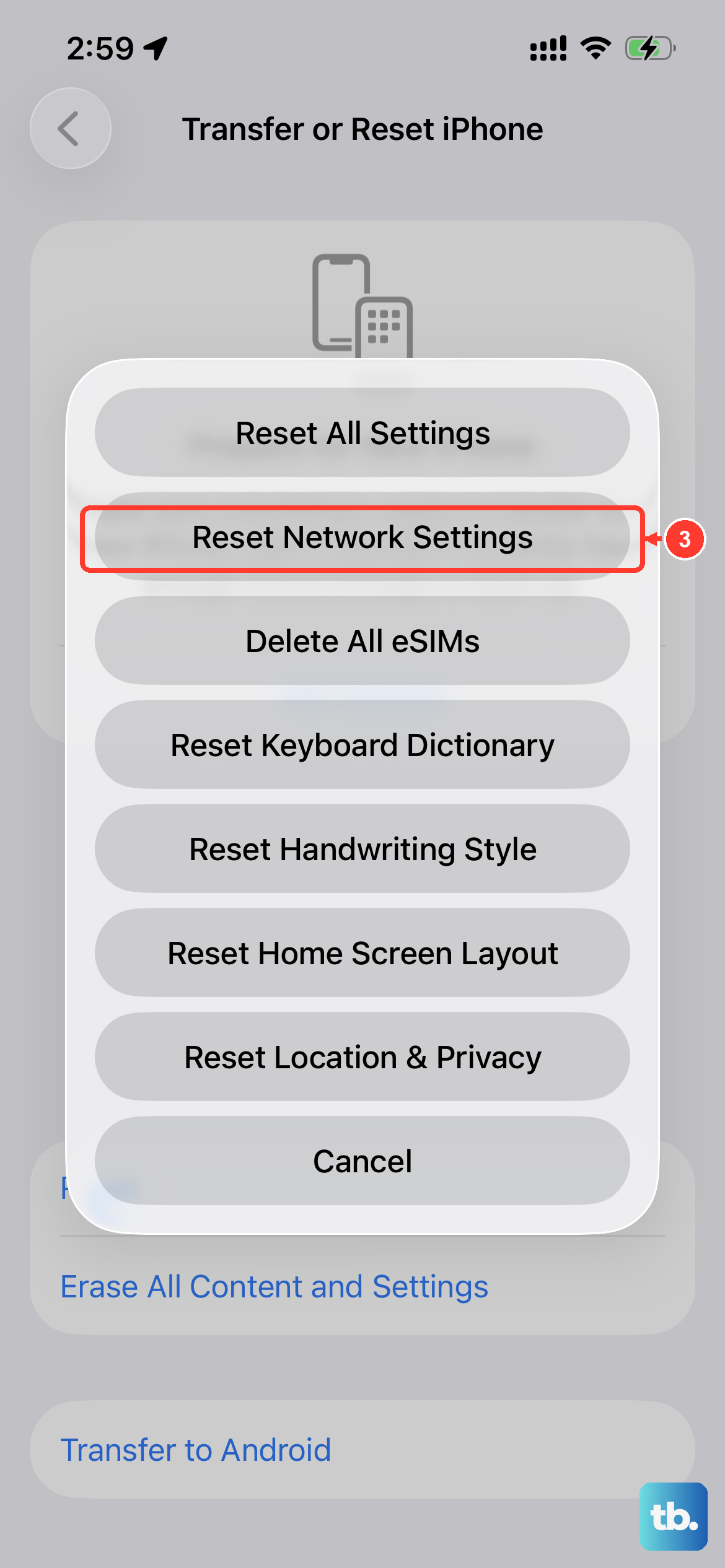
If messages keep failing after the steps above, the problem may sit in your saved network configuration rather than in Messages itself. Resetting network settings clears that configuration and lets the phone rebuild it cleanly. This does not erase your texts, photos, or apps; it only removes saved network information.
Go to Settings > General > Transfer or Reset iPhone > Reset > Reset Network Settings. This removes saved Wi-Fi networks, VPN, and cellular settings, and Wi-Fi turns off and back on as part of the process, so you will need to re-enter your Wi-Fi passwords afterward. Once you are reconnected, test a message again.
Erase and set up again as a last resort
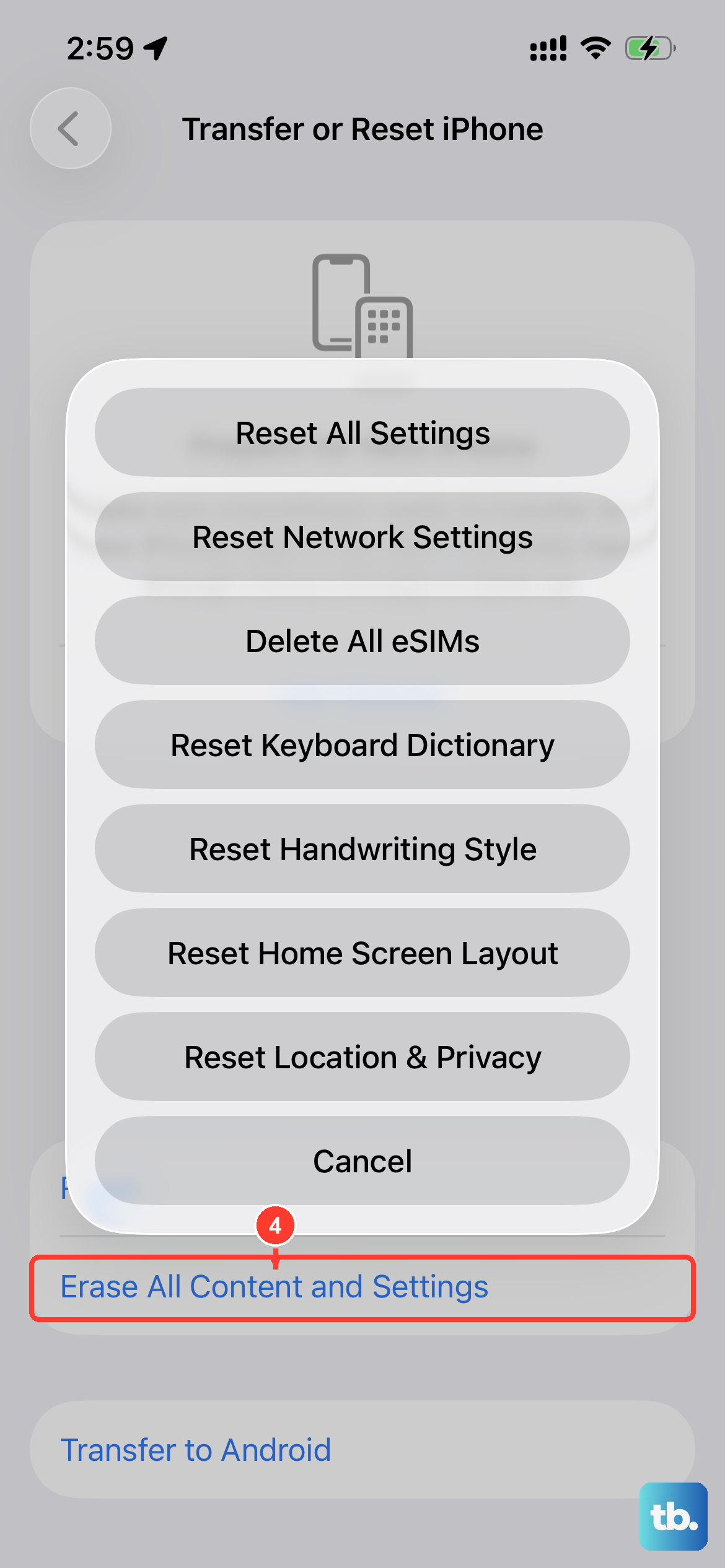
If nothing else has worked, erasing the phone and setting it up fresh is the final software step, and it should only be used after the easier fixes. Because this erases everything on the phone, back up your iPhone first so you can restore your data afterward.
After you have a backup, go to Settings > General > Transfer or Reset iPhone > Erase All Content and Settings, and enter your passcode or Apple Account password if you are asked. This erases all content and returns the phone to factory settings, so do not run it until your backup is finished. Once the phone restarts, you can set it up and restore your messages and other data from that backup.
When to hand it to Apple or your carrier
If you have worked through everything and texts still will not go out, the issue may be on the account or service side, and where you turn depends on the message type. If you still cannot send or receive iMessages, contact Apple Support. If you still cannot send or receive SMS, MMS, or RCS messages, contact your carrier and confirm that the type of message you are trying to send is supported on your plan.
When you reach out, have the details ready, including whether the failing messages are blue iMessages or green standard texts, when the problem started, and any error you see on screen. That makes it much faster for Apple Support or your carrier to check your account and service status and point you to the right fix.
Frequently Asked Questions
Is the iPhone SE 4 the same thing as the iPhone 16e?
Yes. Apple never released a phone officially named the iPhone SE 4; the model people mean by that name is the iPhone 16e, which was announced in February 2025 and shipped running iOS 18. Any guidance written for the iPhone SE 4 applies to the iPhone 16e.
Do I need Wi-Fi to send a text on the iPhone 16e?
It depends on the message type. To send an iMessage or an RCS message, you need either cellular data or Wi-Fi, while an SMS or MMS needs a working cellular network connection. If one type fails, check whether the connection it relies on is actually available.
Why are my texts going out green instead of blue?
Green messages are SMS or MMS rather than iMessage, which usually means iMessage was unavailable for you or the person you are texting. Turning on Send as Text Message in Settings > Apps > Messages lets a message fall back to SMS or MMS so it still sends when iMessage cannot be used.
Will resetting network settings delete my messages?
No. Reset Network Settings only removes saved Wi-Fi networks, VPN, and cellular settings, so you will need to re-enter Wi-Fi passwords afterward, but your texts and other content stay in place. Only Erase All Content and Settings wipes your data, which is why that step calls for a backup first.