
Missing calls on your iPhone SE 4 can be a real headache, especially when you're expecting something important. You check your phone and see a missed call notification, but you never heard it ring. The good news is this is almost always a setting or a simple software hiccup that you can fix yourself.
Let's start with the most common fix. Swipe down from the top-right corner to open Control Center and look for the Focus icon, which looks like a crescent moon. If it's highlighted, tap it to turn it off. This single step solves the problem for a lot of people.
Check the Ring/Silent Switch
The iPhone SE 4 has a physical ring/silent switch on its left side. Look at the switch closely. If you see a small orange line or dot showing through, your phone is in silent mode. Simply flip the switch toward the front of the phone to turn silent mode off. You should feel a haptic tap and see a "Ring" notification appear on your screen.
Increase Your Ringer Volume
Your ringer volume might be turned down low. First, make sure your phone is unlocked. Then, press the volume up button on the left side of the phone a few times. Watch the volume indicator on the screen to see it increase.
You can also set it precisely in your settings. Go to Settings > Sounds & Haptics. Under the Ringer and Alerts section, drag the slider all the way to the right. While you're there, make sure the "Change with Buttons" option is turned off, so your ringer volume stays where you set it.
Review Your Focus Modes
Focus modes in iOS 18 are powerful for managing distractions, but they can also silence calls if not set up correctly. Go to Settings > Focus. You'll see a list like Do Not Disturb, Sleep, Personal, and Work.
Tap on each one to see if it's currently active. More importantly, check the "Allowed Notifications" section within each Focus. Make sure "Allow Calls From" is set to "Everyone" or at least "All Contacts" if you want all calls to come through.
Also, look at the "Turn On Automatically" section at the bottom of each Focus profile. Your iPhone SE 4 might be automatically entering a Focus mode based on your location, time of day, or which app you open, which would silence calls without you realizing it.
Disconnect Bluetooth Accessories
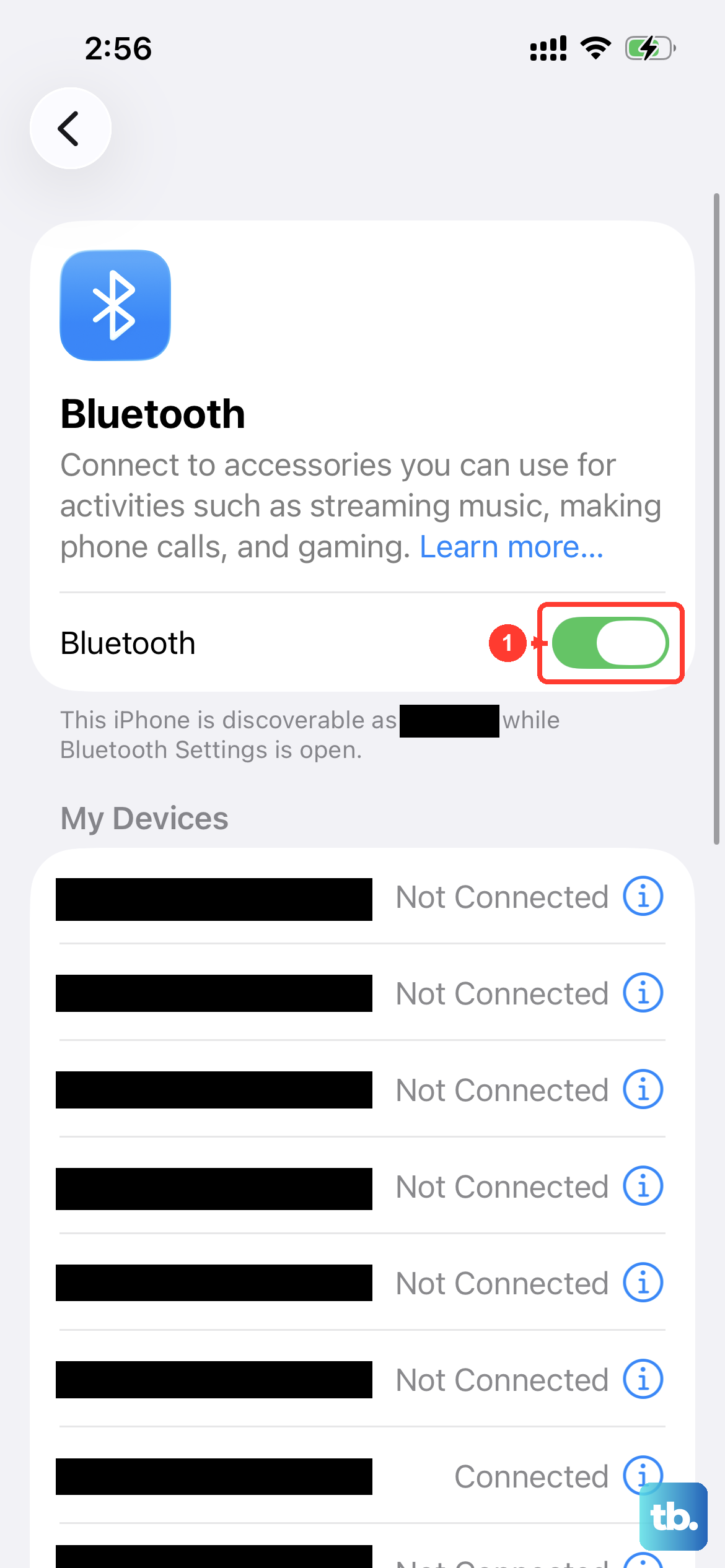
If your iPhone SE 4 is connected to a Bluetooth device like wireless earbuds, a speaker, or your car, incoming call audio is often routed there instead of your phone's speaker. To test this, temporarily turn Bluetooth off.
Go to Settings > Bluetooth and toggle the switch at the top to the off position. Then, have someone call you to see if the ring now plays from the phone itself. If it does, you know a Bluetooth connection was the culprit.
Change Your Ringtone
It sounds simple, but sometimes the specific ringtone file can get corrupted. Try switching to a different one. Go to Settings > Sounds & Haptics > Ringtone.
Choose a new tone from the list, like "Reflection" or "Opening." After selecting it, immediately ask a friend to call you to test it. This can clear up a minor software glitch related to the audio file.
Check for Blocked and Unknown Callers
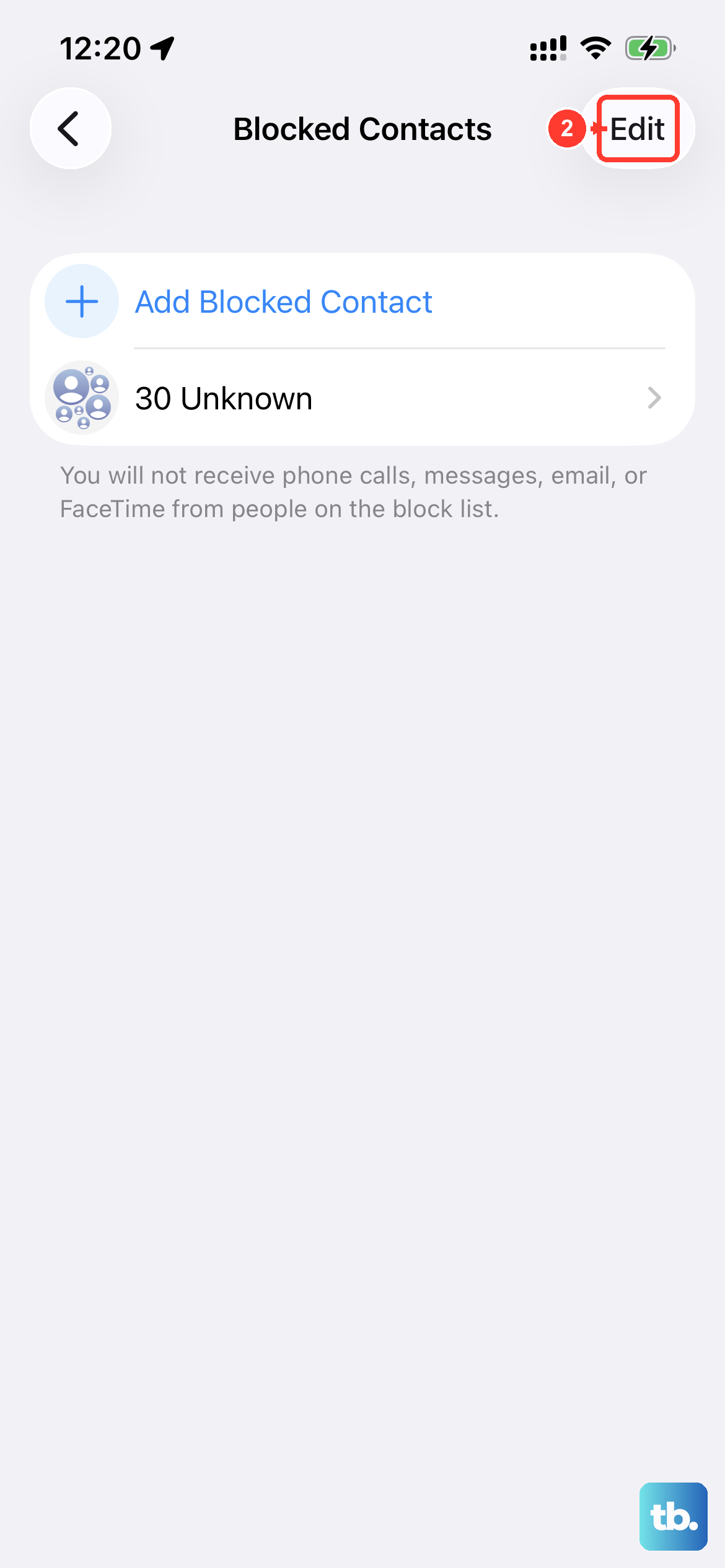
Two settings can send calls directly to voicemail without a single ring. First, check your blocked list. Go to Settings > Phone > Blocked Contacts. If the person calling you is on this list, you won't get a notification.
Second, look at the "Silence Unknown Callers" feature. Go to Settings > Phone and scroll down. If "Silence Unknown Callers" is enabled, any number not in your contacts, your recent outgoing calls, or your Mail app will be silenced. Toggle this off if you're expecting calls from new numbers.
Disable Call Forwarding
Call forwarding silently redirects your calls to another number. To make sure it's not active, go to Settings > Phone > Call Forwarding. The switch at the top should be in the off position. If it's on, your iPhone SE 4 won't ring because the call is being sent elsewhere.
Restart Your iPhone SE 4
A quick restart clears out temporary system glitches that can affect the ringer. Press and release the Volume Up button, then press and release the Volume Down button. Finally, press and hold the Side button until you see the Apple logo appear, then release it.
This force restart sequence is the most effective way to reboot your phone. Once it powers back on, test a call immediately.
Update to the Latest iOS
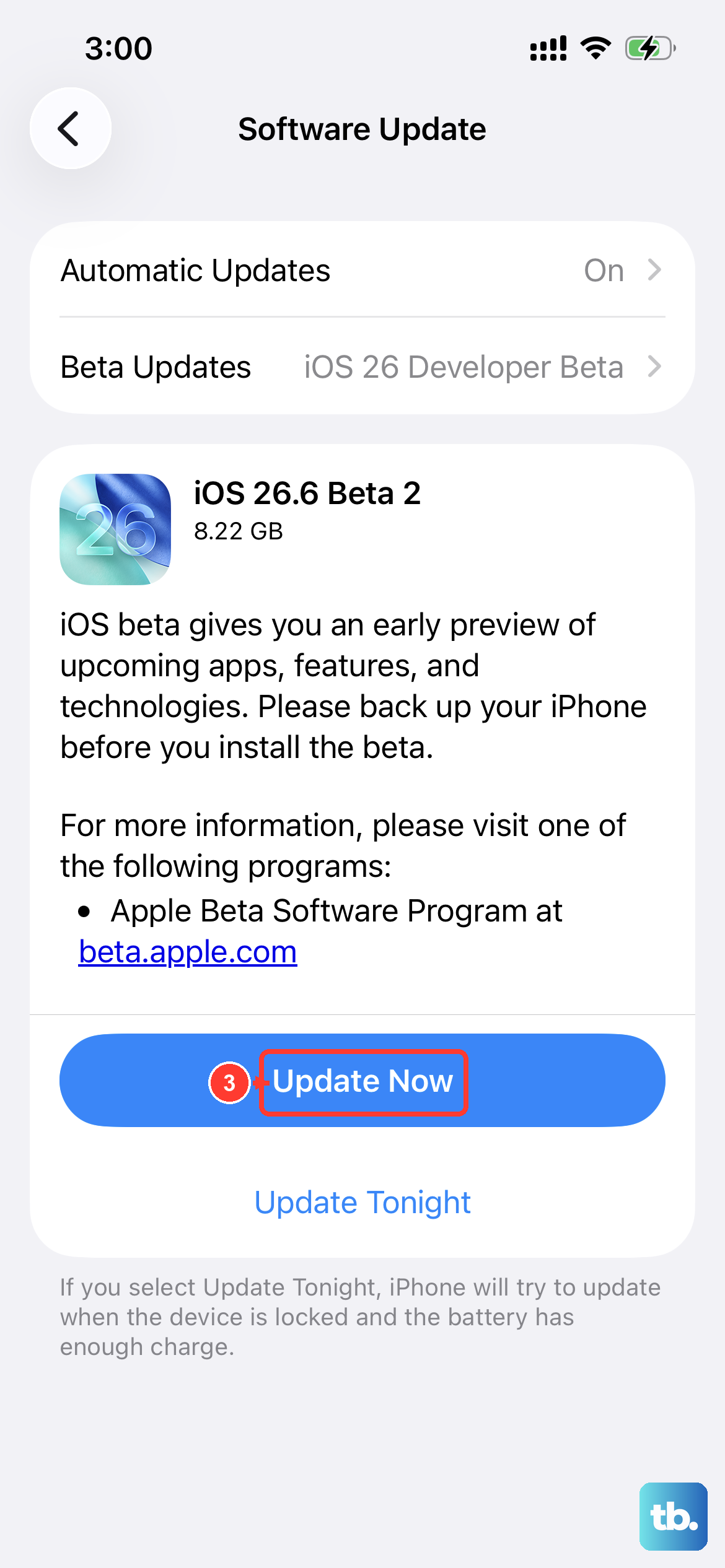
Apple releases iOS updates to fix bugs, including ones that might affect call audio and notifications. Since your iPhone SE 4 runs iOS 18, make sure you have the latest version.
Connect to Wi-Fi and plug in your 20W USB-C charger. Go to Settings > General > Software Update. If an update is available, tap "Download and Install." I've seen minor point updates resolve ringing issues for several users.
Reset All Settings
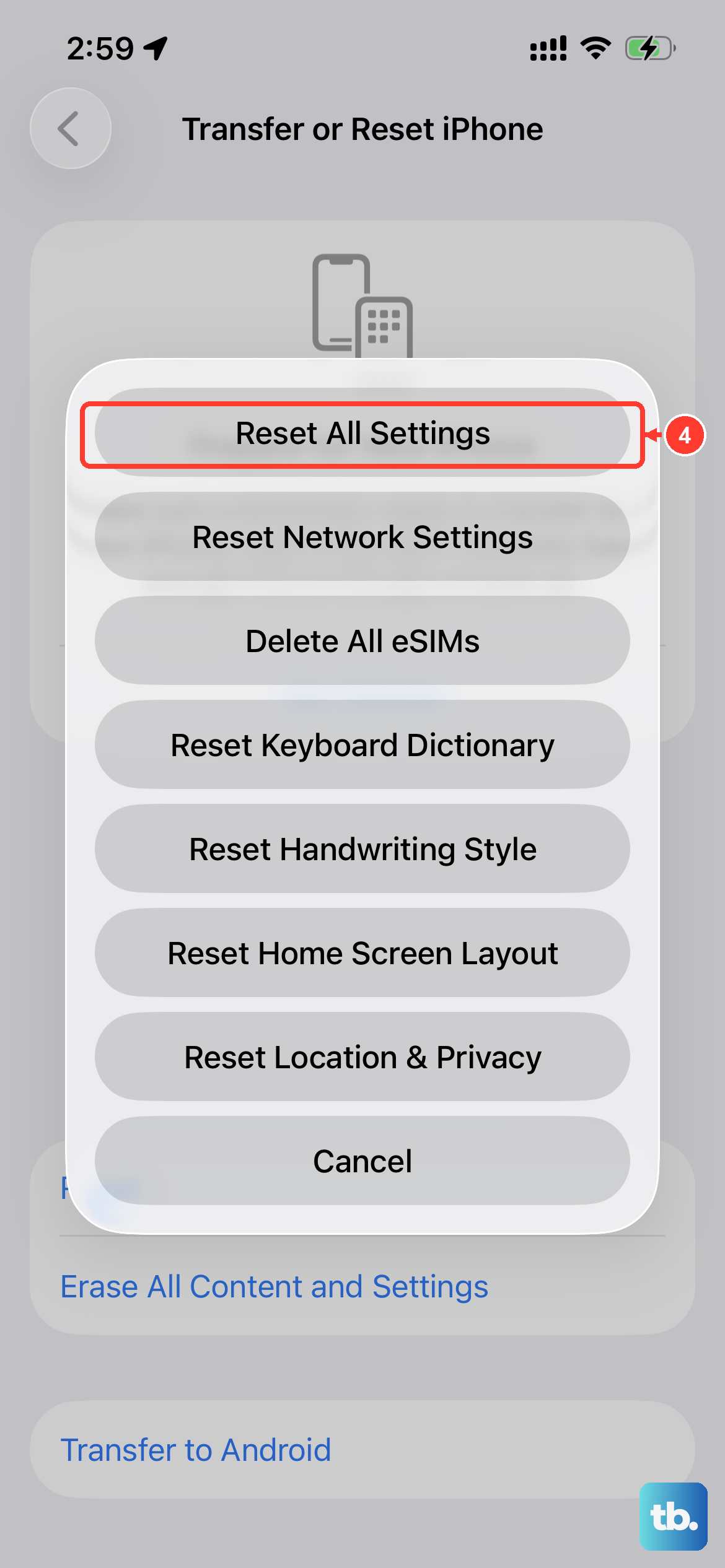
This is a more thorough step that won't delete your photos, messages, or apps, but it will reset every system setting back to its factory default. That includes your sound settings, network configurations, and Focus schedules.
Go to Settings > General > Transfer or Reset iPhone. Tap "Reset" at the bottom, then choose "Reset All Settings." You'll need to enter your passcode. After it finishes, you'll have to reconfigure your Wi-Fi, wallpaper, and preferences, but it often clears persistent software problems.
Check App-Specific Call Settings
If you're only missing calls from apps like WhatsApp, Facebook Messenger, or Skype, the problem is likely within that app. First, open the App Store, tap your profile icon, and see if there are any pending updates for those communication apps.
Next, check the app's notification permissions. Go to Settings > [App Name] (e.g., WhatsApp) > Notifications. Make sure "Allow Notifications" is on and that "Sounds" are enabled. Some apps have their own internal "Silence Calls" setting, so check within the app's settings menu as well.
Reset Network Settings
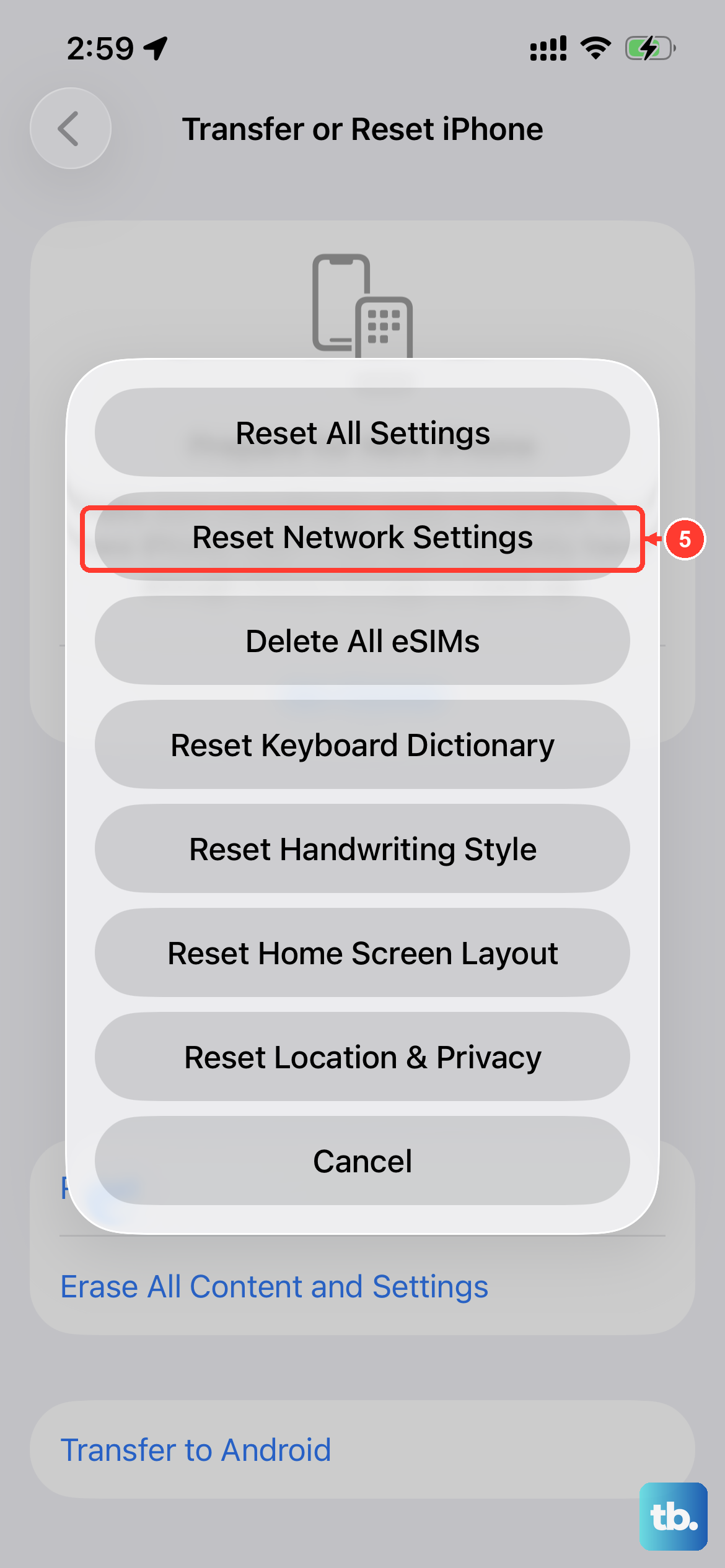
This step is particularly useful if your cellular or Wi-Fi calling seems to be involved. Resetting network settings will clear your Wi-Fi passwords, cellular preferences, and VPN configurations.
Go to Settings > General > Transfer or Reset iPhone > Reset. This time, select "Reset Network Settings." Confirm and enter your passcode. Your iPhone SE 4 will restart, and you'll need to reconnect to Wi-Fi networks afterward.
Restore Your iPhone
If you've tried everything else, a full restore is the final software step. It's crucial to back up your iPhone SE 4 first, either to iCloud or your computer. Connect your phone to a Mac or PC using a USB-C cable.
On a Mac with macOS Catalina or later, open Finder. On a PC or older Mac, open iTunes. Select your iPhone, and in the summary page, click "Restore iPhone." This will install a clean, fresh copy of iOS 18. After it's done, you can set it up as new to test calls, or restore from your backup.