
When you tap on a photo or video in a message thread on your iPhone SE 4 and it just spins forever, it's a common annoyance. MMS messages, which are used for sending media between iPhones and Android phones, need a good cellular data connection to download. The issue is usually a quick settings check or a temporary network hiccup.
Let's get those pictures and videos to show up.
Restart Your iPhone SE 4
This is almost always my first step. A quick restart clears out any minor software glitches that might be hanging up the Messages app. On your iPhone SE 4, press and quickly release the Volume Up button, then press and quickly release the Volume Down button. Finally, press and hold the Side button until you see the Apple logo appear.
Check Your Cellular Data Connection
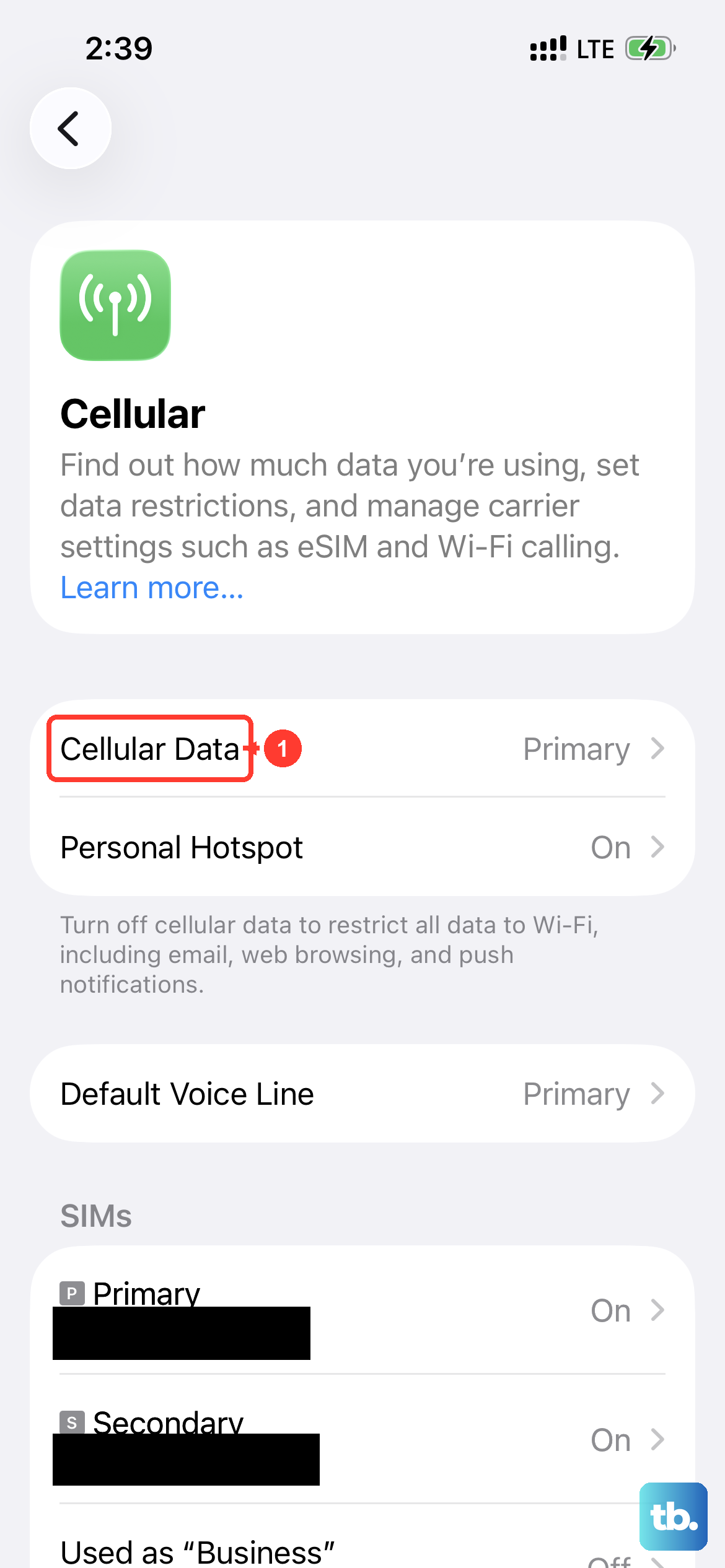
MMS won't download over Wi-Fi alone. It requires an active cellular data connection. Swipe down from the top-right corner to open Control Center and make sure the cellular data icon is blue. If you're in an area with weak signal, try moving to a different spot.
Also, ensure cellular data is enabled for the Messages app. Go to Settings > Cellular, scroll down, and make sure the toggle next to Messages is switched on.
Toggle iMessage Off and On
This resets your connection to Apple's messaging service and can often kickstart stuck MMS downloads. Head to Settings > Messages and turn off the iMessage switch. Wait about 30 seconds, then turn it back on. You might need to wait a minute for it to reactivate fully.
Enable MMS Messaging
There's a specific setting that allows multimedia messages. If it's off, pictures and videos from Android contacts will never download. Open Settings and tap Messages. Scroll down and make sure the MMS Messaging option is enabled.
While you're here, also check that Send as SMS is turned on. This lets messages fall back to regular SMS/MMS if iMessage is unavailable, which can help with delivery.
Check for a Carrier Settings Update
Your carrier occasionally pushes small updates that improve network connectivity and messaging. These are separate from iOS updates. To check, go to Settings > General > About.
If an update is available, a prompt will appear on this screen. It's a quick install that doesn't affect your data.
Update iOS to the Latest Version
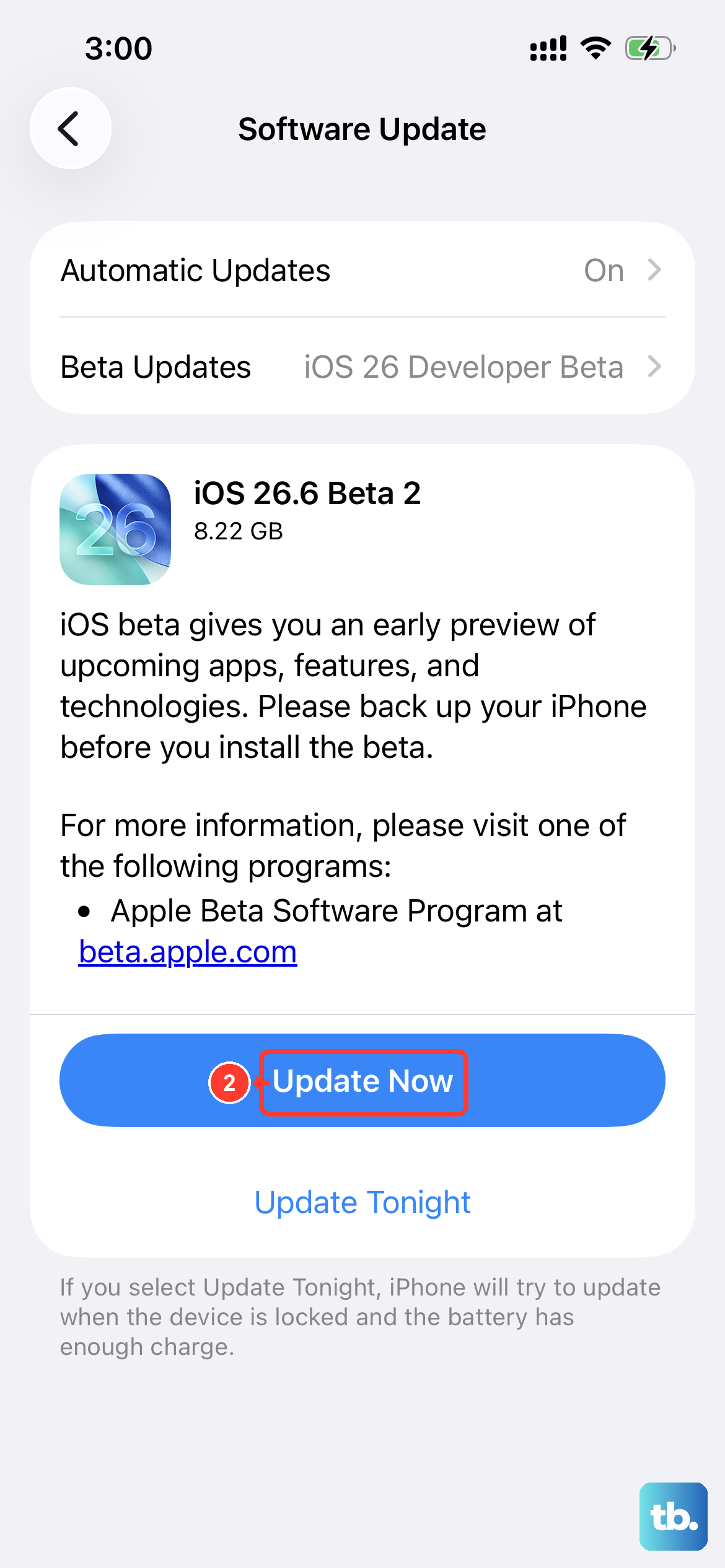
Running outdated software can lead to bugs that affect messaging. Apple frequently patches these issues. Open Settings, tap General, and then select Software Update.
Download and install any available update for iOS 18. Using a 20W USB-C PD charger will speed up the process if your battery is low.
Reset All Network Settings
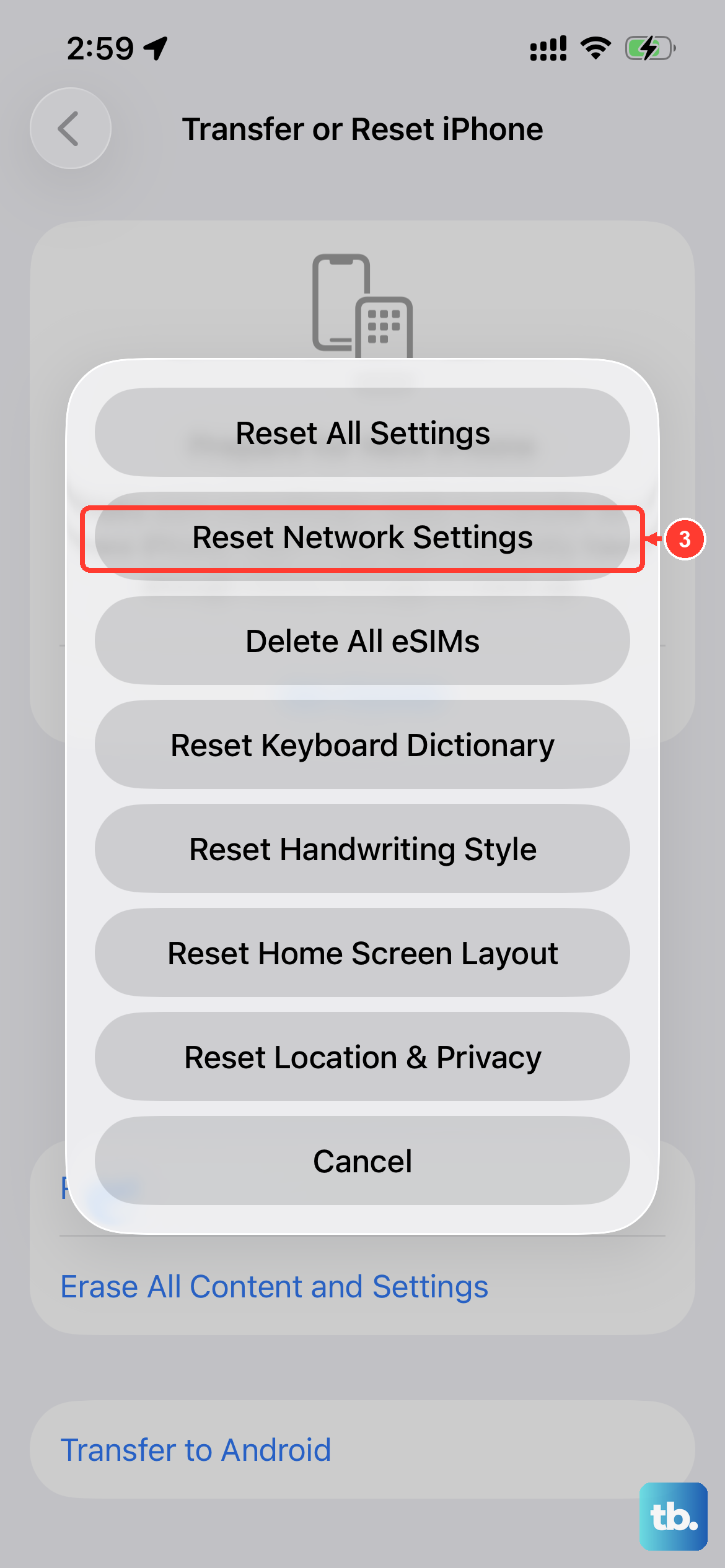
This is a more thorough step that clears all your Wi-Fi passwords, cellular settings, and VPN configurations. It often resolves persistent MMS issues. You won't lose personal data like photos or messages.
Go to Settings > General > Transfer or Reset iPhone. Tap Reset and choose Reset Network Settings. You'll need to enter your passcode and confirm. Your iPhone will restart and you'll have to rejoin Wi-Fi networks.
Check Your Date & Time Settings
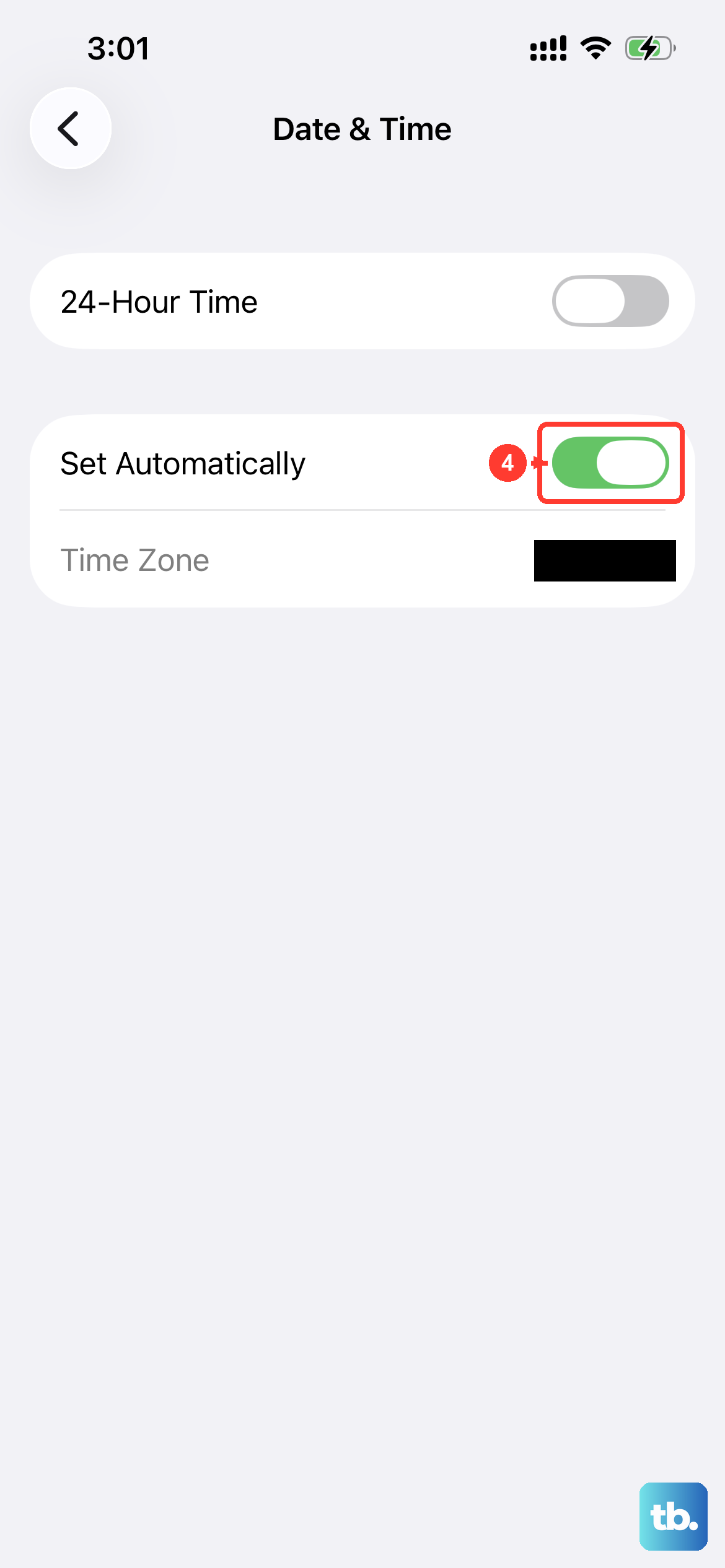
Incorrect date and time settings can sometimes interfere with message delivery. The easiest fix is to let your iPhone set it automatically. Go to Settings > General > Date & Time.
Make sure the switch for Set Automatically is turned on. If it was off and you turn it on, give your phone a moment to adjust.
Delete a Large Message Thread
If you have a very long conversation thread with someone, especially one filled with videos and photos, it can sometimes cause the Messages app to struggle. Try deleting an old, media-heavy conversation.
Open the Messages app, swipe left on the conversation you want to remove, and tap the red trash can. This can free up resources for the app to function properly.
Contact Your Mobile Carrier
If you've worked through all these steps and MMS from Android phones still won't download, the problem might be on your carrier's end. They can check if there's an outage in your area or if your line needs reprovisioning for MMS services.
They can also verify your APN (Access Point Name) settings are correct, though these are usually configured automatically on the iPhone SE 4. It's worth giving them a call or using their online support chat.