
If your iPhone SE 4 is feeling sluggish, you're not alone. Even with its modern A-series chip, performance can dip due to everyday use. The good news is you can almost always speed it back up with a few simple checks.
I'd start with a force restart. It's the quickest way to clear out any temporary software glitches causing the lag. On your iPhone SE 4, quickly press and release the Volume Up button, then quickly press and release the Volume Down button. Finally, press and hold the Side button until you see the Apple logo appear, then let go.
This takes about 15 seconds and often fixes minor hiccups instantly.
Check Your Available Storage
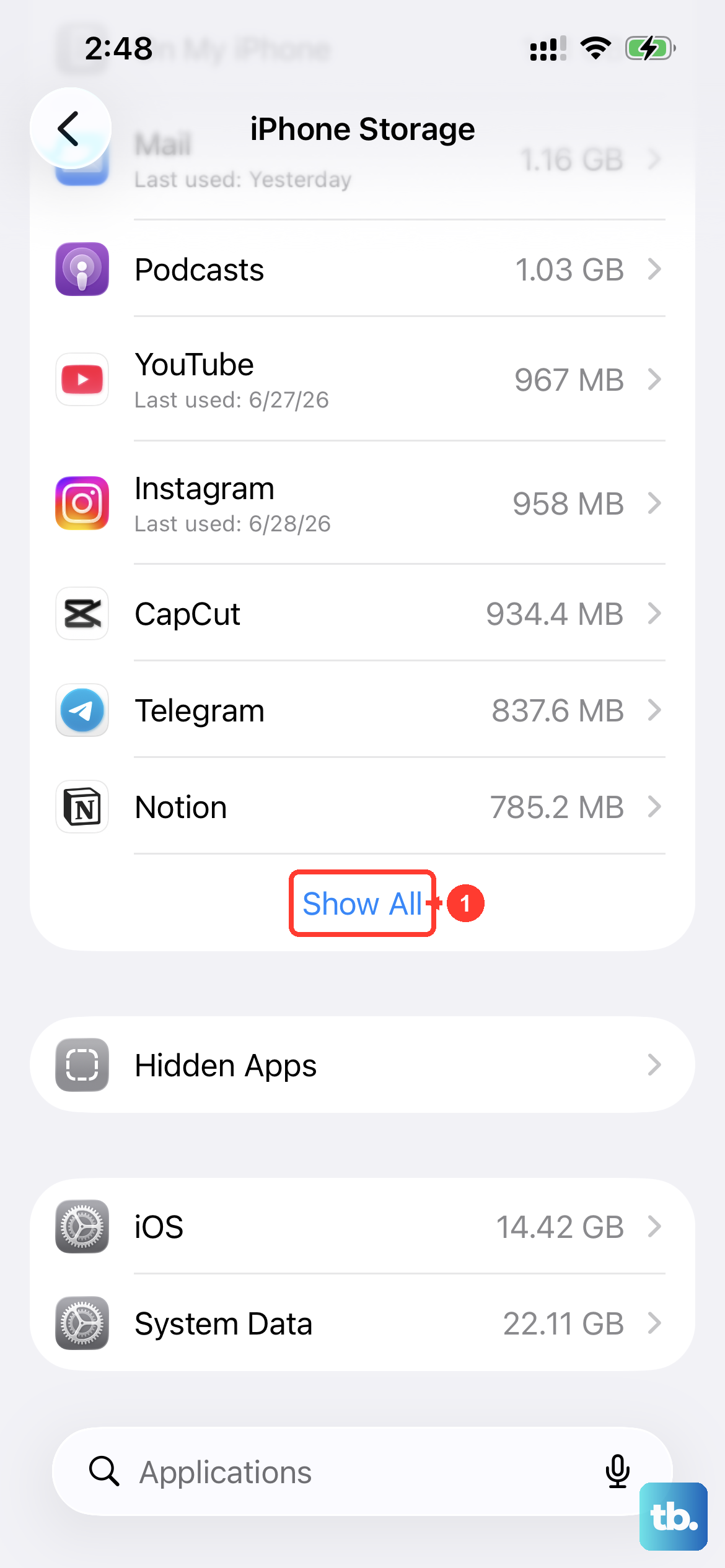
When your iPhone's storage gets too full, the system has less room to operate efficiently, which can slow everything down. Head to Settings > General > iPhone Storage to see your breakdown.
If you're below 1GB of free space, it's time to clean up. Start by offloading apps you don't use often (this removes the app but keeps its documents and data). You can also review large files in apps like Photos or Messages and clear your Safari cache from Settings > Safari > Clear History and Website Data.
Update to the Latest iOS
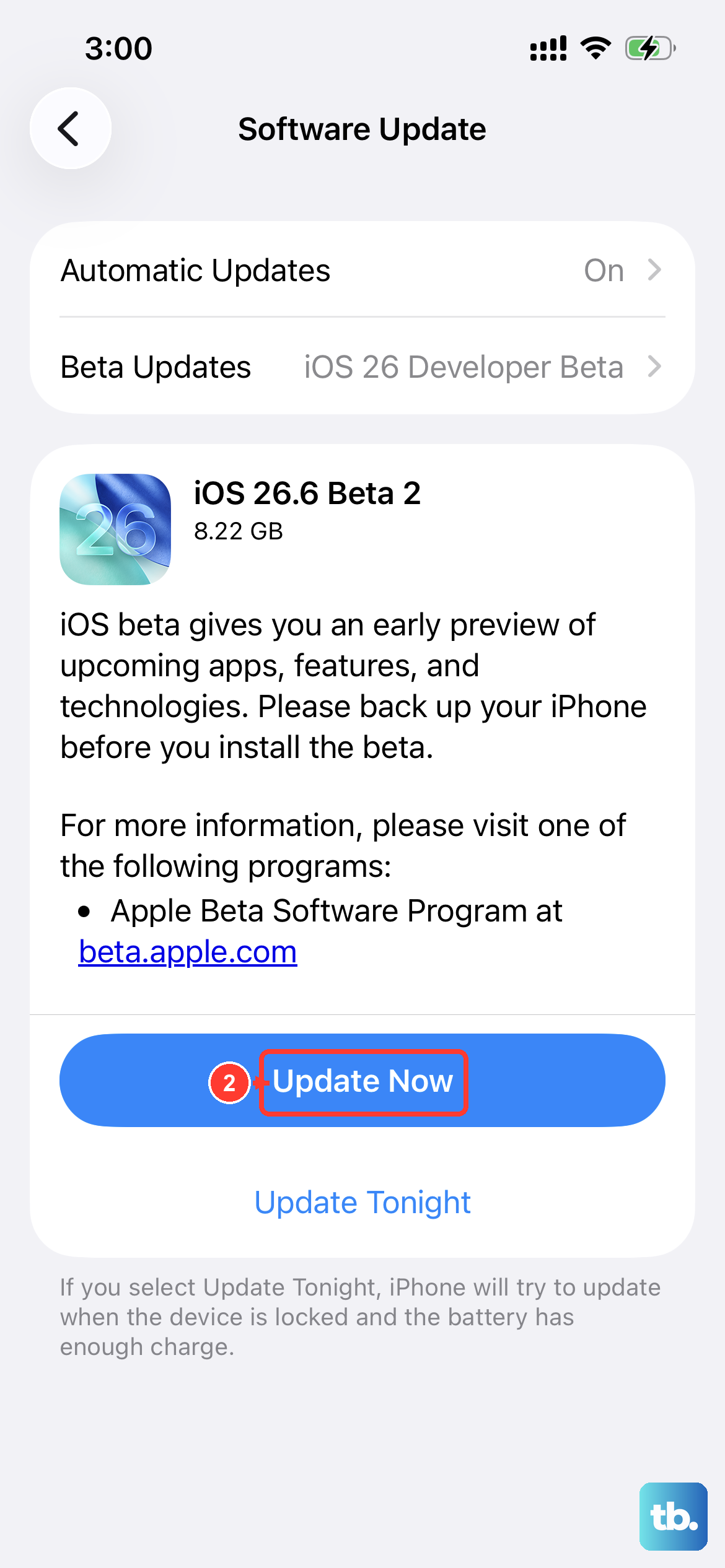
Apple frequently releases iOS updates that include performance improvements and bug fixes. Since your SE 4 runs iOS 18, make sure you're on the latest version.
Go to Settings > General > Software Update. If an update is available, connect to Wi-Fi and plug in your charger. Using a 20W USB-C PD charger will ensure the update downloads and installs as quickly as possible.
Manage Background App Refresh
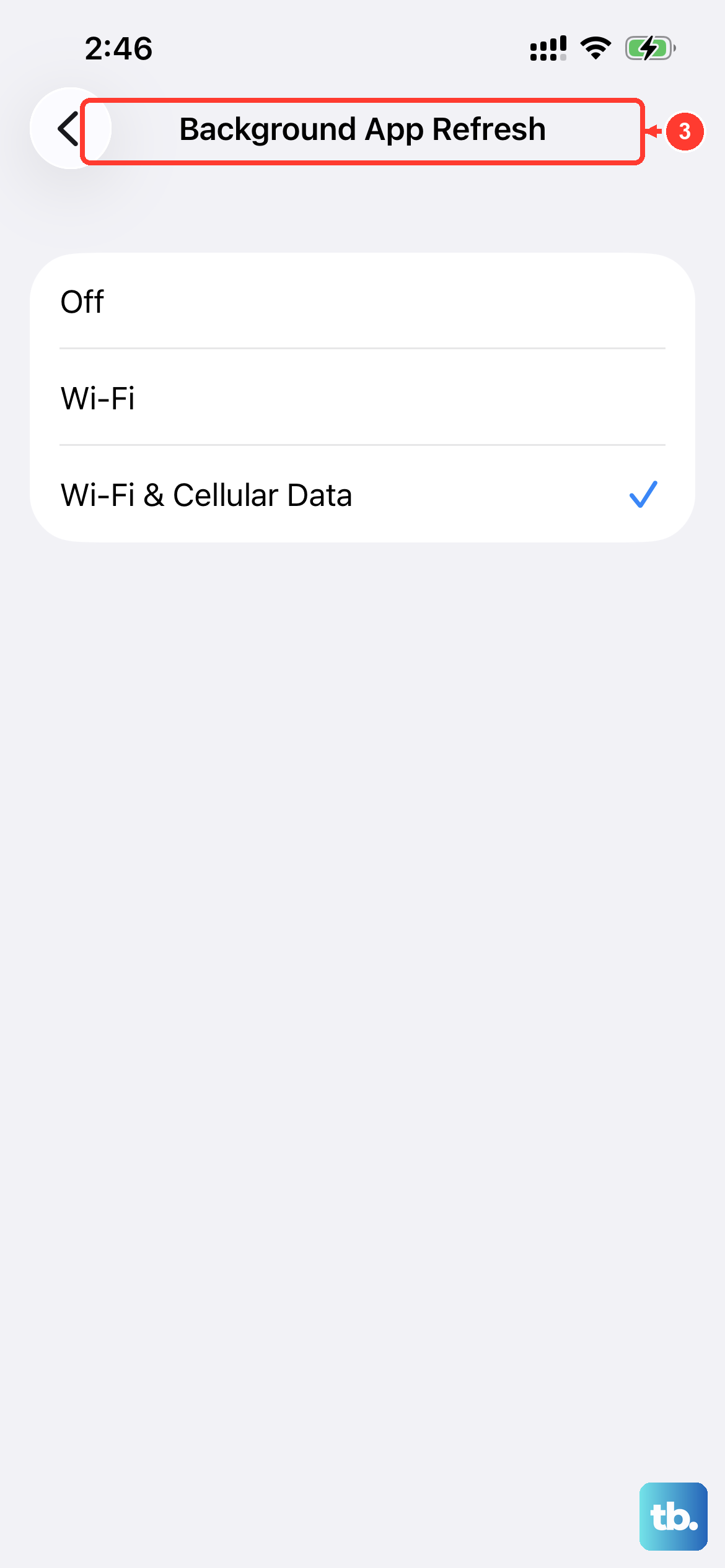
Apps updating in the background can drain your battery and processor. You can control this on a per-app basis. Open Settings > General > Background App Refresh.
Here, you can turn the feature off entirely, or just for specific apps that don't need to be constantly updated. I usually turn it off for social media and games, but leave it on for messaging and email apps.
Review Your Battery Health
As iPhone batteries age, their ability to hold a charge diminishes. To prevent unexpected shutdowns, iOS may slow down performance when battery health is poor. Check this by going to Settings > Battery > Battery Health & Charging.
Look at the "Maximum Capacity" percentage. If it's significantly below 80%, your battery is wearing out and may be contributing to slower performance. Enabling "Optimized Battery Charging" in this same menu can help slow future degradation.
Reduce Motion and Transparency
The visual effects like parallax and transparency are nice, but they require extra graphics processing. Turning them off can make your iPhone SE 4 feel snappier, especially since it has a standard 60Hz display.
Go to Settings > Accessibility > Motion and turn on "Reduce Motion." Then, go to Settings > Accessibility > Display & Text Size and turn on "Reduce Transparency." The interface will feel more immediate.
Close Unused Apps and Widgets
While iOS is generally good at managing app memory, having dozens of apps suspended can still use resources. Swipe up from the bottom of the screen and pause in the middle to see your app switcher. Swipe up on apps to close them.
Also, take a look at your Home Screen widgets. Each one is a live update. Long-press on a widget and tap "Remove Widget" to delete any you don't actively need, which can free up background activity.
Reset All Settings
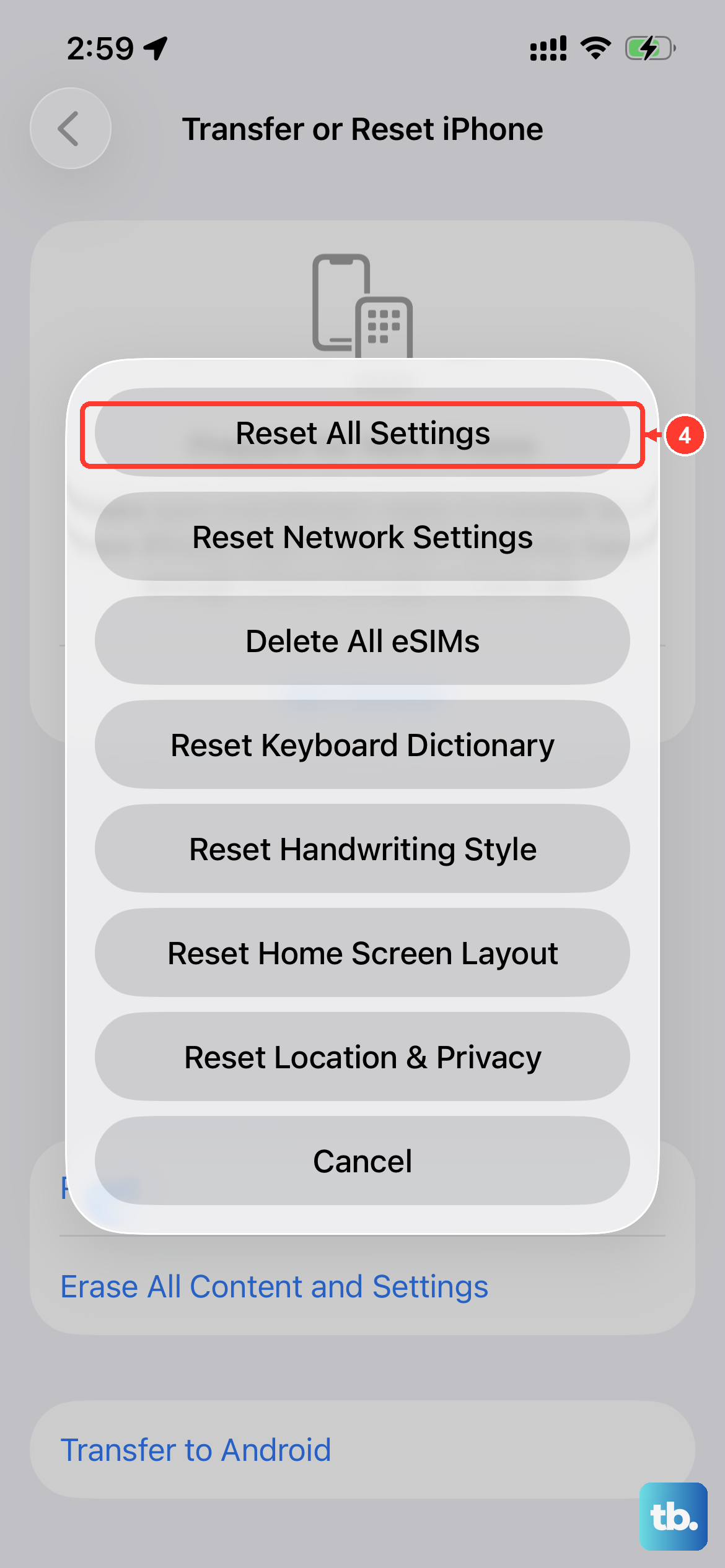
If you've tried everything and your iPhone SE 4 is still slow, this is a strong next step. It resets all your preferences, like Wi-Fi passwords, wallpaper, and privacy settings, back to factory defaults without deleting any of your personal data or apps.
Go to Settings > General > Transfer or Reset iPhone. Tap "Reset" and then choose "Reset All Settings." You'll need to enter your passcode. After it reboots, you'll have to reconfigure things like Face ID and notifications, but it can resolve deeper software conflicts.
Check for Problematic Apps
Sometimes, a single misbehaving app can drag down overall performance. Go to Settings > Battery and look at the battery usage by app over the last 24 hours or 10 days.
If you see an app using a surprisingly high percentage of battery despite limited use, it might be buggy. Try updating that specific app from the App Store first. If the problem continues, consider deleting and reinstalling it.
Use Low Power Mode Strategically
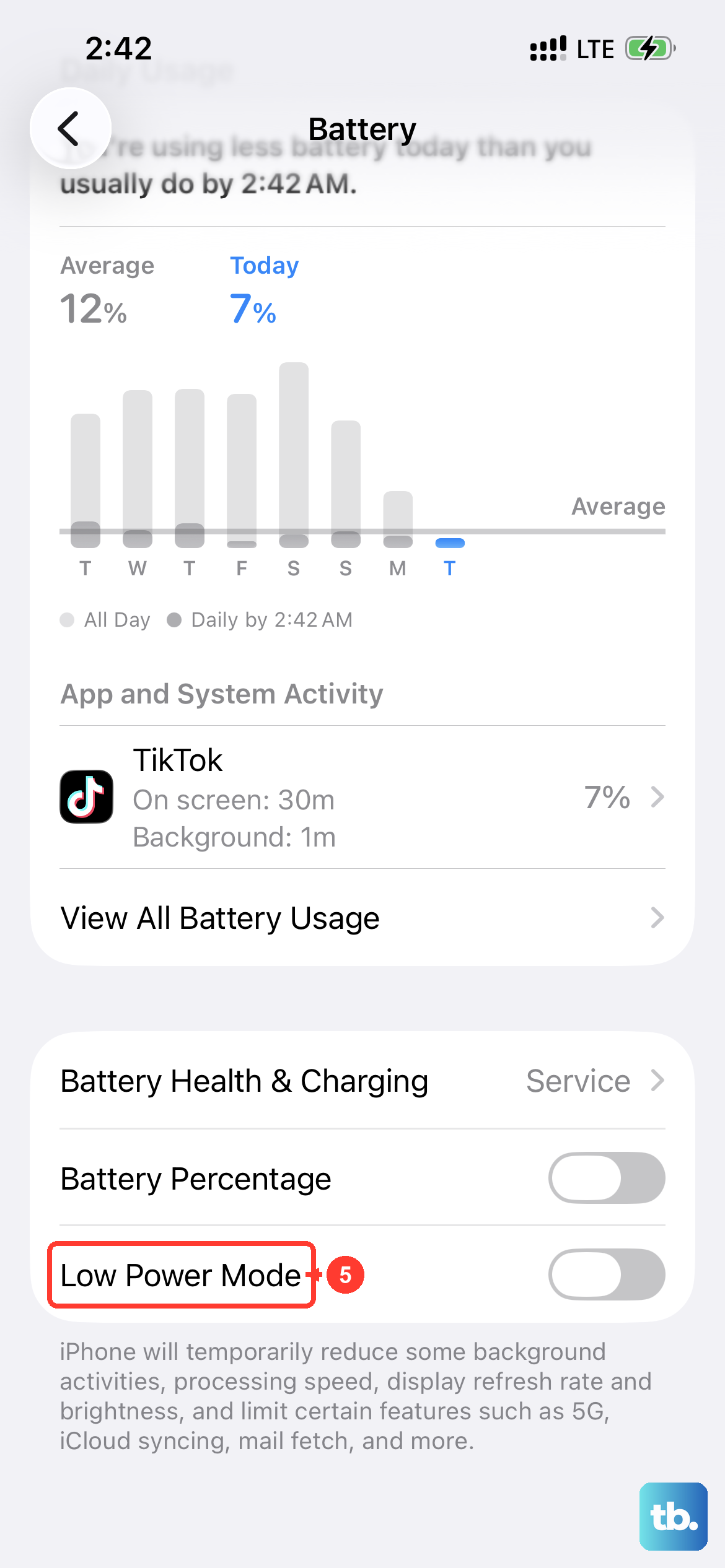
Low Power Mode isn't just for saving battery. When enabled, it reduces background activity like mail fetch and visual effects, which can also give your phone a performance boost when you need it.
You can turn it on manually in Settings > Battery, or add it to your Control Center for quick access. It's a handy temporary fix if your phone feels warm and slow during heavy use, though you'll notice some features are limited.