You tap into a text field on your iPhone 16e (the phone many people still call the "iPhone SE 4") and nothing happens, the on-screen keyboard refuses to slide up, or your taps land on the wrong letters and autocorrect keeps fighting you. Because this model relies entirely on the software keyboard built into iOS rather than any physical keys, a "keyboard not working" problem almost always comes down to a temporary glitch, the touchscreen layer, a misbehaving third-party keyboard, or a setting that needs resetting. The good news is that nearly every cause is fixable from the device itself, usually in under a minute.
Work through the fixes below in order. They start with the quickest and safest steps and only move toward resets and service near the end, so you avoid wiping anything until you genuinely need to. The steps are written for current iOS (the iPhone 16e launched on iOS 18 and, as of 2026, runs iOS 26), so the menus should match what you see on screen.
Power the iPhone 16e off and back on
A simple power cycle clears the temporary memory glitches that often stop the on-screen keyboard from appearing or responding. This is the least disruptive fix and resolves a surprising number of typing problems, so try it first before anything else.
Simultaneously press and hold the side button and either volume button until the sliders appear.
Drag the Power Off slider and wait for the screen to go dark.
Press and hold the side button until the Apple logo appears.
Once the phone finishes booting, open any app with a text field and check whether the keyboard now behaves. If it still will not respond, the screen itself may be the issue, which the next steps address.
Force a restart when the screen is frozen
If the iPhone is completely unresponsive and you cannot reach the Power Off slider, a force restart will reboot it without touching your data. This is a different button sequence from a normal restart, so follow it exactly; pressing the buttons out of order will not work.
Press and quickly release the volume up button.
Press and quickly release the volume down button.
Press and hold the side button.
When the Apple logo appears, release the side button.
A force restart is safe to use whenever the keyboard or the whole screen locks up. After the phone restarts, test typing again before moving on.
Strip off the case, screen protector, and accessories
When you can see the keyboard but your taps are not registering, the real culprit is often touchscreen responsiveness rather than the keyboard software. A thick case, a poorly fitted screen protector, or a connected accessory can interfere with how the display reads your touches.
Remove any case or screen protector, then disconnect any accessories plugged into the phone.
Test the keyboard with the screen bare.
If typing works only after you unplug an accessory, the accessory or its power source may be at fault, so try a different outlet, cable, or charger.
Switch back to the standard keyboard or remove a third-party one
Third-party keyboards add features, but a buggy or out-of-date one can stop typing from working altogether. The fastest test is to switch back to Apple's standard keyboard by tapping the globe or emoji key in the corner of the keyboard and cycling to the default option.
If switching does not help, remove the third-party keyboard entirely.
Go to Settings > General > Keyboard.
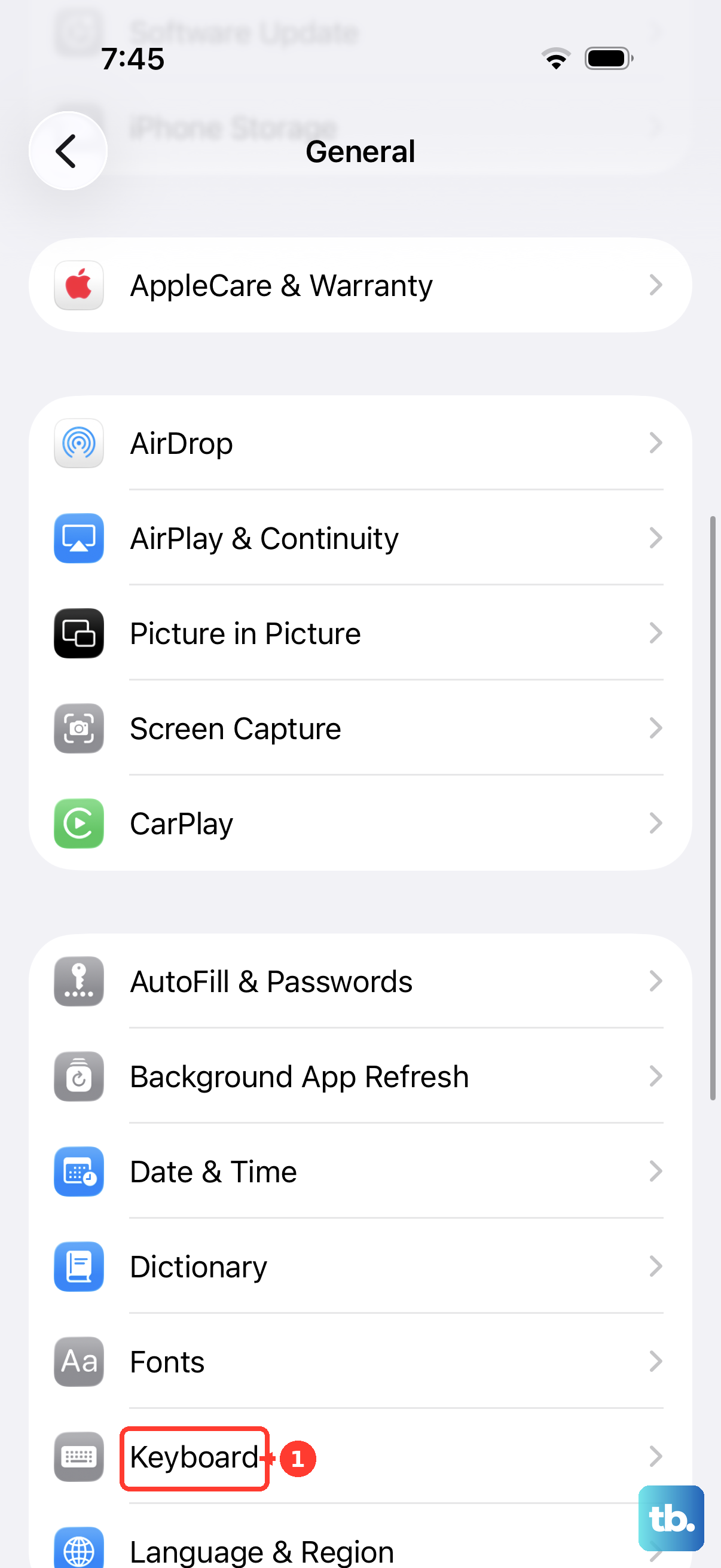
Tap Edit.
Tap the remove (minus) control next to the keyboard you want to delete.
Tap Delete, then tap Done.
You can re-add any keyboard later through Settings > General > Keyboard > Add New Keyboard and then choosing a keyboard. Once you are back on the standard Apple keyboard, confirm that typing and tapping work normally.
Install the latest iOS update
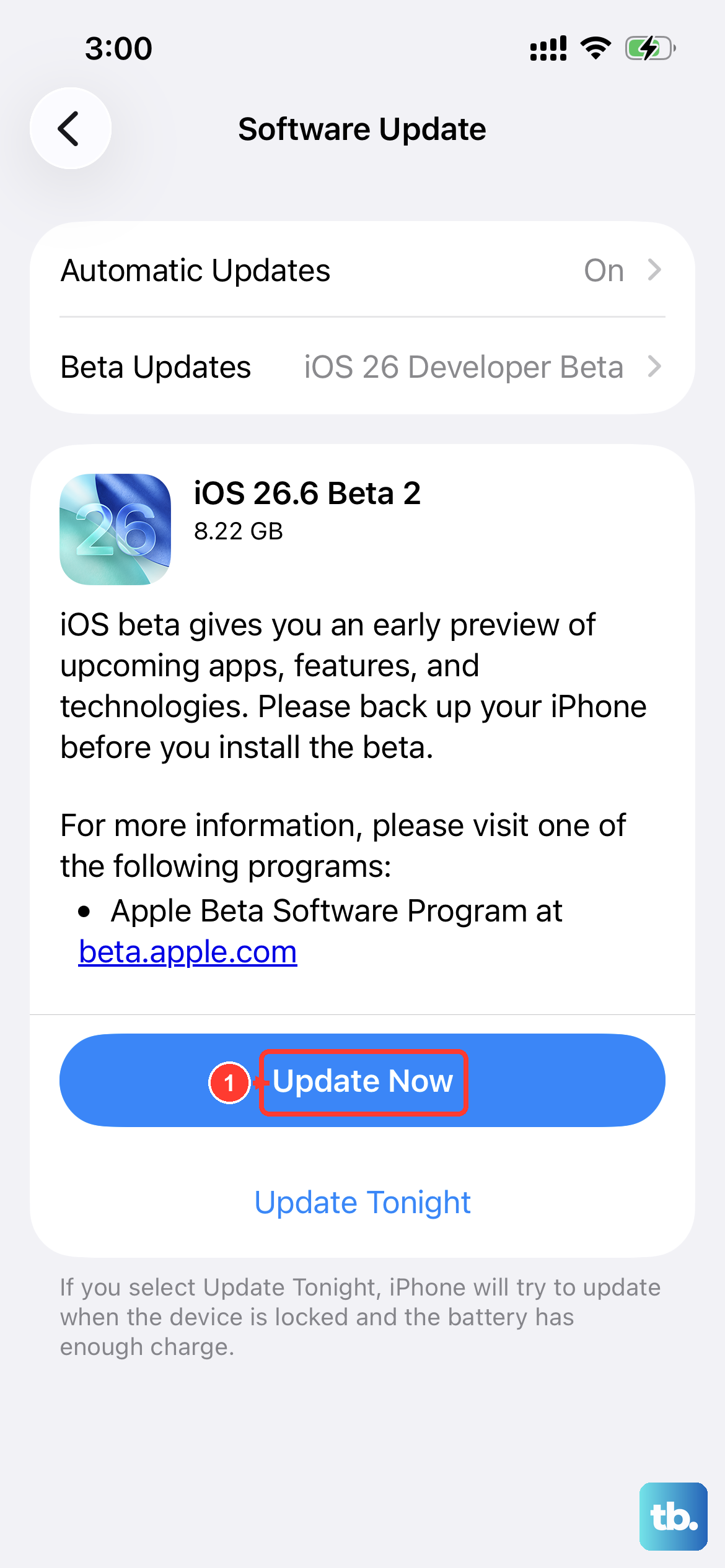
Keyboard bugs, including missing keys and laggy or stuck typing, are frequently patched in software updates. Keeping the iPhone 16e on the newest iOS often clears the problem without any further effort, and updating leaves your data and settings unchanged.
Go to Settings > General > Software Update.
Tap Download and Install.
Follow the onscreen instructions and let the phone restart when prompted.
If an update is available, install it and then test the keyboard. If you are already on the latest version, move on to the targeted resets below.
Clear the learned keyboard dictionary
If the keys themselves respond but autocorrect or predictive text keeps suggesting the wrong words, the learned dictionary may have picked up bad entries. Resetting it returns predictions and autocorrect to a clean state.
Go to Settings > General > Transfer or Reset iPhone > Reset > Reset Keyboard Dictionary.
This erases only the custom words you have added to the phone and leaves the rest of your data and settings alone, so it is a low-risk step.
After it finishes, the keyboard will relearn your typing habits over time.
Reset all settings without losing your content
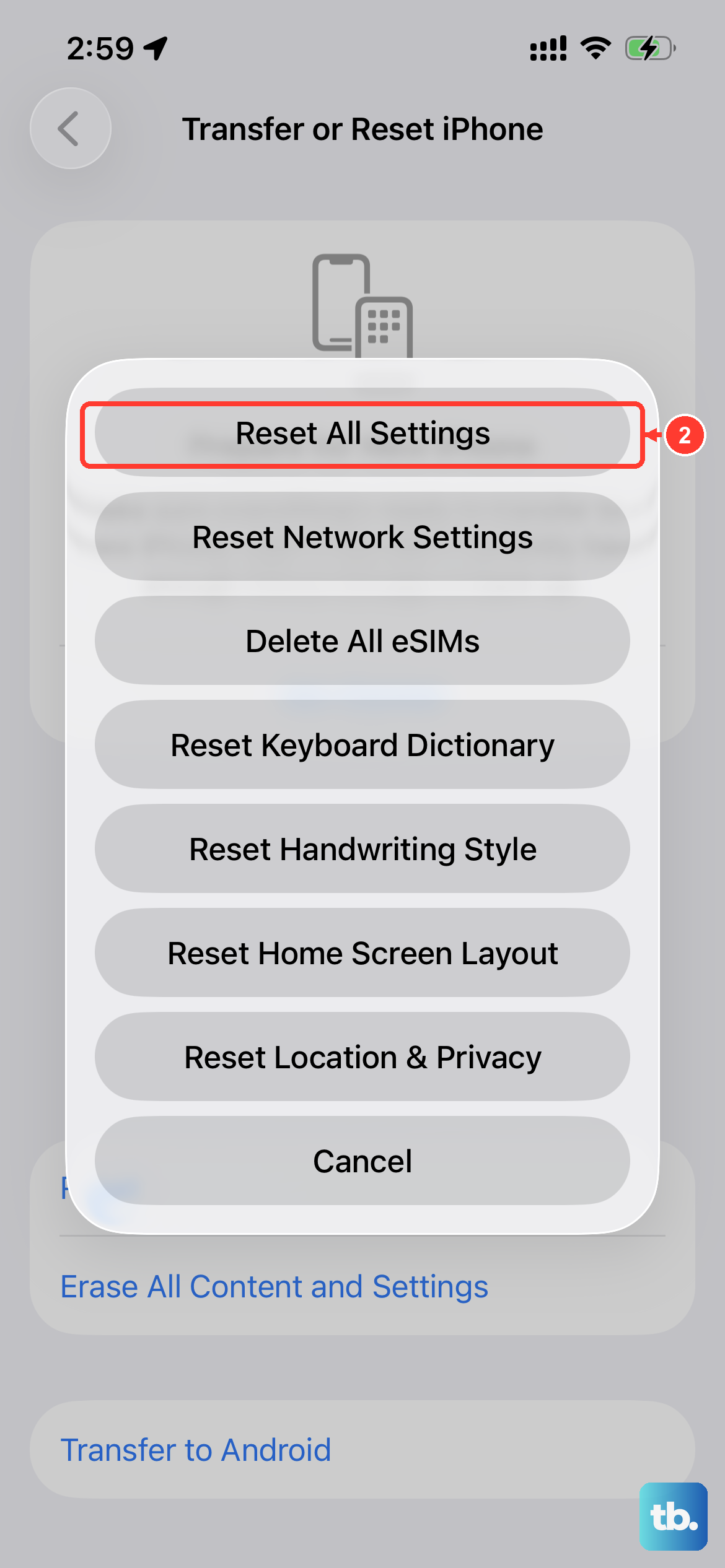
When the keyboard still will not cooperate, resetting every setting on the phone can clear a deeper configuration conflict while keeping your photos, messages, and apps intact. Be aware of what this clears before you tap it.
Go to Settings > General > Transfer or Reset iPhone > Reset > Reset All Settings.
This removes all settings, including network settings, the keyboard dictionary, location settings, privacy settings, and Apple Pay cards, and resets them to their defaults.
It does not delete your content, but you will need to reconnect to Wi-Fi and re-enter some preferences afterward.
Erase and restore as a final software step
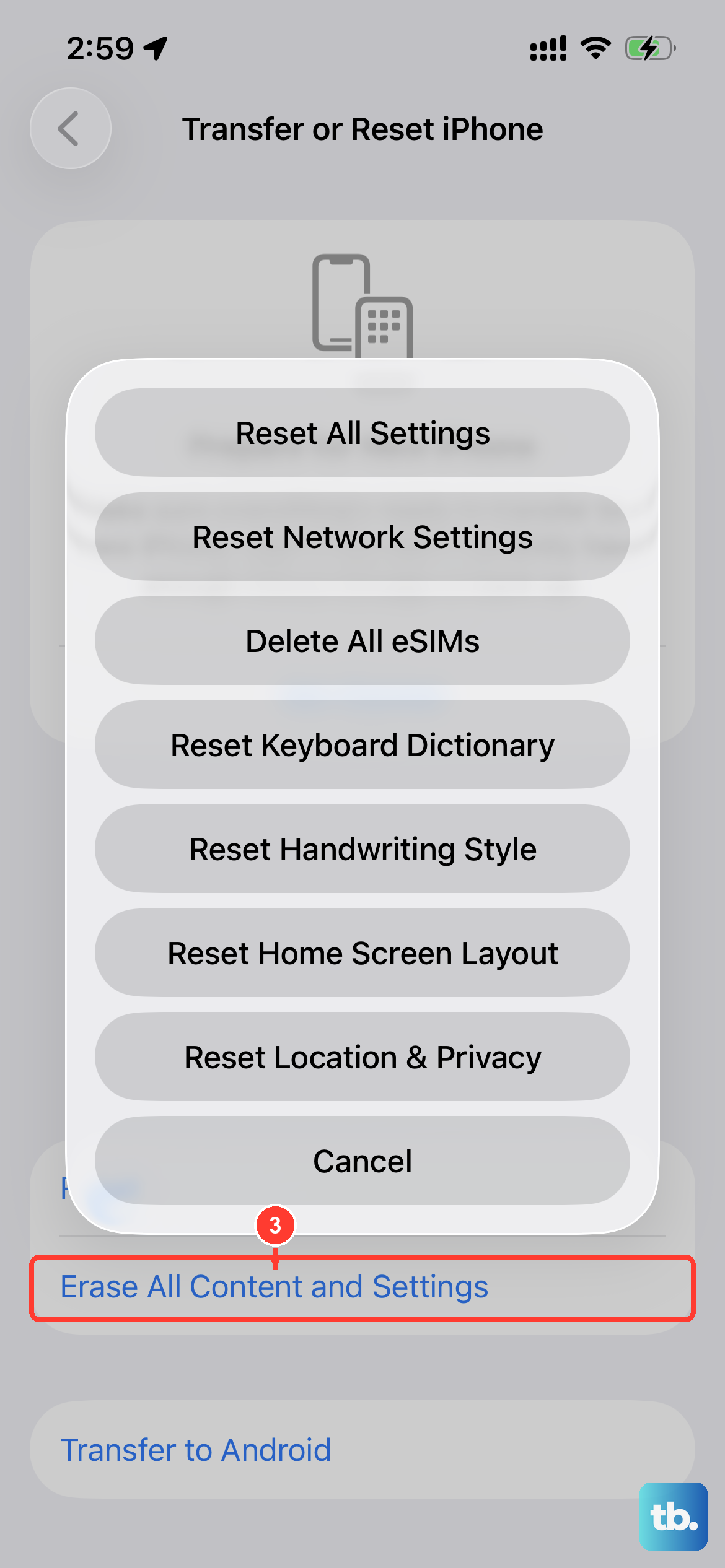
If none of the steps above bring the keyboard back, a full factory erase is the last thing to try before assuming a hardware fault. This deletes everything on the phone, so back it up first; with a current backup you can restore your content, settings, and apps once the phone is wiped.
- 1.Create a backup of your iPhone.
- 2.Go to Settings > General > Transfer or Reset iPhone > Erase All Content and Settings.
- 3.Tap Continue.
- 4.Choose to keep or delete your eSIM.
- 5.Enter your device passcode and your Apple Account password to confirm.
If you would rather erase and restore from a computer, you can use Finder on a Mac or the Apple Devices app on Windows to update or restore the phone. Once the erase finishes, set the phone up and test the keyboard before restoring your backup, which helps you confirm whether the problem was software-based.
Get Apple to service the iPhone 16e
If the keyboard or the screen still does not respond after a clean erase, the touchscreen or another component may need repair. At that point, the issue is beyond what software fixes can solve, so it is time to involve Apple directly.
You can talk to an Apple Advisor, visit a Genius Bar or an Apple Authorized Service Provider, or arrange a mail-in repair through Apple Support. Have your backup ready and your Apple Account password handy, since service may involve setting up the device again.
Frequently Asked Questions
Does the iPhone SE 4 have a physical keyboard to troubleshoot?
No. The device sold as the "iPhone SE 4" is the iPhone 16e, and it has no physical keys for typing. Its keyboard is the on-screen software keyboard built into iOS, so these fixes target the software keyboard, any third-party keyboards you have installed, and touchscreen responsiveness.
Will resetting the keyboard dictionary delete my photos or messages?
No. Reset Keyboard Dictionary, found under Settings > General > Transfer or Reset iPhone > Reset, erases only the custom words you have added. Your photos, messages, apps, and other content are untouched.
What is the difference between Reset All Settings and Erase All Content and Settings?
Reset All Settings returns settings such as network settings, the keyboard dictionary, location settings, privacy settings, and Apple Pay cards to their defaults without deleting your content. Erase All Content and Settings is a full factory reset that deletes everything, so you should back up the phone before using it.
The screen registers some taps but not others. Is that the keyboard?
It may be the touchscreen rather than the keyboard. Remove any case or screen protector and disconnect any accessories, then test again; if the screen responds correctly only after removing an accessory, try a different outlet, cable, or charger.
Why doesn't Apple list a product called the iPhone SE 4?
There is no Apple product officially named "iPhone SE 4." Apple released the device under the name iPhone 16e, which is a Face ID model with no Home button. The steps here apply to that phone running current iOS.