You reach for your iPhone in a dark room, swipe to the Flashlight button, and nothing happens; the LED stays dead, or it flickers on for a second and quits. It is a frustrating fault because the flashlight feels like it should always just work, and when it does not you start to wonder whether the camera flash is broken too. The good news is that most flashlight failures are software hiccups, a hidden toggle, or simple overheating rather than a damaged part, and you can usually fix them in a couple of minutes.
Before you start, one quick clarification that catches a lot of people out. There is no Apple product actually called the "iPhone SE 4." Apple's SE line ran from the 1st generation (2016) through the 2nd generation (2020) and 3rd generation (2022), and then the SE line was discontinued and replaced by the iPhone 16e, announced February 19, 2025. So if you searched for "iPhone SE 4," you almost certainly own either the iPhone 16e (the SE successor) or the iPhone SE (3rd generation). The fixes below work on both, and where the steps differ I will call it out.
On every iPhone the flashlight is simply the rear LED flash doing double duty; as Apple puts it, "The LED flash on your iPhone or iPad Pro doubles as a flashlight." That shared hardware matters, because it means the camera and the flashlight are competing for the same component, and it explains a few of the fixes that follow. Work through them in order, starting with the easiest and safest.
Start with the flashlight toggle in Control Center
The first thing to confirm is that the flashlight is genuinely failing and not simply already on (so tapping it just turns it off). Open Control Center and watch the button state as you tap it. How you open Control Center depends on your model, because the iPhone 16e has Face ID and no Home button, while the iPhone SE (3rd generation) still has a Home button.
- 1.On the iPhone 16e, swipe down from the upper-right corner of the screen to open Control Center. On the iPhone SE (3rd generation), swipe up from the bottom edge of the screen instead.
- 2.Tap the Flashlight button to turn it on, and tap it again to turn it off.
- 3.If you only see a dim light or none at all, tap the button off and back on once more.
- 4.Press and hold the Flashlight button, then drag the slider up to confirm the brightness is not sitting at its lowest setting.
A flashlight that is stuck at minimum brightness looks broken when it is really just turned all the way down. Nudging that slider up resolves more "dead" flashlights than you might expect.
Put the Flashlight button back if it has vanished
Sometimes the reason the flashlight will not turn on is that the button is no longer in Control Center at all. Controls can be removed accidentally, and a missing toggle is a very common reason people assume the hardware has failed.
To add it back, go to Settings > Control Center, then add Flashlight from the list of available controls. This applies to both the iPhone 16e and the iPhone SE (3rd generation) on iOS 26. Once it reappears, open Control Center again and test it.
Close the Camera app and check its flash setting
Because the camera flash and the flashlight are the same LED, the flashlight can behave oddly while the Camera app is open and using that LED. If you have been shooting photos or video, fully close the Camera app first, then try the flashlight again from Control Center.
Apple's flash troubleshooting adds a useful tweak for an intermittent flash: if the flash works only sometimes, open the Camera app and tap the flash button to choose a different setting. Cycling that setting can clear a flash that has gotten stuck in an unhelpful state, and it confirms whether the LED itself still fires at all.
Give an overheating iPhone time to cool
If your iPhone has been in a hot car, in direct sun, or working hard while charging, heat may be the culprit. Apple designs iPhone for ambient temperatures of 0 to 35 C (32 to 95 F), and when the device runs too warm, "The camera flash is temporarily disabled." That protection hits the flashlight too, since they share the LED.
To recover, move the phone to a cooler place out of direct sunlight, remove any case that traps heat, and lock the screen until it cools down. Once the temperature drops back into the normal range, the flashlight returns to normal on its own; there is nothing else you need to toggle.
Restart the iPhone to clear a software glitch
A simple power cycle clears the kind of temporary software glitches that can stop the flashlight from firing even when the LED is perfectly healthy. Turn the device off, wait a few seconds, then turn it back on. After it boots, open Control Center and test the Flashlight button again.
This step is quick, completely safe, and resolves a surprising share of flashlight faults, so it is worth doing before you move on to anything more involved.
Force restart if the flashlight still will not toggle
If the screen is unresponsive or the flashlight refuses to switch even after a normal restart, a force restart goes a level deeper. The sequence is the same on the iPhone 16e and the iPhone SE (3rd generation).
- 1.Press and quickly release the volume up button.
- 2.Press and quickly release the volume down button.
- 3.Press and hold the side button until the Apple logo appears, then let go.
Do not skip or hold the first two buttons; they must be quick presses, with only the side button held. When the Apple logo shows, the phone will restart and you can test the flashlight once it is back on the Home Screen.
Install the latest iOS update
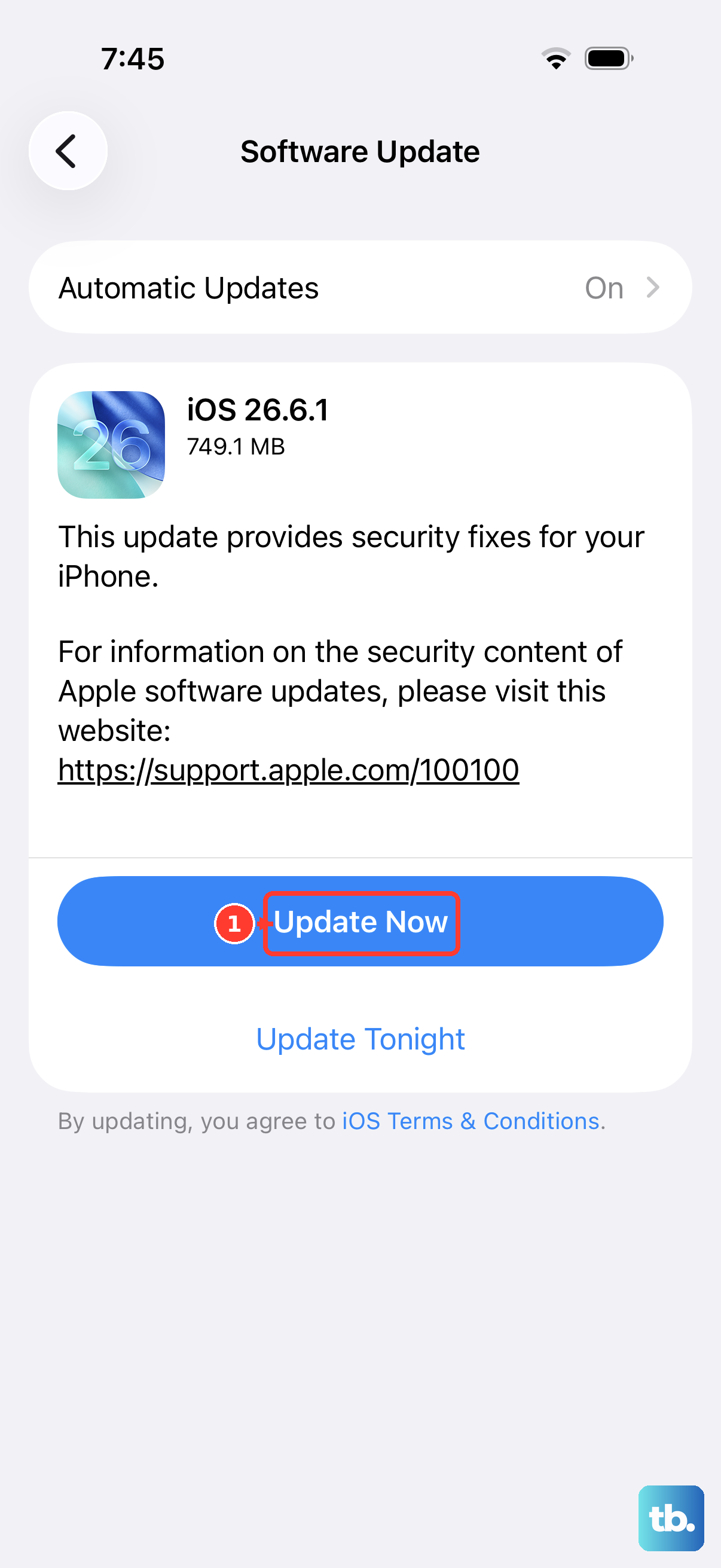
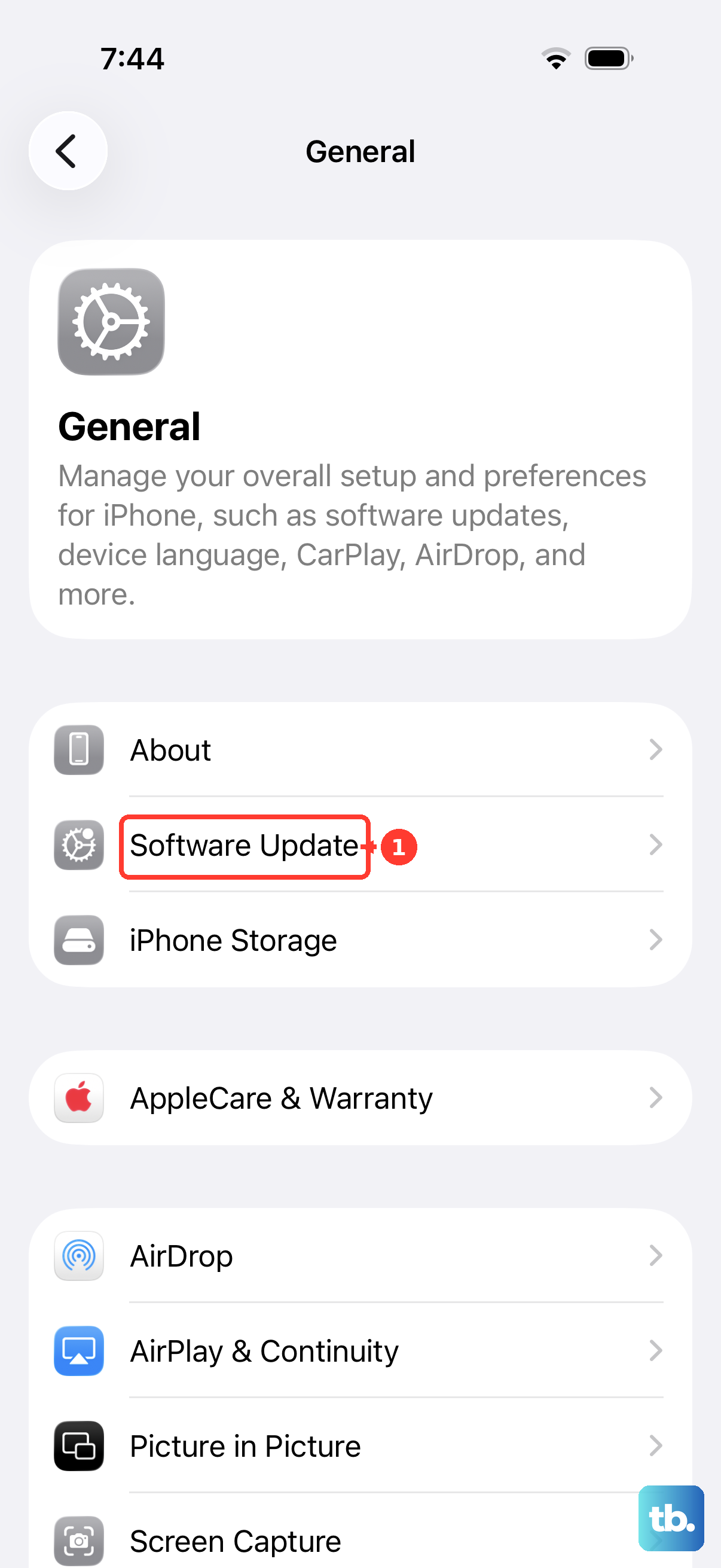
Software bugs that affect the camera and flash are routinely fixed in iOS updates, so an out-of-date system can be the underlying cause. Go to Settings > General > Software Update and install any available update. The current release for the iPhone 16e is iOS 26.5.
Before you start the update, connect to Wi-Fi and to power, and make sure you have a recent backup. Once the update finishes and the phone restarts, check the flashlight again to see whether the fix shipped in that release.
Reset settings, then erase as a last software step
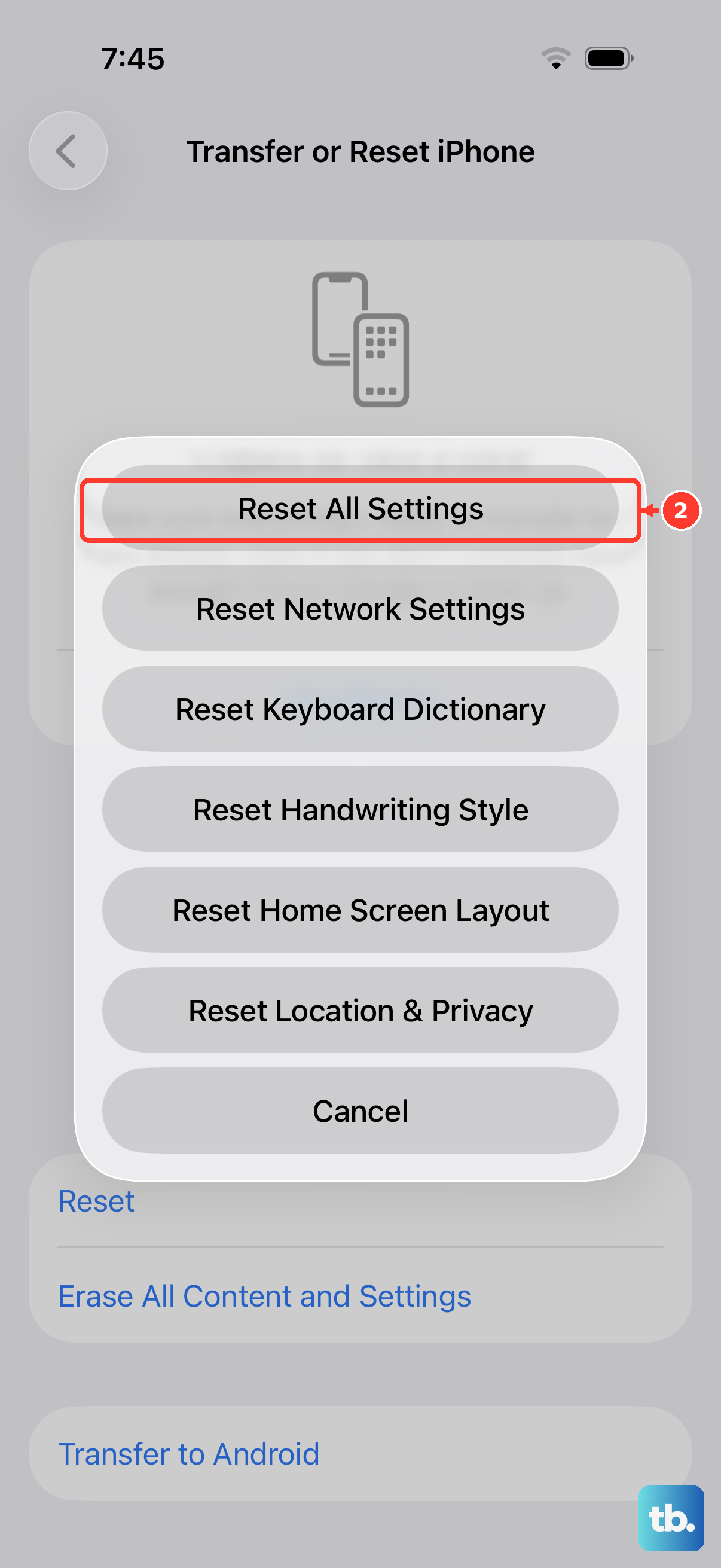
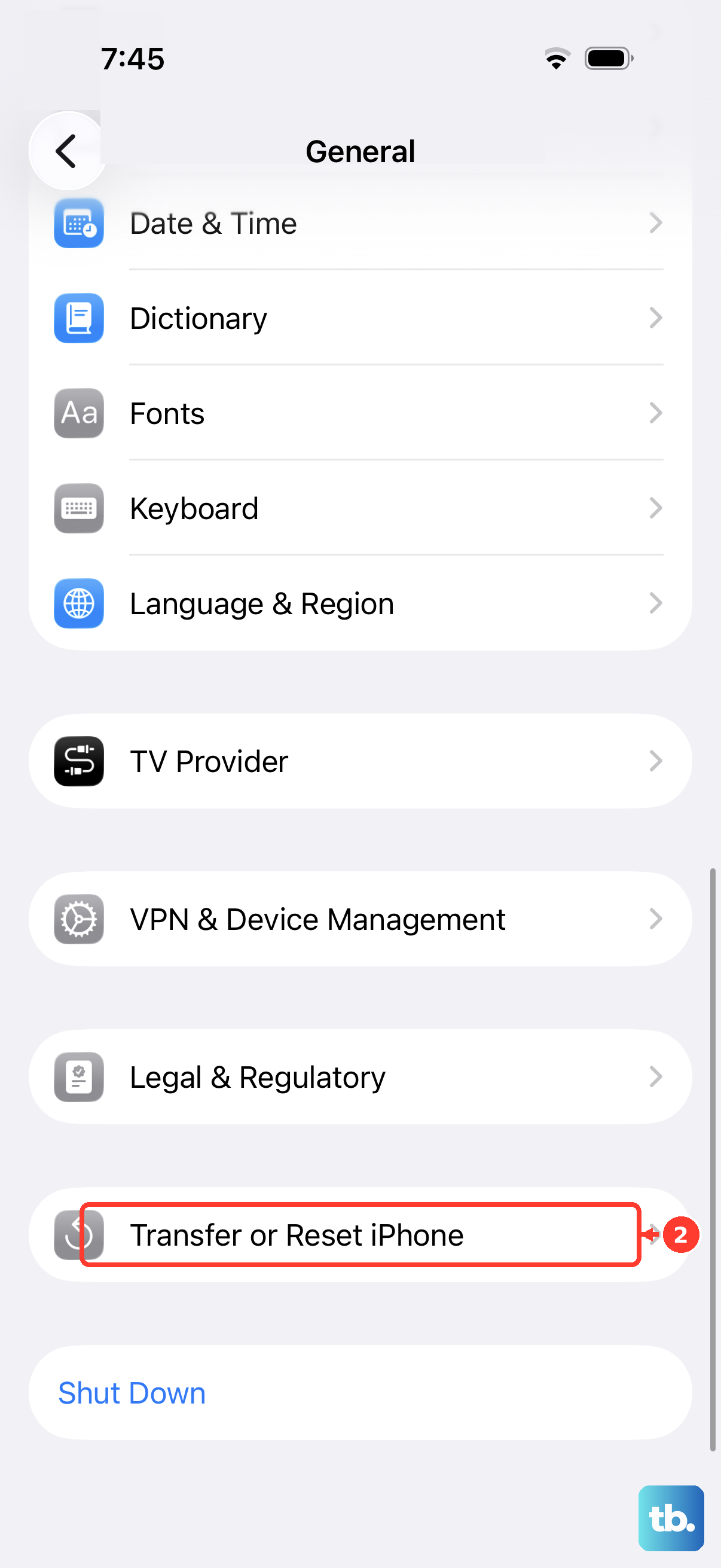
If the flashlight is still failing, the next move is to reset settings, starting with the non-destructive option. Go to Settings > General > Transfer or Reset iPhone > Reset > Reset All Settings. This returns system settings to their defaults while keeping your data, photos, and apps, so it is a low-risk way to clear a misconfiguration.
If the problem survives that, a full erase is the final software step. WARNING: Erase All Content and Settings restores factory settings and permanently removes your personal data, content, and settings, so back up to iCloud or a computer first.
- 1.Back up your iPhone to iCloud or a computer.
- 2.Go to Settings > General > Transfer or Reset iPhone > Erase All Content and Settings.
- 3.If asked, enter your iPhone passcode or Apple Account password.
- 4.Tap Continue and let the device erase and restart.
After it restarts, set the phone up and test the flashlight before you restore everything, so you can tell whether the issue was software or hardware.
Book service if the LED flash module has failed
If the flashlight still does not work after every step above, the most likely explanation is a hardware fault in the LED flash module itself. At that point no amount of toggling or resetting will help, and the phone needs to be looked at.
Start a support request or arrange a repair through Apple's official support channel. You can do this in the Apple Support app or at getsupport.apple.com, where you can run diagnostics and book service. An iPhone is a standalone device, so there is no companion app on another phone to manage it; the Apple Support app is the right place to go.
Frequently Asked Questions
Is there really no iPhone SE 4?
Correct. Apple never released a product named "iPhone SE 4." The SE line ran through the 1st, 2nd, and 3rd generations and was then replaced by the iPhone 16e, announced February 19, 2025. If you searched for "iPhone SE 4," you most likely have the iPhone 16e or the iPhone SE (3rd generation), and both use the same flashlight fixes.
Why does my flashlight turn off by itself when I take photos?
The flashlight and the camera flash are the same LED, so the flashlight can switch off or behave oddly while the Camera app is using that LED. Close the Camera app and try the flashlight again. If the flash works only sometimes, open the Camera app and tap the flash button to choose a different setting.
Why is the flashlight greyed out or temporarily unavailable?
This usually means your iPhone is too warm. When the device exceeds its operating range of 0 to 35 C (32 to 95 F), the camera flash is temporarily disabled to protect it. Move the phone somewhere cooler, out of direct sunlight, remove the case, and lock the screen until it cools; the flashlight returns once the temperature drops.
How do I get the Flashlight button back in Control Center?
Go to Settings > Control Center and add Flashlight from the list of available controls. A missing control is a common reason the flashlight seems broken when the hardware is fine.
Will resetting my iPhone delete my photos?
Reset All Settings (Settings > General > Transfer or Reset iPhone > Reset > Reset All Settings) keeps your data and is safe to try first. Erase All Content and Settings is different; it restores factory settings and permanently removes your personal data, so always back up to iCloud or a computer before using it.