You turn the iPhone 16e on its side to watch a video or read a wide webpage, and the display stubbornly stays in portrait. Auto-rotate refuses to kick in, and it can feel like the phone is broken. In almost every case it is not; screen rotation is governed by one quick toggle, the app you happen to be using, or a temporary software state, and each of those is easy to rule out. Work through the steps below in order, from the safest and fastest to the official repair path, and turn the phone sideways to test after each one.
One quick note on the name first. Apple never sold a phone called the "iPhone SE 4"; the device many people search for under that name actually launched as the iPhone 16e. If that is the phone in your hand, you are in the right place, and every fix here applies to it.
What actually makes the screen rotate on the iPhone 16e
Auto-rotate relies on two motion sensors inside the phone. Apple's tech specs for the iPhone 16e list a high dynamic range gyro and a high-g accelerometer, and those are the components that detect when you tilt the device and tell the screen to follow. When rotation stops working, the cause is usually a setting or a software state sitting on top of those sensors, not the sensors themselves.
That is why the order of these fixes matters. You start by clearing the simple, common causes (a lock toggle, an app that does not support landscape, a stale software state) before you ever consider a hardware fault, which is rare and is the last thing to check.
Turn off the Portrait Orientation Lock in Control Center
By far the most common reason auto-rotate stops is that Portrait Orientation Lock is switched on. When it is active, the screen deliberately stays in portrait no matter how you hold the phone, so this is always the first thing to check.
Swipe down from the top-right corner of your screen to open Control Center.
Tap the Portrait Orientation Lock button so it is off (not highlighted).
Rotate the phone to test.
According to the official guidance, "When the screen orientation is locked, an icon appears in the status bar on supported models." If you can see that lock icon at the top of the screen, the toggle is still on; tap the button again until the icon disappears, then try rotating once more.
Confirm the app you are using actually rotates
Even with the lock off, the screen will not turn everywhere. As the official guidance states, "some apps don't support rotation, so your screen might not rotate even if Portrait Orientation Lock isn't turned on." That means a single app refusing to flip is normal behavior, not a fault with your phone.
Before you assume something is broken, open an app that is known to support landscape, such as Photos, Safari, or a video, and turn the phone sideways. If rotation works there, your iPhone 16e is fine and the original app simply does not rotate.
Restart the iPhone 16e to clear a temporary glitch
A normal restart clears the temporary software states that can freeze orientation in place. It does not touch your data or settings, so it is a safe early step to try.
Press and hold either volume button and the side button until the power-off slider appears.
Drag the slider, then wait 30 seconds for your device to turn off.
Press and hold the side button again until the Apple logo appears.
Once the phone is back on, open a landscape-friendly app and check whether the screen now rotates as it should.
Force restart when the screen is frozen or unresponsive
If the phone is unresponsive or rotation still fails after a normal restart, a force restart can reset the system without erasing anything. The button sequence is specific, so follow it exactly and do not hold the buttons all at once.
- 1.Press and quickly release the volume up button.
- 2.Press and quickly release the volume down button.
- 3.Press and hold the side button, and when the Apple logo appears, release the side button.
Let the phone finish starting up, then test rotation in an app that supports landscape.
Install the latest iOS update
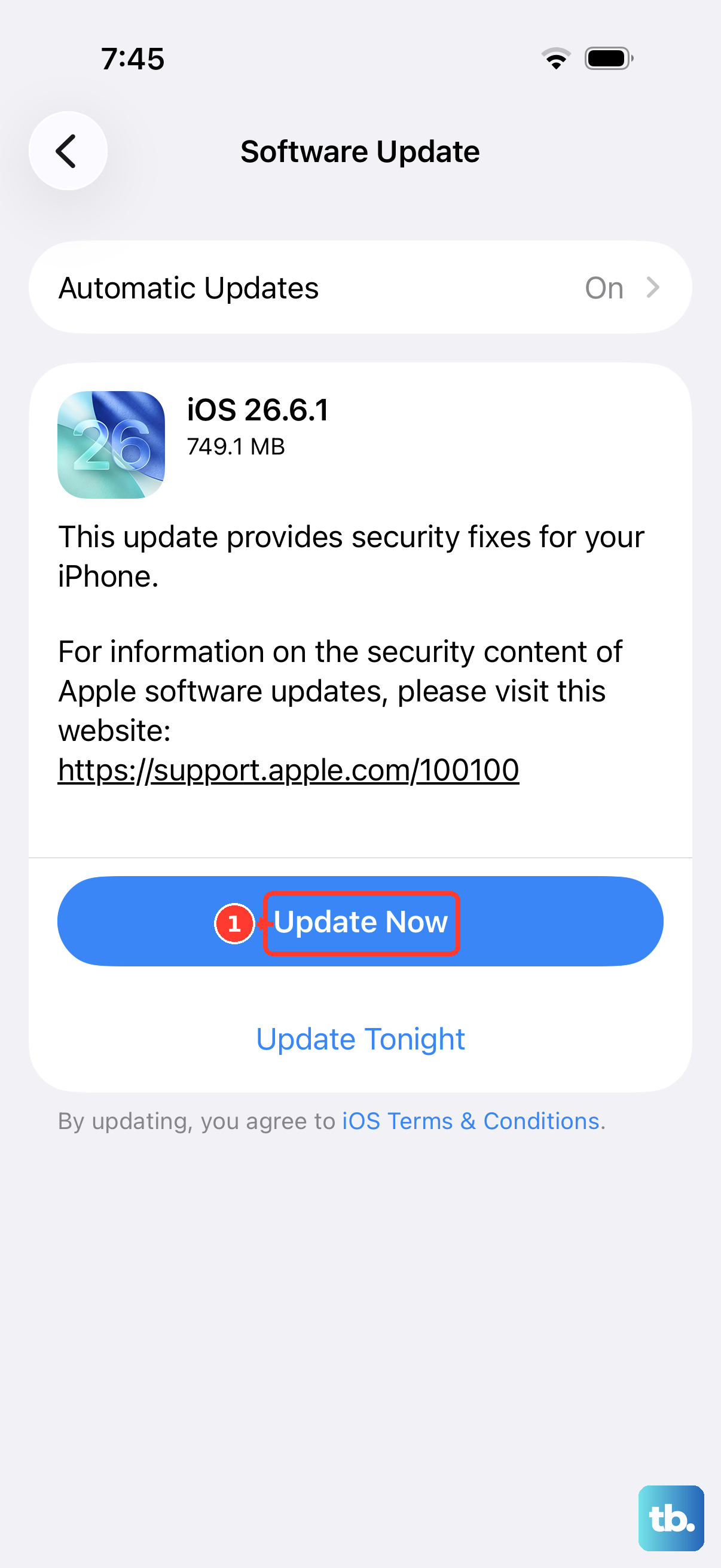
Orientation bugs are sometimes a software problem that Apple fixes in a later release, so an out-of-date phone can be the real culprit. Updating is safe for your content; in Apple's words, "When you update to the latest version of iOS, your data and settings remain unchanged."
Open the Settings app.
Go to General > Software Update.
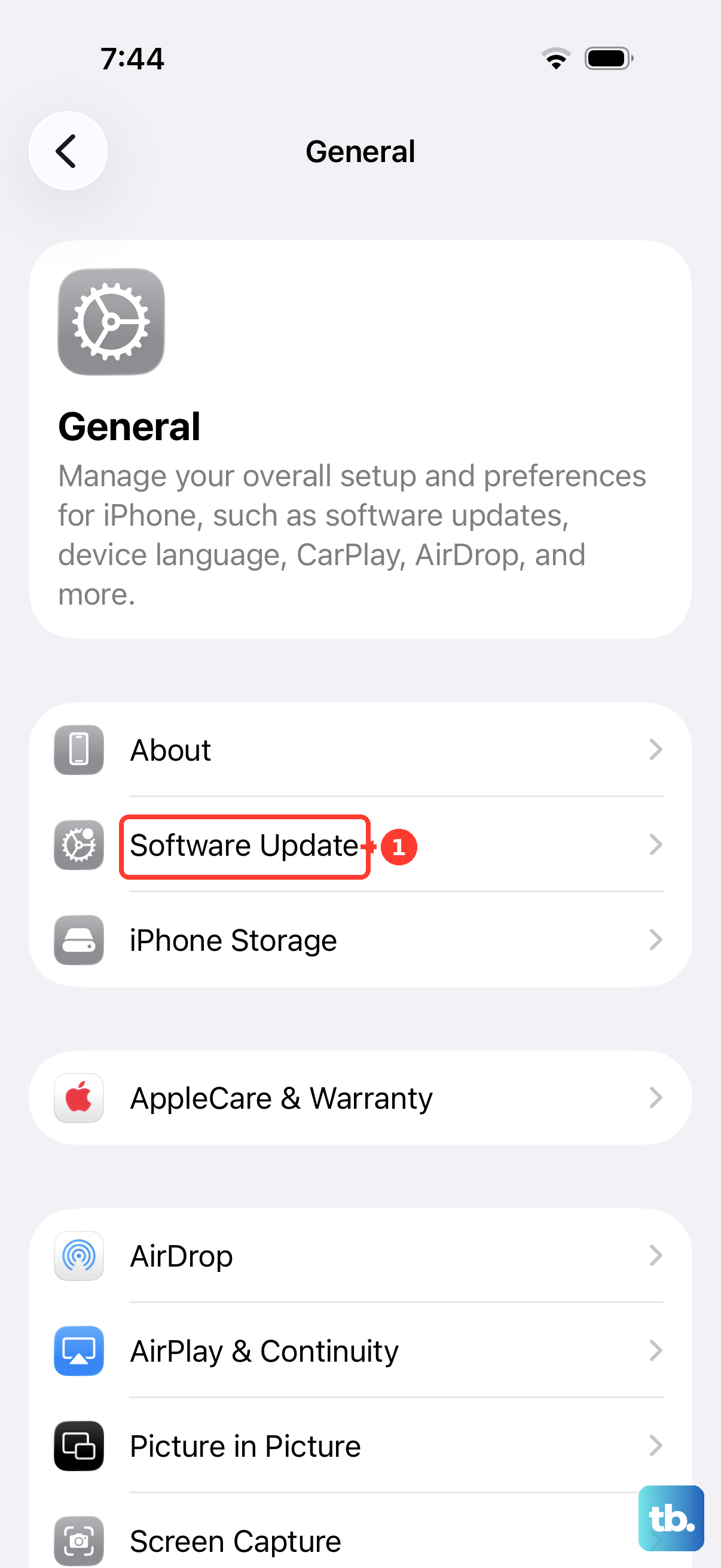
If an update is available, tap Download and Install and follow the onscreen instructions.
As of 2026 the current release is iOS 26, and the iPhone 16e is on Apple's supported list, so you can update to it. After it installs, test rotation one more time.
Erase all content and settings as a last do-it-yourself step
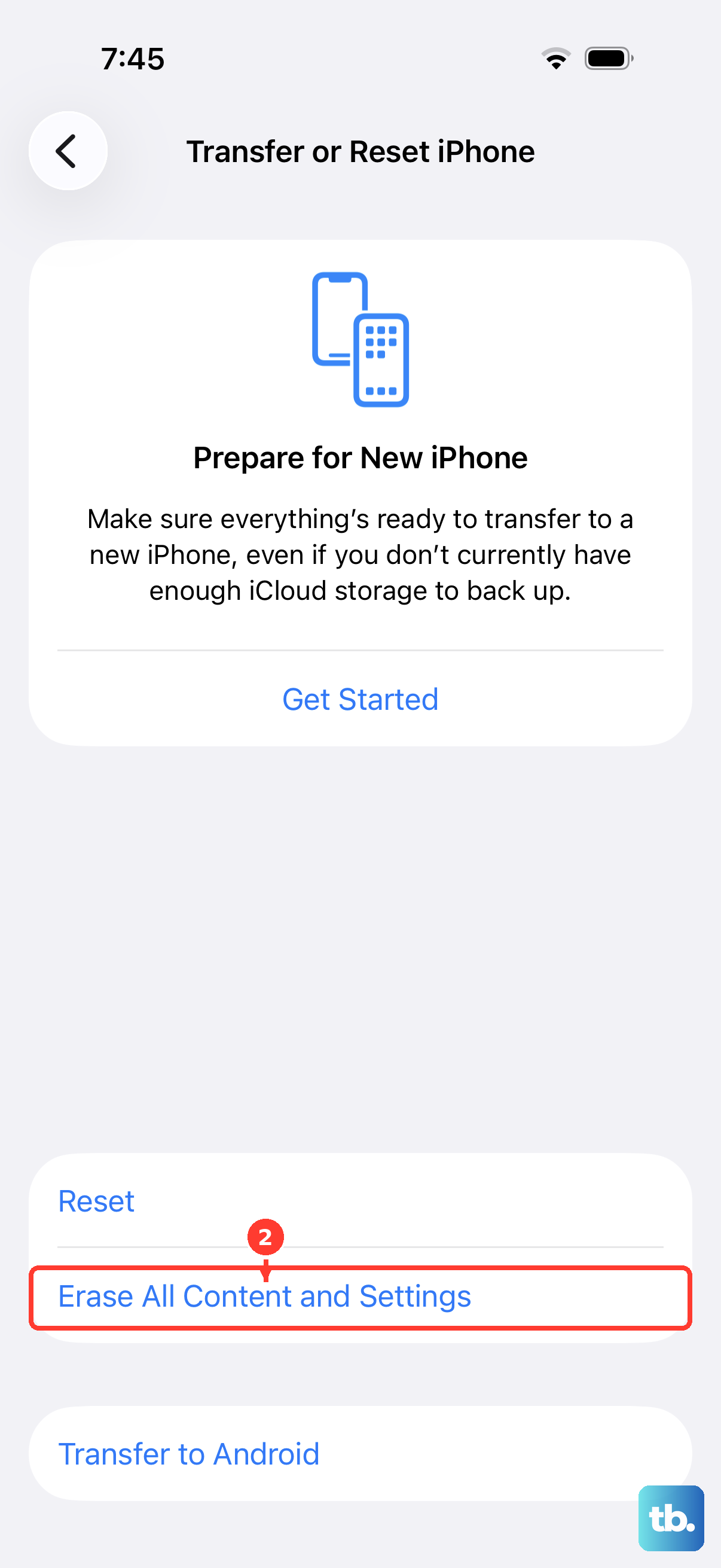
If nothing above works, a full reset returns the phone to factory settings and rules out a deeper software issue. This step erases everything, so back up your iPhone 16e first and only continue once that backup is finished.
Open the Settings app.
Go to General > Transfer or Reset iPhone > Erase All Content and Settings.
Enter your passcode or Apple Account password when prompted.
Be clear about what this does before you tap it. The official warning states that "your device is completely erased, including any credit or debit cards you added for Apple Pay, photos, contacts, music, or apps." Once the phone restarts, restore from your backup and check whether rotation has returned.
When to contact Apple Support or book a repair
If auto-rotate still does not work after a clean erase and restore, the gyro or accelerometer may have a hardware fault, and that is not something you can fix at home. At this point the right move is to have the phone looked at by professionals rather than continuing to experiment.
Use Apple's official support and repair options at the Apple Support site to chat, call, or schedule service with Apple or an Apple Authorized Service Provider. Describe exactly which steps you already tried so the technician can move straight to the hardware check.
Frequently Asked Questions
Is the iPhone SE 4 the same phone as the iPhone 16e?
Effectively, yes. Apple never released a product literally named the "iPhone SE 4"; the model widely rumored under that name launched as the iPhone 16e. If you bought what you thought was an SE 4, every fix on this page applies to your phone.
Why will my screen not rotate even though Portrait Orientation Lock is off?
Some apps are simply built to stay in portrait. As the official guidance puts it, "some apps don't support rotation, so your screen might not rotate even if Portrait Orientation Lock isn't turned on." Test in Photos, Safari, or a video to confirm rotation works elsewhere before assuming a fault.
Will updating or erasing my iPhone 16e delete my photos?
Updating will not; "When you update to the latest version of iOS, your data and settings remain unchanged." Erasing the device will, because it completely wipes the phone, so always back up before you choose Erase All Content and Settings.
Which sensors control auto-rotate on the iPhone 16e?
Apple's tech specs list a high dynamic range gyro and a high-g accelerometer. Together they detect how you are holding the phone and tell the screen which way to face, which is why a rotation failure that survives every software fix can point to a hardware problem.