You set your iPhone 17e down on a wireless charging pad, expecting that reassuring little buzz and the charging chime, and nothing happens. The screen stays dark, the battery percentage does not climb, or it ticks up agonizingly slowly. The good news is that the iPhone 17e genuinely supports wireless charging, including MagSafe up to 15W and Qi2 up to 15W, so this is almost always a fixable alignment, accessory, or software hiccup rather than a dead phone.
This was a real upgrade over the iPhone 16e, which topped out at 7.5W Qi wireless charging, so the 17e is built to charge faster and more reliably on the right gear. Below are the fixes in the order you should try them, starting with the quickest and safest checks and ending with the official reset and Apple Support path. Work through them one at a time and test the charger after each step.
Rule out a wired problem first
Before you blame the wireless pad, confirm that the issue is actually wireless charging and not something else. The iPhone 17e supports MagSafe wireless charging up to 15W and Qi2 wireless charging up to 15W. If a USB cable is plugged into the phone, unplug it before placing the device on the pad, then test a wired charge with a USB-C cable instead.
If wired charging works normally but wireless charging does not, the fault lies with the pad, the alignment, or a case, and not with your phone battery itself. That single test narrows down the rest of your troubleshooting dramatically.
Match the charger to an adequate power adapter
Wireless chargers are only as good as the power feeding them. A wall adapter that is too weak can make charging slow down or fail entirely, so use the power adapter that came with your accessory or one recommended by its manufacturer.
For the iPhone 17e specifically, MagSafe wireless charging up to 15W requires a 20W power adapter or higher. If you are plugging your charger into an old, low-wattage adapter or a weak USB port, swap in a 20W or higher adapter and try again.
Center the phone on the charging spot
Alignment is one of the most common reasons wireless charging silently fails. Apple advises you to "Place your iPhone on the charger with the display facing up. For best performance, place it in the center of the charger or in the location recommended by manufacturer."
If you do not see the charging indicator within a few seconds, nudge the phone slightly until it lands on the correct spot. With MagSafe, the magnets help guide alignment, but a flat Qi2 pad may need a more deliberate placement.
Clear out anything between the phone and the pad
A surprisingly thin obstruction can block the energy transfer entirely. Apple warns: "Don't place anything between your iPhone and the charger. Magnetic mounts, magnetic cases, or other objects between your iPhone and the charger might reduce performance or damage magnetic strips or RFID chips."
Check the back of your phone and the surface of the charger for anything tucked in there. Remove cards, badges, passports, or key fobs from between the phone and a MagSafe charger before you set it down. These items not only stop charging but can also be damaged by the magnets and coils.
Take off a thick, metal, or battery case
The right case is fine for wireless charging, but the wrong one acts like a barrier. Apple's instruction is specific: "If your iPhone isn't charging or is charging slowly and your iPhone has a thick case, metal case, or battery case, try removing the case," then retry on the wireless charger.
Metal in particular interferes with the wireless coils, and a bulky case can push the phone too far from the pad for power to transfer efficiently. Pull the case off, set the bare phone on the charger, and watch for the charging indicator. If it charges without the case, you know the case is the culprit.
Keep the phone from sliding off the sweet spot
Even a perfectly placed phone can drift out of alignment on its own. When the phone vibrates for a notification, it can shift position just enough that the charger stops delivering power.
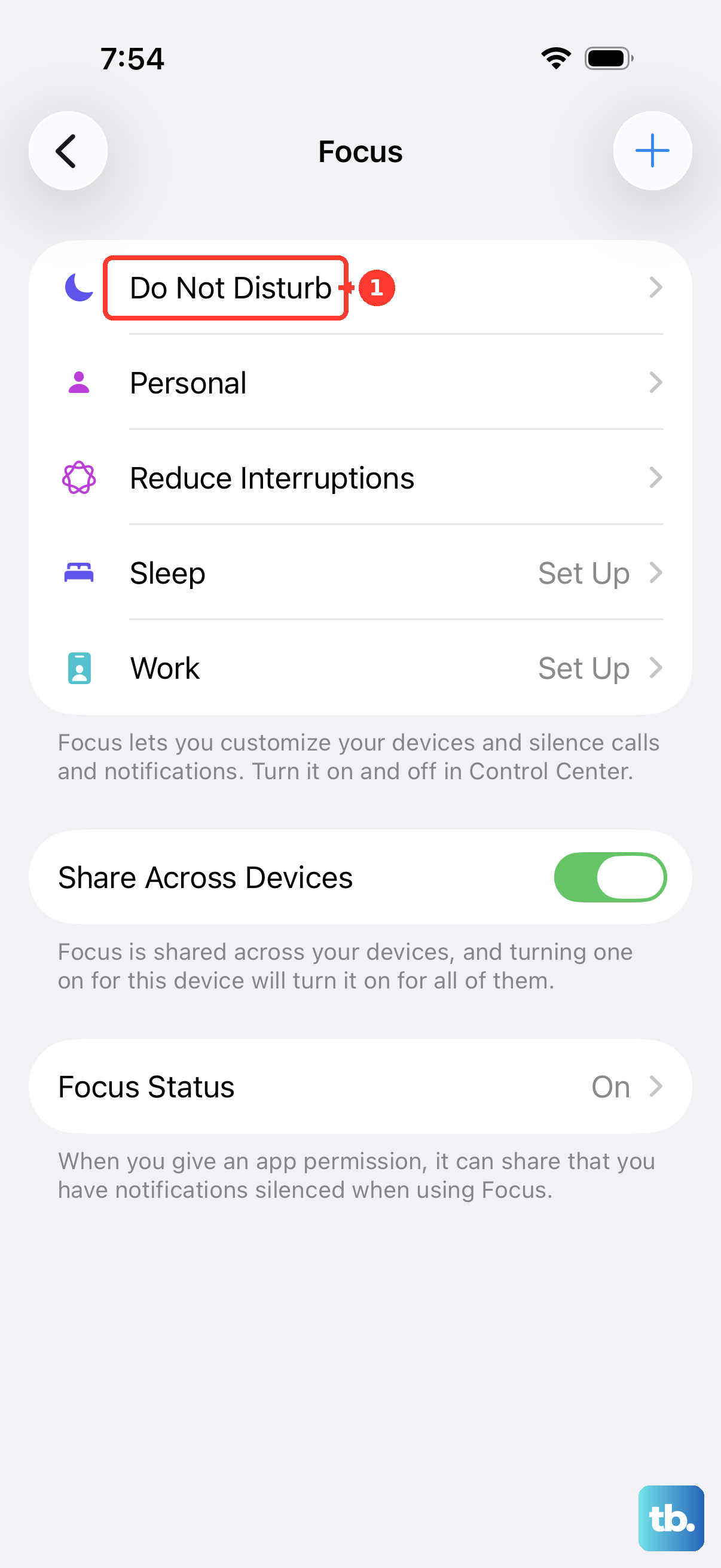
If this keeps happening, a few options can stop the movement. Turning off vibration, turning on a focus or Do Not Disturb mode overnight, or using a grippy case can keep the phone locked onto the charging spot. A charger with magnetic alignment also helps hold it in place.
Cool the phone down if it feels warm
Heat is a built-in reason your iPhone may pause or slow wireless charging. Apple notes that "Your iPhone might get slightly warmer while it charges." If the battery gets too warm, the phone may limit charging to protect itself, which is a safeguard rather than a defect.
If your phone feels hot to the touch and charging has stalled, the fix is simple. Move your iPhone and the charger to a cooler location, get it out of direct sunlight or away from a warm surface, let it cool, and the charge should resume more normally.
Force restart the iPhone 17e
If wireless charging still will not start after the checks above, a force restart can clear a frozen state without erasing anything. On the iPhone 17e, follow this exact sequence in order.
- 1.Press and quickly release the volume up button.
- 2.Press and quickly release the volume down button.
- 3.Press and hold the side button until you see the Apple logo (this might take longer than 10 seconds).
Let the phone finish booting, then place it back on the wireless charger and watch for the charging indicator. A force restart recovers a frozen device and often resolves a charging routine that got stuck in the background.
Update to the latest iOS
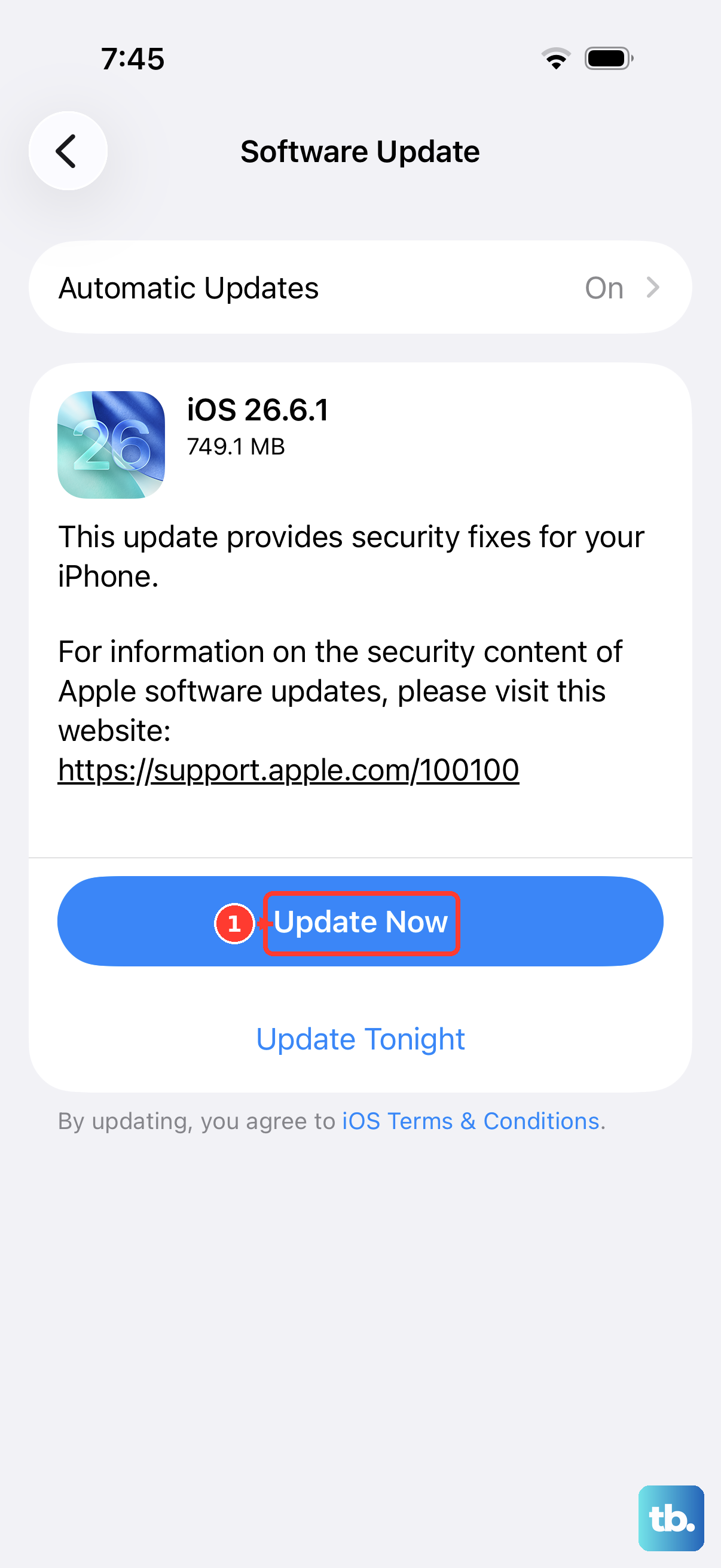
Charging behavior is governed by software, so running an outdated version of iOS can introduce glitches that a later update fixes. Keeping the phone current is also one of the safest steps you can take, because Apple states that when you update this way "your data and settings remain unchanged."
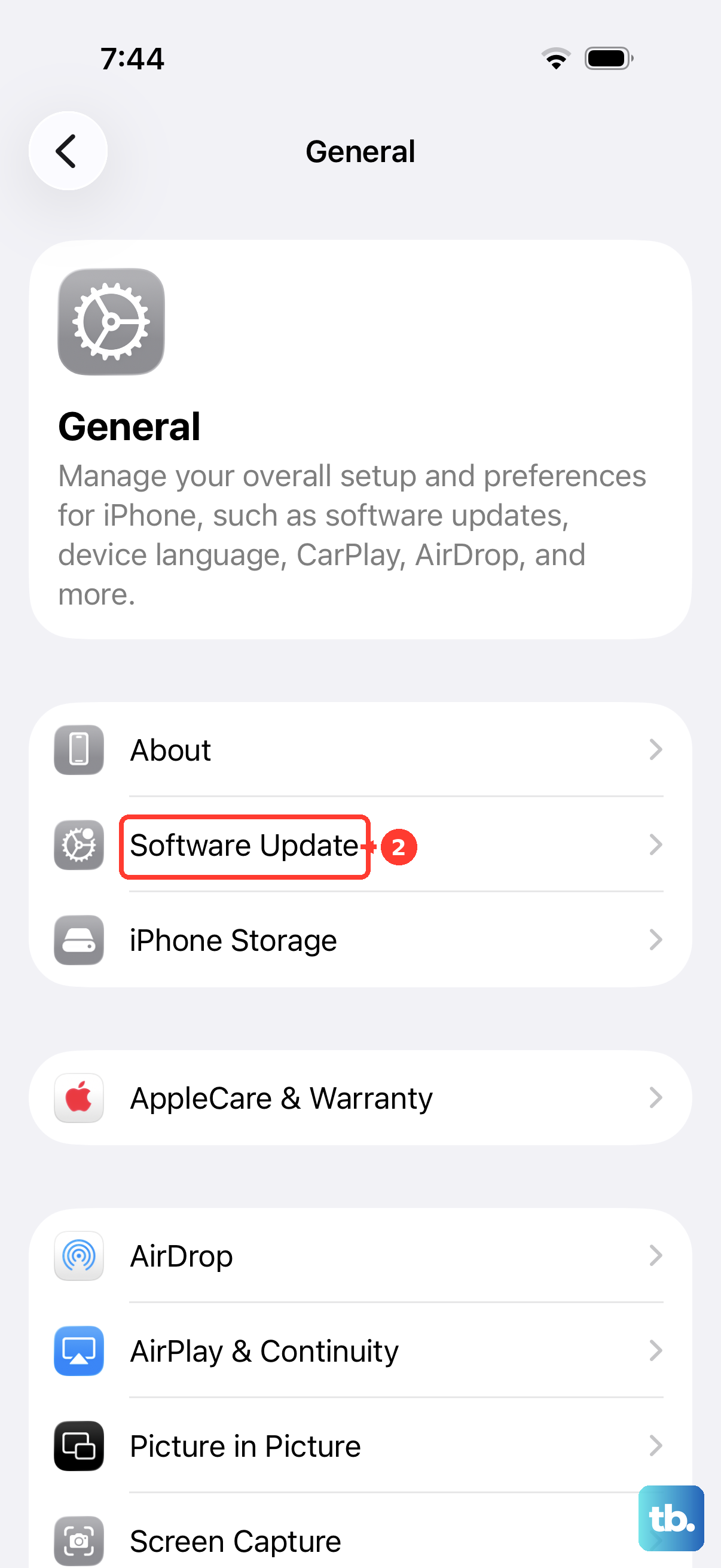
To check, go to Settings, tap General, tap Software Update, and if an update is available, tap Download and Install, then follow the onscreen instructions. After the update finishes and the phone restarts, try the wireless charger one more time.
Erase the iPhone as a last resort, then contact Apple
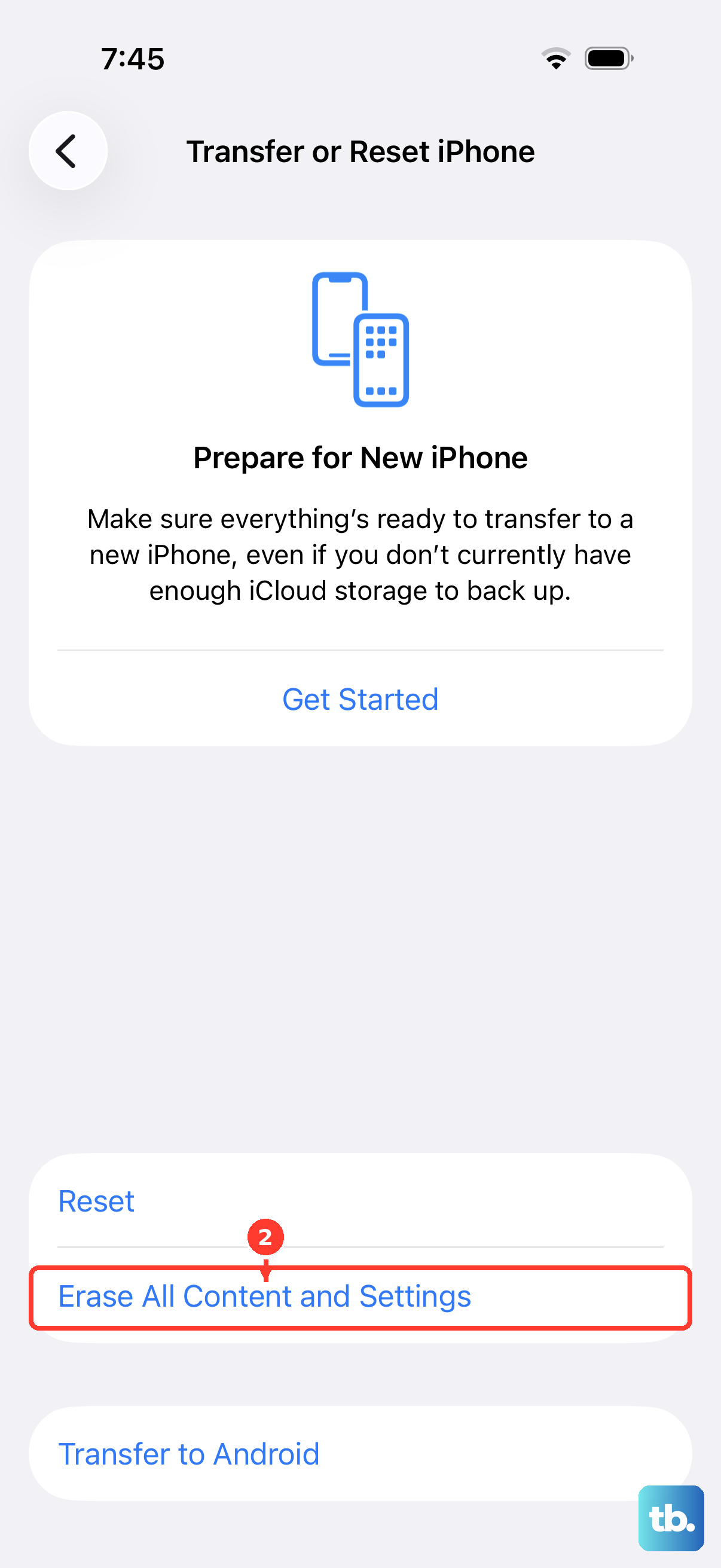
If none of the steps above restore wireless charging, the final software measure is to erase the device. This step erases all of your content and settings, so back up first. Apple's guidance is to "Create a backup. You can restore content, settings, and apps from this backup to a new or newly erased iPhone."
Once your backup is safe, go to Settings, tap General, tap Transfer or Reset iPhone, then tap Erase All Content and Settings. Set the phone back up and test wireless charging again. If wireless charging still fails after every step, your iPhone may need service, so contact Apple Support for repair options, including the Genius Bar or an Apple Authorized Service Provider.
Frequently Asked Questions
Does the iPhone 17e support MagSafe and Qi2 wireless charging?
Yes. According to Apple's tech specs, the iPhone 17e supports MagSafe wireless charging up to 15W and Qi2 wireless charging up to 15W. That is a step up from the iPhone 16e, which only supported 7.5W Qi wireless charging.
What power adapter do I need for the fastest wireless charging?
MagSafe wireless charging up to 15W on the iPhone 17e requires a 20W power adapter or higher. Apple recommends using the power adapter that came with your accessory or one recommended by the manufacturer, since an underpowered adapter can make charging slow or fail.
Why does my iPhone 17e stop charging or slow down on the pad?
If the battery gets too warm, the phone may limit charging to protect it. Apple recommends moving your iPhone and charger to a cooler location, after which charging should continue more normally.
Will updating iOS erase my data?
No. Apple states that when you update through Settings, General, Software Update, "your data and settings remain unchanged." Updating is one of the safest troubleshooting steps for charging problems.
What should I do if nothing fixes the wireless charging?
After backing up and erasing the device with no success, contact Apple Support. If your device still will not charge, it may need a hardware repair through Apple Support, the Genius Bar, or an Apple Authorized Service Provider.