
When the volume buttons on your brand new iPhone 17e stop responding, it can feel like you're stuck with a fancy mute brick. You press the buttons and get nothing back, no haptic click, no volume change, no sign of life. Since the 17e is a fresh release, early software bugs are a real possibility, but the majority of these button hiccups are still solvable at home.
Before you schedule a Genius Bar appointment, work through these fixes. I'd start with the case removal and force restart, as they resolve most temporary glitches.
Remove Your iPhone 17e Case
This is always the first thing to check. Take off whatever case you're using. Even a slim MagSafe case can shift and put pressure on the buttons, especially if it's a third-party model not perfectly molded for the 17e's specific chassis.
With the case off, press the volume buttons directly. You might feel a difference immediately if the case was the culprit.
Perform a Force Restart
A force restart clears out temporary software gremlins that can make the system ignore your button presses. This is completely safe and won't touch your photos, messages, or apps.
The sequence for your iPhone 17e is the same as recent models: quickly press and release the Volume Up button, then quickly press and release the Volume Down button. Finally, press and hold the Side button.
Keep holding the Side button until you see the Apple logo appear on the screen, then let go. Your phone will reboot. Once it's back on, test those volume buttons straight away.
Check the "Change with Buttons" Setting
It sounds obvious, but sometimes settings get flipped. Open the Settings app and tap on Sounds & Haptics. Scroll down and make sure the switch next to "Change with Buttons" is turned on and glowing green.
If it's off, your physical buttons won't control media volume, though they should still control ringer volume. Toggle it on and test again.
Clean Around the Buttons
The iPhone 17e's buttons have tight tolerances. Pocket lint, dust, or a bit of sticky residue from a spill can easily jam the mechanism. Grab a can of compressed air and give short, controlled bursts around the edges of each volume button.
For anything more stubborn, dampen a cotton swab with a tiny amount of isopropyl alcohol (90% or higher is best) and gently wipe around the button seam. Let it dry completely for a minute before testing.
Test the Buttons in Different Apps
Open the Music app and try to change the volume while a song is playing. Then, try it in the Podcasts app or while watching a video on YouTube. If the buttons work in one app but not another, you've isolated the problem to a specific piece of software, not your hardware.
This is a common early-release quirk. An update to the problematic app, or to iOS itself, will likely fix it.
Toggle the Ring/Silent Switch
This old trick still works. Find the physical switch above the volume buttons on the left side of your iPhone 17e. Flip it back and forth from silent to ring a few times. There's a theory this can reset a small connection related to the button assembly.
It only takes a second and has resolved the issue for plenty of people when the problem seems random.
Use the On-Screen Volume Controls
While you're figuring this out, you're not stuck at one volume level. You can always adjust it from Control Center. Swipe down from the top-right corner of your screen to open it, then drag the volume slider up or down.
You can also go to Settings, then Sounds & Haptics, and use the slider there. This is a good way to confirm your phone's audio output itself is working.
Enable AssistiveTouch for Virtual Buttons
Enabling AssistiveTouch does two things: it gives you a workaround, and using the virtual buttons can sometimes jog the system into recognizing the physical ones again. Go to Settings, then Accessibility, then Touch, and finally AssistiveTouch.
Turn the switch on. A small gray circle will appear on your screen. Tap it, then tap Device, and you'll see Volume Up and Volume Down buttons. Tap these virtual buttons a bunch of times, then try your physical buttons again.
Update to the Latest iOS 26 Version
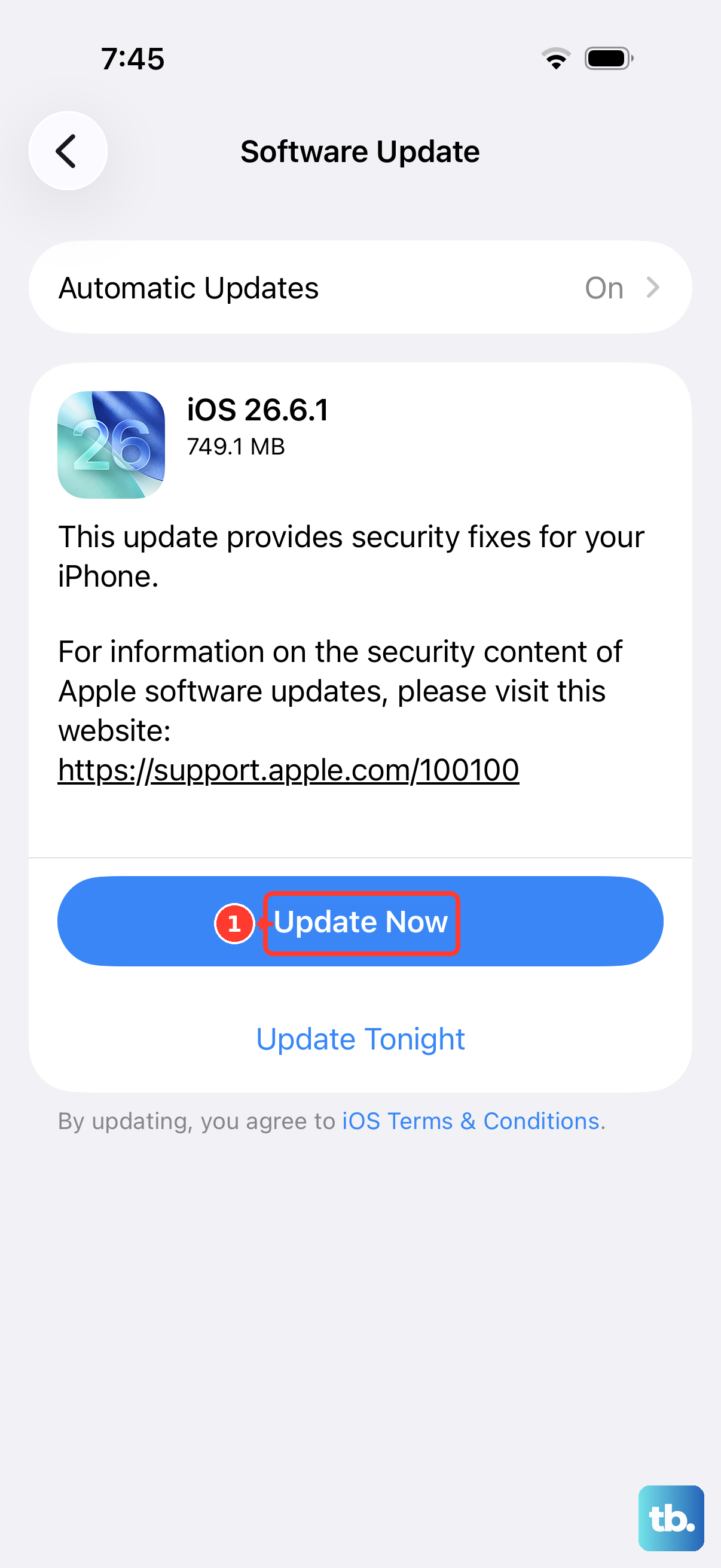
Given the iPhone 17e just hit the market, Apple is almost certainly working on software updates to squash early bugs. Connect your phone to Wi-Fi and plug it into power with its USB-C cable.
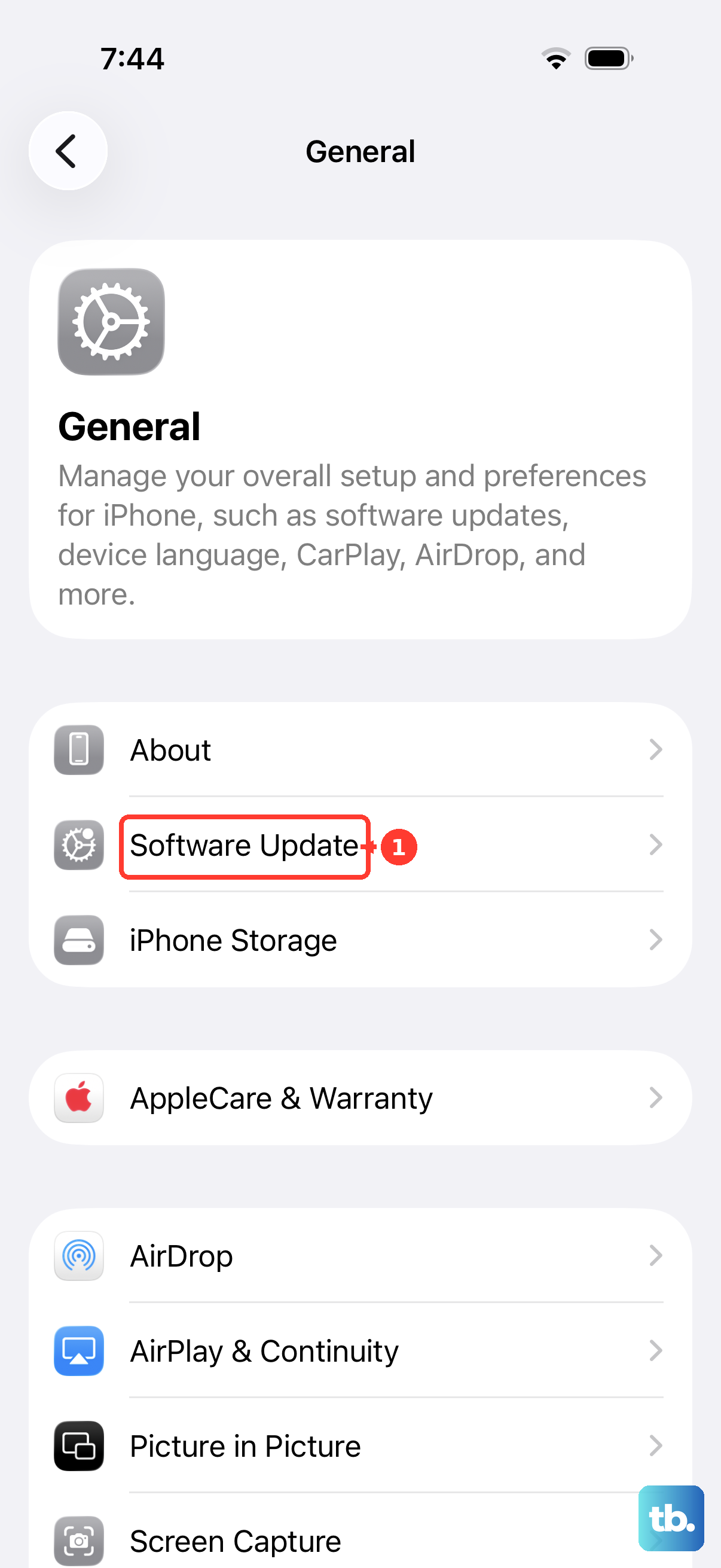
Open Settings, tap General, then Software Update. If an update is available, tap Download and Install. After the update completes, check if your volume buttons have come back to life.
Reset All Settings
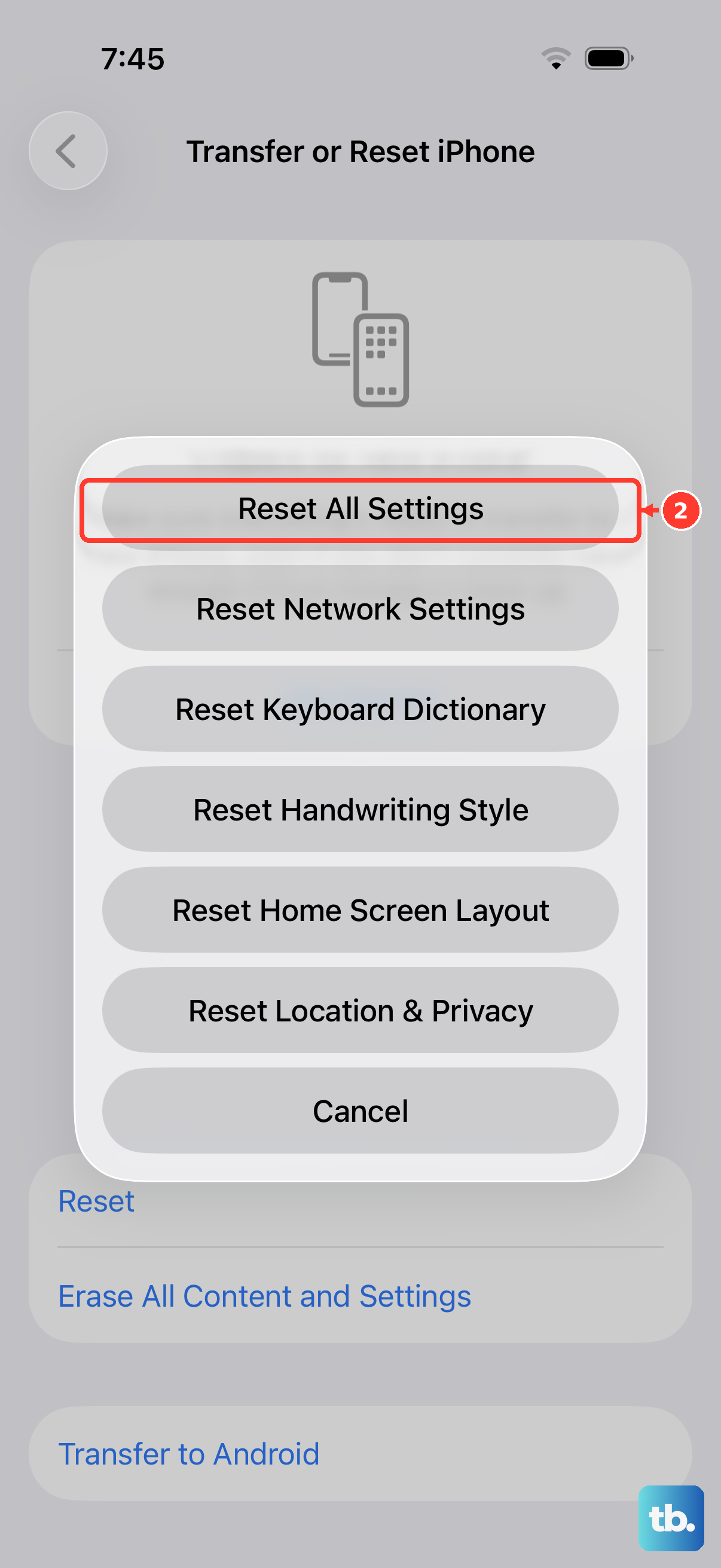
If you're still stuck, a reset of all settings can clear out any corrupted preferences that might be interfering. This won't delete your personal data like photos or messages, but it will wipe your Wi-Fi passwords, wallpaper, and accessibility settings.
Go to Settings, then General, then Transfer or Reset iPhone. Tap Reset, and choose Reset All Settings. Enter your passcode and confirm. Your phone will restart. You'll need to reconnect to Wi-Fi and redo some preferences, but it often fixes persistent glitches.