
If your new iPhone 17e isn't buzzing for calls or notifications, it's a jarring problem, especially on a brand new device. Since the 17e launched in March 2026, there can be early software bugs, but the fixes are usually straightforward. Let's get your haptic feedback working again.
Force Restart Your iPhone 17e
This is the universal first step for any odd behavior on iOS 26. A force restart clears out temporary glitches without deleting any data. It's quick and often solves the issue right away.
On your iPhone 17e, press and quickly release the Volume Up button. Then, press and quickly release the Volume Down button. Finally, press and hold the Side button. Keep holding it until you see the Apple logo appear, then let go.
Check Your Ring/Silent Switch
It sounds obvious, but it's the most common reason for missed vibrations. Look at the left side of your iPhone 17e, above the volume buttons. If you see an orange stripe, the switch is in silent mode.
Flip the switch forward so the orange stripe is no longer visible. You should feel a haptic tap when you switch it back to ring mode. If you don't feel that tap, the switch itself might be stuck or there's a deeper software issue.
Verify Sound & Haptics Settings
Open the Settings app and go to Sounds & Haptics. The very first toggle here is critical: make sure Vibrate is set to Always under both the "Ringtone" and "Text Tone" sections.
While you're here, scroll down to the "Sounds and Vibration Patterns" section. Tap on Ringtone or Text Tone. At the top of the tone list, you'll see "Vibration." Tap it and ensure a pattern like "Symphony" or "Alert" is selected, not "None."
Test with System Haptics
Your iPhone uses the same Taptic Engine for system feedback and ring vibrations. If system haptics work, the hardware is likely fine. Go back to Settings > Sounds & Haptics.
Scroll all the way to the bottom. Make sure System Haptics is turned on. Now, try actions that should give feedback, like pulling down on the Home Screen to search or using the keyboard. If you feel taps here, the motor is working and it's a settings problem.
Review Focus Modes
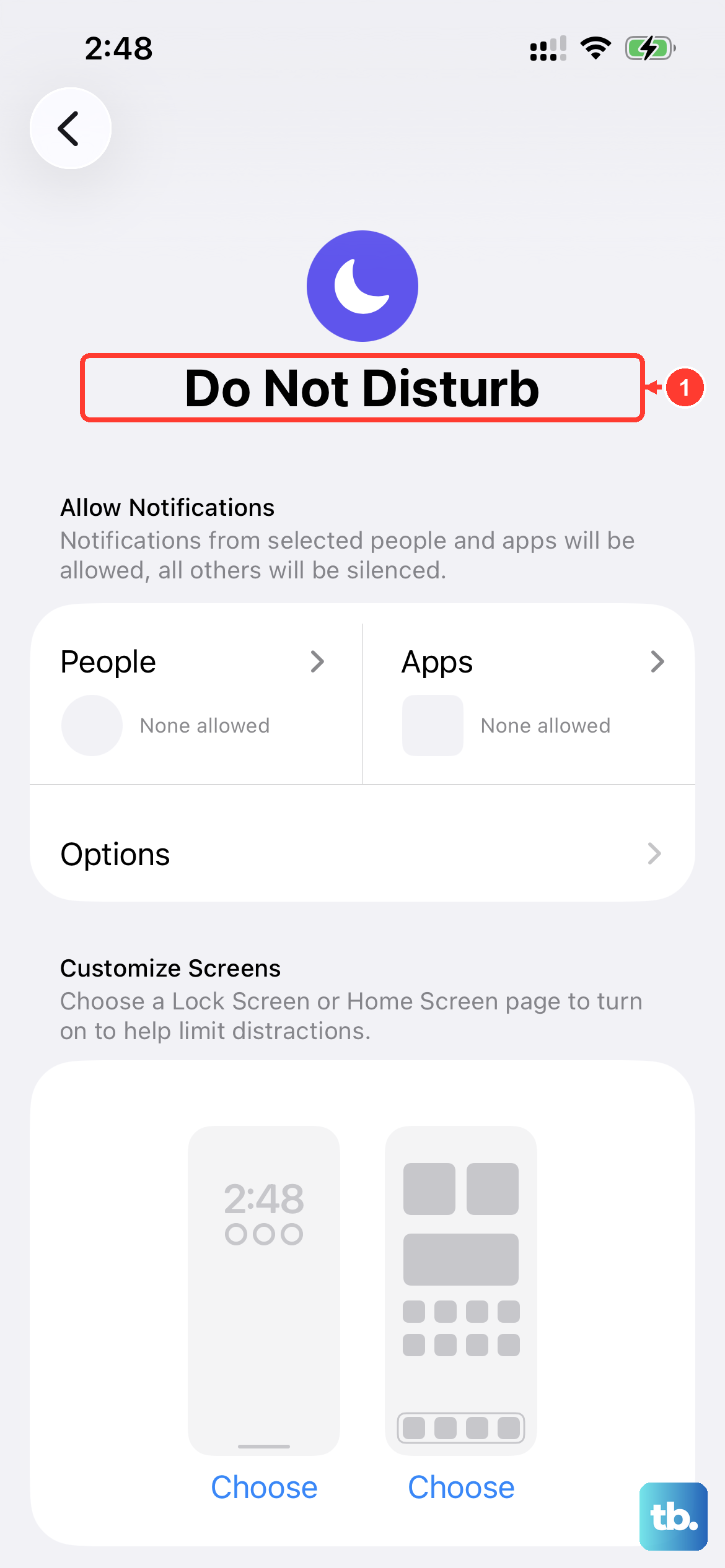
Focus modes in iOS 26 can silently filter notifications, including their vibrations. Swipe down from the top-right corner to open Control Center and look at the Focus icon (it might say "Work," "Sleep," or show a moon).
Tap the Focus tile to see which one is active. If a Focus is on, tap it again to turn it off, or go to Settings > Focus to customize which people and apps are allowed to break through with vibrations.
Check App-Specific Notification Settings
Sometimes the system is set correctly, but an individual app's notifications are configured poorly. Go to Settings > Notifications and select the app that's not vibrating, like Messages or your email client.
Make sure "Allow Notifications" is on. Then, tap on the specific notification type (like "Messages" for the Messages app). Look for the Sounds section and ensure the vibration pattern is not set to "None."
Update to the Latest iOS 26 Version
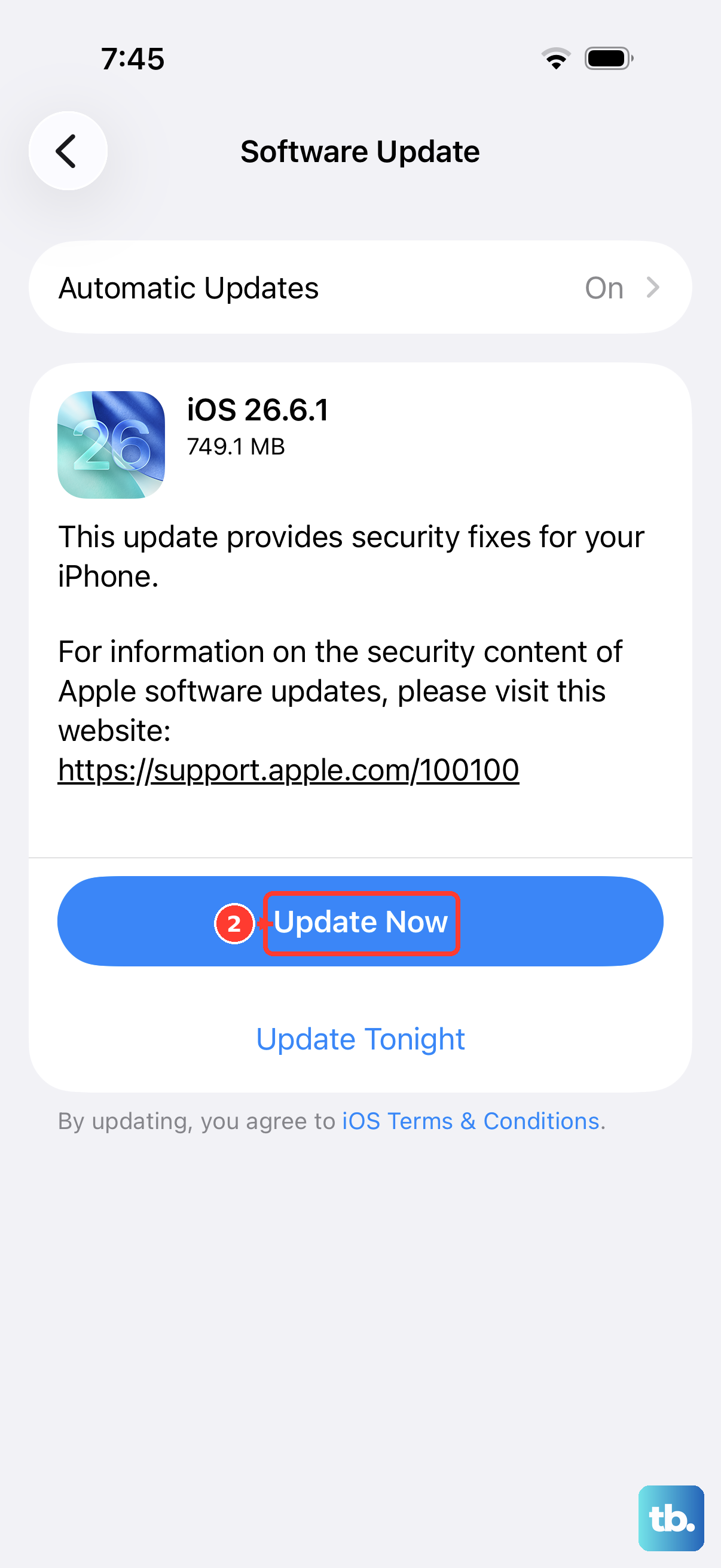
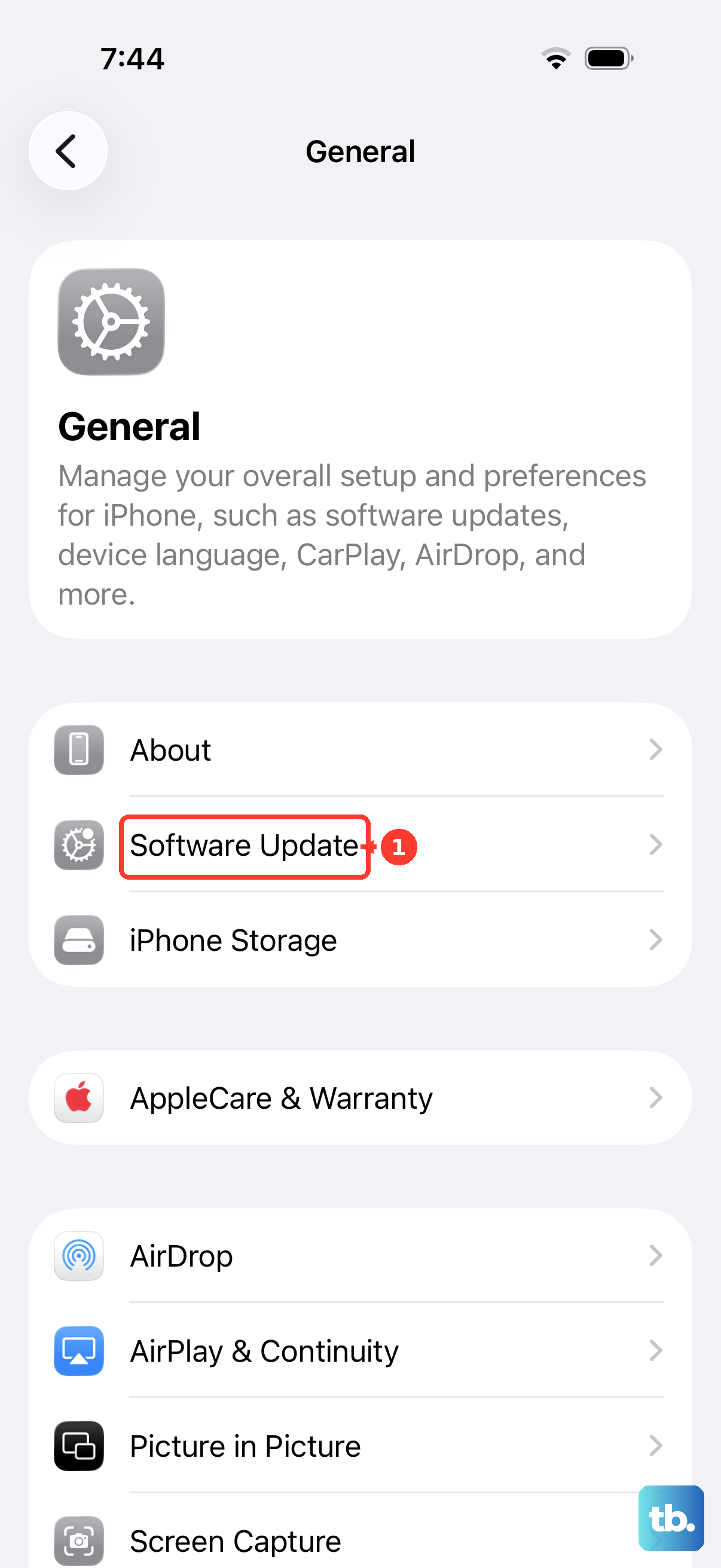
As an early 2026 release, the iPhone 17e is prone to receiving bug-fix updates. Apple often addresses haptic and sensor issues in point updates. Connect to Wi-Fi and go to Settings > General > Software Update.
Download and install any available update. I've seen minor iOS updates resolve haptic inconsistencies on previous models, and it's a good practice with any new device.
Reset All Settings
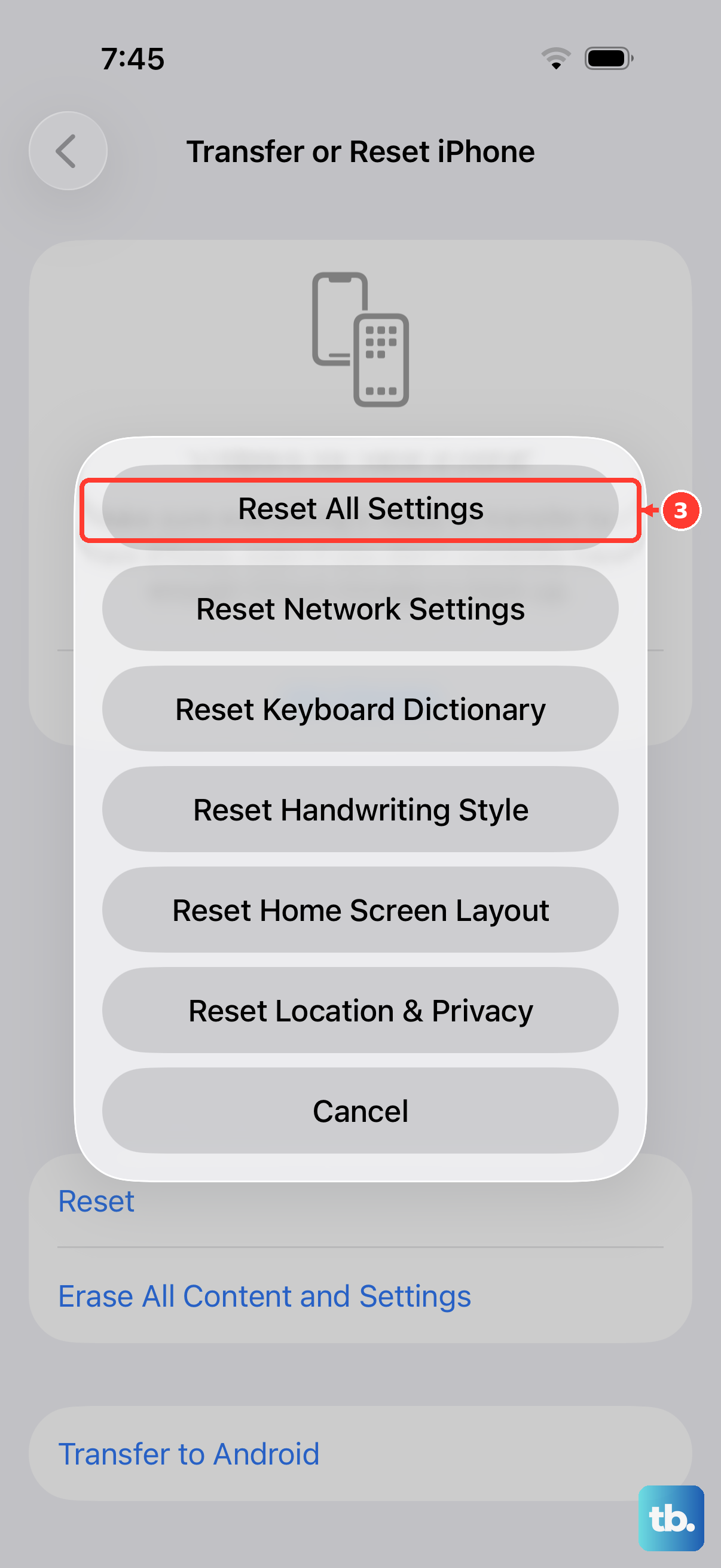
This is a more thorough step that won't erase your photos or apps, but it will reset all your preferences. It clears any corrupted settings data that might be interfering with the vibration system.
Go to Settings > General > Transfer or Reset iPhone. Tap Reset and then choose Reset All Settings. You'll need to enter your passcode and confirm. Your iPhone will restart and you'll have to reconfigure things like Wi-Fi passwords and wallpaper, but it often fixes stubborn issues.
Test in Safe Mode (Diagnostic State)
While iOS doesn't have a traditional "Safe Mode," you can test if a third-party app is causing the issue. Try turning your phone off and on again. Immediately after it powers on, don't unlock it or open any apps.
Have someone call you or send a test message while the phone is still on the Lock Screen. If it vibrates now, but not after you start using your apps, a recently installed app is likely the culprit. Try uninstalling apps you added around the time the problem started.
Consider a Hardware Check
If none of the software steps work and you feel no haptic feedback anywhere, there's a small chance it's hardware-related. The iPhone 17e uses the same advanced Taptic Engine as the Pro models for precise vibrations.
Since the device is so new, it would be covered under Apple's one-year warranty. You can use the Apple Support app to run a remote diagnostic, which can sometimes detect issues with the haptic hardware. They can guide you through the next steps, which may involve a repair or replacement.