
If your new iPhone 17e feels sluggish online, you're not imagining things. A slow internet connection on a brand new phone is especially annoying, but it's usually something you can fix yourself. I'd start with the quick fixes below, as they solve most early iOS 26 hiccups.
Toggle Airplane Mode and Restart
This is the fastest way to refresh your cellular and WiFi connections. Swipe down from the top-right corner to open Control Center and tap the airplane icon. Wait about ten seconds, then tap it again to turn it off. Your iPhone 17e will reconnect to the best available network, which often gives speeds an immediate boost.
If that doesn't do it, a full restart is the next logical step. On your iPhone 17e, quickly press and release the Volume Up button, then quickly press and release the Volume Down button. Finally, press and hold the Side button until you see the Apple logo appear, then let go.
Check Your Cellular Data Mode
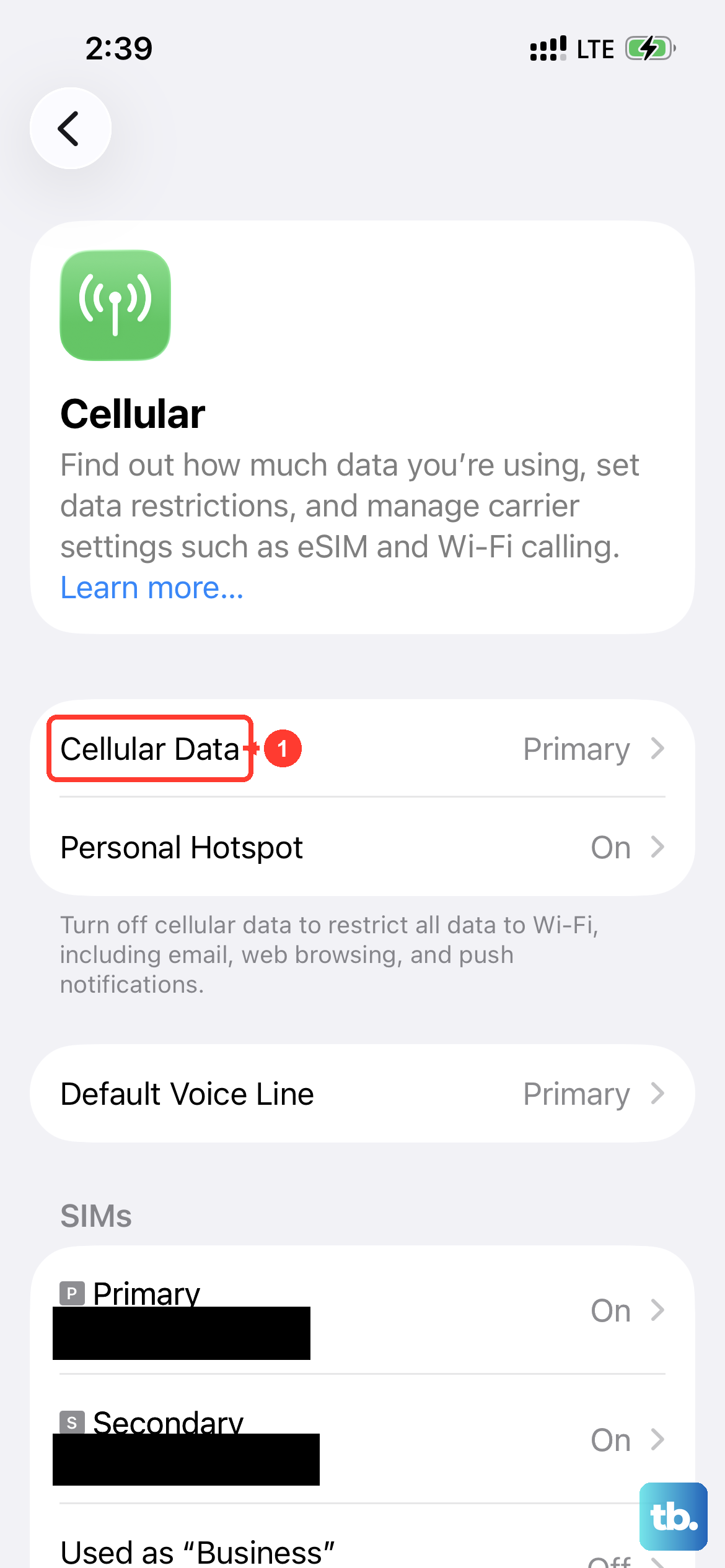
Your iPhone 17e is the first budget model with the C1X cellular modem, which is designed for efficient 5G. Sometimes, it might get stuck on a slower network mode. Go to Settings > Cellular > Cellular Data Options > Voice & Data.
Make sure "5G Auto" or "5G On" is selected for the fastest speeds. If you're in an area with spotty 5G, switching to "LTE" can sometimes provide a more stable and consistent connection than a weak, fluctuating 5G signal.
Disable Wi-Fi Assist for a Moment
Wi-Fi Assist is designed to switch to cellular data when your Wi-Fi is poor, but it can sometimes misinterpret a solid Wi-Fi signal. This can cause your phone to bounce between networks, slowing everything down. To check, go to Settings > Cellular and scroll all the way to the bottom.
Turn Wi-Fi Assist off for a few minutes while you test your internet speed on Wi-Fi. If your Wi-Fi speed improves, you know the feature was causing interference. You can turn it back on later if you need it for when you're actually on a weak network.
Clear Your Safari Cache and History
Overloaded website data can bog down your browser. Clearing it is straightforward. Open the Settings app and tap on Safari. Scroll down and tap Clear History and Website Data.
Confirm your choice. This will log you out of most websites, so have your passwords handy. It only takes a moment and can make a noticeable difference in how quickly web pages load afterward.
Review Background App Refresh
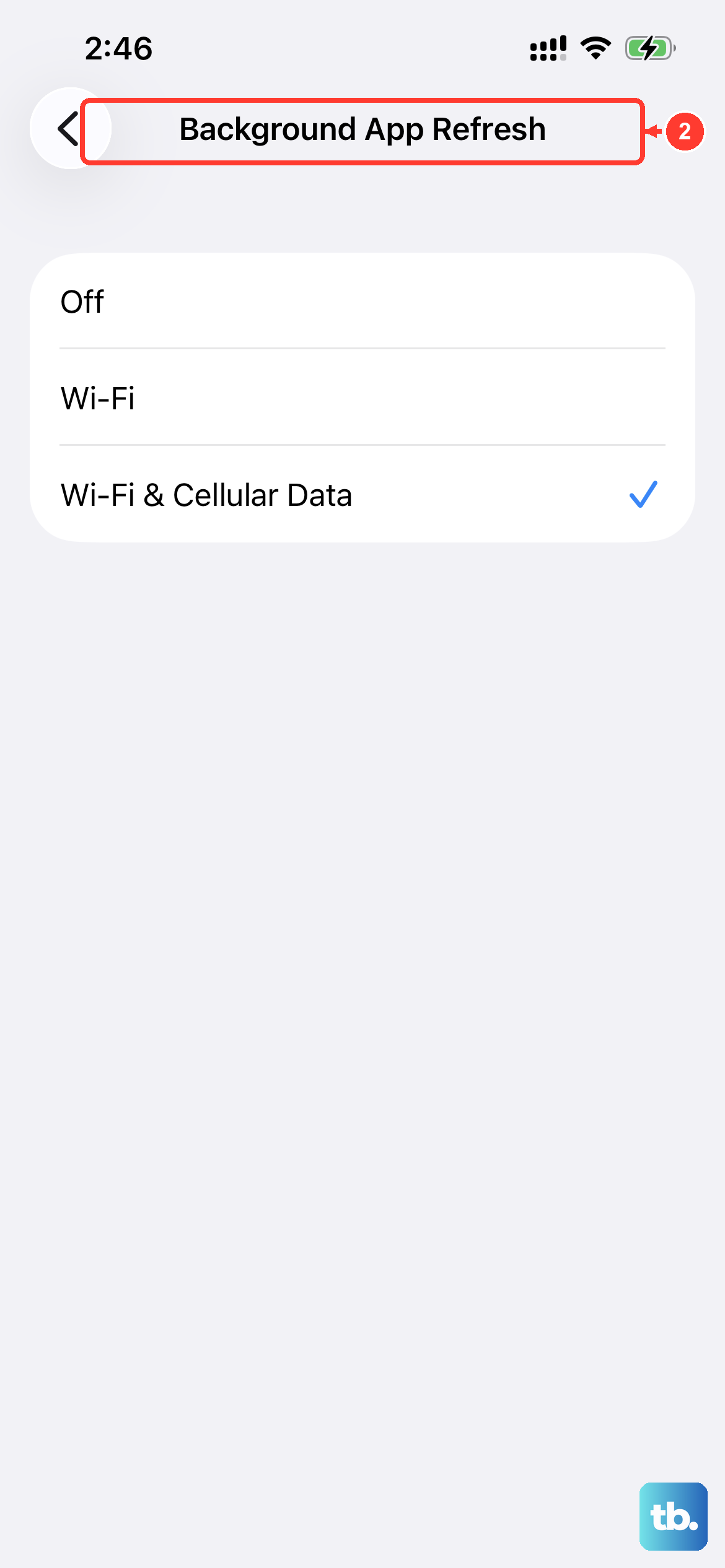
Apps updating in the background use your data connection, which can throttle the speed for what you're actively doing. To manage this, head to Settings > General > Background App Refresh.
You can set it to "Off" entirely, or choose "Wi-Fi" only. For the most control, tap on it and review the list of apps individually, turning off refresh for any that don't absolutely need live updates.
Reset Your Network Settings
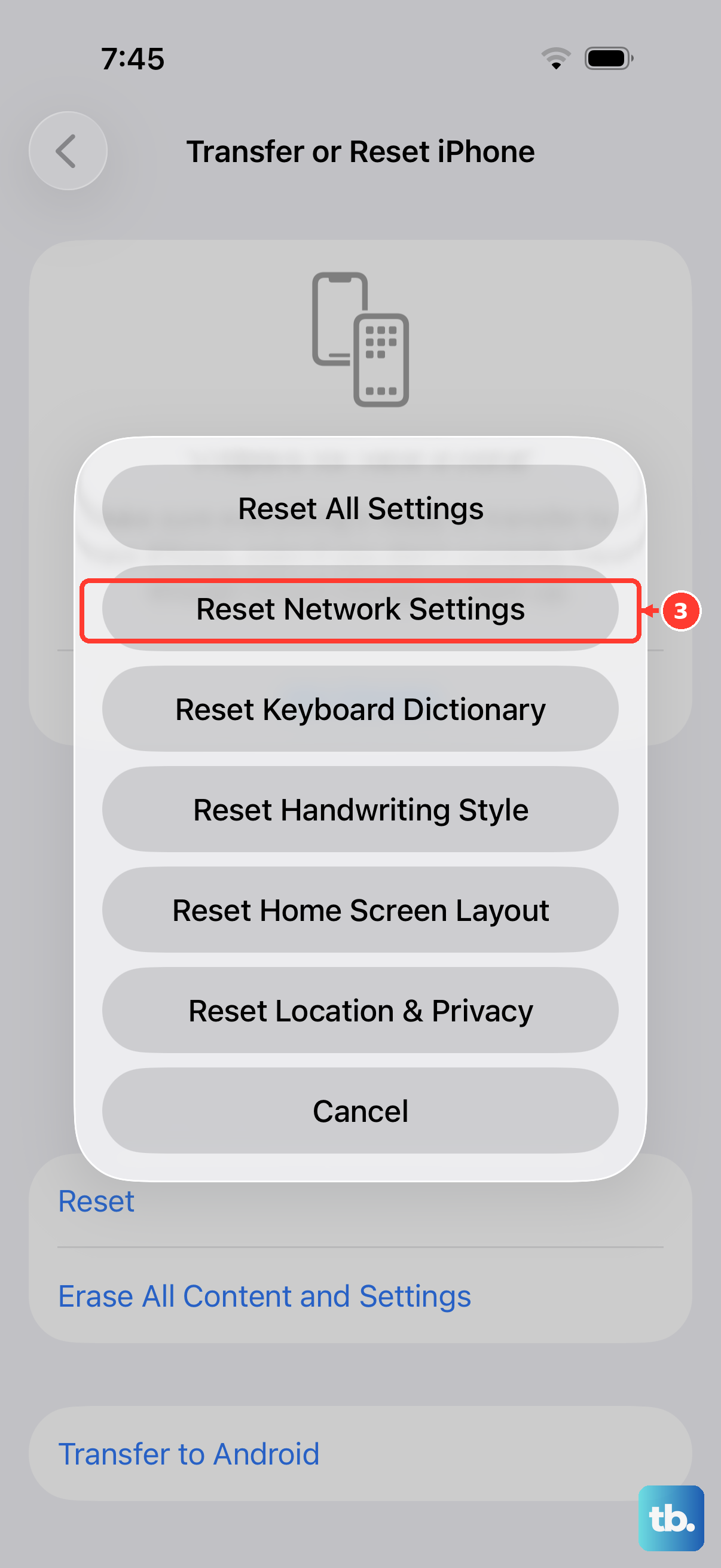
This is a more comprehensive step if the simpler ones haven't worked. It will erase all saved Wi-Fi networks, passwords, cellular settings, and VPN configurations. Go to Settings > General > Transfer or Reset iPhone.
Tap Reset, then choose Reset Network Settings. Your iPhone 17e will restart. Afterward, you'll need to rejoin your Wi-Fi networks and re-enter their passwords. This often clears out obscure network glitches that can cause slowdowns.
Check for a Carrier Settings Update
Apple and your cellular provider occasionally release small updates that improve network connectivity. These don't come through the normal iOS software update. To check, make sure you have a cellular connection or are connected to Wi-Fi.
Then, go to Settings > General > About. If an update is available, a prompt will appear on this screen. Installing it can resolve compatibility issues between your iPhone 17e and your carrier's network.
Turn Off iCloud Private Relay
This privacy feature, part of iCloud+, routes your Safari traffic through separate servers. While great for privacy, it can sometimes introduce latency. To see if it's affecting you, open Settings and tap your name at the top, then tap iCloud.
Tap Private Relay and toggle it off. Test your browsing speed in Safari. If pages load significantly faster, you'll know Private Relay was the bottleneck. You can choose to leave it off or only enable it for less critical browsing.
Manage Your Location Services
Some apps constantly use your location in the background, which requires data. You can restrict this. Go to Settings > Privacy & Security > Location Services. Review the list of apps and their permissions.
For any non-essential apps, tap on them and set the permission to "Never" or "While Using the App." This prevents them from passively using your data connection when you don't need them to.
Ensure Your iOS is Up to Date
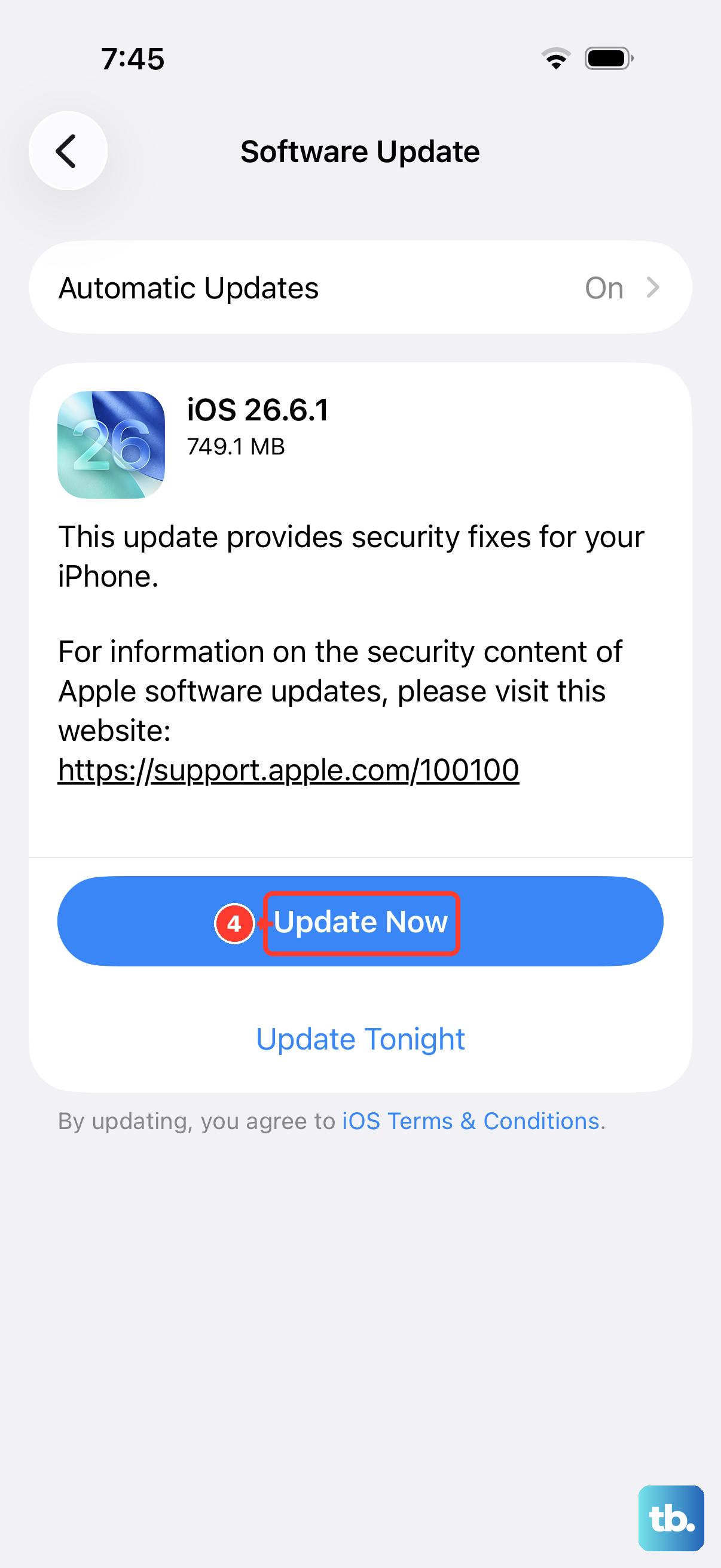
Since the iPhone 17e is a new 2026 model, early software bugs affecting performance are possible. Apple releases updates to fix these. Connect to Wi-Fi and go to Settings > General > Software Update.
If an update is available, tap "Download and Install." These updates frequently include optimizations for the A19 chip and the C1X modem that can directly improve network performance and system stability.