You unlock your iPhone 17e and the 6.1-inch OLED screen starts to shimmer, pulse, or flash, sometimes only at low brightness and sometimes across the whole display. Flickering on a Super Retina XDR panel is unsettling, but on most units it traces back to a setting, a software hiccup, or something physically touching the glass rather than a broken display. The fixes below are ordered from the quickest and safest to the more involved, so start at the top and stop as soon as the flicker disappears.
A browser based online monitor test cycles solid colors and gradients across the whole screen, which helps you confirm whether the panel itself shows the fault.
Work through them in order. Each one rules out a likely cause, which means that by the time you reach the official reset or support steps you will already know the problem is probably not a smudge, a setting, or a misbehaving app.
Start With the Glass, the Case, and the Screen Protector
Before changing any settings, treat the flicker as a physical problem first. Make sure the screen is clean and free of any debris or water, and remove any case or screen protector.
Smudges, moisture, or a poorly fitted protector can scatter light in a way that reads as flicker, and a too-thick case lip can press on the edge of the panel.
Watch the screen for a minute or two with the case and protector removed.
If the shimmer eases, the accessory was the cause, and you can refit a thinner or better-aligned one.
If nothing changes, move on to the settings below.
Turn Off Auto-Brightness So the Screen Stops Chasing the Light
The iPhone 17e adjusts brightness automatically using its ambient light sensor, and in changing light those adjustments can look exactly like flickering. Turning the feature off is one of the most common cures for a screen that seems to pulse as you move around a room.
Open Settings > Accessibility > Display & Text Size.
Scroll to Auto-Brightness.
Tap to turn it off.
Watch the screen for a few minutes with the feature disabled.
If you prefer a fixed level afterward, set a steady brightness in Settings > Display & Brightness, or open Control Center and drag the brightness bar up or down.
Restart the iPhone 17e to Clear a Temporary Glitch
A normal restart clears the small temporary glitches that can build up while the phone has been running for a while, and it costs you nothing. Use the standard power-off sequence rather than forcing anything at this stage.
Press and hold either volume button and the side button until the power-off slider appears.
Drag the slider, then wait 30 seconds for the device to turn off.
To turn it back on, press and hold the side button until you see the Apple logo.
Give the screen a few minutes of normal use after it boots.
A clean restart resolves a surprising share of intermittent display oddities.
Force Restart When the Display Is Frozen or Glitching
If the screen is frozen, glitching badly, or unresponsive to taps, a force restart cuts power to the system without going through the normal shutdown. This does not erase your data, so it is safe to use even when the screen is misbehaving.
- 1.Press and quickly release the volume up button.
- 2.Press and quickly release the volume down button.
- 3.Then press and hold the side button until you see the Apple logo (this might take longer than 10 seconds).
Keep holding the side button through that pause; releasing too early simply cancels the sequence.
Once the Apple logo appears you can let go and let the phone start normally.
Install the Latest iOS 26 Update
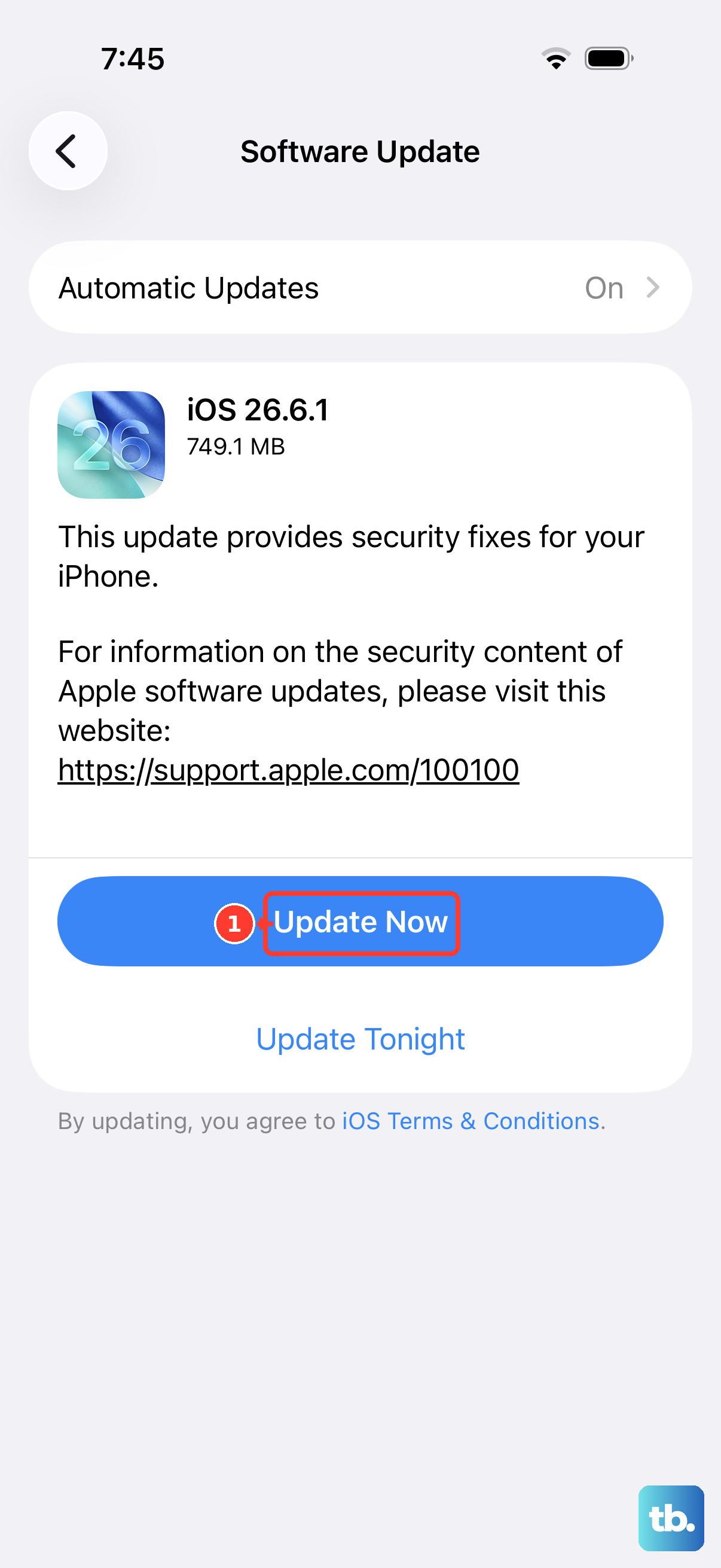
Display bugs are frequently fixed in software, so an iPhone 17e that flickers may simply be waiting for an update it has not yet received. Apple ships these fixes through the standard update channel.
Connect the iPhone to power and Wi-Fi.
Back up your device first.
Go to Settings > General > Software Update.
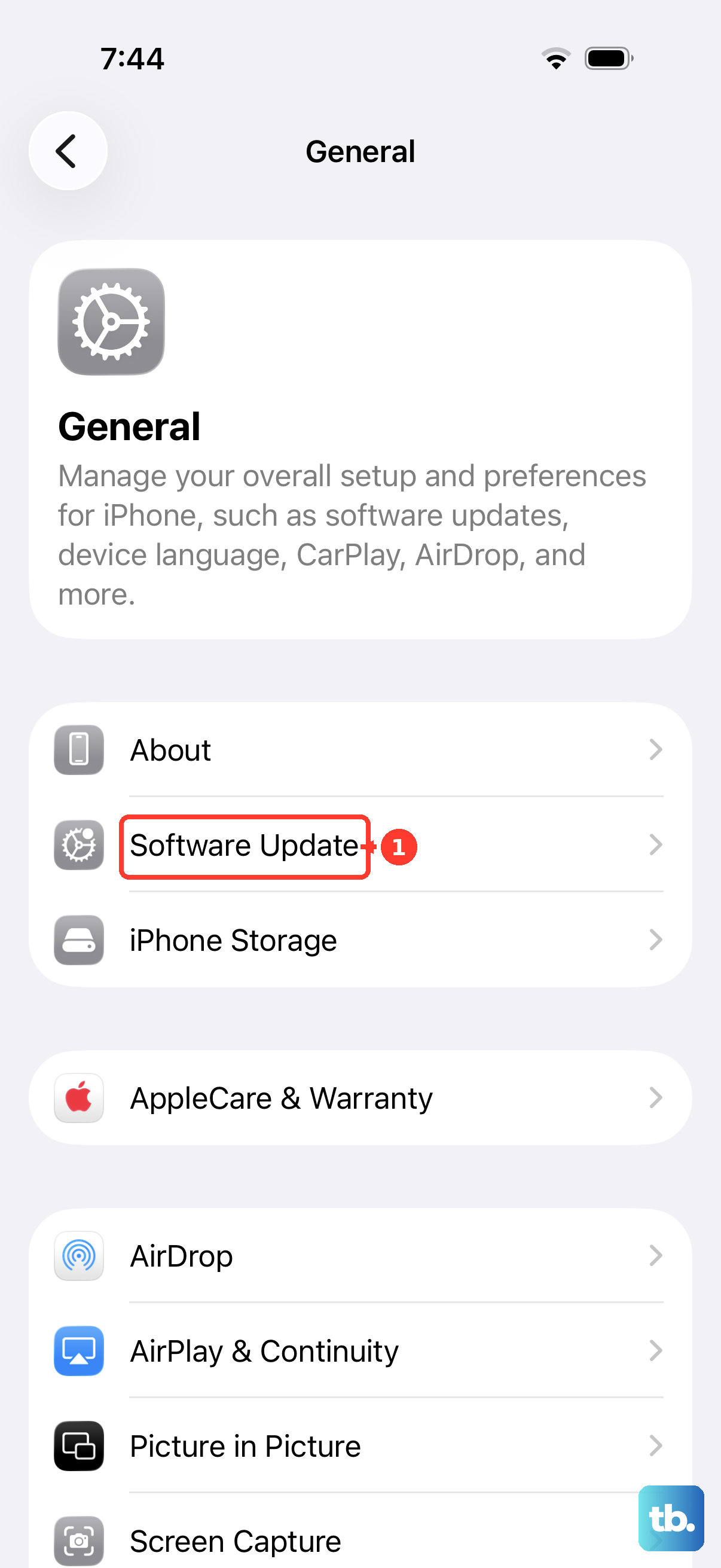
If an update is available, tap Download and Install and follow the onscreen instructions.
Leave the phone connected to power until the update finishes and the device restarts.
After it boots, use it for a while to see whether the flicker is gone.
Adjust the Display Accessibility Settings
Some onscreen effects and the way the panel renders bright colors can read as shimmer or flicker rather than steady flashing. Two accessibility settings calm that down without touching your data, and many people find one of them stops the effect entirely.
Go to Settings > Accessibility > Display & Text Size, then turn on Reduce Transparency, which improves contrast by reducing transparency and blurs on some backgrounds.
In the same menu, turn on Reduce White Point, which reduces the intensity of bright colors.
Toggle them one at a time so you can tell which one helped.
Reduce Onscreen Motion to Tame Animation Shimmer
If the flicker seems tied to scrolling, opening apps, or moving around the Home Screen, interface animations may be the culprit rather than the panel itself. Cutting that motion can remove the apparent shimmer.
Go to Settings > Accessibility.
Select Motion.
Turn on Reduce Motion.
This reduces the motion of the user interface, including the parallax effect of icons.
With it on, the Home Screen and transitions become noticeably calmer, which often settles motion-related flicker.
Remove a Recently Installed App
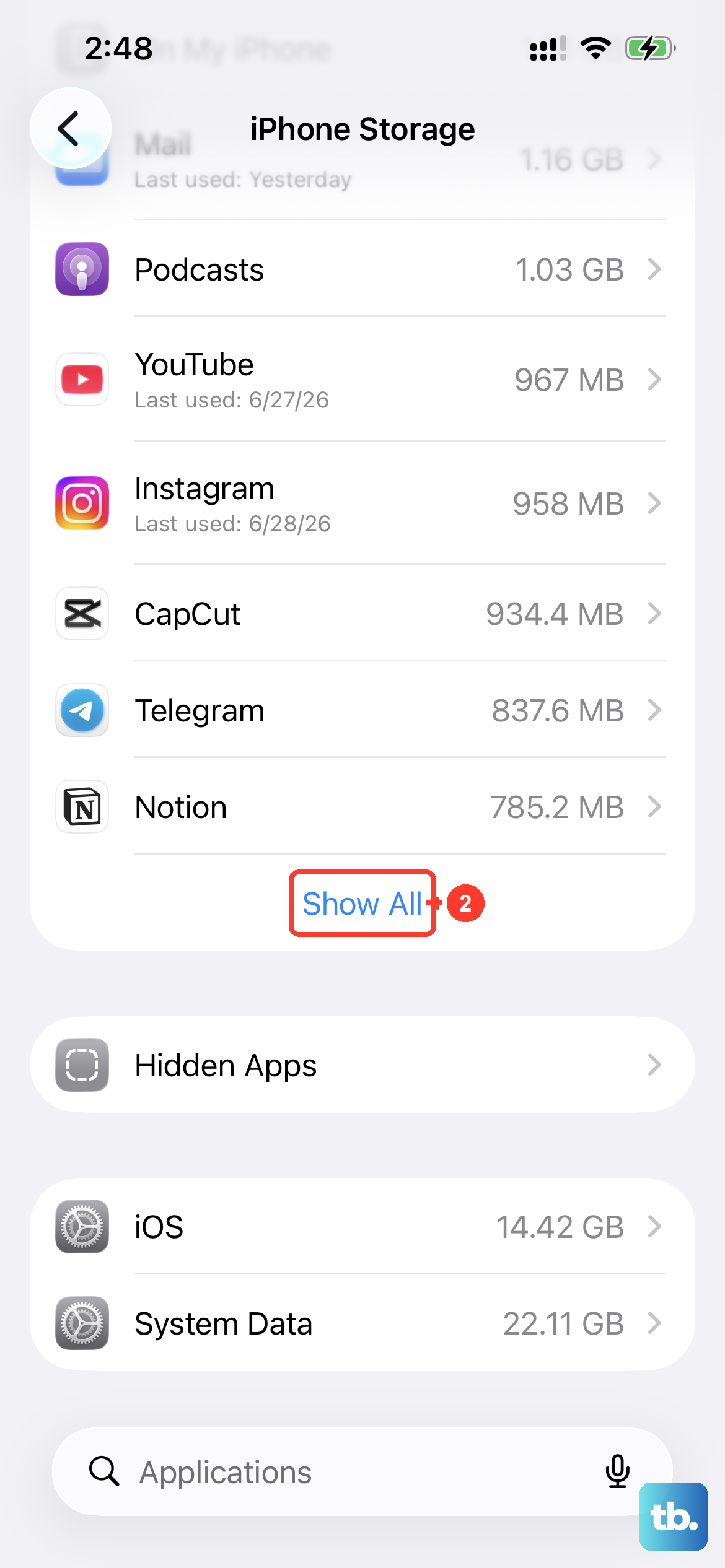
A single misbehaving third-party app can make the screen act up while the rest of the system is fine. The iPhone has no Android-style Safe Mode for booting without third-party apps, so the right way to test this is to delete the app you installed just before the flickering started.
Go to Settings > General > iPhone Storage.
Select the app you suspect.
Choose Delete App.
Use the phone normally for a while afterward and watch the screen.
If the flicker stops, that app was the cause, and you can decide whether to reinstall it or look for an alternative.
Erase All Content and Settings as the Last Software Step
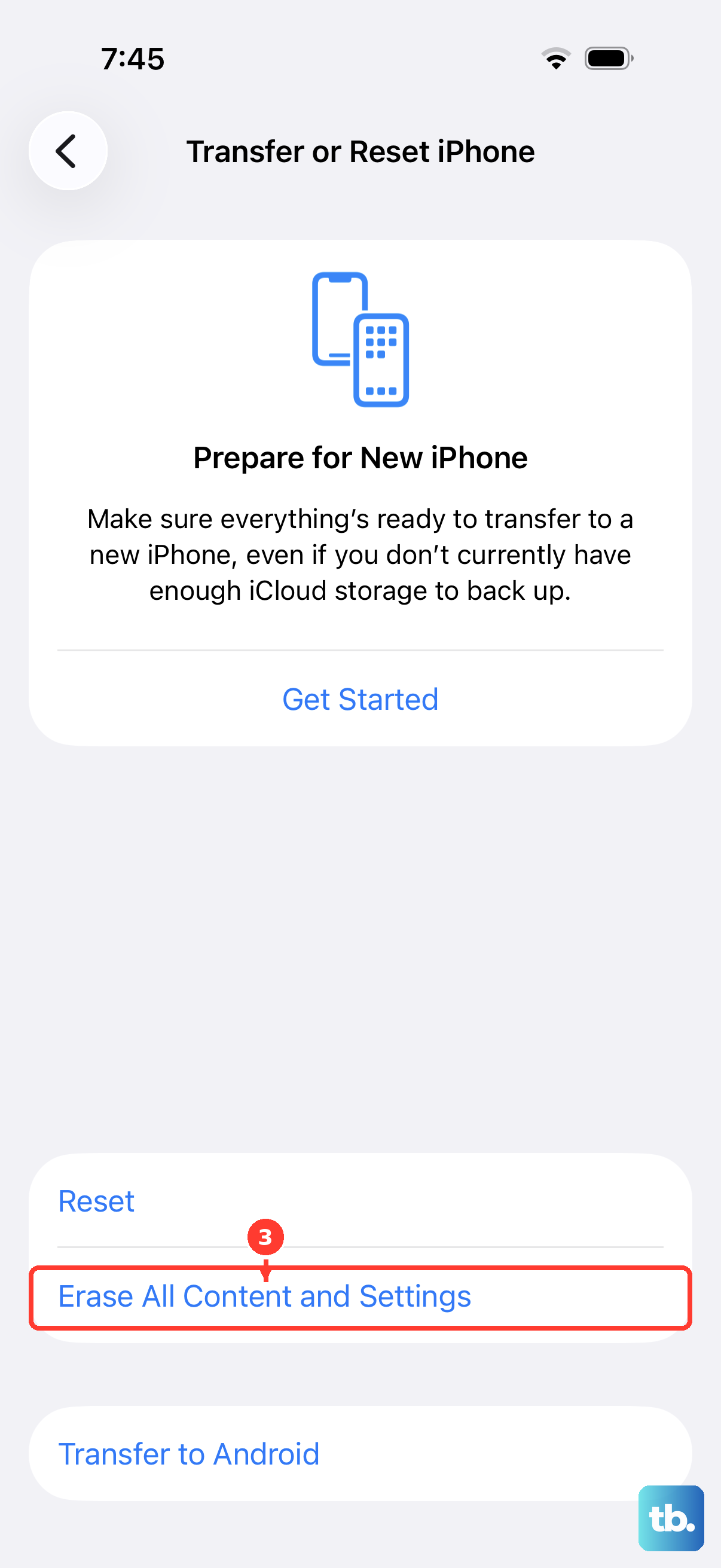
If the flicker persists and still seems software-related, erasing the iPhone returns it to a clean factory state and clears out any deeper configuration problem. This is a destructive step, so a backup is essential before you begin, because erasing restores the iPhone to factory settings and removes your content and settings.
Back up your iPhone first.
Go to Settings > General > Transfer or Reset iPhone > Erase All Content and Settings.
Enter your passcode or Apple Account password, then confirm.
Because the iPhone 17e is eSIM-only, the erase flow lets you choose to keep or erase your eSIM.
If you erase it, you will need to contact your carrier to reactivate cellular service, so keep the eSIM unless you have a reason to remove it.
When to Contact Apple Support or Set Up a Repair
If the screen still flickers after every software step above, the cause is more likely hardware than settings. Apple's guidance is that if your screen still is not working you might need to set up service, so this is the point to hand it to a technician.
Reach out through Apple Support, or book the Genius Bar or an Apple Authorized Service Provider.
A technician can inspect the iPhone 17e in person and explain repair options using genuine Apple parts, which is the safest path once a display fault is suspected.
Frequently Asked Questions
Does a force restart erase my iPhone 17e data?
No. The force restart sequence (press and quickly release volume up, press and quickly release volume down, then press and hold the side button until the Apple logo appears) only cuts power to the system to clear a frozen or glitching display. Your photos, apps, and settings stay in place.
Why does my screen seem to flicker when the lighting in the room changes?
That is usually Auto-Brightness adjusting the display to match the ambient light, which can look like flickering. Turn it off in Settings > Accessibility > Display & Text Size by scrolling to Auto-Brightness and tapping it off, then set a steady level in Settings > Display & Brightness if you prefer.
Is there a Safe Mode I can use to test for a bad app?
The iPhone has no Android-style Safe Mode that boots without third-party apps. The equivalent step is to delete the app you installed right before the flickering began through Settings > General > iPhone Storage, then check whether the screen behaves normally.
Do I need to back up before Erase All Content and Settings?
Yes. Erase All Content and Settings restores the iPhone to factory settings and removes your content and settings, so back up first or you will lose your data. The flow also lets you keep or erase your eSIM, and erasing it means contacting your carrier to reactivate service.
What should I do if the flicker continues after every software step?
Treat it as a likely hardware issue. Contact Apple Support or book the Genius Bar or an Apple Authorized Service Provider so a technician can inspect the iPhone 17e and explain repair options using genuine Apple parts.