
Missing important calls on your new iPhone 17e can be a real headache. You're expecting it to ring, but it stays silent and you only see the missed call notification later. There can be a few software quirks to sort out. Work through the fixes below to get your ringer working properly.
Check the Action Button First
Your iPhone 17e doesn't have the old physical ring/silent switch. Instead, it uses the Action Button on the left side. By default, pressing and holding this button toggles between ring and silent modes. When you switch, you'll see a visual confirmation appear at the top of the screen.
If you've customized the Action Button for another function, like the flashlight or camera, it won't control your ringer. To check or change it, go to Settings > Action Button. Swipe left or right to select "Silent Mode" if you want it to control your ringer.
Turn Off Focus and Do Not Disturb
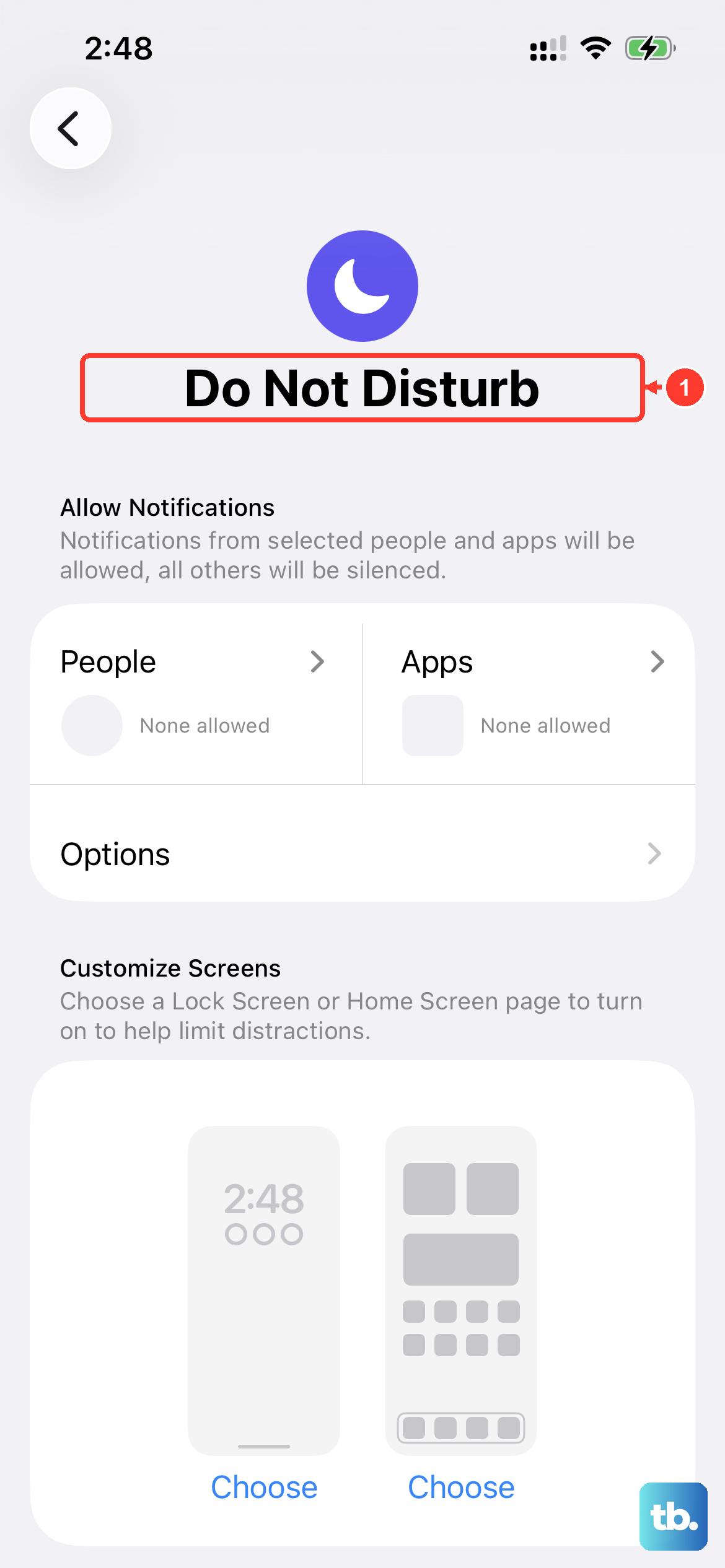
Focus modes are a common culprit. If Do Not Disturb, Sleep, or a custom Focus is active, calls will be silenced. Swipe down from the top-right corner to open Control Center and look for a highlighted moon or Focus icon. Tap it to turn it off.
You should also check your schedules. Go to Settings > Focus. Look at each Focus profile and make sure "Turn on Automatically" isn't set for a time or location you're currently in. Turn off any automatic schedules while you're troubleshooting.
Adjust Your Ringer Volume
This sounds simple, but it's worth checking. Go to Settings > Sounds & Haptics and, under "Ringtone and Alerts," drag the slider all the way to the right.
While you're there, consider turning off "Change with Buttons." With it off, the volume buttons only change media volume, so you can't turn the ringer down by accident.
Disconnect From Bluetooth Accessories
If your iPhone 17e is connected to AirPods or a car stereo via Bluetooth, incoming call audio might be routed there. Your phone itself would stay silent. The quickest fix is to turn Bluetooth off entirely to test.
Swipe into Control Center and tap the Bluetooth icon to disconnect your accessories. To turn Bluetooth off entirely, go to Settings > Bluetooth and toggle it off. Try having someone call you now. If it rings, you know the issue is with the audio routing to your accessory.
Review Your Call Settings

A few settings in the Phone app can silently block calls. Check them one by one. First, open Settings > Apps > Phone. Scroll to "Screen Unknown Callers" and make sure it's set to Never. If it's set to Silence, any number not in your contacts goes straight to voicemail.
Next, in the same menu, tap "Call Forwarding." Ensure this is set to OFF. If it's on, calls are being sent to another number without your phone ever ringing. Finally, go to Settings > Privacy & Security > Blocked Contacts to make sure you haven't accidentally blocked the person trying to reach you.
Try a Different Ringtone
Switching to a different ringtone is a quick way to rule out a problem with your current tone. Go to Settings > Sounds & Haptics > Ringtone.
Choose a different built-in tone from the list. Exit settings and have a friend call you to test. If it works, you can switch back to your preferred tone afterward.
Restart Your iPhone 17e
A standard restart clears the phone's temporary memory and can fix a surprising number of issues. A software bug might be causing the silence. Press and hold the side button and either volume button until the power slider appears.
Drag the slider to turn off your phone. Wait about 30 seconds, then press and hold the side button again until you see the Apple logo. For a more thorough reset, you can try a force restart. Quickly press and release the volume up button, then the volume down button, then press and hold the side button until the Apple logo appears.
Update iOS
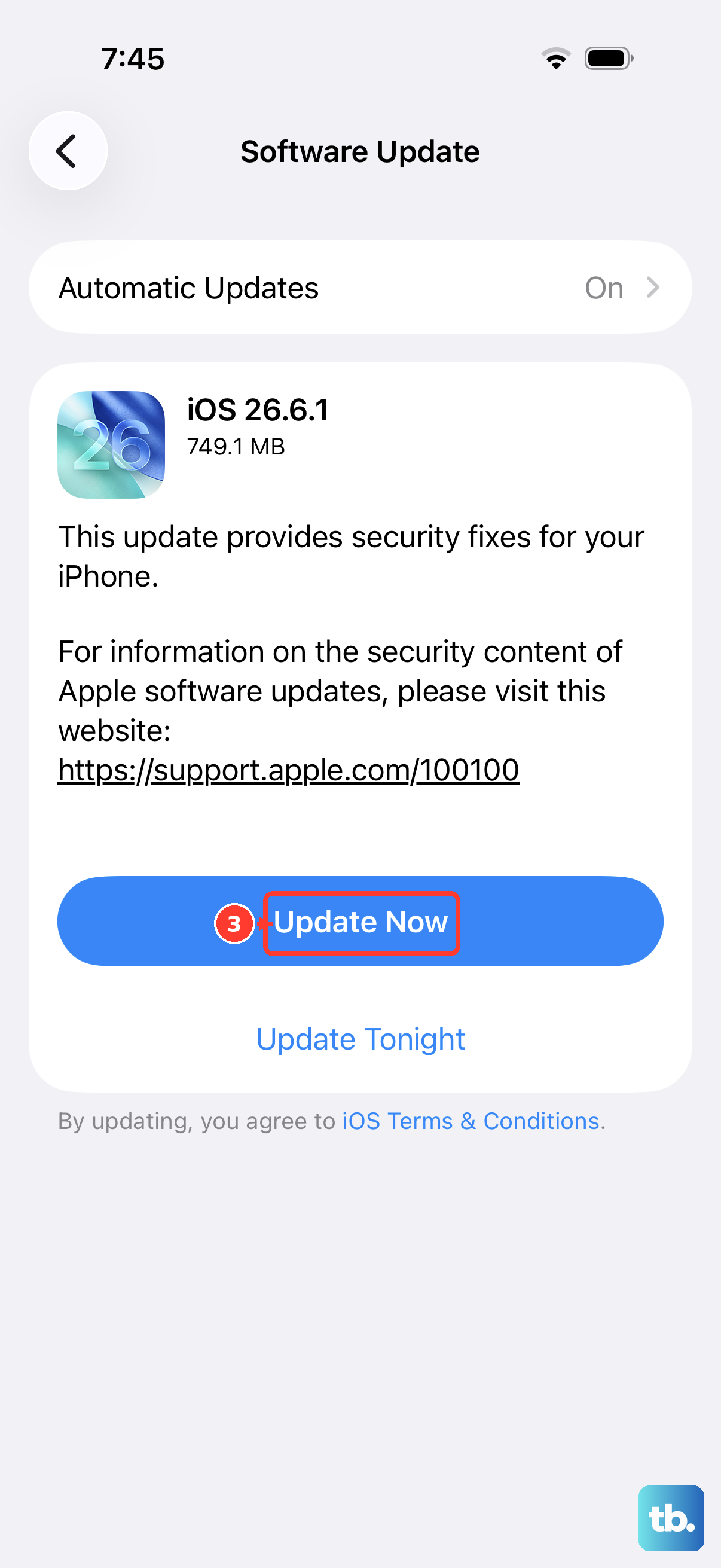
Apple releases iOS updates that patch bugs. An update might directly address calling or audio issues. Make sure your phone is connected to Wi-Fi and plugged into power.
Go to Settings > General > Software Update. If an update is available, tap "Download and Install."
Reset All Settings
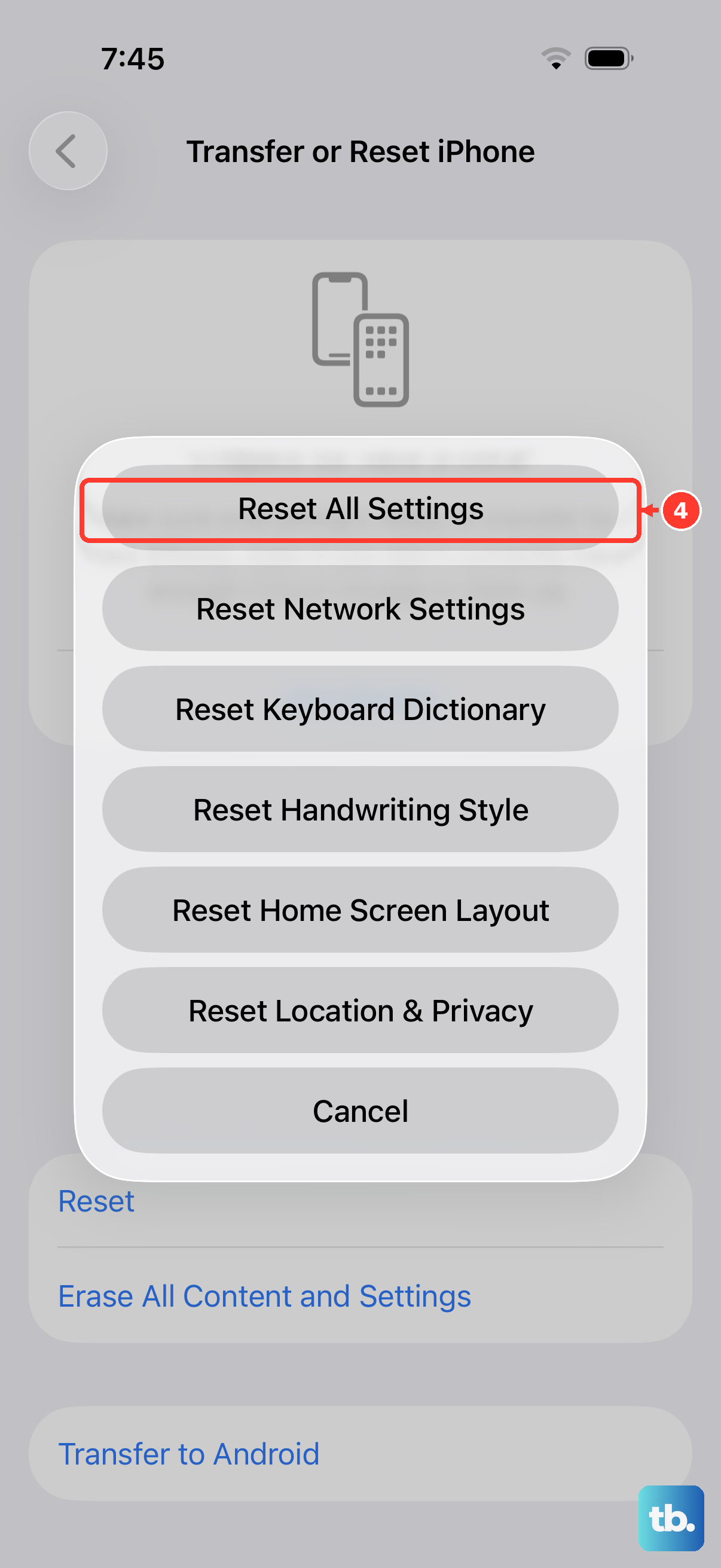
If the problem persists, a settings reset can help. This won't delete your photos, apps, or personal data. It will revert all your system settings, like Wi-Fi passwords, wallpaper, and privacy permissions, back to their defaults. It's a good way to rule out a misconfigured setting.
Go to Settings > General > Transfer or Reset iPhone. Tap "Reset" and then choose "Reset All Settings." Enter your passcode when prompted. After your phone restarts, you'll need to rejoin Wi-Fi networks and adjust some preferences, but your ringer should be back to factory default behavior.
Check App-Specific Calling Issues
Is the problem only with calls from apps like WhatsApp, Signal, or Facebook Messenger? If so, the issue is likely with that app's permissions or settings. First, make sure the app is updated via the App Store.
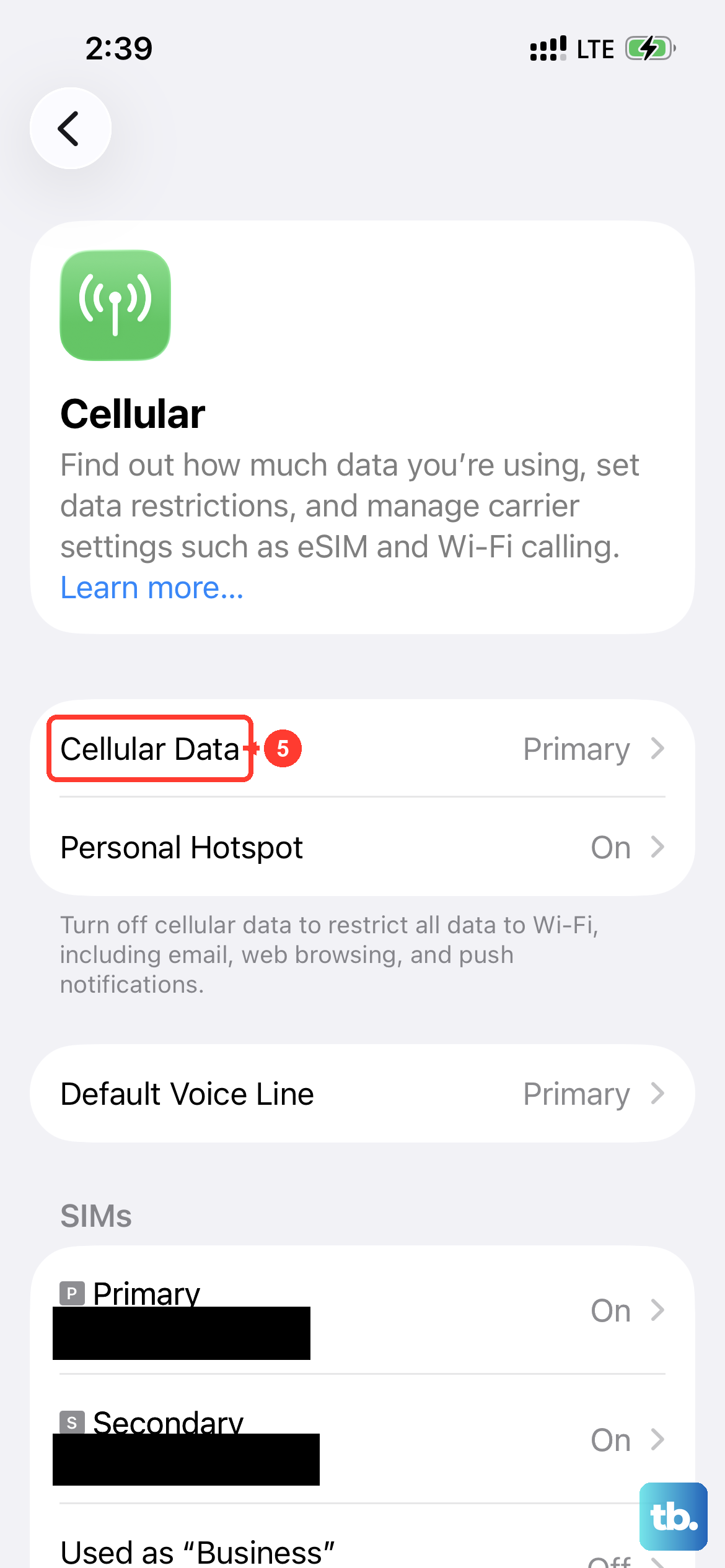
Then, go to Settings > Apps and find the problematic app. Tap on it and select "Notifications." Ensure "Allow Notifications" is on and that "Sounds" is enabled. For internet-based calls, also try switching between Wi-Fi and your cellular data to see if one connection is more reliable.
Reset Network Settings
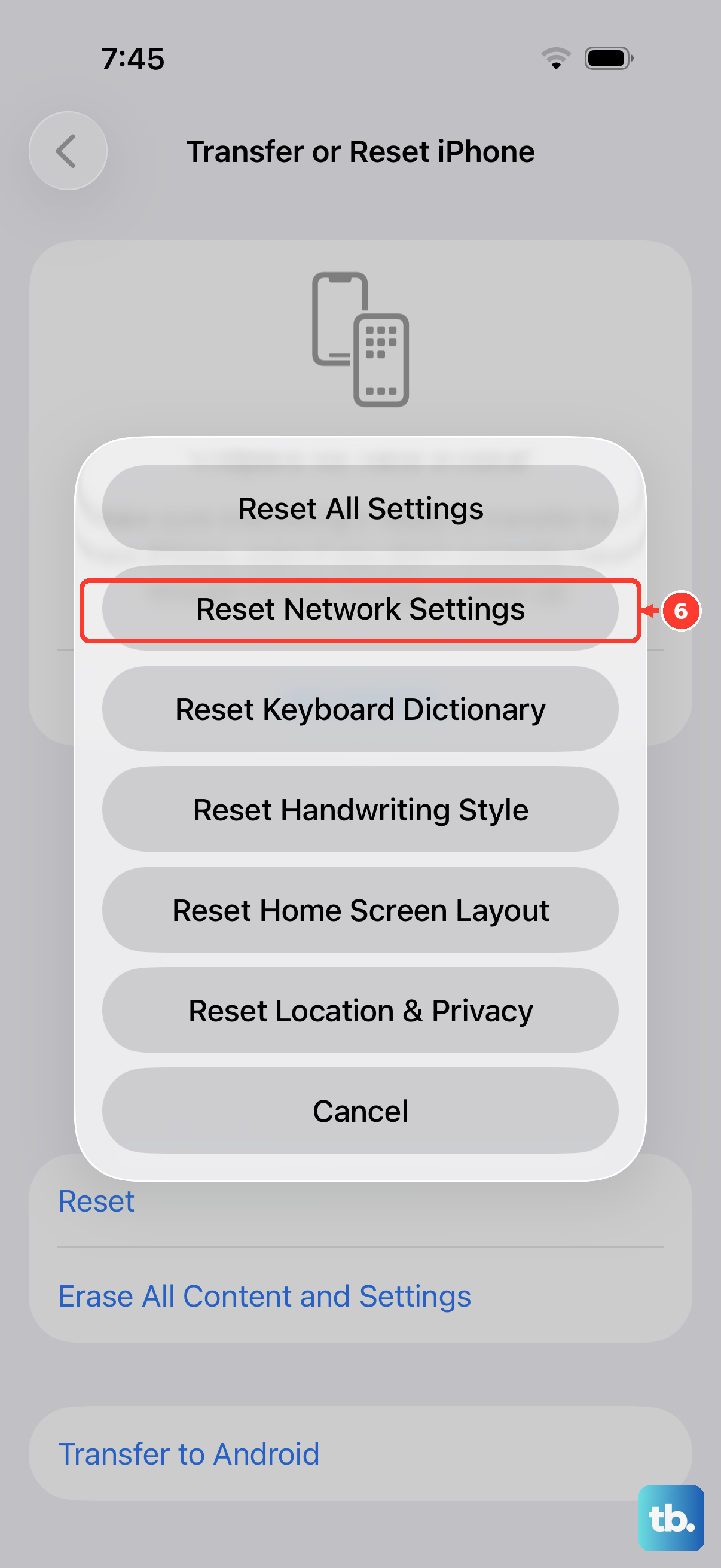
This is a useful step if you're having issues with internet calling apps or even regular cellular calls. Resetting network settings clears your Wi-Fi networks and passwords, cellular settings, and VPN and APN settings. You'll have to re-enter Wi-Fi passwords.
Navigate to Settings > General > Transfer or Reset iPhone > Reset. Select "Reset Network Settings" and confirm. This can resolve network configuration problems that prevent calls from coming through correctly on your iPhone 17e.