
If your brand new iPhone 17e won't send picture messages or group chats, it's a frustrating way to start with a new phone. Since the 17e is a fresh release, there can be some early software quirks. The good news is, the fix is usually straightforward and involves checking a few settings on your device.
Toggle iMessage Off and On
This is the quickest fix that works for a lot of people. Sometimes the iMessage service, which handles all messaging on your iPhone, just needs a quick refresh. Open the Settings app and tap on Messages.
Tap the switch next to iMessage to turn it off. Wait about thirty seconds, then tap it again to turn it back on. Give it a minute to reactivate, then try sending your MMS again. I've seen this clear up weird sending issues more times than I can count.
Check Your Cellular Data Connection
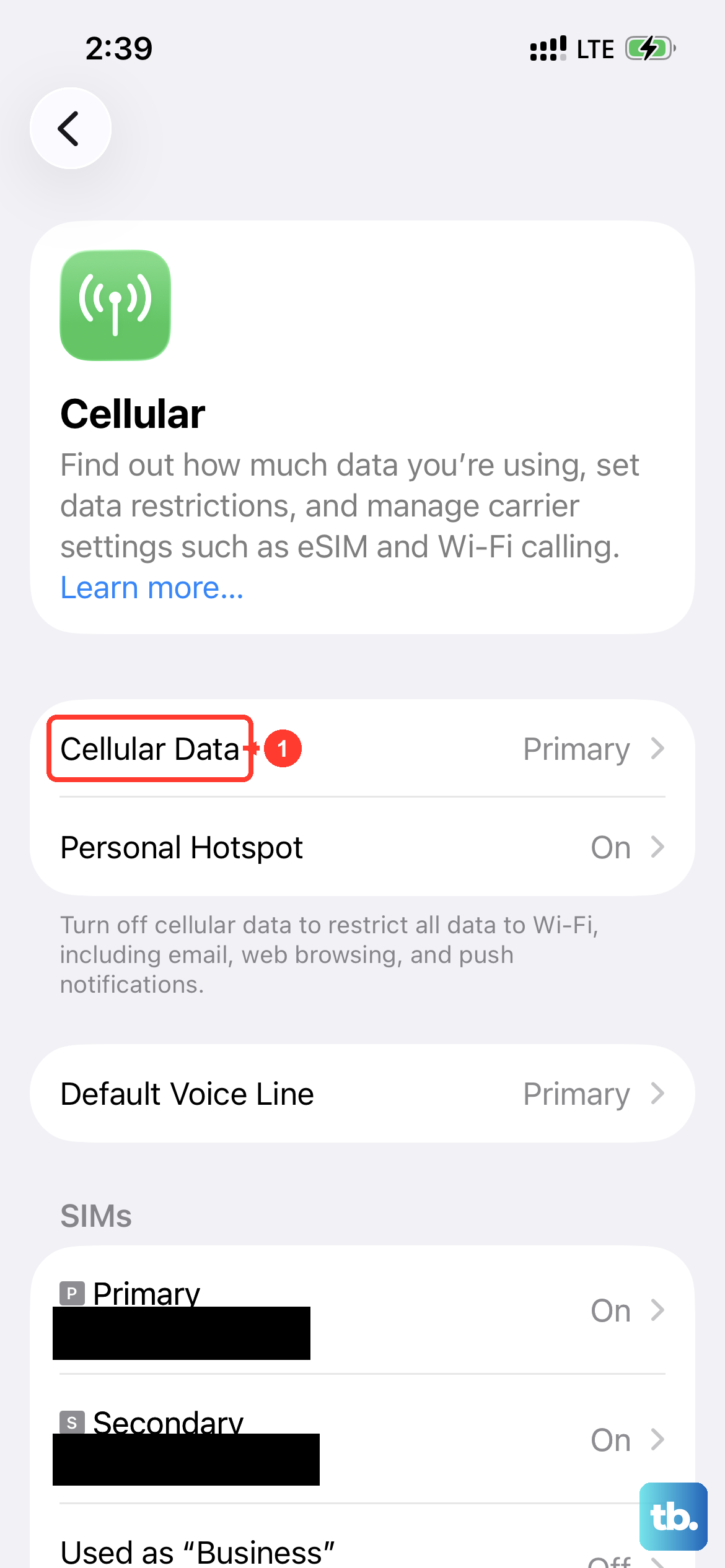
MMS messages don't send over Wi-Fi on an iPhone, they require a cellular data connection. First, make sure Cellular Data is enabled. Go to Settings > Cellular and ensure the Cellular Data switch is green.
Next, you need to make sure data is enabled specifically for the Messages app. Scroll down on that same Cellular settings screen until you see the list of apps. Find Messages in the list and make sure its switch is turned on, allowing it to use cellular data.
Verify MMS Messaging is Enabled
There's a specific setting buried in your iPhone's messages menu that controls MMS. If this got turned off somehow, pictures and group messages won't send. Head back to Settings > Apps > Messages.
Scroll down and look for the MMS Messaging option. Make sure this switch is turned on. While you're here, also check that Send as SMS is enabled. This lets your phone fall back to a standard text if iMessage fails, which can sometimes help with delivery.
Update Your Carrier Settings
Your carrier occasionally sends small updates that help your iPhone 17e's new C1X cellular modem work better with their network. These updates can fix MMS problems. Make sure your phone is connected to Wi-Fi.
Go to Settings > General > About. If a carrier settings update is available, a pop-up notification will appear on this screen. Just tap Update when prompted. It only takes a moment and doesn't require a restart.
Restart Your iPhone 17e
A simple restart can clear out temporary software glitches that might be hanging up the messaging process. For the iPhone 17e, press and quickly release the Volume Up button, then press and quickly release the Volume Down button.
Finally, press and hold the Side button until you see the Apple logo appear on the screen, then let go. Wait for the phone to reboot completely and try sending your message again.
Check for an iOS Update
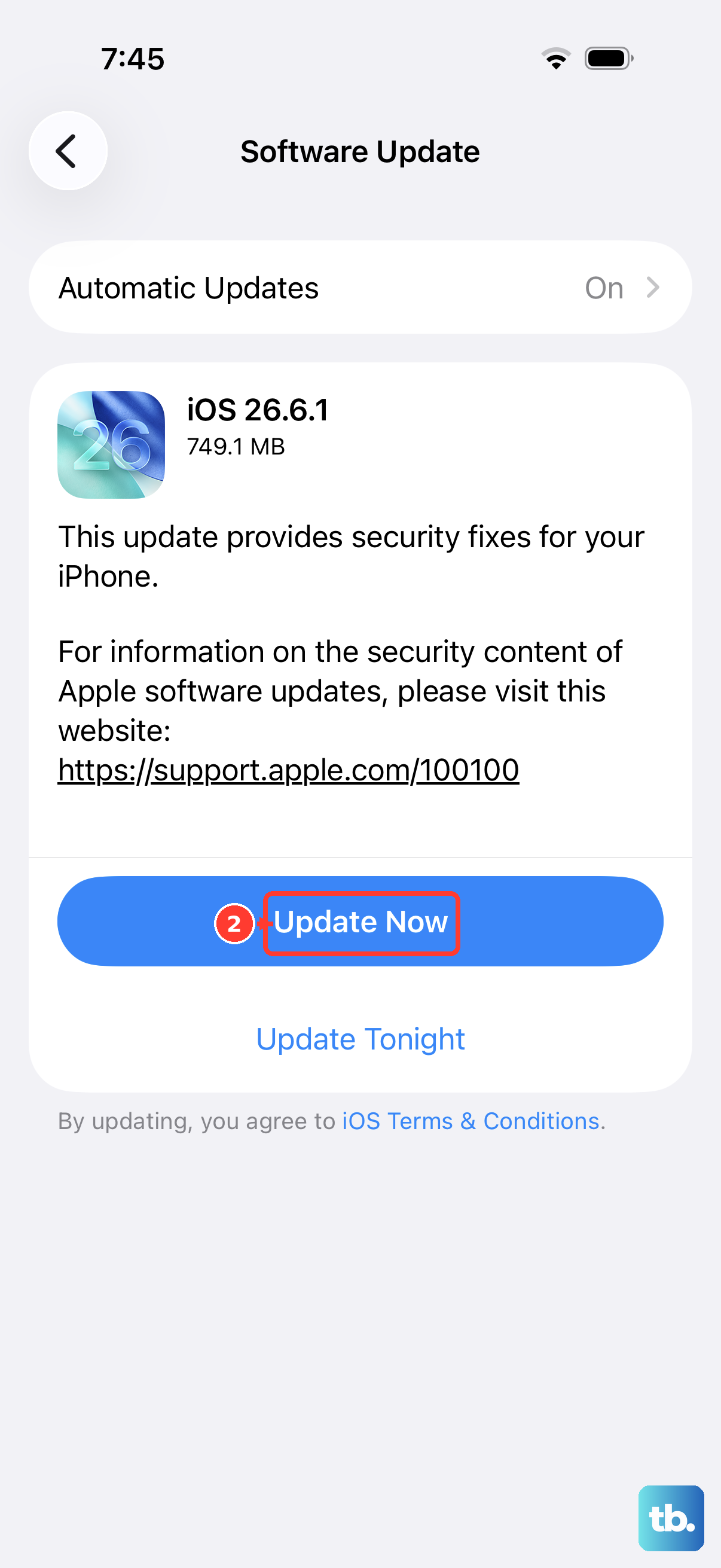
Since the iPhone 17e is so new, Apple is likely releasing iOS 26 updates to squash early bugs. A software update could directly address the MMS issue you're experiencing. Connect to Wi-Fi and plug your phone into power.
Open Settings > General > Software Update. If an update is available, tap Download and Install. After the update installs and your phone restarts, test your messaging.
Reset Your Network Settings
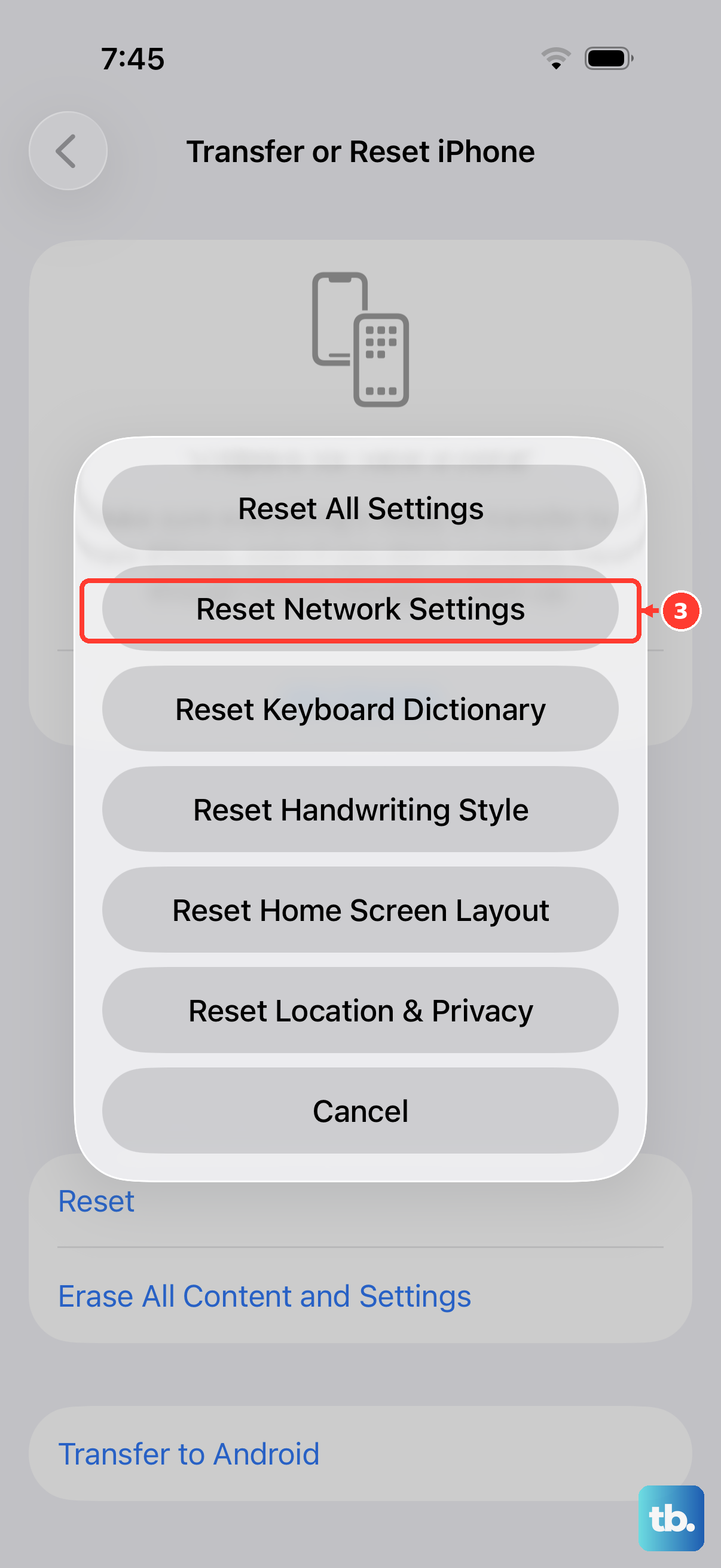
This is a more thorough step that resets all network-related data back to factory defaults. It will erase your saved Wi-Fi passwords, Bluetooth pairings, and VPN settings, but it often resolves stubborn cellular data issues.
Go to Settings > General > Transfer or Reset iPhone. Tap Reset at the bottom, then choose Reset Network Settings. You'll need to enter your passcode and confirm. Your phone will restart, and you'll have to reconnect to Wi-Fi networks afterward.
Review Your Message Content and Size
Carriers have strict limits on MMS size, usually between 1MB and 3MB. If your video or high-resolution photo is too large, it will fail to send. Try sending a smaller photo or a shorter video clip to see if that works.
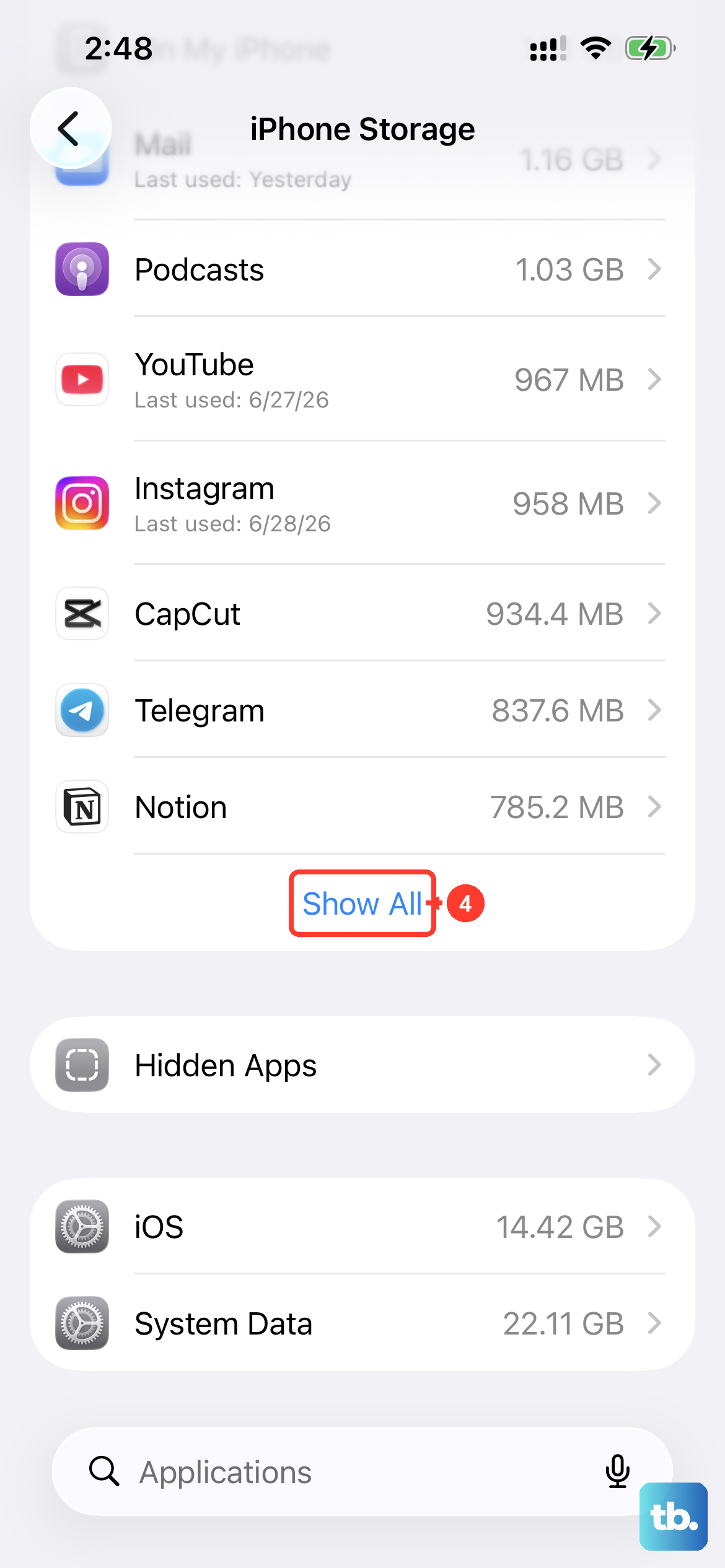
You can also check your storage. While it's less common, if your iPhone 17e is completely full, it may struggle to process outgoing media. Go to Settings > General > iPhone Storage to see if you need to clear some space.
Contact Your Cellular Carrier
Sometimes the issue is on your carrier's end. They may need to reprovision your line for MMS, especially if you just activated this new phone. Give them a call or use their online support chat.
Tell them your iPhone 17e cannot send picture messages or group texts. They can check your account settings on their side and may have you power the phone off and on while they refresh the connection.
Sign Out and Back Into Your Apple ID
Since iMessage is tied to your Apple ID, a glitch with your account sign-in can sometimes cause problems. Go to Settings and tap your name at the top. Scroll all the way down and tap Sign Out.
You'll need your Apple ID password to do this. After signing out, restart your iPhone 17e using the force restart method described earlier. Once it's back on, go back to Settings and sign in with your Apple ID again. This can refresh the underlying iMessage connection.