You set up Personal Hotspot on your iPhone 17e expecting your laptop or tablet to jump online, but the network never shows up, refuses the password, or drops the moment another device tries to join. Because the iPhone 17e is eSIM-only, its entire hotspot connection rides on that eSIM and on whether your carrier actually allows tethering, so a few specific things have to line up before sharing works. The good news is that most hotspot failures come down to a toggle, a plan setting, or a quick reset, and you can work through them in order without losing anything until the very end. Start with the simplest checks below and move down only as far as you need to.
Confirm the hotspot is actually switched on
It sounds obvious, but Personal Hotspot has to be explicitly turned on before any device can find it. On the iPhone 17e, open the Settings app, tap Personal Hotspot, then tap Allow Others to Join. That single toggle is what makes the network visible to your other devices.
If you cannot find Personal Hotspot in Settings, or the toggle will not turn on, that is usually a carrier or plan limitation rather than a phone fault. Make sure your wireless carrier has enabled the feature and that your wireless plan supports it; without that, the option may not appear at all.
Make sure cellular data and tethering are allowed
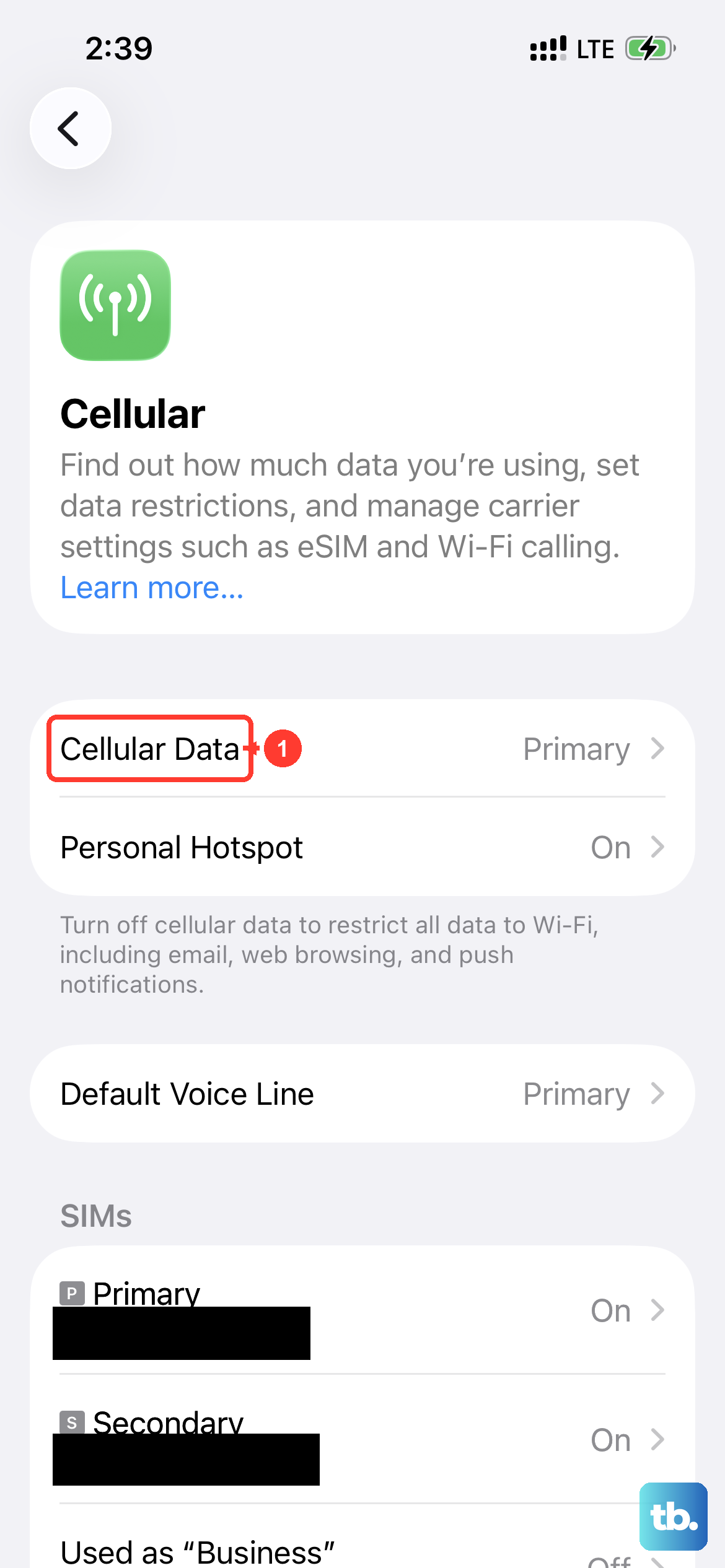
Personal Hotspot shares your iPhone's cellular connection, so cellular data has to be active for it to work. If Personal Hotspot looks dimmed or unavailable, open Settings, tap Cellular, and confirm that Cellular Data is turned on.
Even with cellular data on, the hotspot still depends on your carrier. Personal Hotspot requires a wireless carrier that supports it, and your plan has to permit tethering. If you still cannot see or enable it, contact your carrier and ask them to add Personal Hotspot to your plan.
Restart both the iPhone and the device trying to connect
A simple restart clears temporary glitches on either side of the connection. Restart the iPhone 17e that provides Personal Hotspot, restart the other device that needs to connect, and then try again.
To restart the iPhone 17e normally, press and hold either volume button and the side button until the power-off slider appears. Drag the slider, wait 30 seconds, then press and hold the side button until the Apple logo appears to turn it back on.
Connect to the right network and refresh Wi-Fi
Hotspot connections often fail because the joining device is reaching for the wrong network or holding an old password. On the device you are connecting, turn Wi-Fi off and back on, then make sure you select the correct Wi-Fi network, the one whose name matches your iPhone.
If the password is the problem, you can check or change it on the iPhone that provides the hotspot. Open Settings, tap Personal Hotspot, and look at the Wi-Fi password (you can also reach it through Settings > Cellular > Personal Hotspot). When setting a new password, use at least eight ASCII characters.
Switch on Maximize Compatibility for stubborn devices
Some devices, especially older laptops and tablets, struggle with the default hotspot settings. If other devices simply cannot join, open the Settings app, tap Personal Hotspot, and turn on Maximize Compatibility.
This option helps more devices connect, but it comes with a trade-off worth knowing. With Maximize Compatibility on, internet performance and Wi-Fi security might be reduced, so consider turning it back off once your devices are connected reliably.
Install the latest version of iOS
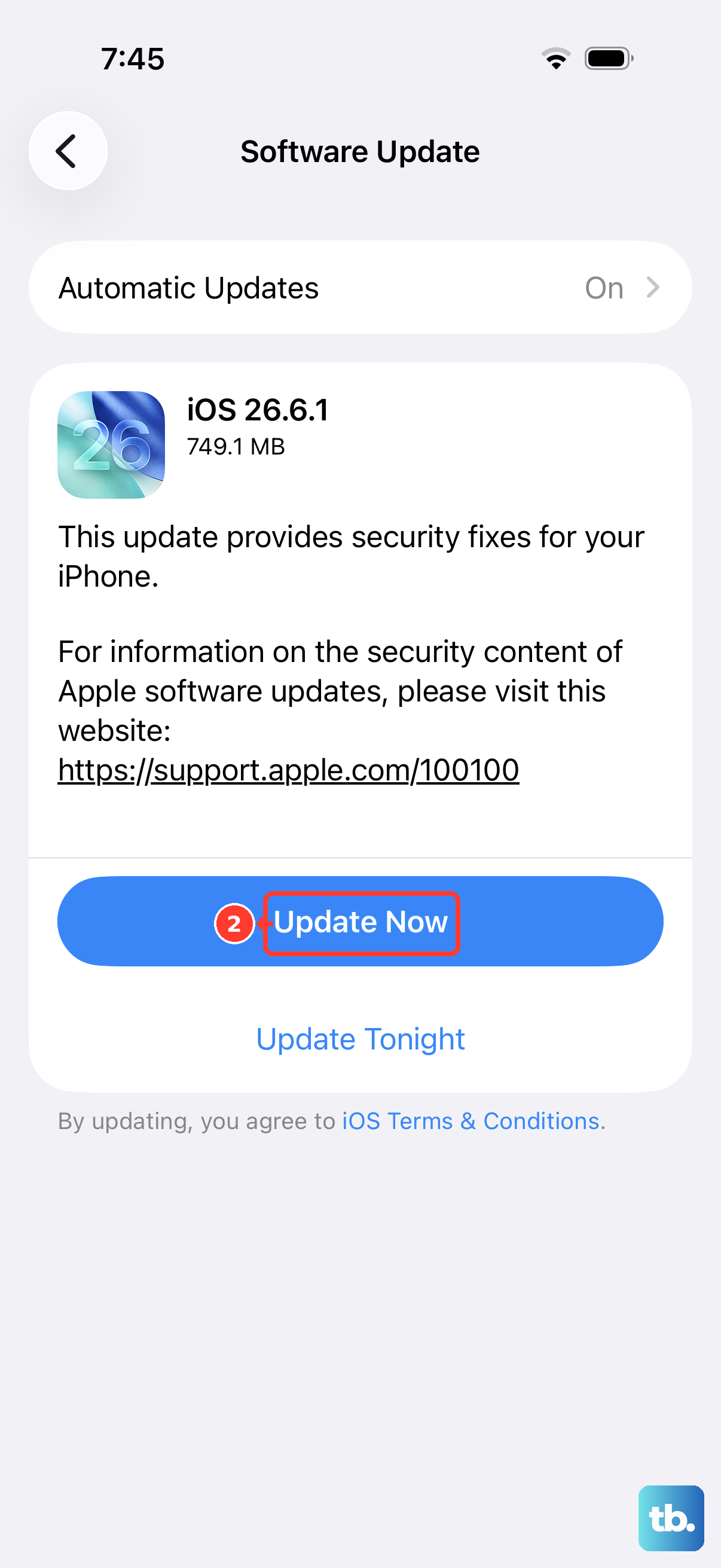
The iPhone 17e ships with iOS 26, and keeping it current resolves connectivity bugs that can interfere with tethering. Before updating, back up your device, plug it into power, and connect to Wi-Fi.
Then go to Settings > General > Software Update. If an update is available, tap Download and Install and follow the onscreen instructions.
Force restart if the iPhone stops responding
If the iPhone 17e becomes unresponsive while you are wrestling with the hotspot, a force restart can bring it back without affecting your data. Use the exact sequence below, because the timing of each press matters.
- 1.Press and quickly release the volume up button.
- 2.Press and quickly release the volume down button.
- 3.Press and hold the side button.
- 4.When the Apple logo appears, release the side button.
Reset network settings to clear bad configurations
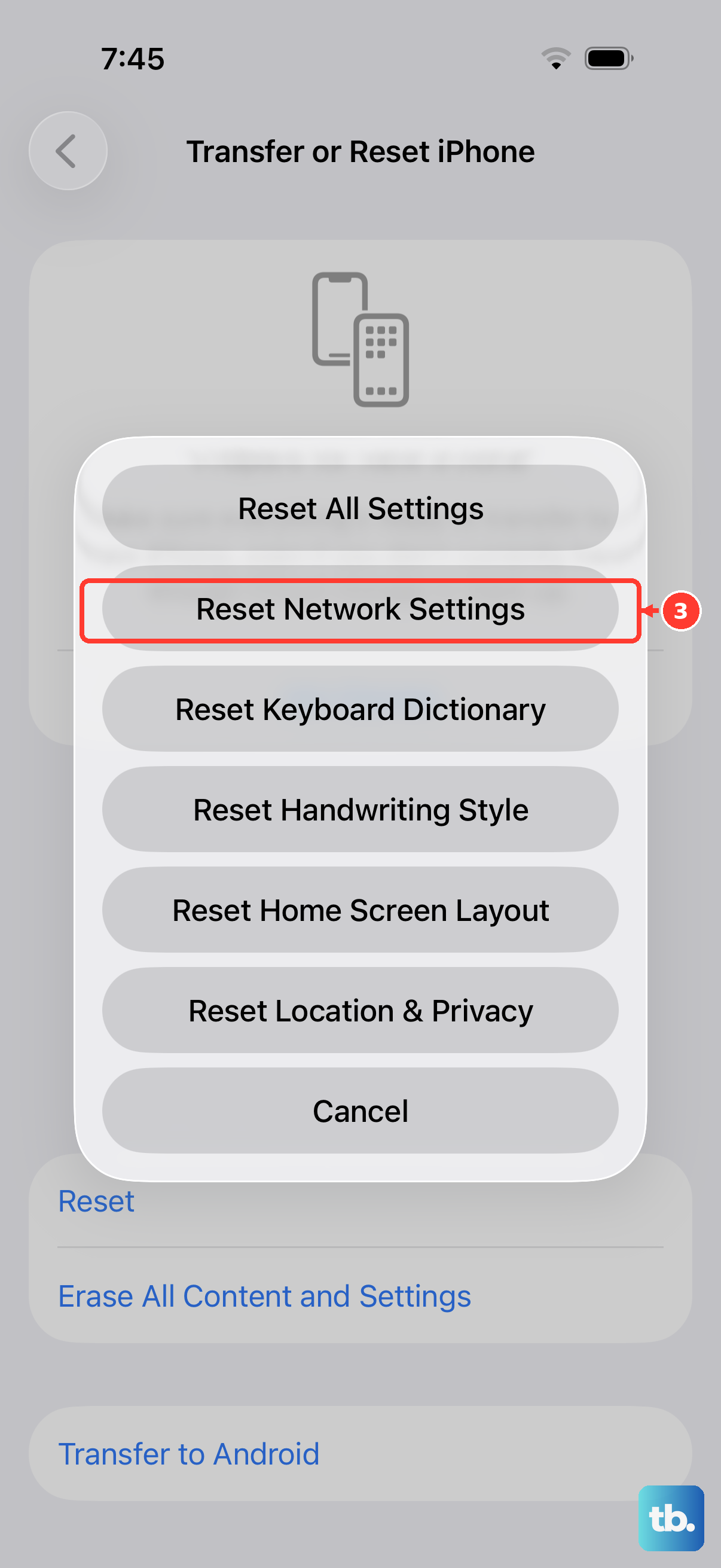
When the hotspot still misbehaves after the steps above, the phone's stored network configuration may be the culprit. Resetting it wipes saved connection data and lets the iPhone rebuild it cleanly.
Go to Settings > General > Transfer or Reset iPhone > Reset, then tap Reset Network Settings. Be aware that this also resets your saved Wi-Fi networks and passwords, cellular settings, and VPN and APN settings, so you will need to rejoin Wi-Fi networks afterward.
Erase all content and settings as a last resort
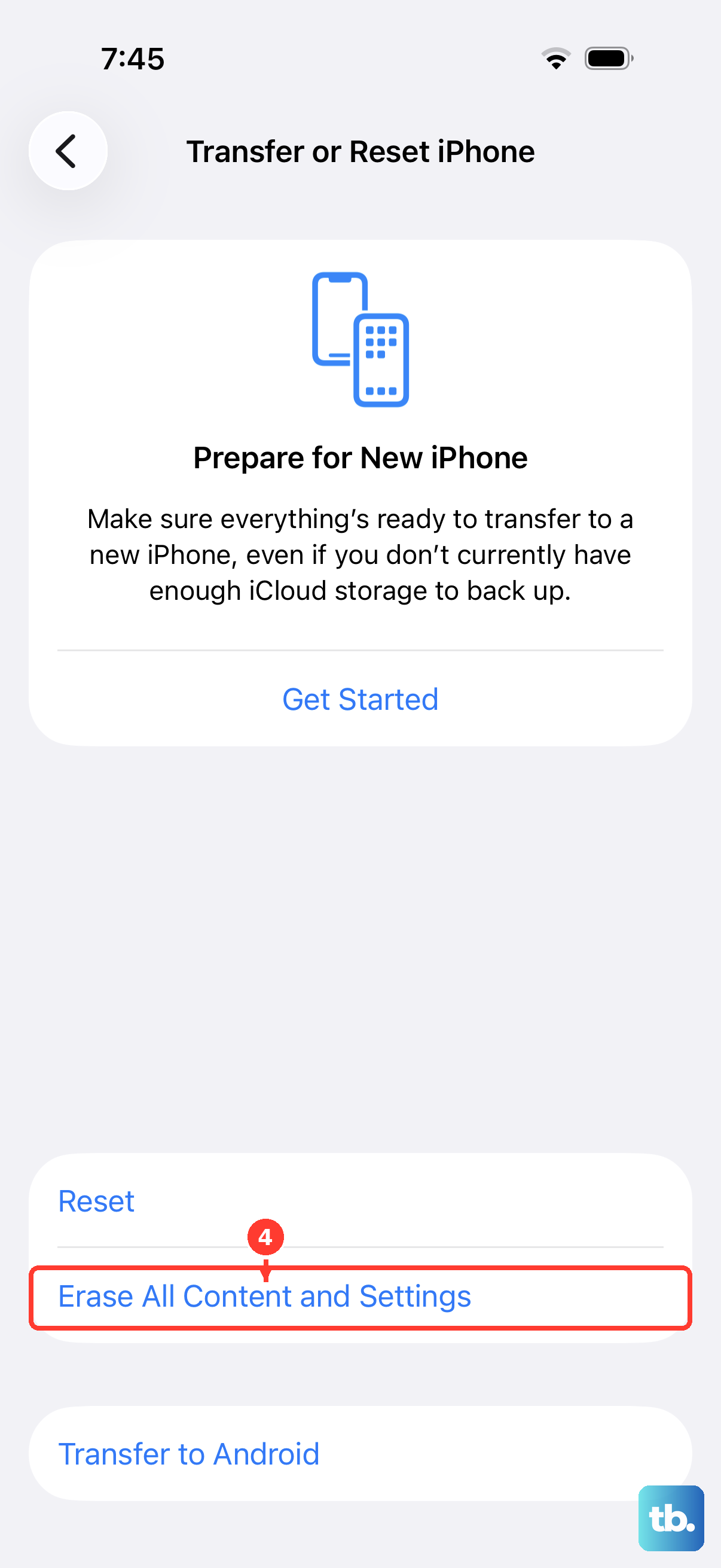
If nothing else restores the hotspot, a full erase returns the iPhone to factory condition. This step removes all of your content and settings, so back up your iPhone first and make sure you can restore from that backup.
Then go to Settings > General > Transfer or Reset iPhone > Erase All Content and Settings and follow the prompts. Because the iPhone 17e is eSIM-only, you may be asked whether to keep or delete your eSIM during the erase; keep it unless your carrier directs you otherwise, since your cellular and hotspot connection depends on it.
When to bring in your carrier and Apple
Some hotspot problems live outside the phone entirely. If Personal Hotspot still does not work after the steps above, contact your wireless carrier first to confirm that tethering is enabled on your plan, since the iPhone 17e relies completely on an eSIM and a plan that permits sharing.
For device issues that persist even after your carrier confirms tethering is active, contact Apple Support for help with anything on the Apple side.
Frequently Asked Questions
Why is Personal Hotspot missing or greyed out on my iPhone 17e?
Most often it is because Cellular Data is off or your carrier has not enabled tethering on your plan. Open Settings > Cellular and confirm Cellular Data is on; if the option still does not appear, contact your carrier to add Personal Hotspot, since the feature requires a carrier and plan that support it.
Does the iPhone 17e being eSIM-only affect the hotspot?
Yes. The iPhone 17e is not compatible with physical SIM cards, so its cellular and hotspot connection relies entirely on its eSIM. If you ever erase the phone, you may be prompted to keep or delete that eSIM, and you should keep it unless your carrier tells you otherwise.
What password should I use for my hotspot?
Open Settings > Personal Hotspot (or Settings > Cellular > Personal Hotspot) and tap the Wi-Fi password. Use at least eight ASCII characters so connecting devices can join reliably.
Will resetting network settings delete my photos or apps?
No. Resetting network settings only clears your saved Wi-Fi networks and passwords, cellular settings, and VPN and APN settings; it does not remove your personal content. A full Erase All Content and Settings is the only step here that removes everything, which is why you back up first.
What does Maximize Compatibility actually change?
It helps devices that have trouble connecting to your hotspot join more easily. The trade-off is that internet performance and Wi-Fi security might be reduced while it is on, so turn it off again once your devices connect dependably.