
If your iPhone 17e camera is black, frozen, or won't open, start with a force restart. This clears the phone's memory and can fix temporary software glitches that lock up the camera app. Press and quickly release the Volume Up button, then the Volume Down button, then press and hold the Side button until you see the Apple logo appear.
It takes seconds to confirm the camera works with an online online camera test. If the preview stays black there too, keep reading, because the steps below target exactly that.
Key Points
- Force Restart Your iPhone: This is the quickest fix for a frozen or black camera viewfinder.
- Check for iOS Updates: Early software bugs are common on new models like the 17e.
- Close and Reopen the Camera App: Swipe up from the bottom and pause to force-quit the app.
- Check Your Storage Space: A full iPhone can prevent the camera from saving new photos or videos.
- Clean the Camera Lenses: Smudges on the lenses will cause blurry or hazy photos.
- Reset All Settings: This fixes permission or configuration issues without deleting your data.
- Check for Physical Damage: Inspect the camera module for cracks or deep scratches.
- Update Your Apps: Third-party apps using the camera may need an update for iOS 26.
- Restore Your iPhone: A last-resort fix via a computer can replace corrupted system files.
Give your phone a moment to reboot, then try opening the Camera app again from your Home Screen. I'd start with this one, as it resolves most temporary freezes.
Since the iPhone 17e is a brand new model, early software bugs are a real possibility. Apple is usually quick to patch these issues. Open Settings > General > Software Update to check for any available iOS updates.
Install any updates you find and restart your phone afterward. The first few updates after a March release often address camera stability and performance.
Close and Reopen the Camera App
Sometimes the Camera app itself gets stuck. To force-close it, swipe up from the very bottom of your screen and pause in the middle to bring up the app switcher. Find the Camera app card and swipe it up and off the top of the screen to close it.
Wait a few seconds, then tap the Camera icon on your Home Screen to relaunch it. This gives the app a fresh start and can clear up viewfinder lag or a stuck shutter button.
Check Your iPhone's Storage
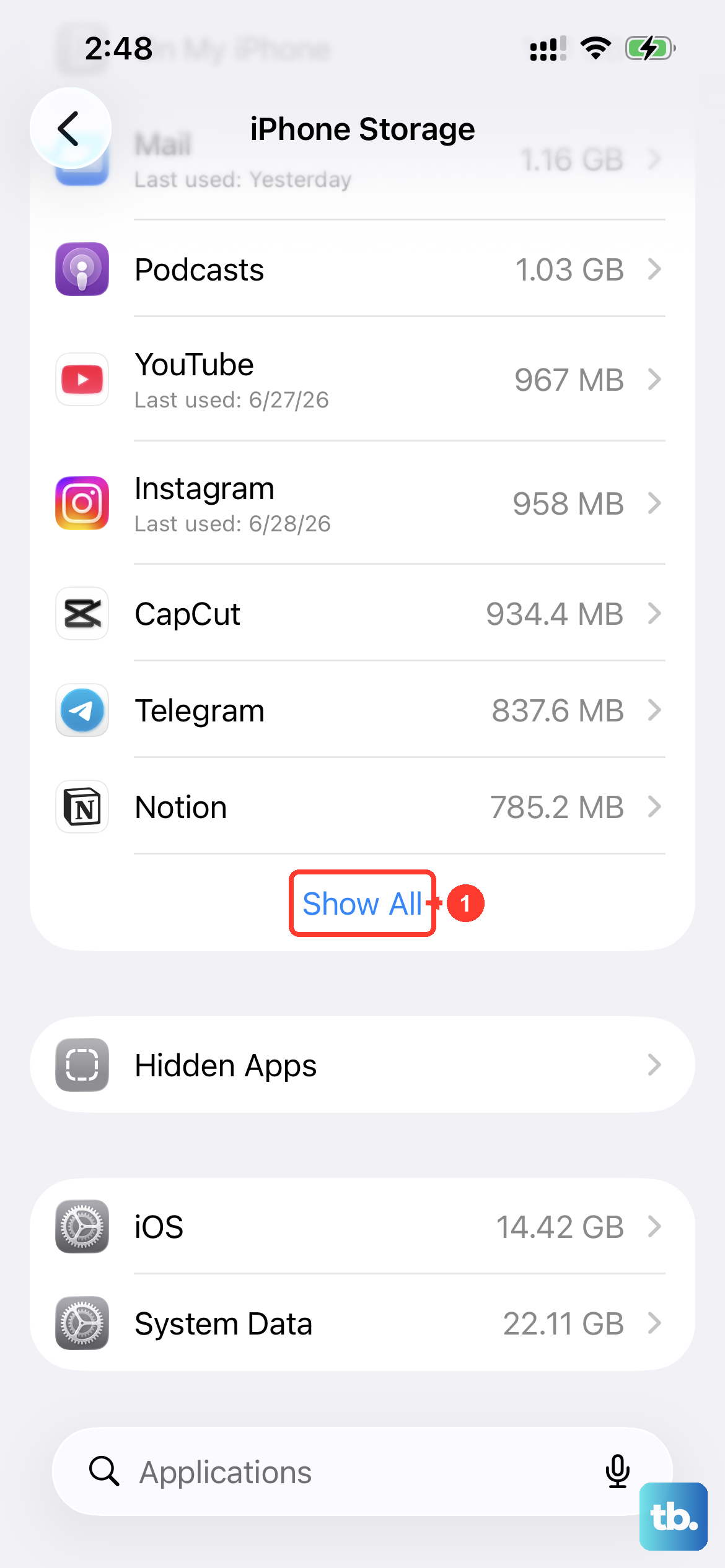
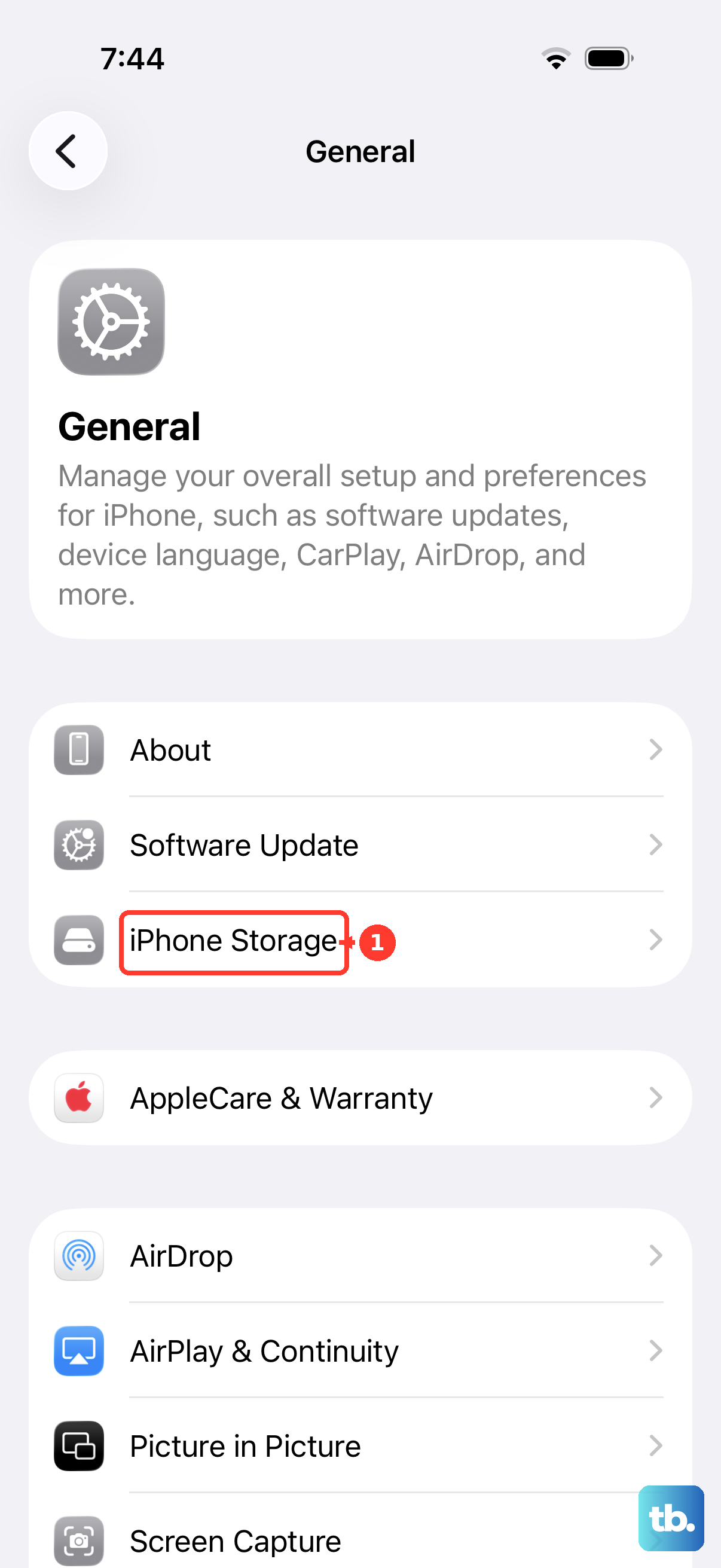
If your storage is completely full, the camera may refuse to take new photos or videos because it has nowhere to save them. Go to Settings > General > iPhone Storage to see how much space you have left.
You need at least a few hundred megabytes of free space for the camera to function properly. If you're running low, you can offload unused apps or review large videos in your Photos library to clear some room quickly.
Clean the Camera Lenses Properly
It sounds simple, but fingerprints and smudges on the lenses are a common cause of blurry, foggy, or dull photos. Use a clean, dry microfiber cloth, like the kind for cleaning glasses, to gently wipe the camera lenses on the back of your iPhone 17e.
Avoid using any harsh chemicals or abrasive materials. Check that your phone case isn't overlapping and covering part of the camera bump, as some cheaper cases can be misaligned.
Reset All Settings on Your iPhone
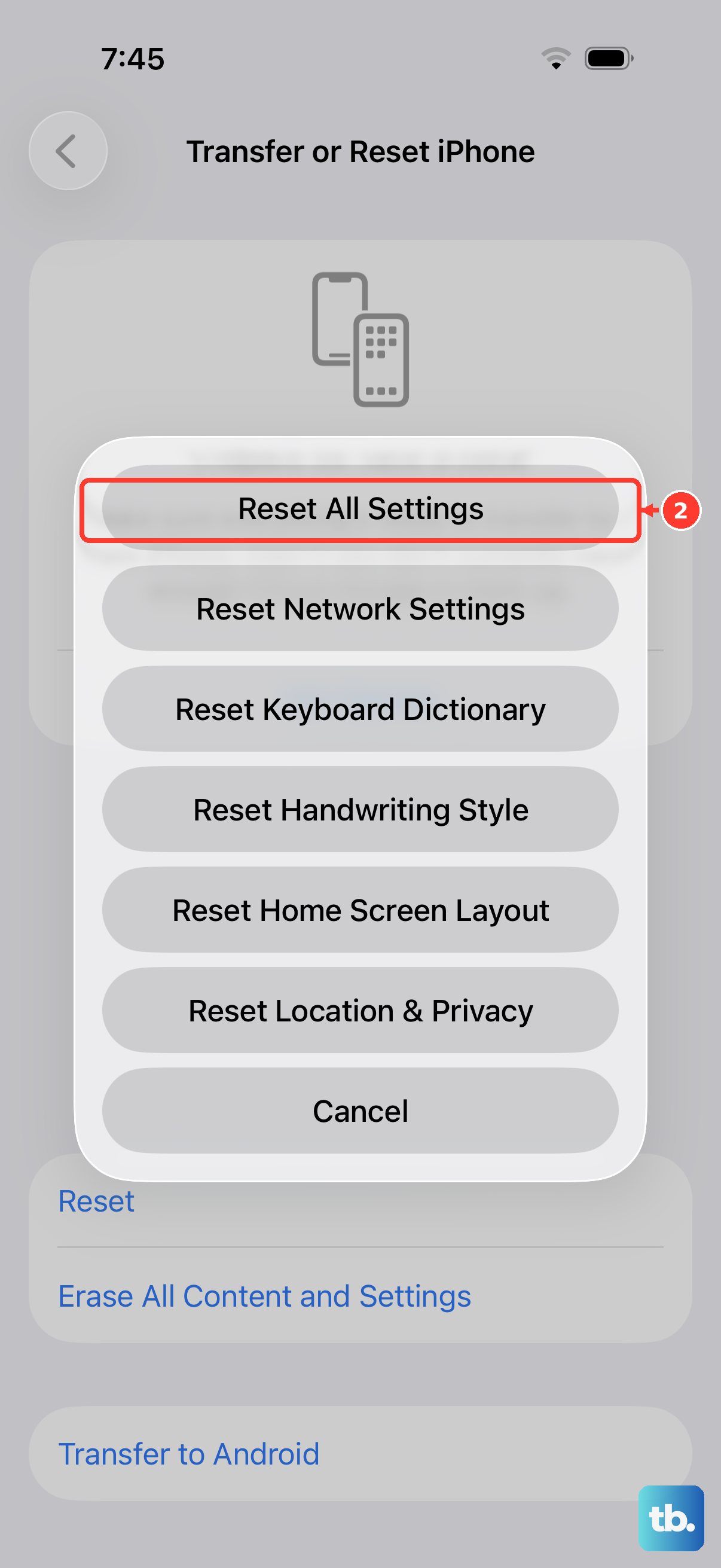
This can fix deeper software issues where camera permissions or system configurations have become corrupted. It won't delete your photos, messages, or apps, but it will reset your Wi-Fi passwords, wallpaper, and preferences back to default.
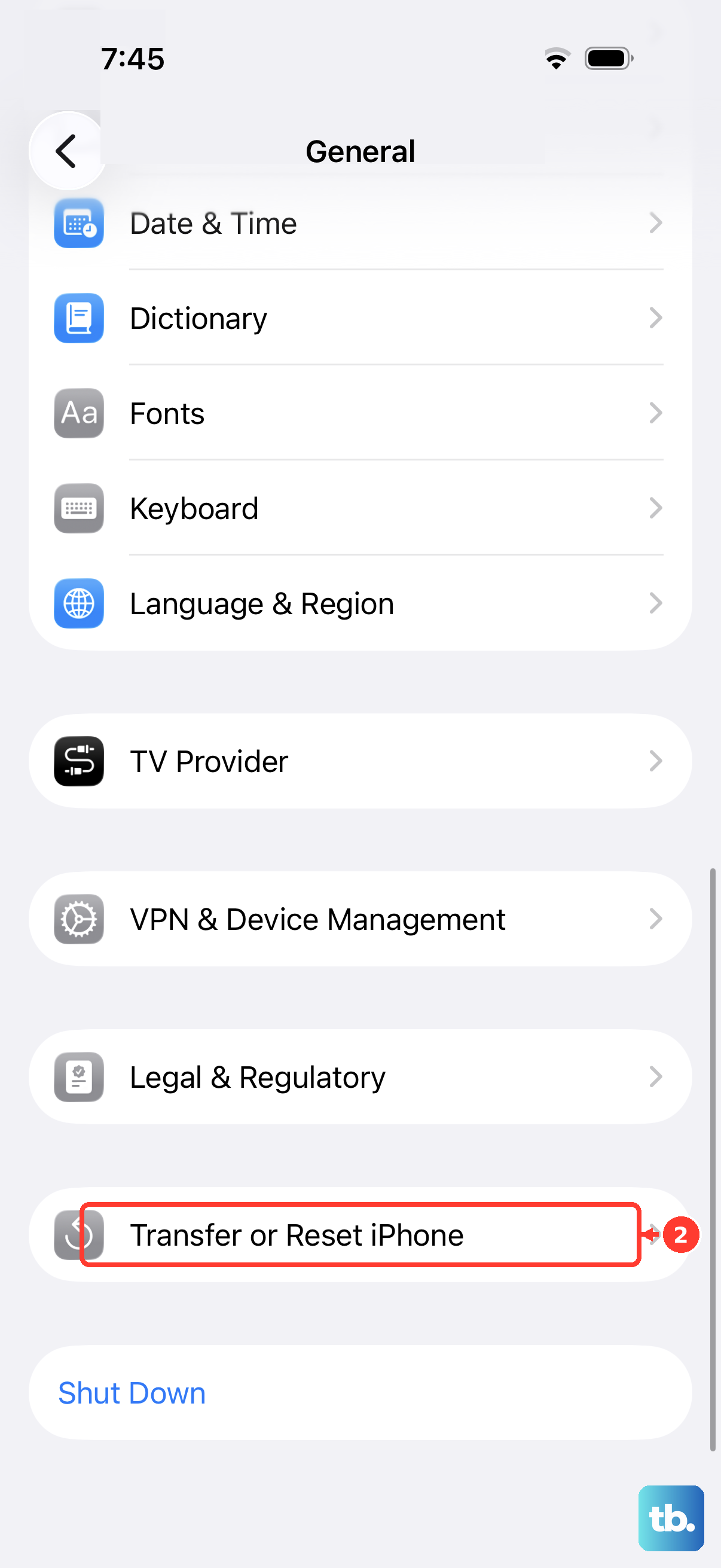
To do it, go to Settings > General > Transfer or Reset iPhone > Reset > Reset All Settings. Enter your passcode when prompted and confirm. After your phone restarts, you'll need to reconnect to Wi-Fi networks, but your camera should be checked for a fresh configuration.
Inspect for Physical Damage
Take a close look at the camera module on the back of your iPhone. Look for any cracks in the glass covering the lenses or any deep scratches directly over a lens. Even a small crack can distort light and ruin image quality.
Also, check if the camera module feels loose or makes a rattling sound when you gently tap the phone. If you see physical damage, the camera hardware itself likely needs repair.
Update Your Third-Party Apps
If the camera only fails in apps like Instagram, Snapchat, or TikTok, the problem is with that specific app, not your iPhone's hardware. These apps need to be updated by their developers to work perfectly with new iOS versions and new camera hardware like the 17e's.
Open the App Store, tap your profile icon in the top right, and scroll down to see pending updates. Update any social media or camera-related apps, then try using the camera within the app again.
Restore Your iPhone Using a Computer
If none of the above steps work, a restore via a Mac or PC can replace the entire iOS system, which can fix corrupted files affecting the camera. This is a last resort. First, make sure you have a recent iCloud or computer backup.
Connect your iPhone 17e to your computer using a USB-C cable. On a Mac with macOS Catalina or later, or a PC with iTunes, find your device and choose the option to Restore iPhone. This will install a clean copy of iOS 26. Afterward, you can set up your phone as new or from your backup to test the camera.