You set your iPhone 17 on the pad, expected the familiar charge animation, and got nothing. No chime, no battery icon climbing, just a phone sitting on a charger doing absolutely nothing. Wireless charging is one of those features you stop thinking about until the day it quietly stops working, and then it is genuinely confusing because the phone seems fine in every other way.
The good news is that the iPhone 17 absolutely supports wireless charging. According to Apple's official Tech Specs, it works with MagSafe wireless charging up to 25W and Qi2 wireless charging up to 25W, with both topping out only when paired with a 30W or greater USB-C power adapter. So the capability is real, which means the problem is almost always something you can fix yourself, whether that is alignment, the adapter, a case, a stray card, or a software hiccup. The fixes below run easiest and safest first, with the service path saved for last.
Start by confirming the problem is wireless, not the battery
Before you blame the charging pad, rule out a dead or stalled battery. The iPhone 17 charges two ways, by USB-C cable and by MagSafe or Qi2 wireless, so the fastest diagnostic is to plug it into the wall. Connect the phone to a power outlet using a known-good USB-C cable and adapter, then leave it for half an hour.
If wired charging brings the battery back to life but the wireless pad still does nothing, you now know the fault is specific to wireless charging. That narrows the cause to the charger, the alignment, or something in the way, like a case. One detail worth knowing is that if your iPhone is connected to both a MagSafe Charger and power through its USB-C connector at the same time, it will charge through the connector, not wirelessly. So make sure the cable is unplugged when you test the pad.
Match the charger to a strong enough power adapter
Wireless charging is fussy about power, and an underpowered adapter is one of the most common reasons it slows or refuses to start. Apple's guidance is to connect the MagSafe Charger to a recommended 30 watt (W) or greater Apple USB-C power adapter. A weak or uncertified adapter simply cannot feed the pad enough power to deliver a proper charge.
The order you plug things in matters too. Connecting the charger to its adapter first allows MagSafe to verify that it is safe to deliver maximum power before your phone ever touches it. For reference, the iPhone 17 supports MagSafe and Qi2 wireless charging up to 25W, but only with a 30W power adapter or higher behind it. If you have been using a small or borrowed adapter, swap in a 30W or greater one and try again.
Center the phone and clear the surrounding area
Wireless charging needs the phone and the pad to line up, and even a small offset can stop the charge from beginning. Apple's setup steps are straightforward. Place the MagSafe Charger face up on a flat surface, clear of any metal objects or other foreign material, then place your iPhone on the charger.
That phrase about metal objects is not boilerplate. Nearby metal can interfere with the magnetic and inductive connection and prevent charging from starting altogether. Clear the area, set the pad down flat, and place the phone squarely in the center rather than perched on an edge.
Take cards and bulky attachments out from between phone and pad
Anything sandwiched between your iPhone and the charger is a suspect. Apple specifically warns against placing credit cards, security badges, passports, or key fobs between your iPhone and the MagSafe Charger, because doing so might damage their magnetic strips or RFID chips. Beyond the risk to those items, having them between the phone and pad can block charging entirely.
Wallet cases and stick-on cardholders are the usual culprits here. If you have accessories connected to the phone, wireless charging power can also be limited. Strip the phone down to just the case, or remove the case altogether for a clean test, and pull out any cards before you set it on the pad.
Restart the iPhone, and force restart if it has frozen
A simple restart clears the temporary software glitches that can quietly interrupt charging. To turn it off the normal way, press and hold either volume button and the side button until the power-off slider appears. Drag the slider, then wait 30 seconds for your device to turn off. To power it back on, press and hold the side button (on the right side of your iPhone) until you see the Apple logo.
If the screen is unresponsive and the phone seems frozen, you will need a force restart instead. The exact sequence for the iPhone 17 is below.
- 1.Press and quickly release the volume up button.
- 2.Press and quickly release the volume down button.
- 3.Press and hold the side button.
- 4.When the Apple logo appears, release the side button.
A frozen iPhone can present as a charging problem even when the hardware is fine, so this step is worth doing before you go any further.
Install the latest version of iOS
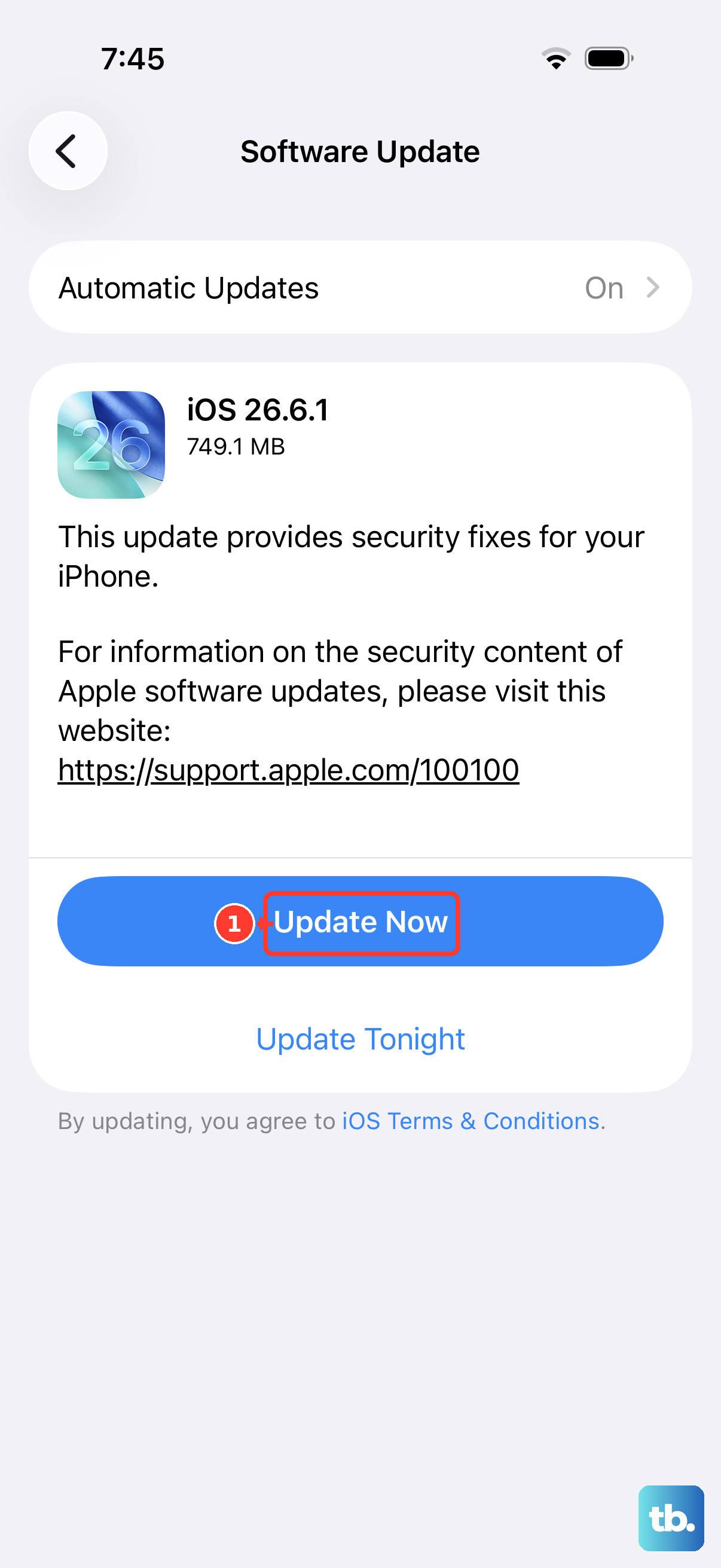
Keeping the software current resolves bugs that can affect power management and charging behavior. Make sure you have the latest version of iOS installed before assuming the hardware is at fault.
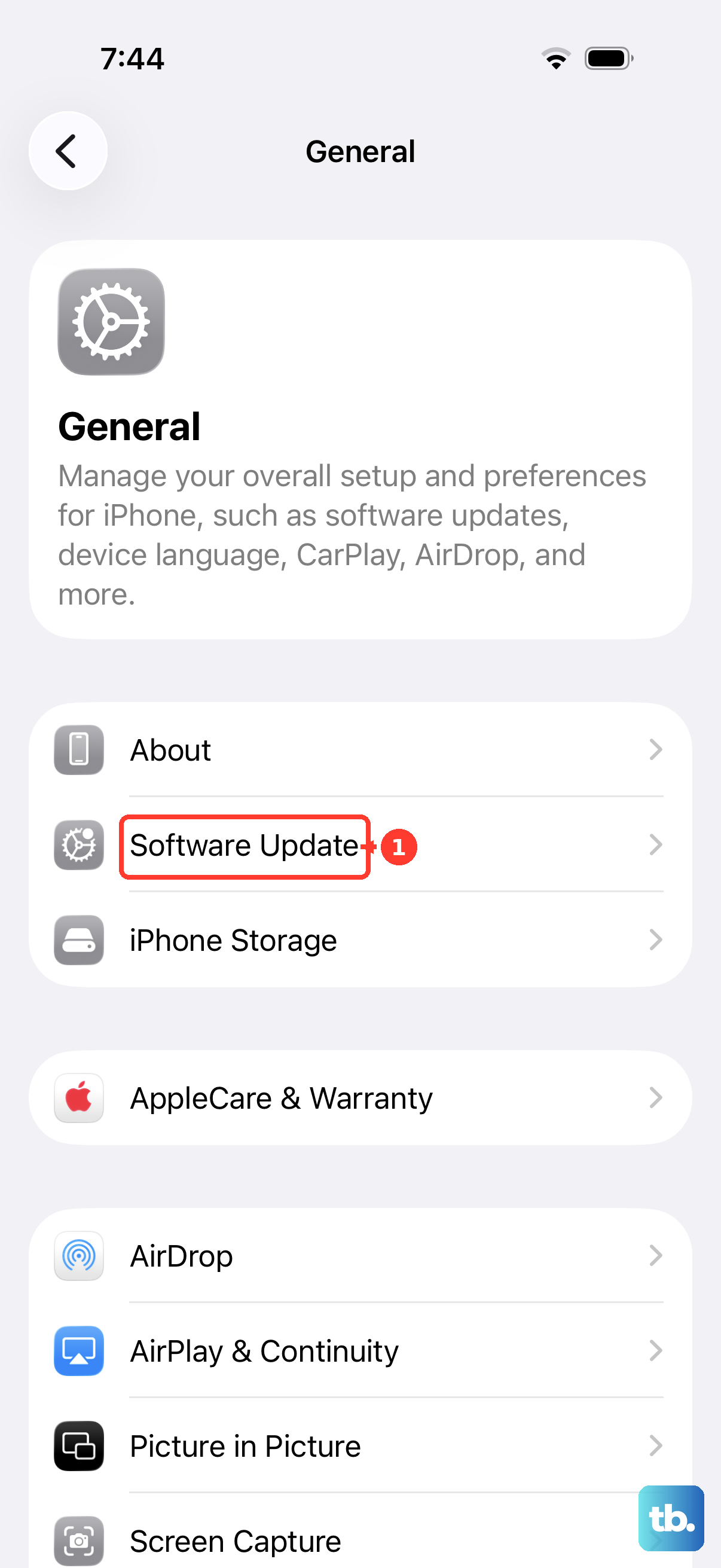
Go to Settings > General > Software Update. If an update is available, tap Download and Install, then follow the onscreen instructions. Let the update finish completely, then put the phone back on the pad and check whether charging resumes.
Check whether it stopped at 80 percent on purpose
Sometimes charging is not broken at all and it has paused by design. If your iPhone consistently stops around 80 percent, that can be entirely normal. Optimized Battery Charging delays charging past 80 percent in certain situations to reduce long-term battery wear, so what looks like a failure is actually the phone protecting itself.
A separate temperature safeguard can also hold charging above 80 percent when the battery gets too warm. You can view or change these settings under Settings > Battery > Charging, which is available on iPhone 15 and later, including your iPhone 17. If the phone is reaching 80 percent and stopping, this is likely the explanation rather than a wireless fault.
Give a warm phone or charger time to cool
Heat is one of the quiet enemies of wireless charging. If the device or the charger feels warm to the touch, the software may be deliberately limiting or pausing charging to protect the battery.
Move both the iPhone and the charger to a cooler location, let them sit for a while, and try again once they have cooled down. Wireless charging tends to generate a little more heat than a cable, so this is a more common trigger than people expect, especially in a warm room or direct sunlight.
Inspect your cables and adapter, and clean the port if you also charge by cable
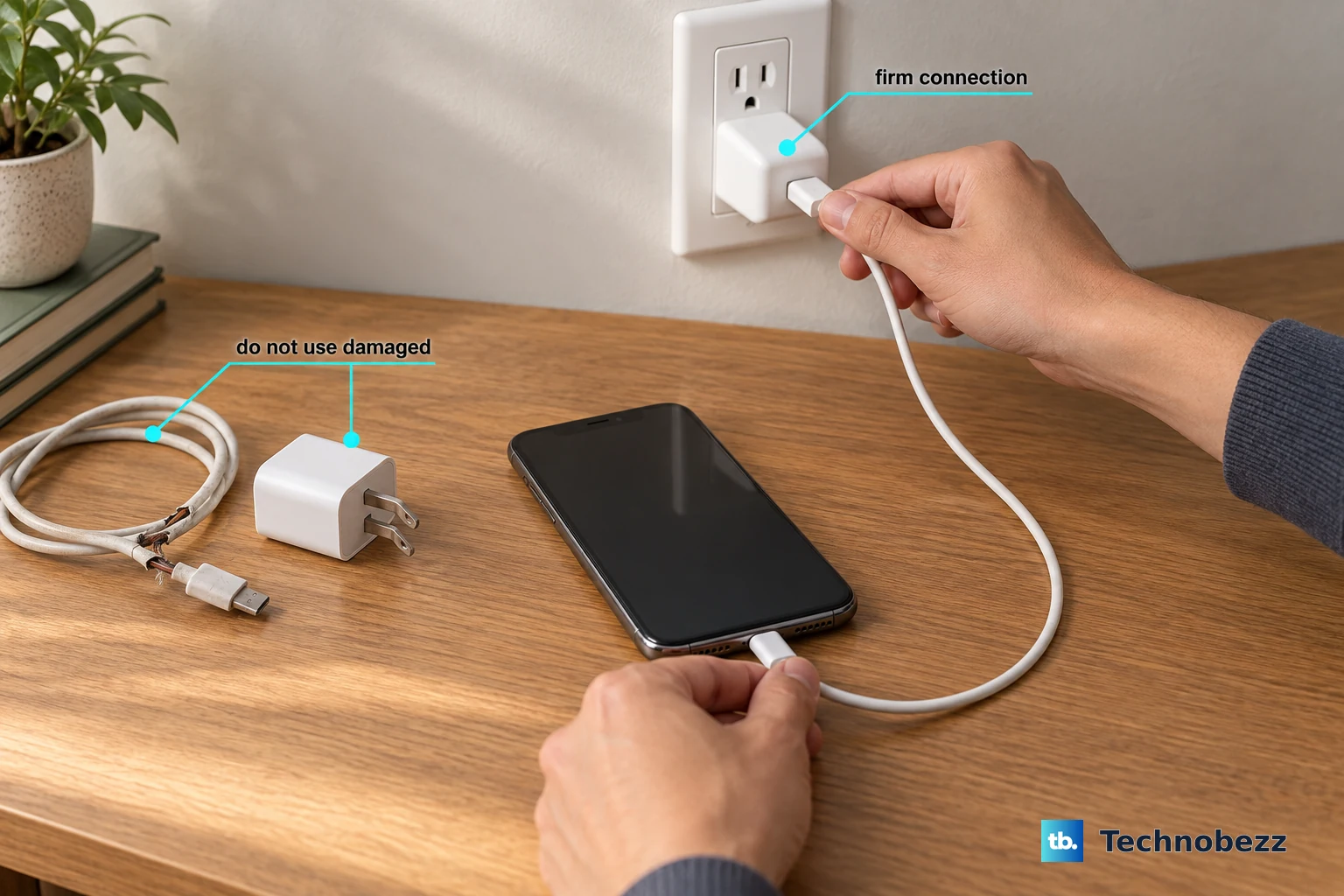
Even though your immediate problem is wireless, the adapter and cable feeding the pad still need to be in good shape. Check your charging cable and USB adapter for signs of damage, like breakage or bent prongs, and do not use damaged accessories. Confirm there are firm connections between the cable, the adapter, and the outlet, and if you are unsure about the outlet, try a different one.
If you also charge by cable from time to time, it is worth removing any debris from the charging port on the bottom of the device, then firmly plugging the cable in and letting it charge for half an hour. A loose or dirty connection anywhere in the chain can undermine both wired and wireless charging.
When nothing works, back up, erase, and reach Apple Support
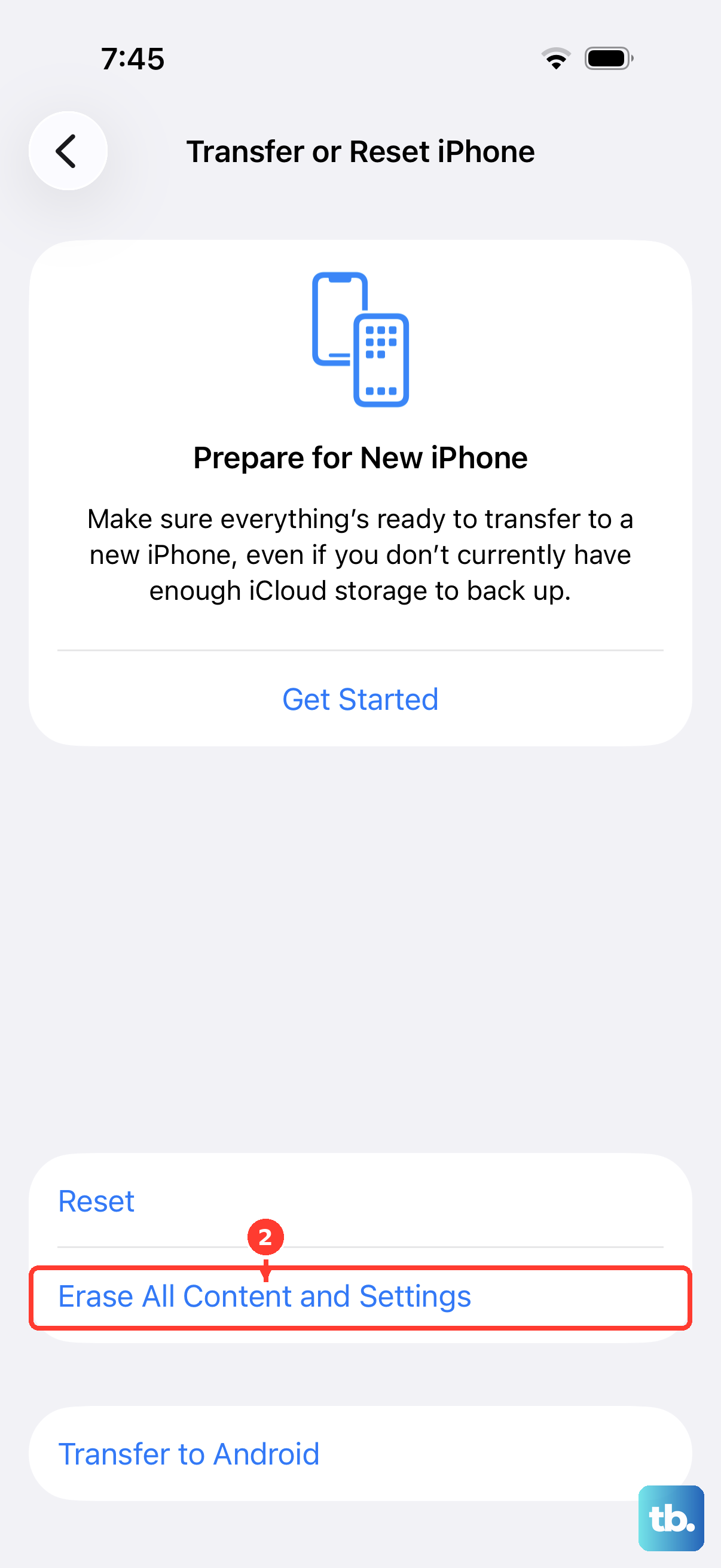
If you have worked through every step above and wireless charging still fails, the next move is a full erase, but only with a backup in place first. Erasing removes all your data, so back up the iPhone before you do anything else.
Once you have a backup, go to Settings > General > Transfer or Reset iPhone > Erase All Content and Settings, then tap Continue and enter your device passcode and Apple Account password. This restores the iPhone to factory settings and removes your data, which is exactly why the backup matters. If the device still will not charge after the erase, you might need service, so contact Apple Support to book a repair or chat through the Apple Support app or the Get Support page. If you cannot get the phone to update or charge normally on its own, you can also use Finder on a Mac or the Apple Devices app on Windows to update or restore it with a computer.
Frequently Asked Questions
Does the iPhone 17 really support wireless charging?
Yes. Per Apple's official Tech Specs, the iPhone 17 supports MagSafe wireless charging up to 25W and Qi2 wireless charging up to 25W. Both require a 30W or greater USB-C power adapter to reach those speeds.
Why does my iPhone 17 stop charging at 80 percent on the pad?
That is often intentional. Optimized Battery Charging delays charging past 80 percent in certain situations to reduce battery wear, and a separate temperature safeguard can also limit charging above 80 percent if the battery gets too warm. You can check this under Settings > Battery > Charging.
Can I leave my iPhone on the wireless charger while it is also plugged in?
You can, but it will not charge wirelessly in that case. If the iPhone is connected to both a MagSafe Charger and power through its USB-C connector, it charges via the connector, not wirelessly. Unplug the cable if you want to test or use the pad.
Will my wallet case or a card block wireless charging?
It can. Apple advises against placing credit cards, security badges, passports, or key fobs between your iPhone and the MagSafe Charger, both to protect those items and because they can interfere with charging. Remove cards and bulky attachments, or take the case off, before placing the phone on the pad.
What power adapter do I need for the fastest wireless charging?
Apple recommends connecting the MagSafe Charger to a 30 watt or greater Apple USB-C power adapter. With a 30W or higher adapter, the iPhone 17 can reach MagSafe and Qi2 wireless charging up to 25W. A weaker adapter can slow or stop wireless charging entirely.











