
If your iPhone 17 videos are stuttering, freezing, or buffering, it can really ruin the experience. This is a common hiccup with a few usual suspects, and I've found most people can get things running smoothly again pretty quickly.
Let's jump straight into the most common fix. Head to Settings > General > iPhone Storage and see how much free space you have. Keep at least 1GB of free space to help avoid slowdowns. Clearing out some old photos, messages, or offloading unused apps can help when storage is nearly full.
Free Up Storage Space on Your iPhone 17
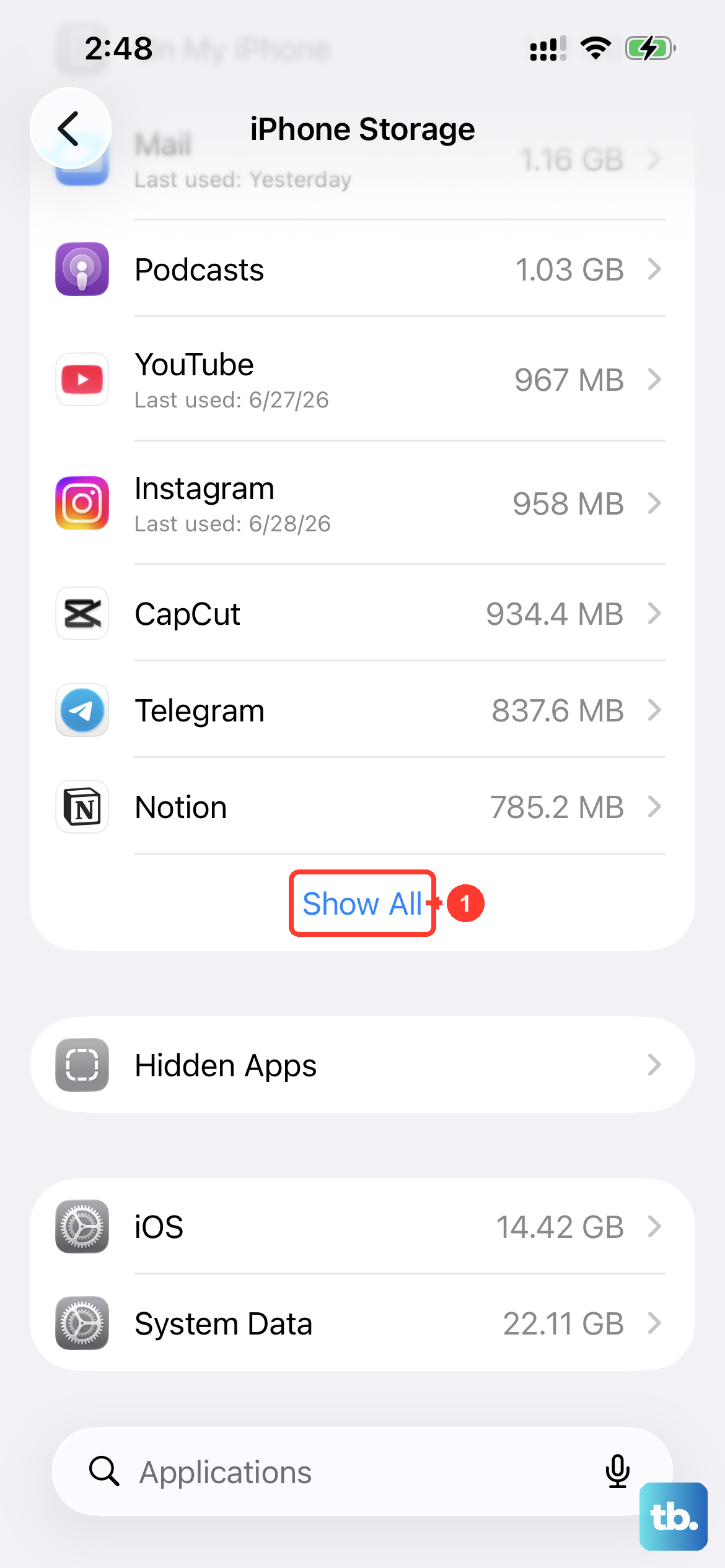
Modern video files, especially those shot in 4K on the iPhone 17, are huge. When your storage is nearly full, your phone may slow down during playback. Go into that iPhone Storage menu and you'll get recommendations for clearing space.
You can offload apps you don't use often, which removes the app but keeps its documents and data. Review your large attachments in Messages and clear your Safari cache. Enabling iCloud Photos with the "Optimize iPhone Storage" setting is a great long-term fix, as it keeps smaller versions of your photos and videos on the device.
Check Your Network Connection
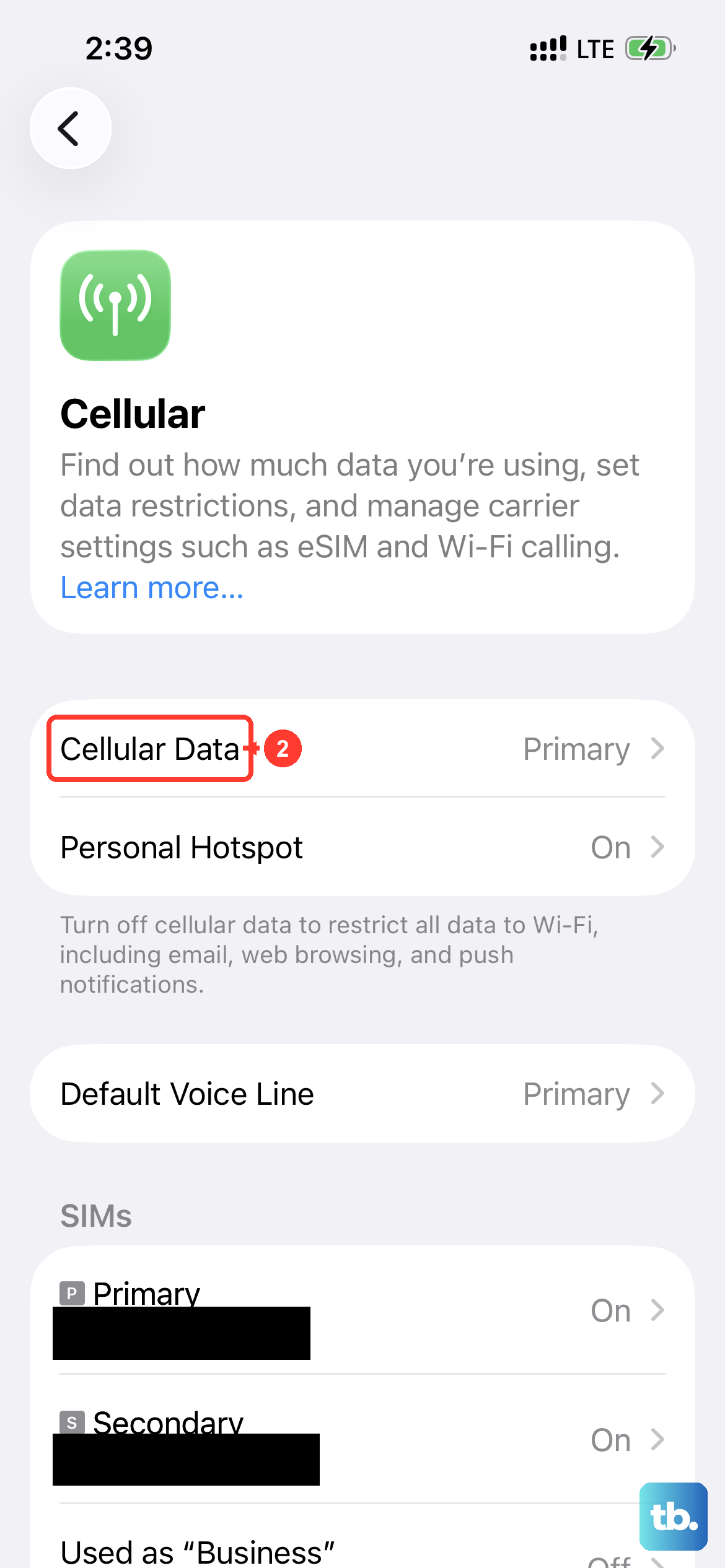
For any video you're streaming, a weak connection is the prime culprit. The iPhone 17 supports very fast Wi-Fi 7 and 5G, but if your signal is poor, you'll get constant buffering. Make sure Airplane Mode is off in Settings, then open Wi-Fi and check for a blue checkmark beside your network name.
If you're on Wi-Fi, try moving closer to your router. You can also try streaming the same video over your cellular data to see if the problem is with your home network. Sometimes a simple router restart can clear up congestion that's causing the lag.
Update iOS and Your Apps
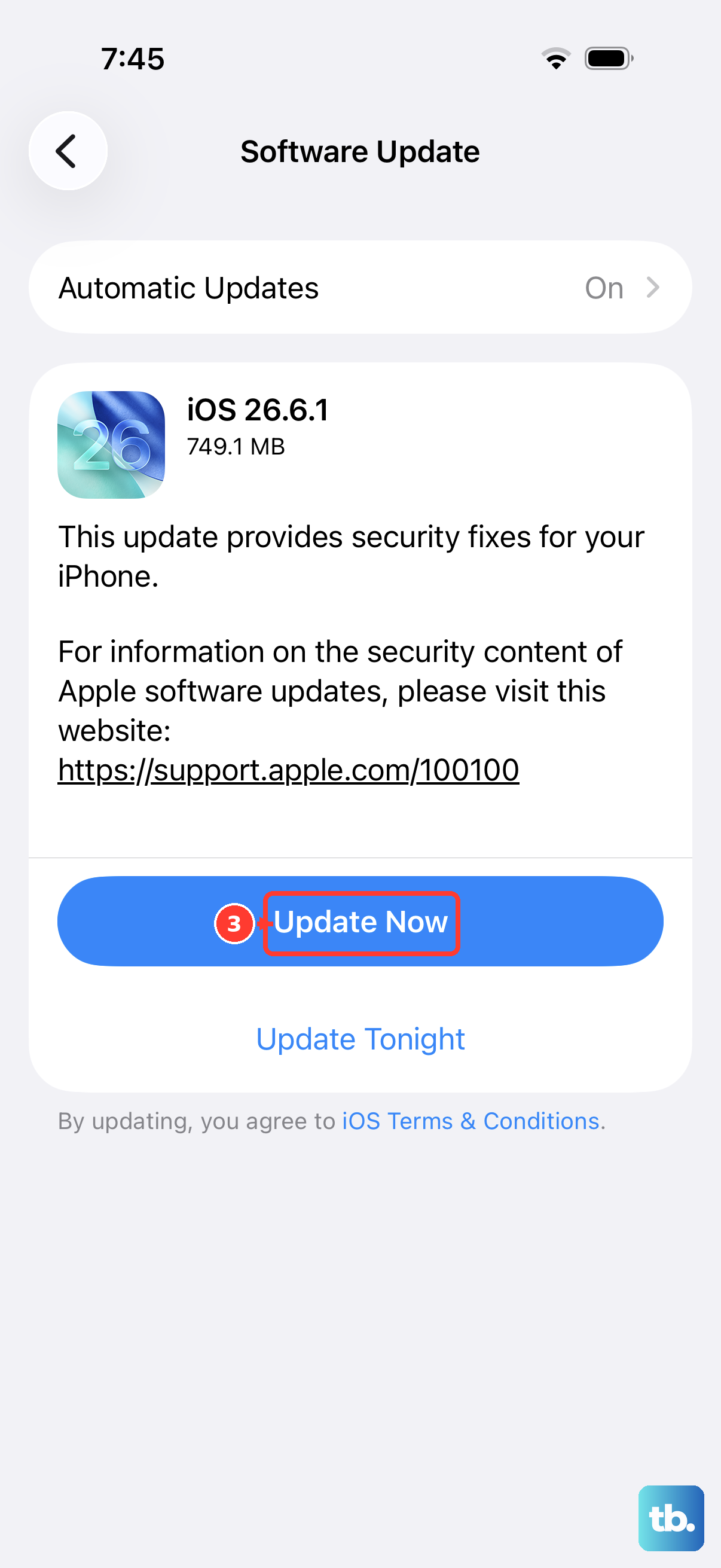
Software updates can include bug fixes that may help with playback issues. Back up your iPhone and connect it to power and Wi-Fi before updating. Go to Settings > General > Software Update and install any available update.
Don't forget the app itself. For apps like YouTube or Netflix, head to the App Store, tap your profile icon, tap App Updates, and then tap Update All. The Photos app updates with iOS. App developers release patches for playback problems all the time.
Force Restart Your iPhone 17
If your iPhone is frozen or unresponsive, try a force restart. It won't delete any of your data. Quickly press and release the Volume Up button, then quickly press and release the Volume Down button.
Finally, press and hold the Side button until the Apple logo appears, then you can let go. This can clear up a stuck process that's interfering with video playback.
Close Unresponsive Apps and Reduce Load
If a video app isn't responding, close that app and reopen it. Swipe up from the bottom of the screen and pause in the middle to enter the app switcher, then swipe up on its preview to close it. Avoid routinely closing other apps, since reopening them requires their data to reload and can slow things down.
Also, check if you're downloading a large iOS update or syncing a big file to iCloud in the background. These tasks can use bandwidth, which might affect streaming video playback. Pausing them can help isolate the issue.
Check for Overheating
The iPhone 17's powerful chip can get warm during extended video recording or playback, especially in a case or in direct sunlight. If the device gets too hot, it will intentionally throttle performance to cool down, which can cause lag.
If your phone feels very warm, take it out of its case and let it cool down for a few minutes. Avoid using it while it's charging for intensive tasks like gaming or editing video, as this generates more heat.
Reset All Settings
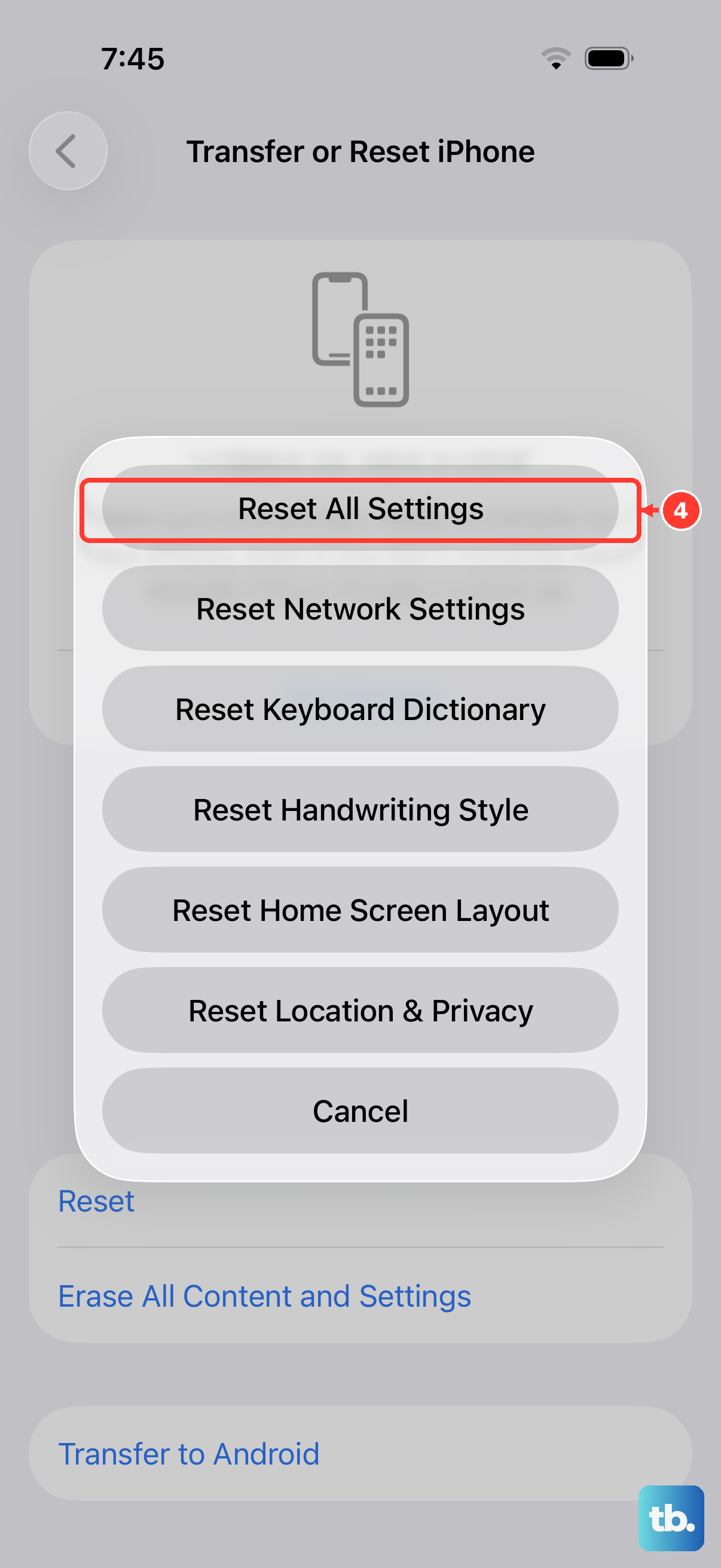
If the lag persists across every app, a deeper software setting might be misconfigured. You can reset all settings without erasing your personal data like photos and messages. This removes saved Wi-Fi networks and passwords and resets wallpaper and privacy settings. It also removes Apple Pay cards and Bluetooth and Apple Watch pairings, and you'll need to set up Face ID again.
Go to Settings > General > Transfer or Reset iPhone. Tap Reset and then choose Reset All Settings. Enter your passcode and confirm. After your phone restarts, you'll need to reconnect to Wi-Fi networks and redo some preferences, then check whether playback has improved.
Try a Different Video File or Source
The problem might not be your phone, but the specific video file itself. It could be corrupted or encoded in a way that's causing problems. Try playing a different video, preferably one you shot recently on the iPhone 17 itself.
If you're streaming, see if the lag happens on every platform like YouTube, Netflix, and Disney+, or just one. If it's just one app, the issue may be with that app, its servers, or the video you're trying to play.
Review Video Settings in Specific Apps
Some apps have their own playback quality settings. In apps like YouTube, you can manually set the playback resolution. If your internet is slow, a video might be trying to play in 4K and buffering constantly. Tap the three dots or gear icon during playback and select a lower resolution like 1080p to see if it plays smoothly.
Also, check the settings within the TV app or other streaming services. They sometimes have data saver or quality modes that can be adjusted for more reliable playback on cellular networks.
Check for Low Power Mode
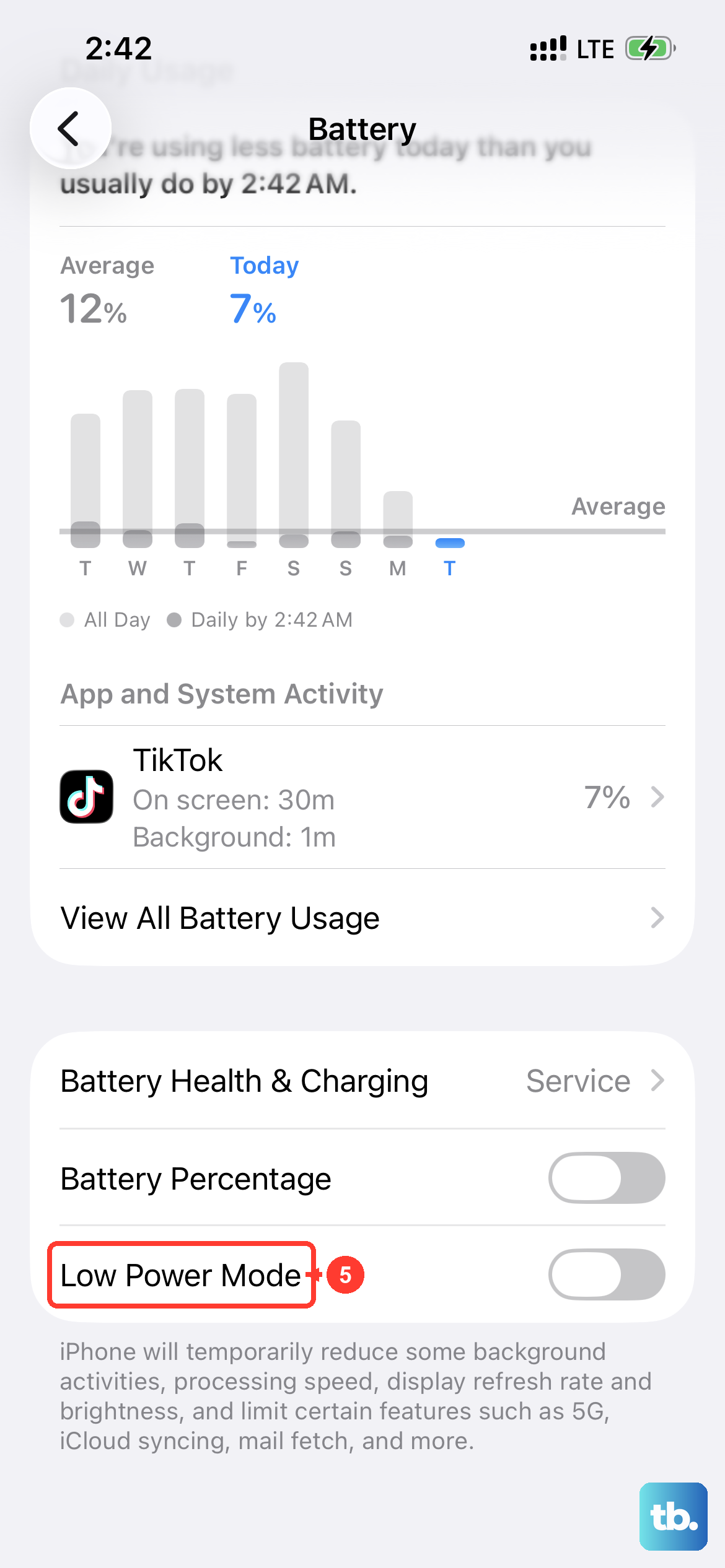
Low Power Mode saves battery by reducing power use, but some features work slower while it's on. A yellow battery icon means it's enabled. If you need your iPhone to run without those restrictions, leave Low Power Mode off and try playing the video again.
You can find it in Control Center or under Settings > Battery > Power Mode. Turn it off to see if your video playback improves.