Your iPhone 17 powered on, flashed the Apple logo, and then just sat there, frozen on that white logo against the black screen with nothing moving forward. Maybe it happened right after a software update, after the battery drained completely, or seemingly out of nowhere. The good news is that a logo that refuses to advance is one of the most recoverable problems an iPhone can have, and most owners fix it without losing a single photo or message. Work through the steps below in order, starting with the safest one, and only move to the data-erasing options if the gentle fixes come up empty.
Start With a Force Restart, the Safe First Move
A frozen startup is almost always the first thing to try to clear with a force restart, and it does not erase any of your data. The iPhone 17 is a Face ID model, so it uses the three-button sequence rather than any Home button method.
Do the presses in order and do not hold the volume buttons; the only button you hold is the last one.
Press and quickly release the Volume Up button.
Press and quickly release the Volume Down button.
Press and hold the Side button until you see the Apple logo, then release.
Because you are already looking at a stuck Apple logo, watch for the screen to go dark first; that blackout is the sign the restart took hold. When the logo reappears on its own, give it a few minutes to finish booting before you decide whether it worked.
Give the Battery an Hour on the Charger
If the iPhone still will not get past the logo, or it suddenly will not turn on at all, a deeply drained battery may be the reason it hangs during startup. Connect it to power using a cable and adapter you trust, then charge your iPhone for one hour and try again.
If a low-battery icon appears on the screen, charge your iPhone for 30 minutes or until it starts.
It is worth being patient here. A battery that has fallen to a critically low level can produce exactly this kind of stall, where there is just enough power to show the logo but not enough to complete the boot.
Rule Out the Cable, Adapter, and USB-C Port
Bad charging hardware can quietly sabotage everything above, so inspect what you are plugging in. Check your charging cable and USB adapter for signs of damage, like breakage or bent prongs, and don't use damaged accessories.
Then turn your attention to the iPhone itself.
Remove any debris from the USB-C charging port on the bottom of the iPhone 17.
Firmly plug your charging cable back into the device.
Try a different cable or charger if you have one available.
Plug directly into the charger without any adapters or other equipment in between.
Once you are confident the cable, adapter, and port are all clean and working, repeat the charge-and-retry attempt from the previous step before moving on.
Install Any Pending iOS Update Once You're Back In
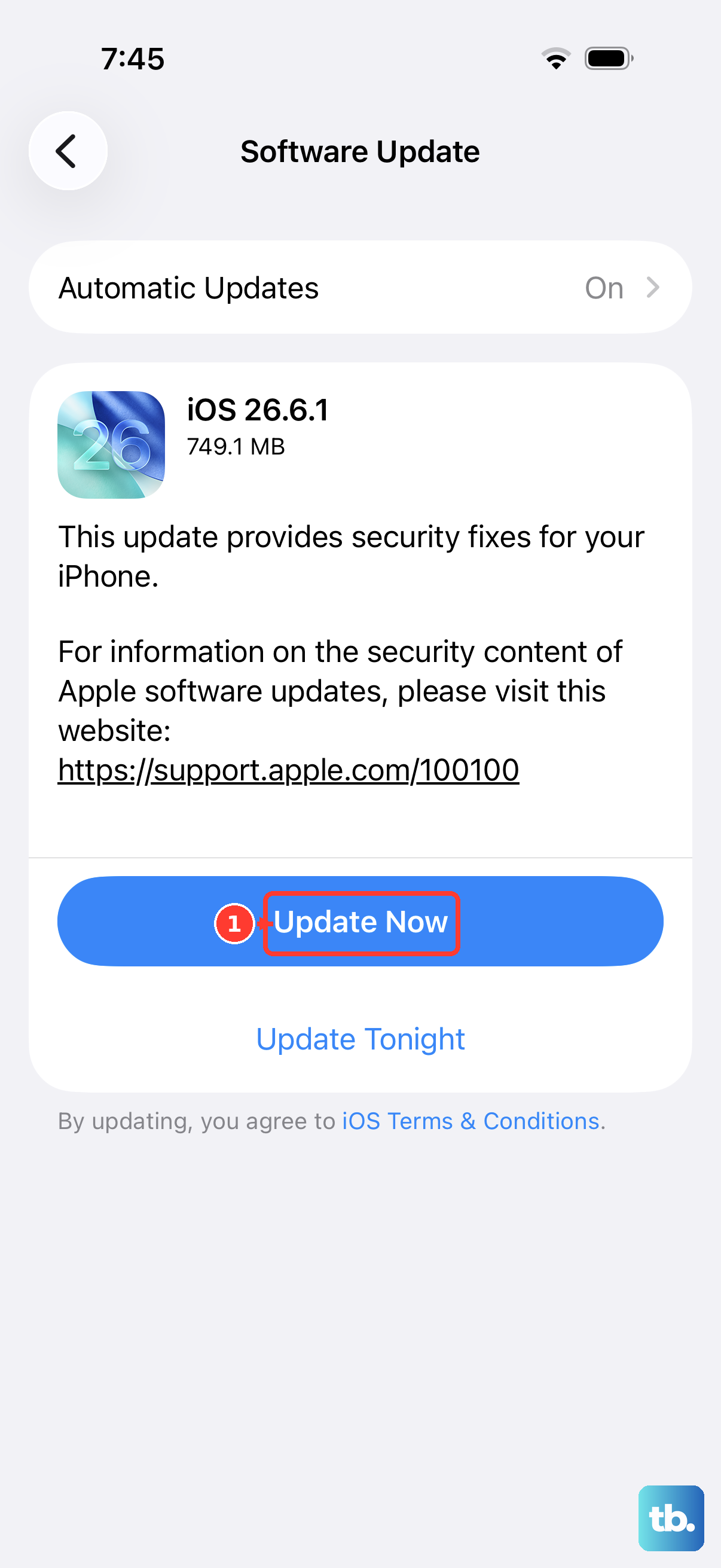
If a force restart gets you all the way back to the Home Screen, take a moment to install any waiting software update before you call it fixed. A pending update can clear the very bug that caused a boot loop in the first place.
The iPhone 17 ships with iOS 26, and keeping it current is the simplest way to head off a repeat.
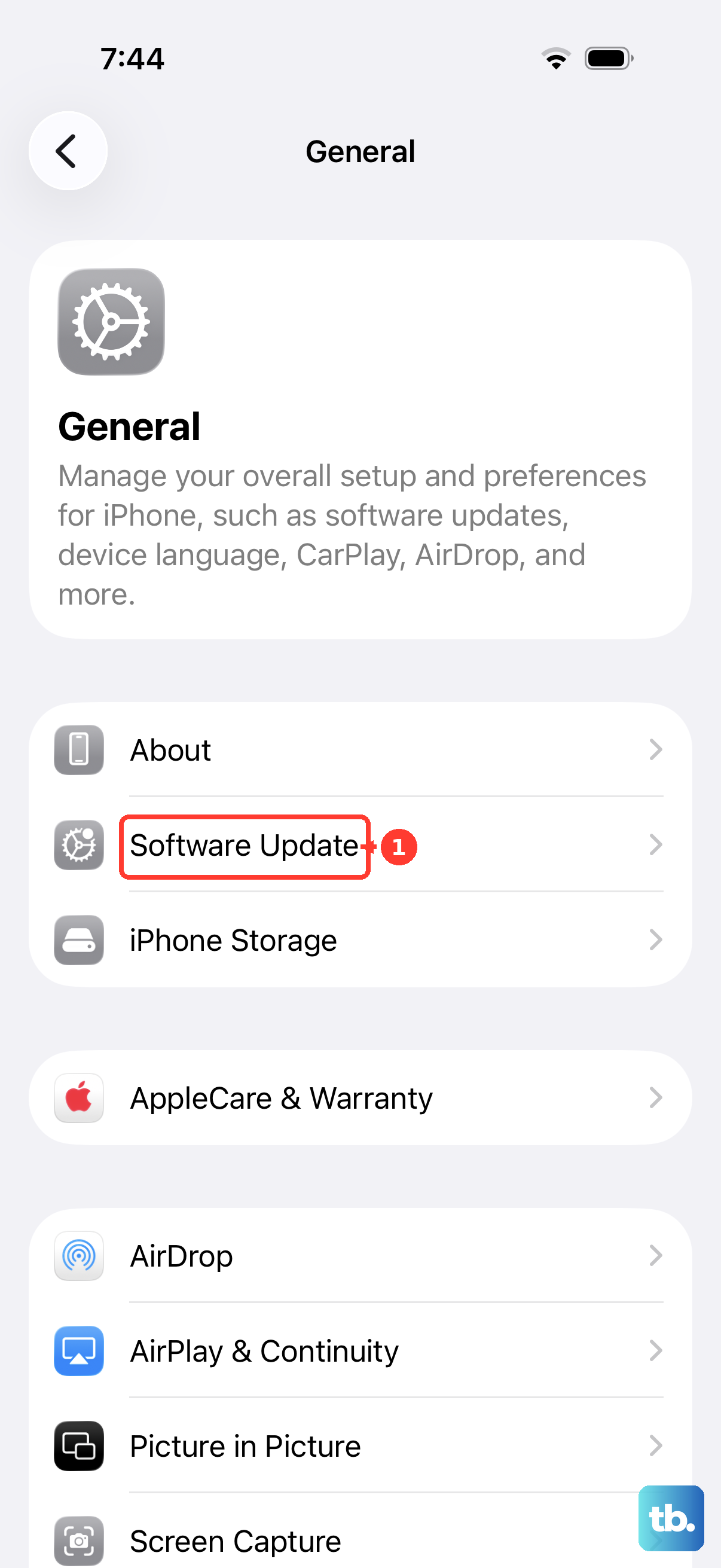
Go to Settings > General > Software Update, then tap Download and Install if an update is available. Plug into power and connect to Wi-Fi first so the download and installation can finish without interruption.
Use Recovery Mode and Choose Update From a Computer
When the phone stays stuck on the logo no matter how many times you force restart it, the next official step uses a computer. Apple itself lists "Apple logo for several minutes with no progress bar" as a reason to use recovery mode, so this is the intended path, not a workaround.
You will need a Mac or a Windows PC and a cable.
- 1.Connect the iPhone 17 to the computer with a cable.
- 2.Open Finder on a Mac, or open the Apple Devices app on a Windows PC.
- 3.On the iPhone, press and quickly release the Volume Up button.
- 4.Press and quickly release the Volume Down button.
- 5.Press and hold the Side button until you see the Connect to computer screen, then release.
- 6.When prompted on the computer, click Update (not Restore).
Choosing Update reinstalls iOS and keeps your personal data, which is exactly why you reach for it before any erase option. Let the process run to completion; it can take a while as the software downloads.
If Update Fails, Restore Through the Computer
Should the Update path not resolve the freeze, the next computer-based option is Restore. With the iPhone 17 still in recovery mode and connected, choose Restore in Finder or the Apple Devices app instead of Update.
Data-loss warning: Restore reinstalls iOS and erases all your data. Use this only after Update has failed, and plan to restore from a backup afterward to get your content back.
If you have a recent backup, this step trades your stuck phone for a clean, working one with your data brought back from that backup.
Erase All Content and Settings as a Last Self-Service Step
If your iPhone 17 does manage to boot but keeps failing afterward, a factory reset from within the phone is the final do-it-yourself option. This is destructive, so treat it accordingly.
Warning: erasing removes all content and settings and restores the iPhone to factory settings, so back up your iPhone first.
Once you have a backup, follow the path below.
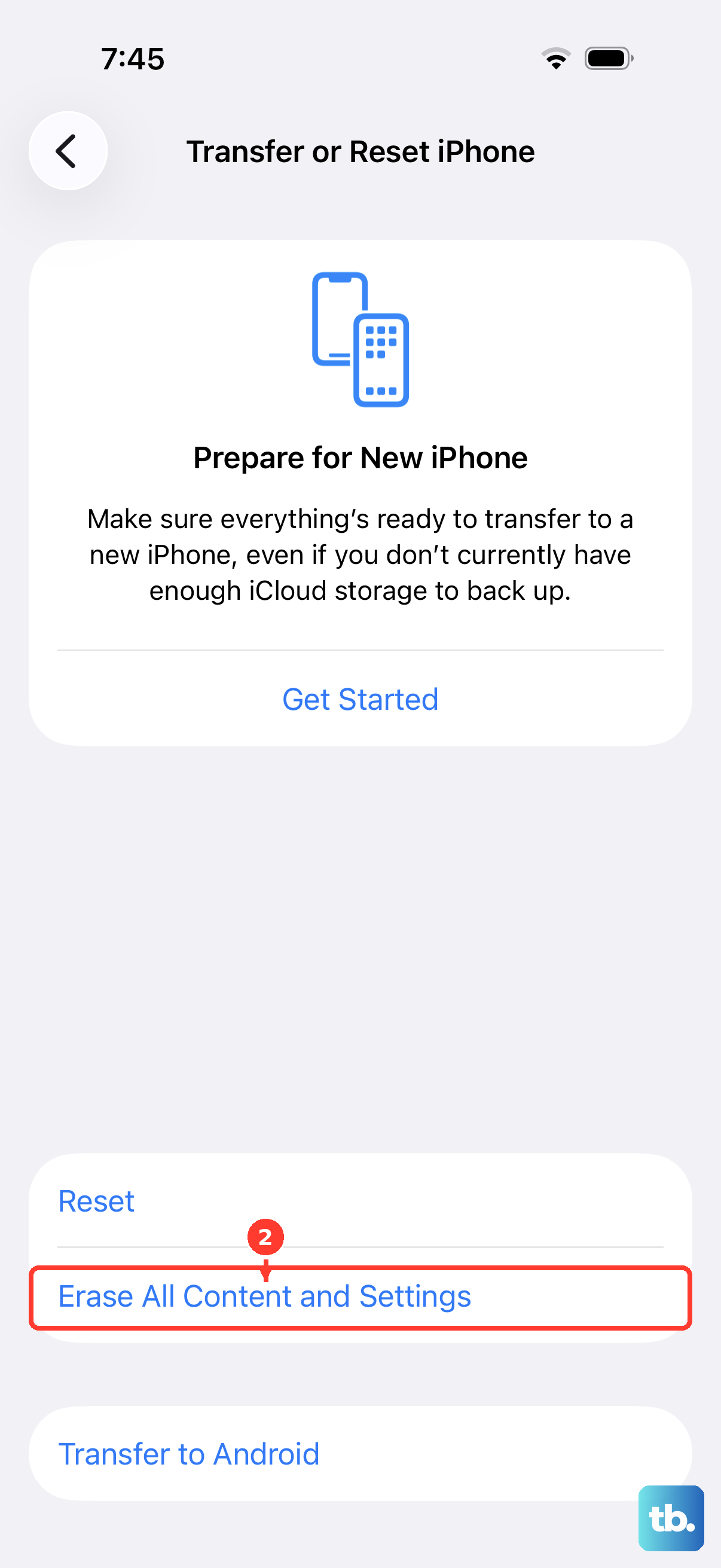
Go to Settings > General > Transfer or Reset iPhone.
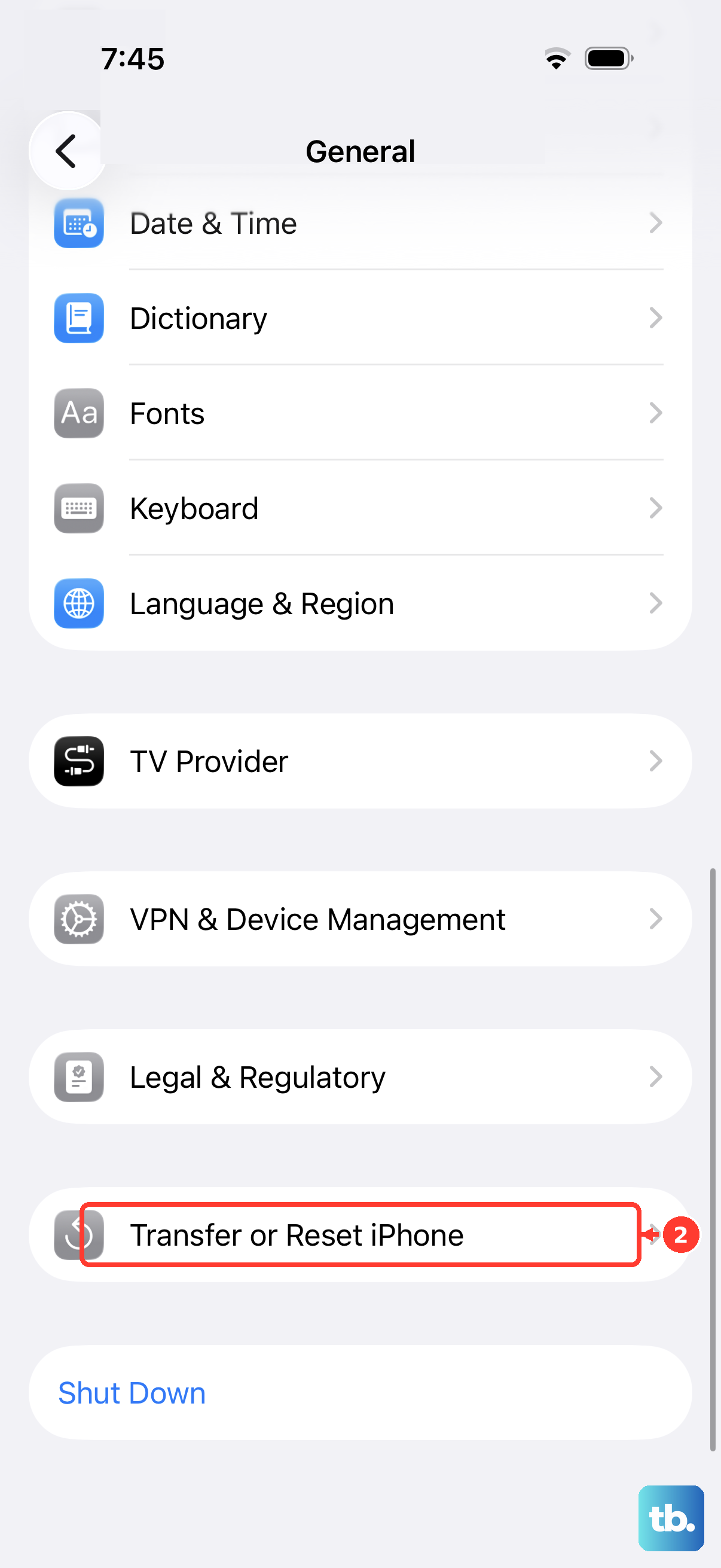
Tap Erase All Content and Settings.
Tap Continue.
Enter your passcode and your Apple Account password when prompted.
After the erase finishes, you can set the iPhone up fresh and restore from the backup you made.
When to Hand It to Apple Support
Hardware sometimes needs hands-on attention, and a logo that will not budge can be a sign of that. If the iPhone 17 still will not get past the Apple logo after a force restart, charging, and a computer Update or Restore, the official guidance is that the device may need service.
At that point, contact Apple Support or visit an Apple Authorized Service Provider rather than continuing to retry the same steps.
Frequently Asked Questions
Will a force restart on my iPhone 17 delete my photos or messages?
No. A force restart simply restarts a frozen or stuck device and does not erase any data. It is the first and safest fix to try for a phone hung on the Apple logo.
What is the exact button sequence to force restart an iPhone 17?
Press and quickly release the Volume Up button, press and quickly release the Volume Down button, then press and hold the Side button until you see the Apple logo, then release. The iPhone 17 is a Face ID model, so this is the correct sequence.
What is the difference between Update and Restore in recovery mode?
Update reinstalls iOS and keeps your personal data, so try it first. Restore reinstalls iOS but erases all your data, so use it only if Update fails, and restore from a backup afterward.
Do I need a computer to fix an iPhone 17 stuck on the logo?
Not always. A force restart, charging, and checking your cable and port are all done on the phone alone. You only need a Mac (Finder) or a Windows PC (the Apple Devices app) once the phone stays stuck and you need to enter recovery mode to Update or Restore.
How long should I leave my iPhone 17 charging before trying again?
If it will not turn on, charge it for one hour and then try again. If a low-battery icon appears on the screen, charge it for 30 minutes or until it starts.