
If your iPhone 17's internet feels like it's crawling, you're not imagining it. A slow connection is incredibly annoying, especially when you're trying to stream or browse. The good news is, this is almost always a software or settings issue you can fix yourself in a few minutes.
Start with the simplest fix first. Give your iPhone 17 a quick restart. Press and quickly release the Volume Up button, then the Volume Down button, and finally press and hold the Side button until you see the Apple logo. This clears out any minor software glitches that might be bogging down your network connection.
Check Your Cellular Data Mode
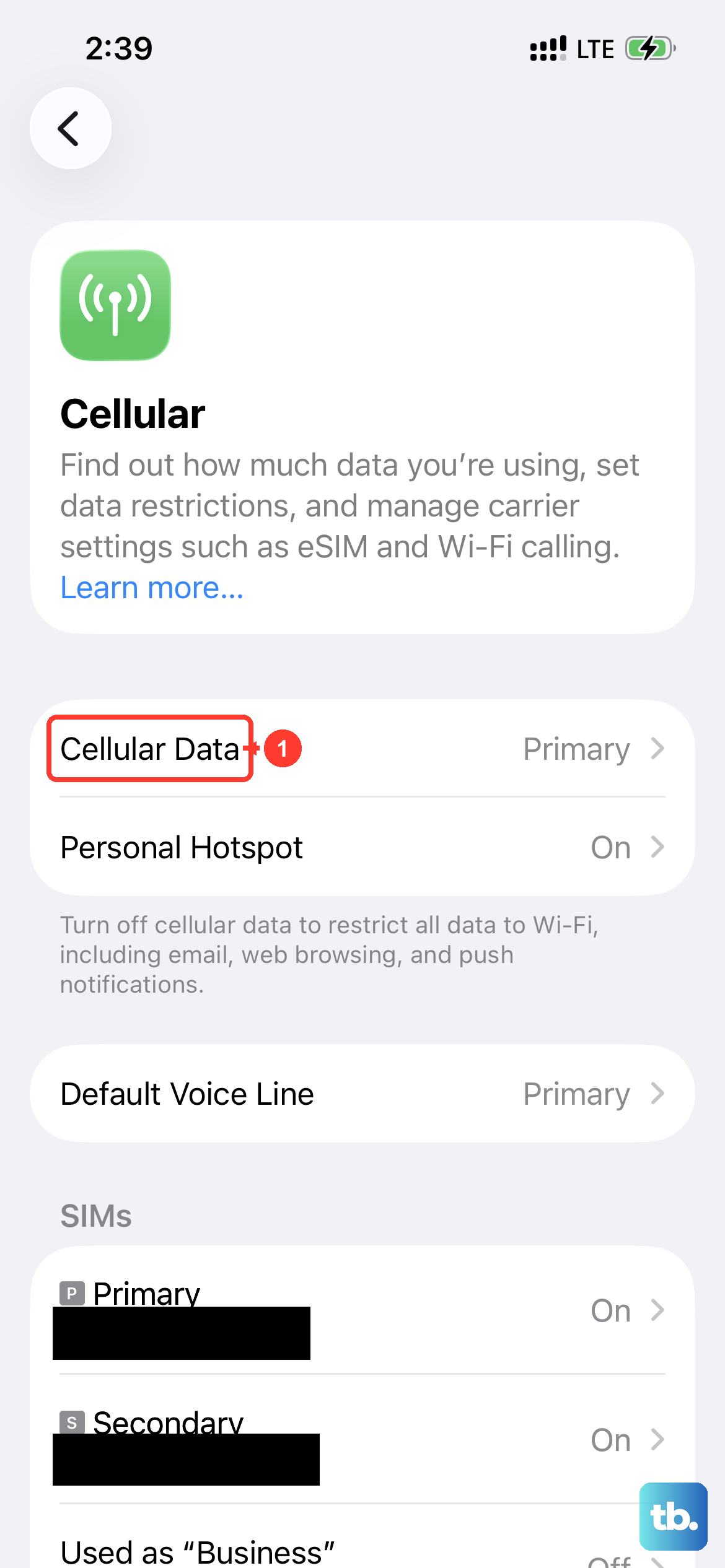
Your iPhone 17 defaults to "5G Auto" to balance speed and battery life. Sometimes, it can get stuck on a slower band. To force it to use the fastest available network, go to Settings > Cellular > Cellular Data Options > Voice & Data. Here, you can select "5G On" for maximum speed.
Keep in mind this might use a bit more battery, but it ensures you're getting the fastest possible cellular connection. If you're in an area with spotty 5G, switching to "LTE" can actually be more stable and faster than a weak, fluctuating 5G signal.
Manage Your WiFi Connection
WiFi can be a culprit, too. First, make sure Connectivity Assist is turned on. It uses cellular data in addition to Wi-Fi when your Wi-Fi connection is slow or unusable. Go to Settings > Wi-Fi, scroll down and turn on Connectivity Assist. It replaced the older Wi-Fi Assist switch that used to sit at the bottom of the Cellular menu.
For the WiFi network you're currently on, you can also enable Low Data Mode. Go to Settings > Wi-Fi, tap the "i" icon next to your network name, and toggle on Low Data Mode. This pauses automatic updates and background tasks on that specific network, freeing up bandwidth for what you're actively doing.
Update iOS and Carrier Settings
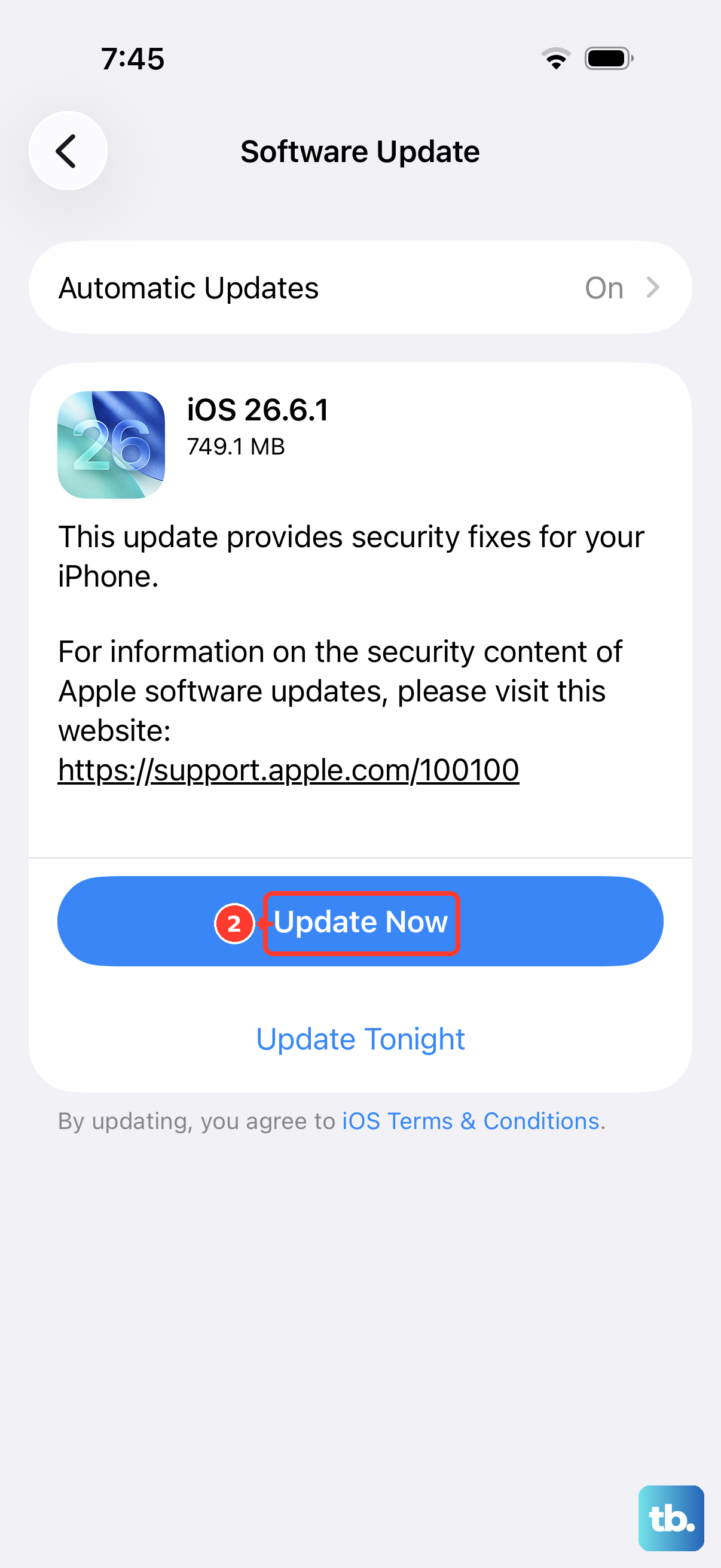
Apple frequently releases iOS updates that include performance tweaks and connectivity fixes. Go to Settings > General > Software Update to check for and install any available updates. Do this while connected to WiFi and plugged into power.
Your carrier also pushes out small updates. To check for a carrier settings update, go to Settings > General > About. If an update is available, a prompt will appear. These updates can improve how your iPhone 17 connects to your provider's network.
Clear Safari's Website Data
Over time, Safari stores data from websites to load them faster, but this cache can become corrupted and slow things down instead. Clearing it out is a good refresh. Head to Settings > Apps > Safari and scroll down to tap "Clear History and Website Data." Confirm your choice.
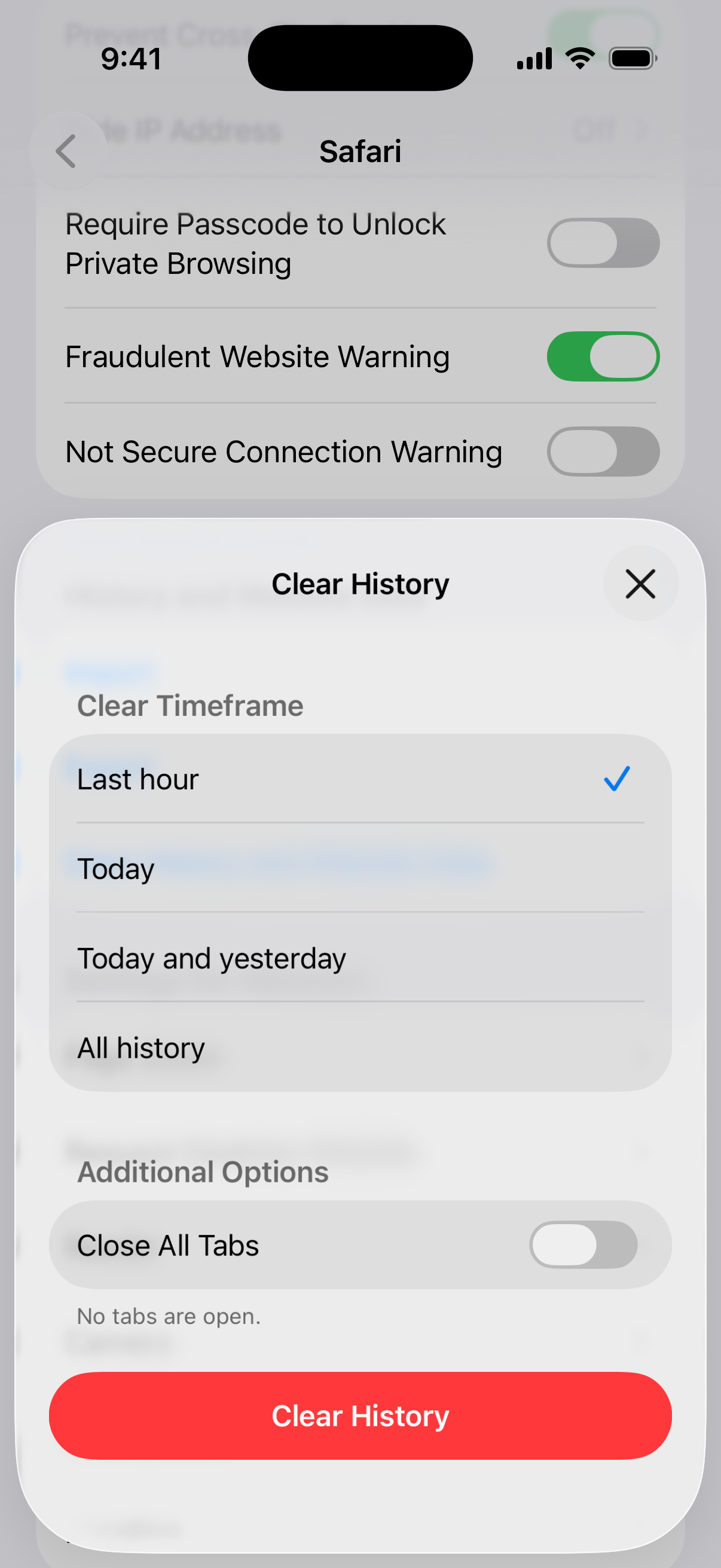
This will log you out of most websites, so you'll need to sign in again. It's a small price to pay for a cleaner, faster browsing experience.
Review Background App Refresh
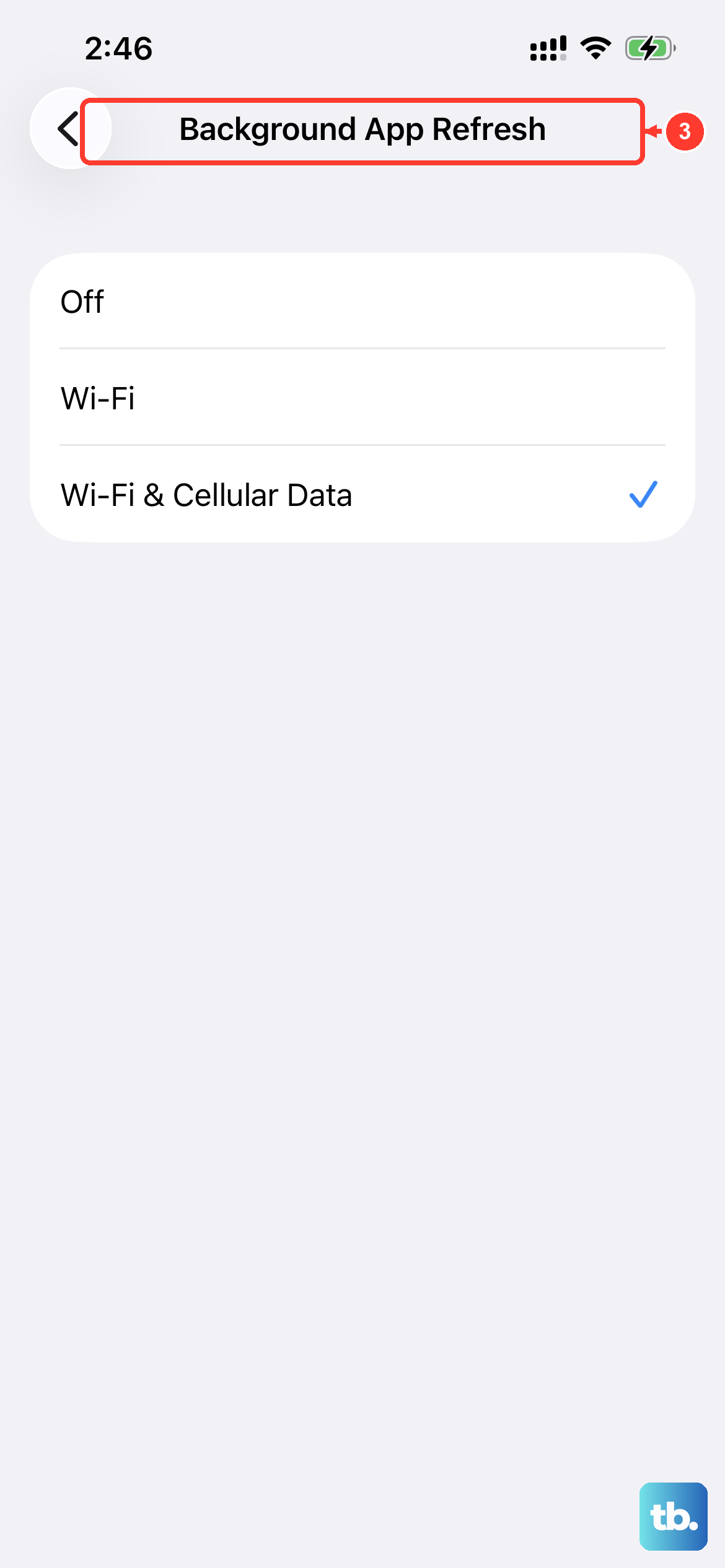
Apps refreshing in the background use data and can slow your current connection. You can control this globally or per app. Go to Settings > General > Background App Refresh. You can set it to "Off," "Wi-Fi," or "Wi-Fi & Cellular Data."
For the fastest performance, set it to "Wi-Fi" only or turn it off completely. If you want some apps to update, you can scroll down and toggle them individually. Social media and news apps are usually the biggest offenders here.
Reset Your Network Settings
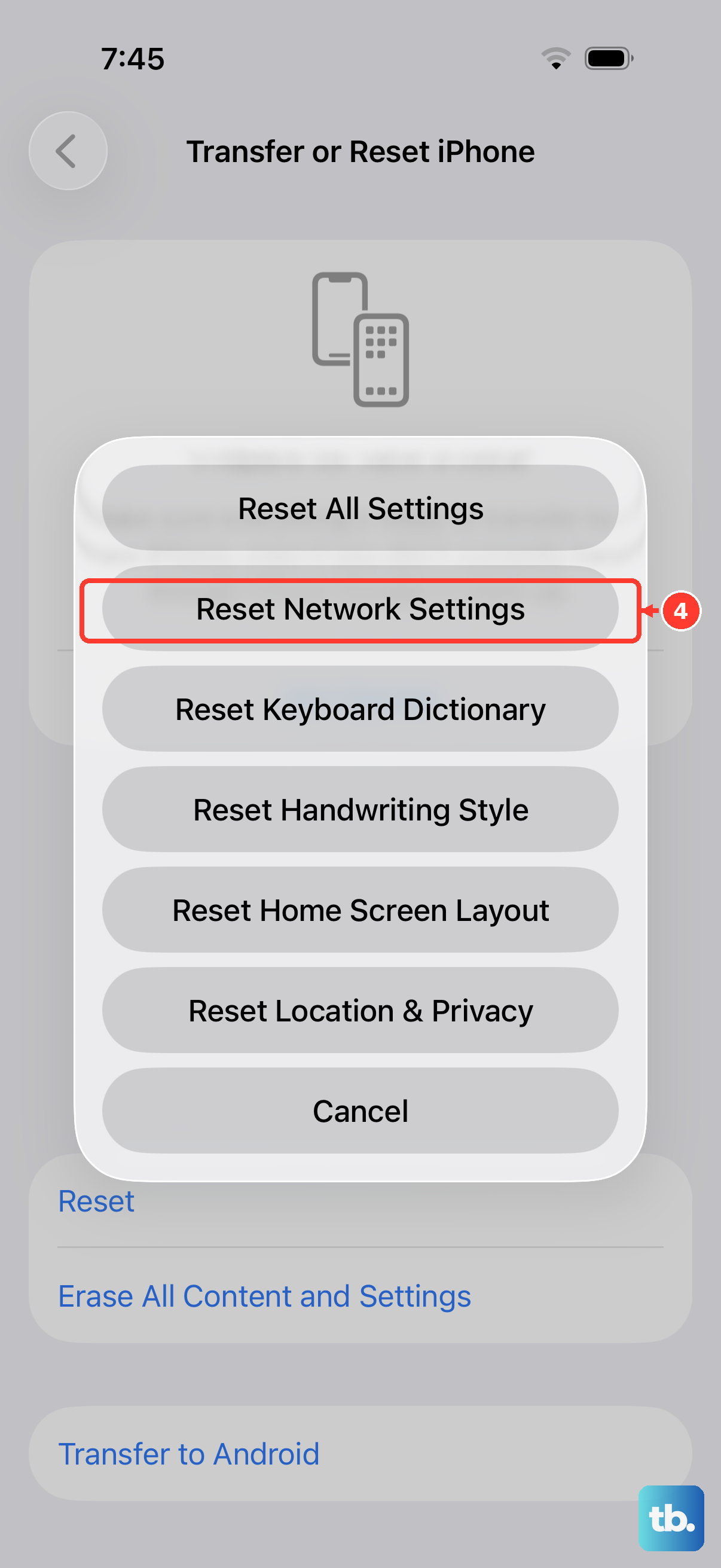
If you've tried everything and your iPhone 17 internet is still slow, this is the nuclear option. It erases all network-related settings, including saved WiFi passwords, cellular settings, and VPN and APN settings, and restores them to factory defaults.
Go to Settings > General > Transfer or Reset iPhone > Reset. Then, tap "Reset Network Settings." Your iPhone will restart. Afterward, you'll need to rejoin your WiFi networks, but it often resolves deep-seated connection issues.
Check for a VPN or Content Blocker
If you're using a VPN app, try disabling it temporarily. VPNs route your traffic through another server, which can significantly slow down your connection speed. The same goes for aggressive Safari content blockers. Try browsing with them turned off to see if your speed improves.
For content blockers, go to Settings > Apps > Safari > Extensions to manage them. You can toggle them off to test, then re-enable them one by one to see if a specific one is causing the slowdown.